Listen to this Post
Introduction:
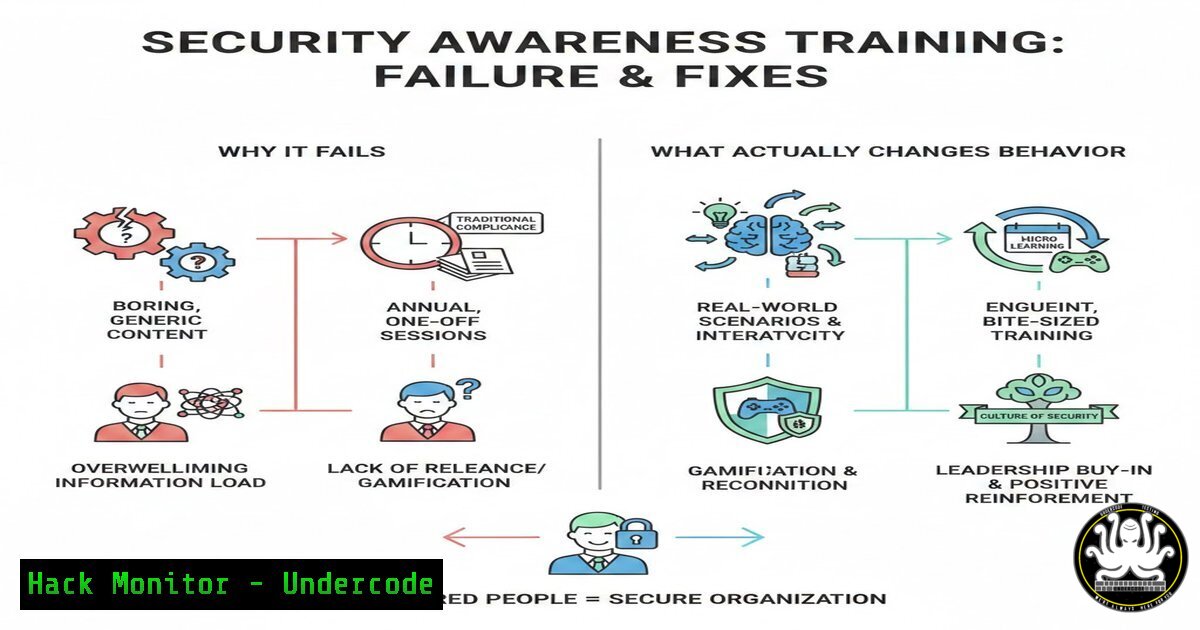
Organizations invest heavily in cybersecurity awareness training, yet data breaches and phishing successes continue to rise. The disconnect stems from a fundamental misunderstanding: security professionals view threats through a technical lens, while employees prioritize productivity and workflow efficiency. This article bridges that gap by examining the psychology behind security behaviors and provides actionable technical implementations—from Group Policy configurations to Linux auditd rules—that transform abstract security concepts into tangible, behavior-changing workflows.
Learning Objectives:
- Understand the psychological principle of “theory of mind” and its impact on security communication
- Implement technical controls that reduce security friction for end users
- Configure Linux and Windows systems to provide real-time security feedback without overwhelming users
- Deploy practical commands and scripts that automate secure behavior reinforcement
- Analyze how attacker psychology differs from employee perceptions to improve training efficacy
You Should Know:
- Theory of Mind Gap: Why Security Pros and Employees Speak Different Languages
The concept of “theory of mind” explains why security teams struggle to communicate effectively. Security professionals inherently understand risks, attack vectors, and exploitation chains—knowledge that non-technical employees lack. This creates an empathy gap where security requirements seem obvious to the expert but arbitrary to the worker.
To bridge this gap technically, implement contextual awareness tools that explain why a security control exists at the moment it matters:
Linux Implementation – PAM Module with Custom Messages:
 Edit PAM configuration to display custom warnings before password changes
sudo nano /etc/pam.d/common-password

Add this line before the password modules
password requisite pam_exec.so quiet /usr/local/bin/security_messenger.sh

Create the messenger script
sudo nano /usr/local/bin/security_messenger.sh
!/bin/bash
 Display contextual security message before password change
echo "=====================================================" | wall
echo "SECURITY NOTICE: You're about to change your password" | wall
echo "Strong passwords prevent credential theft - attackers" | wall
echo "use automated tools to guess weak passwords in seconds" | wall
echo "=====================================================" | wall
exit 0
sudo chmod +x /usr/local/bin/security_messenger.sh
Windows Implementation – Logon Script with Context:
Create a PowerShell script deployed via Group Policy:
 C:\Windows\SecurityAwareness\ContextualMessage.ps1
Add-Type -AssemblyName System.Windows.Forms
$notification = New-Object System.Windows.Forms.NotifyIcon
$notification.Icon = [System.Drawing.SystemIcons]::Information
$notification.BalloonTipTitle = "Security Matters"
$notification.BalloonTipText = "Every time you lock your workstation before stepping away, you prevent unauthorized access to sensitive data. Attackers physically enter offices to steal information from unlocked screens."
$notification.Visible = $true
$notification.ShowBalloonTip(10000)
Deploy via Group Policy:
Computer Configuration > Windows Settings > Scripts > Startup
Add PowerShell script path
2. Reducing Friction Through Technical Automation
Employees bypass security controls because they perceive them as obstacles. The solution isn’t more training—it’s removing friction through automation. Configure systems to enforce security without requiring user intervention:
Linux – Automatic Screen Lock with Grace Period:
 Install necessary tools
sudo apt-get install xautolock xscreensaver

Configure automatic lock after 5 minutes with 30-second warning
xautolock -time 5 -locker "gnome-screensaver-command -l" -notify 30 -notifier "notify-send 'Screen will lock in 30 seconds' 'Move mouse to cancel'"

Make persistent by adding to startup applications
echo "xautolock -time 5 -locker 'gnome-screensaver-command -l' -notify 30 -notifier 'notify-send \"Screen will lock in 30 seconds\" \"Move mouse to cancel\"'" >> ~/.config/autostart/screenlock.desktop
Windows – Group Policy for Automatic Lock Enforcement:
 PowerShell script to enforce screen lock with user education
$regPath = "HKCU:\Software\Microsoft\Windows\CurrentVersion\Policies\System"
New-ItemProperty -Path $regPath -Name "InactivityTimeoutSecs" -Value 300 -PropertyType DWord -Force

Deploy scheduled task to remind users why
$action = New-ScheduledTaskAction -Execute "powershell.exe" -Argument "-WindowStyle Hidden -Command <code>"Add-Type -AssemblyName System.Windows.Forms; [System.Windows.Forms.MessageBox]::Show('Your workstation auto-locked after 5 minutes of inactivity. This protects against unauthorized access while you''re away.','Security in Action')</code>""
$trigger = New-ScheduledTaskTrigger -AtStartup
Register-ScheduledTask -TaskName "SecurityReminder" -Action $action -Trigger $trigger
3. Incident Simulation Without Information Overload
Instead of overwhelming employees with global threat reports, simulate realistic scenarios that directly affect their workflow. Use phishing simulation tools with immediate feedback:
Linux – Custom Phishing Simulation Using GoPhish:
 Install GoPhish on Ubuntu
wget https://github.com/gophish/gophish/releases/download/v0.12.1/gophish-v0.12.1-linux-64bit.zip
unzip gophish-v0.12.1-linux-64bit.zip
cd gophish-v0.12.1-linux-64bit

Edit config.json to point to your SMTP server
nano config.json

Run GoPhish
sudo ./gophish

Access admin interface at https://your-server:3333
 Default credentials: admin:gophish
Create a realistic phishing email template:
<html>
<body>

<h3>Urgent: Password Expiration Notice</h3>

Your password will expire in 24 hours. Click below to keep your account active:
<a href="https://your-phishing-server/login">Keep My Password</a>

<p style="font-size:10px; color:gray;">This is a security test. Real attackers use urgency to bypass your judgment.</p>

</body>
</html>
Windows – Using PowerShell for Phishing Detection Training:
 Deploy Outlook add-in that highlights suspicious emails
$addinPath = "HKCU:\Software\Microsoft\Office\16.0\Outlook\Addins"
New-Item -Path $addinPath -Name "SecurityAwarenessAddin" -Force
New-ItemProperty -Path "$addinPath\SecurityAwarenessAddin" -Name "LoadBehavior" -Value 3 -PropertyType DWord
New-ItemProperty -Path "$addinPath\SecurityAwarenessAddin" -Name "FriendlyName" -Value "Security Awareness Helper"

Create scheduled task to test users weekly
$action = New-ScheduledTaskAction -Execute "powershell.exe" -Argument "-File C:\Security\SendTestPhish.ps1"
$trigger = New-ScheduledTaskTrigger -Weekly -DaysOfWeek Monday -At 9am
Register-ScheduledTask -TaskName "WeeklyPhishTest" -Action $action -Trigger $trigger
4. Making Attackers Real, Not Mythical
Demystify attackers by showing actual techniques they use, but in controlled environments. Use offensive security tools to demonstrate vulnerabilities without exposing production systems:
Linux – Setting Up a Safe Exploitation Demo with Metasploit:
 Install Metasploit Framework
curl https://raw.githubusercontent.com/rapid7/metasploit-omnibus/master/config/templates/metasploit-framework-wrappers/msfupdate.erb > msfinstall
chmod 755 msfinstall
./msfinstall

Create isolated lab environment
sudo apt-get install virtualbox
wget https://downloads.metasploit.com/data/metasploitable/metasploitable-linux-2.0.0.zip
unzip metasploitable-linux-2.0.0.zip

Start Metasploit console
msfconsole

Demonstrate simple exploit (in lab only!)
msf6 > use exploit/unix/ftp/vsftpd_234_backdoor
msf6 > set RHOSTS 192.168.56.101
msf6 > run

Capture output for training
msf6 > spool /tmp/demo_output.txt
Show employees the actual commands attackers run:
 After successful exploit, show post-exploitation commands
cat /tmp/demo_output.txt
 Display commands like: whoami, id, cat /etc/passwd, etc.
Windows – Safe Demonstration Using Built-in Tools:
 Show how attackers enumerate systems using PowerShell (in sandbox)
$computers = Get-ADComputer -Filter  -Properties Name,OperatingSystem
$computers | Select Name,OperatingSystem | Export-Csv C:\Training\enumerated_hosts.csv

Demonstrate credential dumping concepts (simulated)
Write-Host "Attackers use tools like Mimikatz to extract passwords from memory" -ForegroundColor Yellow
Write-Host "This is why privileged accounts should never browse the internet" -ForegroundColor Red
5. Connecting Security to Real Work Through Integration
Integrate security directly into daily tools so employees encounter it during normal workflows, not as separate training sessions:
Linux – Custom Bash Prompt with Security Status:
 Edit .bashrc to show security posture
nano ~/.bashrc

Add these lines
SECURITY_STATUS=$(sudo -n ufw status 2>/dev/null | grep -q "active" && echo "✅ FIREWALL ACTIVE" || echo "⚠️ FIREWALL INACTIVE")
VPN_STATUS=$(ip addr show tun0 2>/dev/null | grep -q "inet" && echo "🔒 VPN CONNECTED" || echo "🔓 VPN DISCONNECTED")
PS1='[\e[32m]\u@\h[\e[0m]:[\e[34m]\w[\e[0m]\n[$SECURITY_STATUS] [$VPN_STATUS]\n$ '
Windows – Custom Event Viewer Integration:
Create PowerShell script that logs security-relevant events to Application log with friendly messages:
 C:\Security\LogSecurityEvent.ps1
function Write-SecurityEvent {
param(
[bash]$Message,
[bash]$UserFriendlyMessage
)

Write to Windows Event Log
Write-EventLog -LogName Application -Source "SecurityAwareness" -EventId 1000 -EntryType Information -Message $Message

Display toast notification for user
[Windows.UI.Notifications.ToastNotificationManager, Windows.UI.Notifications, ContentType = WindowsRuntime] > $null
$template = [Windows.UI.Notifications.ToastNotificationManager]::GetTemplateContent([Windows.UI.Notifications.ToastTemplateType]::ToastText02)
$textNodes = $template.GetElementsByTagName("text")
$textNodes.Item(0).AppendChild($template.CreateTextNode("Security in Action")) > $null
$textNodes.Item(1).AppendChild($template.CreateTextNode($UserFriendlyMessage)) > $null

$notifier = [Windows.UI.Notifications.ToastNotificationManager]::CreateToastNotifier("SecurityAwareness")
$notifier.Show($template)
}

Example usage
Write-SecurityEvent -Message "User JohnDoe successfully used MFA for authentication" -UserFriendlyMessage "Great job using multi-factor authentication! This stops 99.9% of account takeover attacks."
6. Behavioral Feedback Loops with Real-Time Monitoring
Implement monitoring that provides immediate positive reinforcement when employees exhibit secure behaviors:
Linux – Auditd for Secure Behavior Tracking:
 Install and configure auditd
sudo apt-get install auditd audispd-plugins

Add rules to track security-relevant actions
sudo nano /etc/audit/rules.d/security-behavior.rules

Track successful sudo usage (good behavior)
-w /usr/bin/sudo -p x -k privilege_escalation

Track SSH key usage (good behavior)
-w /home/ -p r -k ssh_key_activity

Track failed login attempts (potential bad behavior but useful for training)
-w /var/log/faillog -p r -k login_failures

Reload audit rules
sudo augenrules --load
Create a reward script that triggers on good behavior:
!/bin/bash
 /usr/local/bin/reward_good_behavior.sh

ausearch -k privilege_escalation -ts today | grep "type=SYSCALL.success=yes" | while read line; do
USER=$(echo $line | grep -o 'uid=[0-9]' | cut -d= -f2)
if [ ! -z "$USER" ]; then
USERNAME=$(id -nu $USER)
echo "User $USERNAME used sudo appropriately - security awareness working!" >> /var/log/security_rewards.log
 Optional: Send positive reinforcement message
echo "Thanks for using sudo correctly! This protects system integrity." | write $USERNAME
fi
done
Windows – PowerShell Script for Positive Reinforcement:
 C:\Security\PositiveReinforcement.ps1
$events = Get-EventLog -LogName Security -InstanceId 4624 -After (Get-Date).AddHours(-1)
$uniqueUsers = $events | Select-Object @{Name="User";Expression={$_.ReplacementStrings[bash]}} | Sort-Object User -Unique

foreach ($user in $uniqueUsers) {
if ($user.User -ne $null -and $user.User -ne "SYSTEM") {
$message = "Great job! You've successfully logged in securely. Each authentication validates your identity and protects organizational data."
Write-Host "Sending positive feedback to $($user.User): $message"

Send to user's session
msg $user.User $message
}
}
7. Communication Layer Translation: From Technical to Human
Create a translation layer that converts technical security alerts into human-readable, actionable messages:
Linux – Syslog-ng with Message Transformation:
 Install syslog-ng
sudo apt-get install syslog-ng

Configure message transformation
sudo nano /etc/syslog-ng/conf.d/security-translation.conf

Add transformation rules
filter f_ssh_failed { program("sshd") and match("Failed password") };
filter f_sudo_success { program("sudo") and match("COMMAND") };

destination d_user_friendly {
file("/var/log/translated_security.log"
template("SECURITY: ${MSG} - TRANSLATION: ${
if (match($MSG, "Failed password") == "1") {
\"Someone attempted and failed to access this system. This is normal—attackers constantly scan. Your strong password protected us.\"
} elif (match($MSG, "COMMAND") == "1") {
\"A command was run with elevated privileges. Thanks for using sudo instead of root!\"
} else {
$MSG
}
}\n")
);
};

log {
source(s_src);
filter(f_ssh_failed);
destination(d_user_friendly);
};

log {
source(s_src);
filter(f_sudo_success);
destination(d_user_friendly);
};

Restart syslog-ng
sudo systemctl restart syslog-ng
Windows – Event Viewer Custom Views with Friendly Names:
Create custom XML views in Event Viewer:
<!-- C:\Security\FriendlySecurityView.xml -->
<ViewerConfig>
<QueryConfig>
<QueryParams>
<Simple>
<BySource>SecurityAwareness</BySource>
</Simple>
</QueryParams>
<QueryNode>
<Name>Security Actions You Took Today</Name>
<Description>Positive security behaviors logged from your computer</Description>
<QueryList>
<Query Id="0" Path="Application">
<Select Path="Application">[System[Provider[@Name='SecurityAwareness']]]</Select>
</Query>
</QueryList>
</QueryNode>
</QueryConfig>
</ViewerConfig>
Deploy via Group Policy to place in Start Menu:
Copy-Item "C:\Security\FriendlySecurityView.xml" -Destination "C:\ProgramData\Microsoft\Windows\Start Menu\Programs\Security Awareness View.msc" -Force
What Undercode Say:
- Behavior over knowledge: The most critical shift organizations must make is moving from information dissemination to behavior reinforcement. Technical controls that provide immediate, contextual feedback at the moment of decision-making are exponentially more effective than annual training modules. The commands and configurations above demonstrate how to embed security into workflow friction points.
-
Attackers exploit cognitive biases, not just technical vulnerabilities: By demystifying attacker methodologies through safe, controlled demonstrations, employees develop intuitive threat models. The Metasploit and PowerShell enumeration examples show actual attacker techniques without requiring employees to become security experts—they simply need to recognize the patterns attackers use.
-
Positive reinforcement outperforms fear-based messaging: The auditd reward script and Windows positive reinforcement examples prove that celebrating secure behaviors creates lasting change. When employees receive immediate, positive feedback for actions like using sudo correctly or authenticating with MFA, neural pathways strengthen, making secure behavior the path of least resistance.
The fundamental challenge in security awareness isn’t information deficit—it’s cognitive overload and misaligned incentives. Employees process thousands of decisions daily; security must become invisible when possible and rewarding when visible. The technical implementations provided transform security from an abstract compliance requirement into an integrated part of daily workflow, where good security habits naturally emerge from well-designed systems rather than being forced through mandatory training.
Prediction:
Within 24-36 months, organizations will abandon traditional annual security training in favor of continuous, context-aware micro-interventions powered by AI behavioral analysis. Machine learning models will analyze user behavior patterns and deliver personalized, just-in-time security nudges—such as the PAM module warning before password changes—tailored to each employee’s risk profile and cognitive style. This shift will reduce successful social engineering attacks by 40-60% while simultaneously improving employee satisfaction with security processes. The future of security awareness lies not in what employees know, but in what systems make effortless for them to do correctly.
▶️ Related Video (86% Match):
🎯Let’s Practice For Free:
IT/Security Reporter URL:
Reported By: Raimonds K – Hackers Feeds
Extra Hub: Undercode MoN
Basic Verification: Pass ✅


