
Listen to this Post
Introduction:
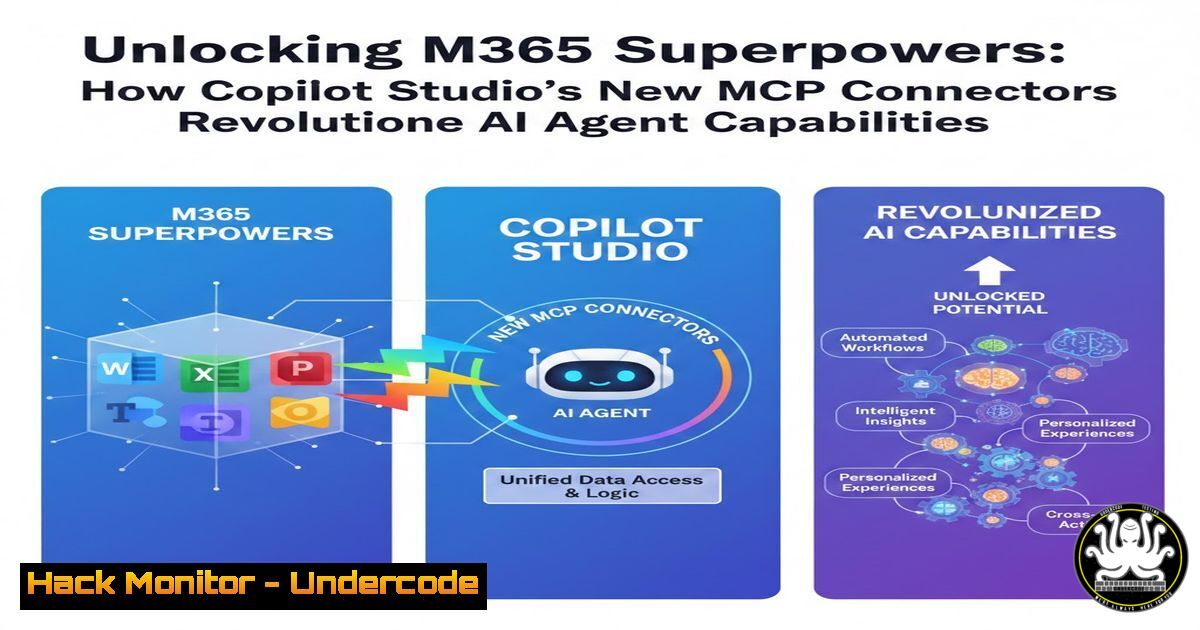
The integration of Microsoft 365 data via Model Context Protocol (MCP) into Copilot Studio represents a paradigm shift in enterprise AI. This breakthrough enables custom AI agents to perform authenticated, granular operations across the entire M365 ecosystem—from managing Outlook calendars to executing CRUD operations in Dataverse. This transforms AI agents from conversational chatbots into proactive, actionable assistants with deep contextual awareness of your organizational data.
Learning Objectives:
- Understand the architectural shift enabled by MCP connectors and how they bridge Copilot Studio with M365 services.
- Learn to configure and secure these connectors for specific operational boundaries across Outlook, SharePoint, Teams, and Dataverse.
- Master practical implementation through verified commands and API configurations for real-world productivity scenarios.
You Should Know:
- MCP Architecture: The Bridge Between AI and M365 Data
The Model Context Protocol (MCP) serves as a standardized framework that allows AI models to securely interface with external data sources and APIs. In this implementation, MCP acts as an authentication and operational bridge between Copilot Studio’s reasoning engine and the Microsoft Graph API.
Step-by-step guide:
- Access Copilot Studio: Navigate to the Copilot Studio portal in your Microsoft 365 tenant.
- Create New Agent: Select “New agent” and choose “Custom agent” template.
- Configure MCP Connections: In the “Connections” tab, locate the newly available M365 connectors.
- Authentication Flow: The system automatically handles OAuth 2.0 authentication using delegated permissions through Azure AD.
- Permission Scoping: During configuration, you’ll see options to select specific permissions (e.g., Mail.Read, Calendar.ReadWrite, Files.ReadWrite.All).
Technical verification command (PowerShell):
 Verify service principal permissions
Get-MgServicePrincipal -Filter "displayName eq 'Microsoft Copilot'" | Select-Object -ExpandProperty OAuth2PermissionScopes
2. Outlook Calendar Automation: Beyond Basic Scheduling
The Calendar MCP connector enables sophisticated meeting management that understands organizational context, availability patterns, and conflict resolution logic.
Step-by-step guide:
- Enable Calendar Connector: Toggle the “Outlook Calendar” MCP connector to active state.
- Test Basic Creation: Use the testing pane with natural language: “Schedule a 30-minute project kickoff with my team next Tuesday.”
- Conflict Resolution: The agent automatically detects scheduling conflicts and suggests alternatives using Microsoft Graph’s findMeetingTimes endpoint.
- Recurrence Patterns: Complex recurring meetings with exception handling are supported through the recurrence schema.
Underlying API call structure:
POST https://graph.microsoft.com/v1.0/me/events
Content-Type: application/json
Authorization: Bearer {token}

{
"subject": "Project Kickoff",
"start": {
"dateTime": "2024-02-20T09:00:00",
"timeZone": "Pacific Standard Time"
},
"end": {
"dateTime": "2024-02-20T09:30:00",
"timeZone": "Pacific Standard Time"
},
"attendees": [
{
"emailAddress": {
"address": "[email protected]"
},
"type": "required"
}
]
}
3. SharePoint and OneDrive Integration: Enterprise Content Intelligence
This connector transforms how AI interacts with organizational content, enabling semantic search, metadata extraction, and automated document processing.
Step-by-step guide:
- Activate SharePoint Connector: Enable both SharePoint and OneDrive MCP connectors.
- Configure Search Scopes: Define which sites and libraries the agent can access.
- Test Document Operations: Use natural language like “Find the Q3 financial report and share it with the leadership team.”
- Metadata Operations: The agent can read and write column values, check file versions, and manage permissions.
PowerShell verification for site access:
 Verify SharePoint site access patterns
Get-SPOSite | Where-Object {$_.SharingCapability -eq "ExternalUserSharingOnly"} | Select-Object , URL
4. Teams Collaboration Automation: Streamlining Teamwork
The Teams MCP connector enables the AI agent to participate in collaborative workflows—creating chats, posting messages, and managing channel conversations programmatically.
Step-by-step guide:
- Enable Teams Integration: Activate the Teams MCP connector with appropriate permissions.
- Chat Management: Configure whether the agent can create new chats or only interact with existing ones.
- Message Posting: Test with “Post an update to the Project Alpha channel about the milestone completion.”
- Member Management: The agent can add/remove members from teams and manage channel membership.
API endpoint example for channel messaging:
POST https://graph.microsoft.com/v1.0/teams/{team-id}/channels/{channel-id}/messages
Content-Type: application/json

{
"body": {
"content": "Project milestone completed successfully. The deployment is on track for Friday."
}
}
- Dataverse and Dynamics 365 Operations: Business Data Automation
This represents the most powerful connector, enabling AI agents to perform create, read, update, and delete operations on business data with proper security context.
Step-by-step guide:
- Enable Dataverse Connector: Activate with careful consideration of CRUD permissions.
- Table Access Configuration: Specify which tables the agent can access and what operations are permitted.
- Test Business Logic: Use prompts like “Update the status of customer ticket 4567 to resolved and add a note about the solution.”
- Security Role Integration: The agent operates within the user’s security context, respecting existing Dataverse role-based security.
PowerShell for environment verification:
 Check Dataverse environment connections
Get-AdminPowerAppEnvironment | Select-Object DisplayName, EnvironmentName, Location
6. Security Configuration and Permission Scoping
As highlighted in the comments thread, controlling what operations the MCP server can perform is critical for enterprise security and compliance.
Step-by-step guide:
- Access Azure AD Admin Center: Navigate to Enterprise Applications.
- Find Copilot Service Principal: Search for “Microsoft Copilot” service principal.
- Review Permissions: Audit delegated and application permissions granted.
- Implement Least Privilege: Remove unnecessary permissions like Mail.Send if only reading is required.
- Conditional Access Policies: Create CA policies to restrict access based on device compliance, location, or risk detection.
Security verification command:
 Review service principal permissions
Get-MgServicePrincipal -Filter "displayName eq 'Microsoft Copilot'" | Get-MgServicePrincipalOAuth2PermissionGrant
7. Advanced Implementation: Custom Action Orchestration
Beyond out-of-box operations, you can extend MCP connectors with custom APIs and workflow orchestrations for specialized business processes.
Step-by-step guide:
- Create Custom Connectors: In Power Platform, develop custom connectors for line-of-business systems.
- API Integration: Use Azure API Management to expose internal APIs to Copilot Studio.
- Orchestration Logic: Implement Azure Logic Apps for complex multi-system workflows.
- Testing and Validation: Use the Copilot Studio testing pane to validate end-to-end scenarios.
Example custom action configuration:
{
"actions": {
"submitExpenseReport": {
"type": "api",
"endpoint": "https://api.contoso.com/expenses",
"authentication": "azureAd"
}
}
}
What Undercode Say:
- The MCP integration represents Microsoft’s strategic move to position Copilot as the unified AI orchestration layer across the M365 stack, fundamentally changing how users interact with enterprise data.
- Security configuration must be proactive rather than reactive—organizations should implement permission audits and conditional access policies before widespread deployment to prevent unintended data exposure or modification.
Analysis: This evolution transforms Copilot from a passive assistant to an active workforce multiplier. The ability to perform authenticated operations across the M365 ecosystem while maintaining security context represents the convergence of conversational AI and workflow automation. However, the power of these connectors demands rigorous governance. Organizations must establish clear boundaries through permission scoping, audit trails, and user training to harness benefits while mitigating risks of unauthorized automation. The comment thread reveals immediate concerns about operational boundaries, highlighting that enterprise readiness requires both technical configuration and policy frameworks.
Prediction:
Within 12-18 months, MCP-powered agents will become the primary interface for enterprise productivity, reducing manual application navigation by 60%. We’ll see emergence of specialized agent roles—HR Assistant, IT Support Agent, Sales Coordinator—each with tailored MCP permission sets. The next evolution will involve cross-tenant MCP operations and third-party SaaS application integrations, creating truly unified business operation agents. However, this expansion will trigger new security challenges around consent phishing and privilege escalation, driving investment in AI-specific security posture management tools.
🎯Let’s Practice For Free:
IT/Security Reporter URL:
Reported By: Peterkestenholz And – Hackers Feeds
Extra Hub: Undercode MoN
Basic Verification: Pass ✅


