Listen to this Post
Introduction:
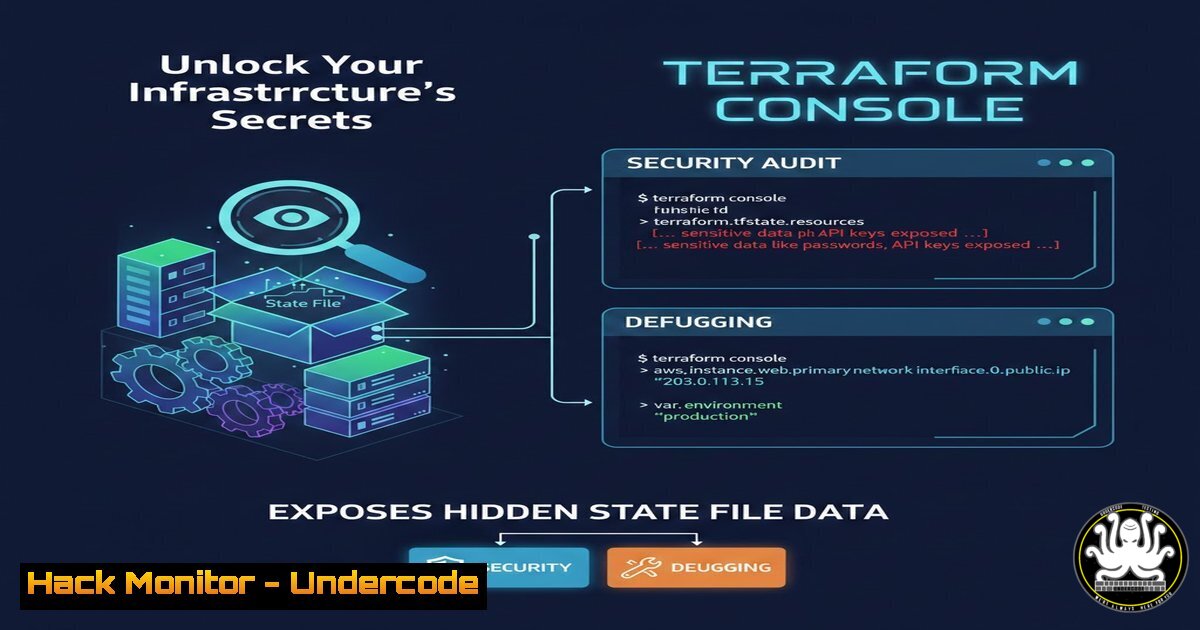
In the world of Infrastructure as Code (IaC), the Terraform state file is a critical, yet often opaque, repository of your environment’s ground truth. While powerful, its complex JSON structure can obscure vital security attributes and configuration details. The `terraform console` command emerges as a crucial tool for security practitioners and DevOps engineers, providing direct, read-only access to interrogate this state, revealing hidden IDs, endpoints, and misconfigurations that could be goldmines for both defenders and attackers.
Learning Objectives:
- Understand how to use `terraform console` as a security auditing and incident response tool.
- Learn to extract sensitive attribute references, such as Principal IDs and private endpoints, directly from the state.
- Develop methodologies to map and verify infrastructure posture against known security baselines using state data.
You Should Know:
- Accessing and Navigating the Terraform Console for Reconnaissance
The `terraform console` command launches an interactive shell with full read-access to your current Terraform state. This is the first step in any state file investigation, allowing you to navigate your resources as structured objects rather than raw JSON.
Step‑by‑step guide explaining what this does and how to use it.
Step 1: Open a terminal (Linux/macOS) or PowerShell/CMD (Windows) in your Terraform project directory.
Step 2: Ensure you have initialized the project (terraform init) and have a populated state file (terraform.tfstate) from a previous apply.
Step 3: Launch the console:
terraform console
Step 4: You will see a new prompt >. Here, you can type expressions to query resources. Start by listing a resource. For example, to inspect a resource group:
<blockquote>
  azurerm_resource_group.main
This command outputs every attribute of the `main` resource group, including those not defined in your Terraform configuration or outputs, such as Azure-generated IDs.
2. Extracting Security-Critical Attributes and Hidden Data
The state file contains sensitive information generated by the cloud provider after resource creation. This includes system-managed identity object IDs, private IP addresses, and database connection strings that may not be visible in your code.
Step‑by‑step guide explaining what this does and how to use it.
Step 1: Within the console, you can drill down using dot notation. To get the object ID of a managed identity associated with a virtual machine:
<blockquote>
  azurerm_linux_virtual_machine.web.identity[bash].principal_id
Step 2: To find the private IP address of a network interface:
azurerm_network_interface.app.private_ip_address
Step 3: You can also use the console to test functions that help decode or manipulate this data. For example, to check if a storage account endpoint is publicly accessible, you might evaluate:
can(azurerm_storage_account.data.primary_web_endpoint)
3. Auditing for Compliance and Misconfigurations
Manually comparing deployed resources against security policy is tedious. The console allows for rapid, scriptable queries to verify settings across your estate directly from the state.
Step‑by‑step guide explaining what this does and how to use it.
Step 1: Query specific attributes en masse. For instance, to check the TLS version for all App Service plans in your state, you would need to know their addresses. First, find the resource names from your state.
Step 2: A more advanced technique involves using Terraform’s `local` values within the console to perform checks. While in the project directory but outside the console, you could create a script that uses `terraform console` with a heredoc for batch processing:
terraform console <<EOF
azurerm_app_service_plan.apps[].site_config[bash].min_tls_version
EOF
This (conceptual) command would output a list of TLS versions for all `azurerm_app_service_plan` instances named apps.
- The Security Risk: State Files as an Attack Vector
Understanding this capability highlights a critical risk: an exposed state file is a blueprint for reconnaissance. The console makes data extraction trivial for an attacker who gains access to the state file.
Step‑by‑step guide explaining what this does and how to use it.
Step 1: Mitigation – Backend Security: Always use a remote backend (like Azure Blob Storage, AWS S3, or Terraform Cloud) with strict access controls and encryption enabled. Never commit `.tfstate` files to version control.
 Example backend.tf for Azure
terraform {
backend "azurerm" {
resource_group_name = "tfstate-rg"
storage_account_name = "tfstatesa"
container_name = "tfstate"
key = "prod.terraform.tfstate"
}
}
Step 2: Mitigation – State Encryption: Ensure your backend supports and has encryption-at-rest enabled. For Azure Storage, enable SSE with customer-managed keys.
Step 3: Mitigation – Access Control: Use Role-Based Access Control (RBAC) to restrict read/write access to the storage container holding the state file. The principle of least privilege is paramount.
5. Integrating Console Insights with Security Tooling
The data extracted via `terraform console` can feed into security information and event management (SIEM) systems or configuration management databases (CMDBs) for continuous monitoring.
Step‑by‑step guide explaining what this does and how to use it.
Step 1: Write a Python script using the `subprocess` module to run `terraform console` commands and parse the JSON-like output.
Step 2: Structure the script to extract specific attributes of interest (e.g., all public IP addresses, all security group IDs).
Step 3: Convert this data into a structured format (JSON) and send it to your security dashboard via API.
 Example Python snippet concept
import subprocess, json
command = 'terraform console -json <<< "azurerm_public_ip.gateway.ip_address"'
result = subprocess.run(command, shell=True, capture_output=True, text=True)
 Parse result and send to SIEM API
Step 4: Schedule this script to run periodically in your CI/CD pipeline to maintain an up-to-date asset inventory for vulnerability management.
What Undercode Say:
- The `terraform console` is a dual-use tool: an essential debugger for engineers and a potent reconnaissance weapon for attackers. Its ability to bypass the Terraform code and query the actual deployed state reveals the gap between intended and actual configuration.
- Securing the Terraform state file is as critical as securing your infrastructure secrets. An unencrypted, poorly ACL-ed state file compromises every secret and connection string within your deployed resources, making backend hardening non-negotiable.
Analysis: The post underscores a pivotal shift-left security concept: visibility. In modern IaC-driven environments, security cannot be an afterthought applied only to runtime workloads. The provisioning pipeline and its artifacts (like state files) are Tier 0 assets. The `terraform console` elegantly solves a real operational problem but simultaneously exposes the profound risk inherent in the IaC model. It forces a security paradigm where the state file must be treated with the same confidentiality as a password vault. Future security frameworks will likely mandate automated, periodic state file audits using these very techniques to detect drift and misconfiguration before they can be exploited.
Prediction:
The integration of IaC state analysis into automated security orchestration will become standard practice. We will see the rise of specialized “IaC Security Posture Management” tools that continuously pull data from state files (via mechanisms like `console` or direct API access to backends) to correlate configured resources with cloud security benchmarks, detect secrets leakage, and map attack paths. This proactive state-level auditing will become a primary defense layer, identifying vulnerabilities at the blueprint level long before they manifest into runtime incidents.
🎯Let’s Practice For Free:
IT/Security Reporter URL:
Reported By: Curtis Milne – Hackers Feeds
Extra Hub: Undercode MoN
Basic Verification: Pass ✅


