
Listen to this Post
Introduction:
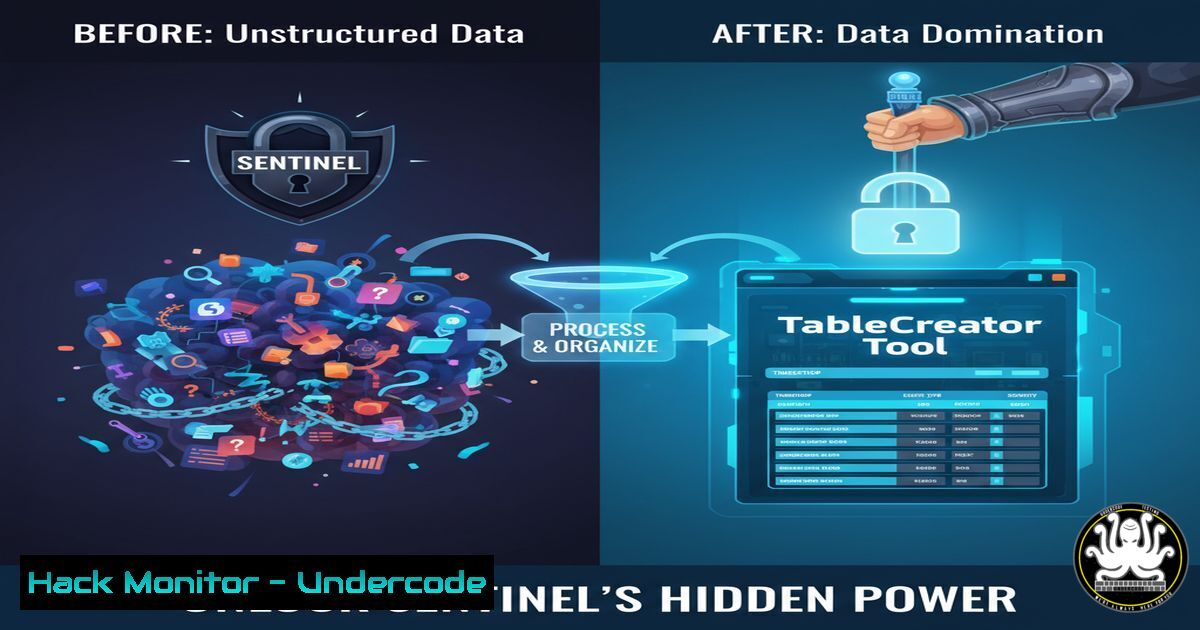
The recent contribution of the TableCreator tool to the official Azure Sentinel GitHub repository marks a pivotal shift in how security teams can manage and customize their log data. This utility, designed to be “Sentinel data lake-ready,” empowers professionals to programmatically generate custom tables, directly enhancing threat hunting and security data analytics capabilities. Mastering this tool is now essential for advanced SIEM customization and leveraging the full potential of a modern security data lake architecture.
Learning Objectives:
- Understand the core functionality and architecture of the Sentinel TableCreator tool.
- Learn to deploy and configure the TableCreator for custom security data ingestion.
- Master the use of ARM templates and PowerShell for automating security table management.
You Should Know:
1. Accessing and Deploying the TableCreator Tool
The first step is to acquire the tool from the official repository. The provided URL directs you to the `Azure-Sentinel/Tools/TableCreator/` directory.
Verified Command/Code Snippet:
 Clone the Azure Sentinel GitHub repository
git clone https://github.com/Azure/Azure-Sentinel.git
 Navigate to the TableCreator tool directory
cd Azure-Sentinel/Tools/TableCreator/
Step-by-step guide:
This process clones the entire Azure Sentinel repository to your local machine. After cloning, you change the working directory to the specific location of the TableCreator tool. Here, you will find the source code, documentation, and deployment scripts necessary for implementation. Always inspect the `README.md` file for the latest deployment instructions and prerequisites.
2. Understanding the Core Script: table_creator.ps1
The primary logic of the tool is contained within a PowerShell script. This script handles the communication with the Azure REST API to create and manage tables.
Verified Command/Code Snippet:
 Example: Running the table_creator.ps1 script with parameters
.\table_creator.ps1 -ResourceGroup "MySecRG" -WorkspaceName "MyLaw" -TableName "Custom_CL" -Columns @{Name="EventId"; Type="string"}, @{Name="EventData"; Type="dynamic"}
Step-by-step guide:
This command executes the script, specifying the target Azure Resource Group, Log Analytics Workspace name, and the definition of the new custom table. The `-Columns` parameter accepts an array of hashtables that define each column’s name and data type (e.g., string, datetime, dynamic, bool). The `_CL` suffix is a convention for custom logs in Log Analytics.
3. Automating Deployment with an ARM Template
For production environments and Infrastructure-as-Code (IaC) practices, deploying via an Azure Resource Manager (ARM) template is the recommended approach.
Verified Command/Code Snippet:
// Excerpt from an ARM template for deployment
{
"type": "Microsoft.Resources/deployments",
"apiVersion": "2020-10-01",
"name": "createCustomTable",
"properties": {
"mode": "Incremental",
"template": {
"$schema": "https://schema.management.azure.com/schemas/2019-04-01/deploymentTemplate.json",
"contentVersion": "1.0.0.0",
"resources": [
{
"type": "Microsoft.OperationalInsights/workspaces/tables",
"apiVersion": "2020-08-01",
"name": "[concat(parameters('workspaceName'), '/Custom_MyApp_CL')]",
"properties": {
"retentionInDays": 30,
"totalRetentionInDays": 30,
"schema": {
"name": "Custom_MyApp_CL",
"columns": [
{ "name": "TimeGenerated", "type": "datetime" },
{ "name": "RawData", "type": "string" }
]
}
}
}
]
}
}
}
Step-by-step guide:
This JSON code is a fragment of an ARM template. It defines a resource of type Microsoft.OperationalInsights/workspaces/tables, which is the underlying resource for a custom table in Log Analytics/Sentinel. You must specify the table name (following the `WorkspaceName/TableName` convention), set retention policies, and define the table schema with its columns. This template can be deployed using the Azure CLI command az deployment group create.
- Leveraging the Azure CLI for Log Analytics Management
The Azure CLI provides powerful commands to interact with your Log Analytics workspace, which can be used in conjunction with the TableCreator’s output.
Verified Command/Code Snippet:
 List all tables in a Log Analytics Workspace
az monitor log-analytics workspace table list --resource-group MySecRG --workspace-name MyLaw --output table

Get the specific schema of a custom table
az monitor log-analytics workspace table show --name Custom_CL --resource-group MySecRG --workspace-name MyLaw
Step-by-step guide:
The first command retrieves a list of all tables within the specified workspace, allowing you to verify that your custom table has been created successfully. The second command fetches the detailed schema of a specific table, which is useful for confirming column definitions and properties. Use these commands for validation and auditing purposes.
5. Data Ingestion via the REST API
Once a custom table is created, you can ingest data into it using the Log Analytics Data Collector API. This is a common method for sending data from custom applications or scripts.
Verified Command/Code Snippet:
 Example using PowerShell to post data to a custom log
$logName = "Custom_CL"
$logData = @([bash]@{ EventId="1001"; EventData="Sample security event"; TimeGenerated=[bash]::UtcNow })
$jsonData = $logData | ConvertTo-Json
 Use the Add-AzLogAnalyticsWorkspaceDataCollector cmdlet or invoke the REST API directly
Step-by-step guide:
This PowerShell snippet creates a custom object representing a log entry, converts it to JSON format, and prepares it for ingestion. The actual sending of data would typically involve constructing a HTTP POST request to the Data Collector API endpoint with the correct workspace ID, shared key, and the JSON payload in the request body. The `TimeGenerated` field is crucial for proper timeline analysis in Sentinel.
6. Hardening the Tool’s Security Context
When deploying automation scripts, it’s critical to manage credentials and access securely using Managed Identities or Service Principals instead of embedded secrets.
Verified Command/Code Snippet:
 Connect to Azure using a Managed Identity (e.g., from an Azure Automation Account)
Connect-AzAccount -Identity
 Ensure the Managed Identity has the 'Log Analytics Contributor' role on the workspace
Get-AzRoleAssignment -Scope "/subscriptions/$subId/resourcegroups/MySecRG/providers/Microsoft.OperationalInsights/workspaces/MyLaw"
Step-by-step guide:
This command demonstrates how an Azure Automation Runbook or a function app with a system-assigned managed identity can authenticate to Azure. Before running the TableCreator script, you must verify that the managed identity has been granted the necessary permissions, such as the ‘Log Analytics Contributor’ role, on the target Log Analytics workspace to allow for table creation and modification.
7. Integrating with CI/CD Pipelines for SOC Automation
To fully operationalize the TableCreator, integrate it into a continuous integration and deployment (CI/CD) pipeline using Azure DevOps or GitHub Actions.
Verified Command/Code Snippet:
 Sample GitHub Actions workflow step
- name: Create Custom Sentinel Table
uses: azure/powershell@v1
with:
azPSVersion: 'latest'
inlineScript: |
.\Tools\TableCreator\table_creator.ps1 -ResourceGroup "${{ env.RG }}" -WorkspaceName "${{ env.LAW }}" -TableName "CustomApp_CL"
env:
RG: ${{ secrets.AZURE_RG }}
LAW: ${{ secrets.LAW_NAME }}
Step-by-step guide:
This YAML code defines a step in a GitHub Actions workflow. It uses the Azure PowerShell action to execute the `table_creator.ps1` script. The resource group and workspace name are passed as environment variables, which are typically stored as encrypted secrets in your repository settings. This approach ensures that any update to the table definitions in your source code is automatically propagated to your Sentinel environment.
What Undercode Say:
- The TableCreator tool fundamentally bridges the gap between niche data sources and Sentinel’s analytics engine, moving beyond the limitations of built-in connectors.
- This contribution signifies a maturation of the Sentinel ecosystem, where power users are now directly shaping the core tooling, accelerating innovation from within the community.
The integration of TableCreator into the official Sentinel GitHub repository is more than a simple feature addition; it represents a strategic democratization of data schema management. By providing a programmatic interface for table creation, Microsoft is empowering security teams to be more agile. SOCs are no longer constrained by the pace of official connector releases for their unique applications or legacy systems. They can now build their own data pipelines, tailoring their security data lake to their exact organizational needs. This fosters a more proactive security posture, enabling the creation of custom detections and hunting queries that were previously impossible. The tool’s alignment with the data lake paradigm ensures that investments in custom log ingestion are future-proof, decoupling data storage from the specific analytics engine.
Prediction:
The release and widespread adoption of tools like TableCreator will catalyze a new wave of hyper-specialized, organization-specific detection content. We predict a surge in community-shared, custom KQL analytic rules and hunting queries that leverage these unique data schemas, moving the industry towards more contextual and intelligent automated response playbooks. This will force attackers to adapt their tradecraft, as the defensive surface becomes less predictable and standardized, ultimately leading to a more resilient security ecosystem built on flexible, data-driven foundations.
🎯Let’s Practice For Free:
IT/Security Reporter URL:
Reported By: Markolauren Tablecreator – Hackers Feeds
Extra Hub: Undercode MoN
Basic Verification: Pass ✅


