
Listen to this Post
Introduction:
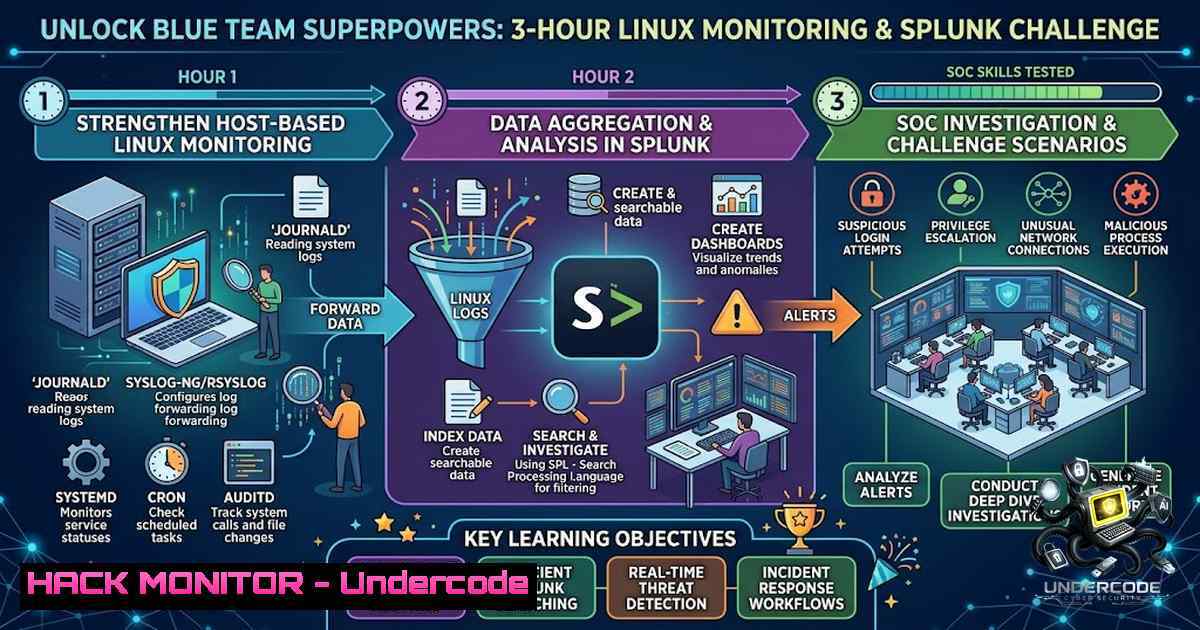
The modern Security Operations Center (SOC) demands more than theoretical knowledge—it requires hands-on proficiency in Linux system monitoring, log analysis, and rapid incident investigation. As cyber threats grow increasingly sophisticated, blue team professionals must master the art of correlating system telemetry with security events to detect and respond to breaches before they escalate. The HAXCAMP Free Linux Monitoring Challenge, scheduled for July 1st, 2026, offers a practical browser-based environment where participants can sharpen these exact skills through real-world scenarios, all without the friction of local installations.
Learning Objectives:
- Master Linux System Monitoring Tools: Gain proficiency in using
top,htop,vmstat,iostat, and `ss` to identify resource anomalies, performance bottlenecks, and suspicious process behavior in real-time. - Develop Splunk Log Analysis Expertise: Learn to construct effective Splunk searches, leverage statistical commands like
stats, and build detection queries that uncover malicious activity within massive log datasets. - Conduct Process and Service Investigations: Acquire hands-on skills in using
ps,systemctl, and `journalctl` to audit running processes, manage system services, and reconstruct attack timelines from system logs.
- Linux System Monitoring: Your First Line of Defense
Effective system monitoring is the cornerstone of any security investigation. Before an analyst can spot an intrusion, they must understand what “normal” looks like. The Linux command line provides a suite of powerful utilities that offer granular visibility into system performance and process activity.
Start with `top` to get a real-time, interactive view of all running processes, sorted by CPU or memory usage. For a more user-friendly experience, `htop` adds color-coding, mouse support, and easier process management (kill, renice) with visual tree views. To dive deeper into system-wide statistics, `vmstat 1` reports on CPU (user/system/idle), memory (free/used/buffered), and I/O metrics every second—critical for spotting memory exhaustion or disk I/O spikes that may indicate crypto-mining malware or data exfiltration.
For storage subsystems, `iostat -x 1` (from the sysstat package) reveals detailed per-device metrics like await (average wait time) and %util (device saturation), helping you identify disk bottlenecks that could be caused by excessive logging or ransomware encryption activity. Finally, network monitoring is essential: `ss -tulpen` displays all listening TCP/UDP ports with process details, revealing unexpected open ports that could signal backdoors or command-and-control (C2) channels.
Step-by-Step Guide:
- Install missing tools: On Debian/Ubuntu:
sudo apt install htop sysstat. On RHEL/CentOS:sudo yum install htop sysstat. - Launch real-time monitoring: Run `htop` and press `F6` to sort by CPU or MEM%—look for processes with unusually high consumption.
- Capture system snapshots: Execute `vmstat 1 10 > vmstat.log` to record 10 seconds of system activity for later analysis.
- Check disk I/O: Run `iostat -x 1 5` and watch the `%util` column—values consistently above 80% indicate a severe I/O bottleneck.
- Audit network listeners: Use `ss -tulpen | grep LISTEN` to enumerate all services accepting connections, then verify each against your known service inventory.
2. Splunk Log Analysis: Turning Data into Detection
Splunk transforms raw log data into actionable intelligence, making it indispensable for SOC analysts. The challenge will test your ability to navigate Splunk’s search processing language (SPL) and extract meaningful insights from security telemetry.
A Splunk search begins with an index and a set of keywords or field-value pairs. For example, `index=main sourcetype=linux_secure “Failed password”` retrieves all failed SSH login attempts. From there, you can pipe results into commands like `stats` to aggregate data—stats count by user, src_ip reveals which usernames and source IPs are generating the most failures, a classic indicator of brute-force attacks. More advanced searches might use `eval` to calculate time differences between events or `transaction` to group related events into sessions.
For threat hunting, analysts often build queries that identify commonly abused commands or unusual process executions. A search like `index=endpoint process_name IN (wget, curl, nc, python, perl) | stats count by host, process_name, command_line` can surface endpoints where attackers are downloading payloads or establishing reverse shells. Mastering these queries allows you to pivot from a single indicator to a full attack chain.
Step-by-Step Guide:
- Navigate to the Search & Reporting app in Splunk.
- Write a baseline search: `index= sourcetype=linux_secure | head 100` to preview available log data.
- Filter for authentication events:
index=main sourcetype=linux_secure "Accepted password" OR "Failed password". - Aggregate failed logins: Append `| stats count by user, src_ip | sort – count` to identify the most targeted accounts and attacking IPs.
- Build a time-series chart: Add `| timechart count by src_ip` to visualize attack patterns over time.
3. Process & Service Investigation: Uncovering Hidden Threats
Malware and attackers often disguise themselves as legitimate system processes or services. Investigating process and service integrity is therefore a critical blue-team skill. Linux provides ps, systemctl, and `journalctl` as the primary tools for this task.
The `ps aux` command gives a static snapshot of every running process, including the user that owns it, CPU/memory usage, and the full command line that started it. This is invaluable for spotting anomalies—for example, a process named `[bash]` running from `/tmp/` instead of `/usr/bin/` is highly suspicious. For service management, `systemctl` is the go-to utility on modern systemd-based distributions. Use `systemctl list-units –type=service –state=running` to see all active services, and `systemctl status
When a service fails or behaves unexpectedly, `journalctl` provides access to the systemd journal—a centralized log of all system and service messages. Running `journalctl -u sshd -f` tails the SSH daemon logs in real-time, while `journalctl –since “2026-07-01 14:00:00” –until “2026-07-01 17:00:00″` allows you to filter logs by a specific time window during an incident. Combining these tools enables investigators to trace exactly when a service was started, what errors it generated, and whether any unauthorized changes were made.
Step-by-Step Guide:
- List all processes: Run `ps aux –sort=-%cpu | head -20` to see the top 20 CPU-consuming processes.
- Audit a specific process: Identify a PID from the previous step, then run `ps -p
-o pid,ppid,cmd,etime` to see its parent process and elapsed time. - Check all running services: Execute `systemctl list-units –type=service –state=running` and review the list for unfamiliar names.
- Examine a service’s logs: Run `journalctl -u
–since “1 hour ago”` to view recent activity for that service. - Investigate boot-time services: Use `systemctl list-unit-files –type=service –state=enabled` to see which services start automatically—any unexpected entries here could indicate persistence mechanisms.
4. Windows Equivalents: Cross-Platform Investigation Skills
While the HAXCAMP challenge focuses on Linux, real-world SOC analysts often work in hybrid environments. Understanding the Windows equivalents of these Linux commands enhances your versatility. In PowerShell, `Get-Process` lists all running processes, and `Get-Process | Sort-Object CPU -Descending | Select-Object -First 10` shows the top CPU consumers. Similarly, `Get-Service` retrieves all services and their statuses. For log analysis, Windows Event Logs can be queried with `Get-WinEvent -LogName Security | Where-Object { $_.Id -eq 4625 }` to list failed login attempts.
Step-by-Step Guide:
1. Open PowerShell as Administrator.
- List processes: Run `Get-Process | Format-Table -AutoSize` to view all running processes with details.
- Find high-CPU processes: Execute
Get-Process | Sort-Object CPU -Descending | Select-Object -First 10. - Check service status: Use `Get-Service | Where-Object {$_.Status -eq ‘Running’}` to list all active services.
- Query security logs: Run `Get-WinEvent -LogName Security -MaxEvents 50 | Where-Object { $_.Id -eq 4625 }` to see recent failed logon events.
-
Log Analysis with Linux CLI: grep, awk, and Beyond
Beyond dedicated monitoring tools, the Linux command line itself is a powerful log-analysis engine. During an investigation, you may need to sift through gigabytes of log files without a SIEM. Commands like grep, awk, sort, uniq, and `wc` become your best friends.
For example, to analyze SSH authentication logs: `journalctl -u ssh | grep “Failed password” | awk ‘{print $11}’ | sort | uniq -c | sort -1r` counts failed password attempts per IP address, revealing the sources of a brute-force attack. To detect potential data exfiltration via HTTP, you might parse Apache access logs: `cat access.log | awk ‘{print $1}’ | sort | uniq -c | sort -1r | head -10` lists the top 10 client IPs by request volume.
Step-by-Step Guide:
1. Navigate to log directory: `cd /var/log`.
- Search for authentication failures:
grep "Failed password" auth.log | less. - Count unique attackers:
grep "Failed password" auth.log | awk '{print $(NF-3)}' | sort | uniq -c | sort -1r. - Analyze web server logs:
cat /var/log/apache2/access.log | awk '{print $1}' | sort | uniq -c | sort -1r | head -10. - Find large log entries: `awk ‘length($0) > 2000’ syslog | less` to spot unusually long lines that might indicate log injection or evasion attempts.
6. Security Hardening and Mitigation Strategies
Detection is only half the battle; effective blue teams also implement proactive hardening measures. Based on the insights gained from monitoring and log analysis, several key mitigations can be applied:
- Restrict SSH access: Use `fail2ban` to automatically block IPs that exhibit brute-force behavior. Configure `sshd_config` to disable root login (
PermitRootLogin no) and use key-based authentication. - Harden system services: Audit all enabled services with `systemctl list-unit-files –type=service –state=enabled` and disable any unnecessary ones (
systemctl disable <service>). - Implement auditd rules: The Linux Audit Framework can log specific system calls and file accesses. For example, `auditctl -w /etc/passwd -p wa -k identity_changes` monitors modifications to the password file.
- Centralize logging: Forward all critical logs to a remote SIEM or syslog server to prevent tampering and enable correlation across hosts.
- Regular vulnerability scanning: Integrate tools like `lynis` or `OpenSCAP` to periodically assess system compliance and identify misconfigurations.
Step-by-Step Guide:
- Install fail2ban: `sudo apt install fail2ban` (Debian/Ubuntu) or `sudo yum install fail2ban` (RHEL/CentOS).
- Configure SSH hardening: Edit
/etc/ssh/sshd_config, setPermitRootLogin no,PasswordAuthentication no, andPubkeyAuthentication yes. Restart SSH:sudo systemctl restart sshd. - Set up auditd rules: Create `/etc/audit/rules.d/security.rules` with monitoring rules, then restart auditd:
sudo service auditd restart. - Enable remote logging: Edit `/etc/rsyslog.conf` to forward logs to a remote server (
. @<SIEM_IP>:514), then restart rsyslog. - Run a security audit: Execute `sudo lynis audit system` and review the recommendations.
What Undercode Say:
- Key Takeaway 1: The HAXCAMP challenge bridges the gap between theoretical knowledge and practical SOC skills by offering a no-installation, browser-based environment that mirrors real incident response scenarios. This accessibility lowers the barrier to entry for aspiring blue-team professionals.
- Key Takeaway 2: Mastering the combination of Linux command-line utilities (top, ps, ss, journalctl) and SIEM platforms like Splunk is non-1egotiable for modern security analysts. The ability to pivot from a system-level anomaly to a correlated SIEM alert is what separates effective incident responders from the rest.
The challenge’s structure—three hours of focused, hands-on investigation—mirrors the pressure of a real security incident. Participants will not only learn tool syntax but also develop the investigative mindset required to ask the right questions of their data. The inclusion of Splunk log analysis is particularly valuable, as Splunk remains one of the most widely deployed SIEM solutions in enterprise environments. For those who complete the challenge, the provided certificate and Hall of Fame recognition offer tangible proof of skill that can enhance resumes and LinkedIn profiles. Moreover, HAXCAMP’s broader library of 100+ Blue Team labs ensures that this challenge is just the beginning of a continuous learning journey.
Prediction:
- +1 The growing emphasis on practical, browser-based cybersecurity training will democratize access to high-quality skill development, allowing professionals from any geographic region or economic background to participate and upskill.
- +1 As organizations increasingly adopt hybrid cloud and on-premises infrastructures, the demand for professionals who can seamlessly investigate across Linux and Windows environments will surge, making cross-platform training like this challenge highly relevant.
- -1 Without sustained hands-on practice, the skills gained from a single challenge may atrophy quickly. Participants must commit to ongoing lab work—such as HAXCAMP’s 100+ Blue Team labs—to maintain and deepen their proficiency.
- -1 The reliance on Splunk in this challenge may create a blind spot for analysts who later encounter organizations using alternative SIEM solutions (e.g., Elastic Stack, QRadar). Versatility across multiple platforms remains a critical career consideration.
▶️ Related Video (72% Match):
🎯Let’s Practice For Free:
🎓 Live Courses & Certifications:
Join Undercode Academy for Verified Certifications
🚀 Request a Custom Project:
Secure, high-velocity infrastructure and disruptive technological engineering. Contact our engineering team for high-tier development and proprietary systems:
[email protected]
💎 Smart Architecture | 🛡️ Secure by Design | ⭐ Trusted by Thousands
IT/Security Reporter URL:
Reported By: %F0%9D%97%99%F0%9D%97%A5%F0%9D%97%98%F0%9D%97%98 %F0%9D%97%9F%F0%9D%97%B6%F0%9D%97%BB%F0%9D%98%82%F0%9D%98%85 – Hackers Feeds
Extra Hub: Undercode MoN
Basic Verification: Pass ✅


