Listen to this Post
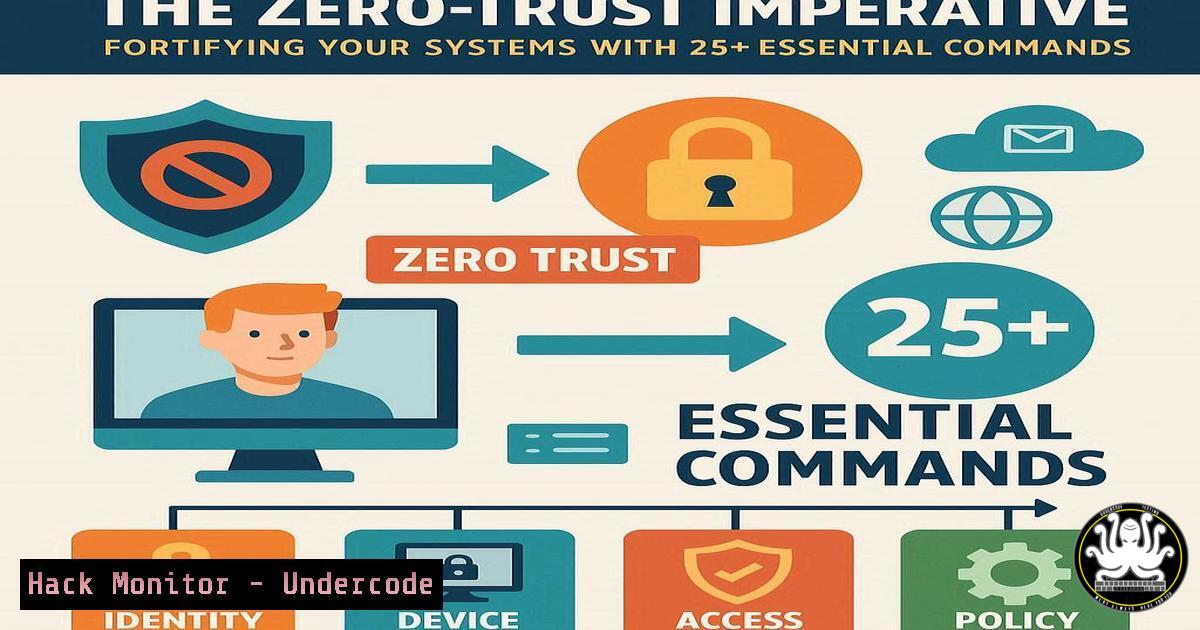
Introduction:
The traditional perimeter-based security model is obsolete in an age of sophisticated cyberattacks and cloud-centric infrastructure. Adopting a Zero-Trust architecture, which operates on the principle of “never trust, always verify,” is no longer optional. This article provides the foundational command-line tools and techniques to begin implementing Zero-Trust principles across your Linux and Windows environments.
Learning Objectives:
- Understand and apply critical system hardening commands for Linux and Windows.
- Learn to verify system integrity and monitor for unauthorized changes.
- Gain practical skills in network security control and log analysis.
You Should Know:
1. System Hardening with Linux Access Controls
Verified Linux commands for user and file permission management are the first line of defense.
`sudo adduser –system –group newserviceuser`
`sudo chown newserviceuser:newserviceuser /opt/myapp`
`sudo chmod 750 /opt/myapp`
`sudo find / -type f -perm -o+w 2>/dev/null`
Step-by-step guide: The principle of least privilege is core to Zero-Trust. Instead of running applications as root, create a dedicated service user (adduser). Assign ownership of the application directory to that user (chown). Then, set restrictive permissions (chmod 750) so only the owner can read, write, and execute, and the group can only read and execute. Finally, proactively hunt for world-writable files (find ... -perm -o+w) which are a significant security risk, and remove the unnecessary permission.
2. Windows Application Control and Execution Policy
Restricting script execution is a critical Zero-Trust control on Windows systems.
`Get-ExecutionPolicy -List`
`Set-ExecutionPolicy -ExecutionPolicy RemoteSigned -Scope LocalMachine`
`Get-AppLockerPolicy -Effective | Test-AppLockerPolicy -UserName “DOMAIN\user” -Path “C:\script.ps1″`
Step-by-step guide: PowerShell execution policies control the conditions under which PowerShell loads configuration files and runs scripts. First, check the current policy settings (Get-ExecutionPolicy -List). To allow locally created scripts but require digital signatures for downloaded scripts, set the policy to RemoteSigned. For a stronger, whitelist-based approach, use AppLocker. The `Test-AppLockerPolicy` cmdlet allows you to verify if a specific user would be allowed to run a particular script under the current policy, enabling safe testing.
3. Integrity Monitoring with File System Auditing
Verify the integrity of critical system files to detect unauthorized changes.
`sudo ls -la /etc/passwd /etc/shadow`
`sudo stat /bin/ls`
`sudo rpm -Va | head -20 (Red Hat/CentOS)`
`sudo debsums -c (Debian/Ubuntu)`
Step-by-step guide: Regularly check key system files for unexpected permission or ownership changes using ls -la. The `stat` command provides detailed information about a file, including its modification time, which can be a key indicator of compromise. For a more comprehensive check, use your package manager’s verification function. `rpm -Va` on Red Hat-based systems will list all files from installed packages that have changed from their original state, while `debsums -c` on Debian-based systems checks for changed MD5 sums.
4. Network Security and Firewall Fundamentals
Isolate systems and control traffic flow with host-based firewalls.
`sudo iptables -A INPUT -p tcp –dport 22 -s 192.168.1.0/24 -j ACCEPT`
`sudo iptables -A INPUT -p tcp –dport 22 -j DROP`
`Get-NetFirewallRule -DisplayGroup “Remote Desktop” | Set-NetFirewallRule -Enabled True -Profile Domain`
`New-NetFirewallRule -DisplayName “Block Outbound Port 445” -Direction Outbound -Protocol TCP -LocalPort 445 -Action Block`
Step-by-step guide: On Linux, use `iptables` to create explicit allow rules before blocking others. The example allows SSH only from a specific subnet and then drops all other SSH connection attempts. On Windows, the powerful `NetSecurity` module allows for granular control. You can enable specific rule groups like Remote Desktop only on trusted networks, or create new rules to block outbound traffic on ports commonly used for data exfiltration or worm propagation, such as SMB’s port 445.
5. Proactive Log Analysis and Intrusion Detection
Your logs are a goldmine of security intelligence; learn to query them effectively.
`sudo journalctl _SYSTEMD_UNIT=sshd.service –since “1 hour ago” | grep “Failed password”`
`sudo tail -f /var/log/auth.log | grep -i “invalid user”`
`Get-WinEvent -FilterHashtable @{LogName=’Security’; ID=4625; StartTime=(Get-Date).AddHours(-1)} | Format-Table -Wrap`
`Get-WinEvent -FilterHashtable @{LogName=’Microsoft-Windows-PowerShell/Operational’; ID=4104} | Where-Object {$_.Message -like “Invoke-Expression”}`
Step-by-step guide: On Linux, `journalctl` and `grep` are your best friends for filtering systemd journal logs for specific services like SSH, looking for failed login attempts. The `tail -f` command lets you monitor the authentication log in real-time for brute-force attacks. On Windows, `Get-WinEvent` is the primary tool. You can filter the Security log for specific event IDs like 4625 (failed logon) or dig into the PowerShell Operational log to hunt for evidence of malicious script execution, such as the use of Invoke-Expression.
6. Cloud Infrastructure Hardening
Secure your cloud footprint by inspecting and configuring resources.
`aws iam get-account-authorization-details –query ‘UserDetailList[?UserName==`username`]’`
`aws ec2 describe-security-groups –group-ids sg-xxxxxx –query ‘SecurityGroups[].IpPermissions’`
`az ad signed-in-user list –query “[].{user:userPrincipalName}”`
`gcloud projects get-iam-policy PROJECT_ID –format=json`
Step-by-step guide: Misconfigured cloud permissions are a primary attack vector. Use the AWS CLI to audit IAM user permissions (get-account-authorization-details) and review Security Group rules (describe-security-groups) to ensure they are not overly permissive (e.g., 0.0.0.0/0). In Azure, use the CLI to verify your current user context (az ad signed-in-user). For Google Cloud, the `get-iam-policy` command is essential for understanding who has what access to your project resources. Regularly review this output.
7. Vulnerability Assessment and Patch Verification
Know what is installed on your systems and if it contains known vulnerabilities.
`dpkg -l | grep ^ii (Debian/Ubuntu)`
`rpm -qa (Red Hat/CentOS)`
`wmic qfe list brief /format:table`
`Get-HotFix -Id KB5005565`
`nmap -sV –script vuln 192.168.1.10`
Step-by-step guide: Maintaining an accurate software inventory is the first step. Use `dpkg -l` or `rpm -qa` to list all installed packages on Linux. On Windows, `wmic qfe` or the more modern `Get-HotFix` PowerShell cmdlet lists installed updates. To proactively scan for known vulnerabilities, a tool like `nmap` with its powerful scripting engine can be used (with caution and explicit authorization) to probe a host for known weaknesses based on the services it is running.
What Undercode Say:
- The Command Line is Your Truth Engine. GUI tools abstract away critical details. Mastery of the CLI provides unambiguous visibility into system state, configuration, and security controls, forming the bedrock of a verifiable Zero-Trust posture.
- Automation is Non-Negotiable. Manually running these commands is a start, but their true power is realized when integrated into automated compliance checks, CI/CD pipelines, and continuous monitoring systems. Human consistency cannot scale; automated scripts can.
The transition to Zero-Trust is a journey, not a flip of a switch. It requires a fundamental shift from assuming trust to explicitly defining and continuously validating it. The commands outlined here are not just one-off tasks; they represent ongoing processes for system hardening, integrity checking, and threat hunting. By embedding these practices into your daily operational rhythm, you move from a reactive security stance to a proactive and resilient one.
Prediction:
The convergence of AI-powered threat detection and automated, policy-as-code enforcement will be the logical evolution of Zero-Trust. We predict that within 3-5 years, manual command-line checks will be largely superseded by AI-driven security agents that continuously analyze system behavior, network traffic, and log data in real-time. These agents will autonomously enforce least-privilege policies, dynamically isolate compromised endpoints microseconds after detection, and generate human-readable explanations for their actions—essentially operationalizing the principles behind these commands at machine speed and scale. The role of the cybersecurity professional will evolve from executing checks to defining the AI’s governance policies and interpreting its complex behavioral analysis.
🎯Let’s Practice For Free:
IT/Security Reporter URL:
Reported By: Alexadagostino Smsmarketing – Hackers Feeds
Extra Hub: Undercode MoN
Basic Verification: Pass ✅


