Listen to this Post
Introduction:
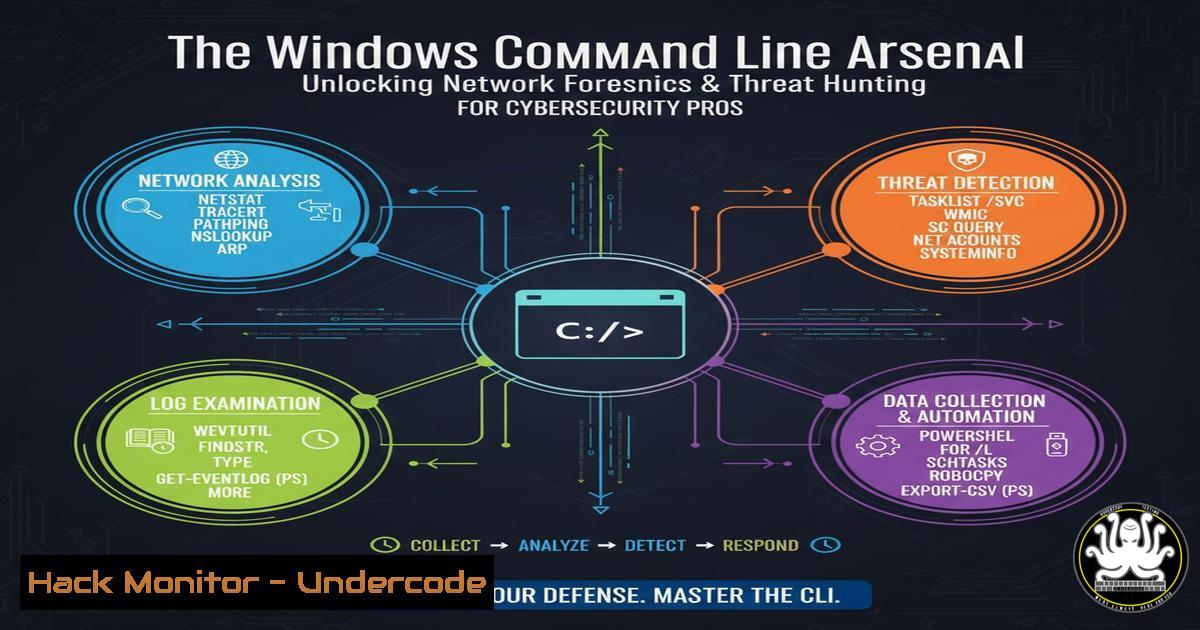
In the dynamic landscape of cybersecurity, the ability to rapidly analyze and secure a network from the command line is a non-negotiable skill for analysts, red teamers, and SOC engineers. While advanced tools exist, the native Windows command line provides a powerful, always-available toolkit for immediate incident response, threat hunting, and digital forensics. Mastering these commands allows professionals to quickly footprint assets, detect malicious activity, and harden defenses directly from the endpoint.
Learning Objectives:
- Execute fundamental network reconnaissance and asset discovery commands to map a target environment.
- Utilize built-in Windows utilities for real-time connection monitoring and threat detection.
- Apply command-line techniques for basic network stack hardening and service control to mitigate active threats.
You Should Know:
1. IP & DNS Footprinting for Asset Discovery
The initial phase of any security assessment or incident response involves understanding the network landscape. The `ipconfig` command is the cornerstone of this process on Windows systems, providing critical data about the host’s network configuration.
Step‑by‑step guide explaining what this does and how to use it:
ipconfig: Run this basic command to instantly view the host’s IP address, subnet mask, and default gateway. This is the first step in identifying the system’s position on the network.
ipconfig /all: This is the recon workhorse. It provides a comprehensive dump including DHCP server details, DNS servers, MAC address, and lease information. Security pros use this to verify if DNS settings have been hijacked or to gather intel for lateral movement.
ipconfig /flushdns: This command purges the local DNS resolver cache. It’s essential for evading cache poisoning attacks during testing or forcing a system to fetch fresh, legitimate DNS records after a malware cleanup.
`ipconfig /release` & ipconfig /renew: These commands release and renew the IP address from a DHCP server. They are crucial for responding to DHCP-related attacks or network configuration anomalies.
2. Network Forensics and Active Connection Analysis
Once assets are known, the next step is to analyze active communications. Suspicious connections are a primary indicator of compromise, potentially revealing Command & Control (C2) servers or data exfiltration channels.
Step‑by‑step guide explaining what this does and how to use it:
ping [bash]: A simple ICMP echo request to check host availability. While often filtered, a successful ping confirms a host is up. Use `ping -t [bash]` for a continuous ping to monitor for host reboot or network instability during an attack.
tracert [bash]: Traces the route packets take to a destination. Anomalies in the path can indicate Man-in-the-Middle (MITM) attacks or routing hijacks. Compare a suspicious tracert to a known-good one.
nslookup [bash]: Queries DNS servers to resolve domain names. Investigate suspicious domains by manually querying different DNS servers (e.g., nslookup suspicious.com 8.8.8.8) to check for DNS poisoning.
netstat -an: This is critical for threat hunting. The `-a` switch shows all connections and listening ports, while `-n` displays addresses and port numbers in numerical form, preventing slow DNS lookups. Look for:
Unknown listening ports.
Established connections to unfamiliar foreign IPs, especially on common C2 ports (4444, 8080, etc.).
A more detailed command is netstat -ano, which adds the `-o` switch to show the Process ID (PID), allowing you to trace the connection back to the specific application or service.
3. Host-Level Reconnaissance and ARP Inspection
Attacks often involve manipulating local network protocols. Inspecting the Address Resolution Protocol (ARP) cache and host identifiers can reveal rogue devices and system compromises.
Step‑by‑step guide explaining what this does and how to use it:
arp -a: Displays the ARP cache, which maps IP addresses to MAC addresses on the local subnet. A sudden change in the MAC address for your gateway IP is a strong indicator of an ARP spoofing (poisoning) attack.
getmac: This command displays the MAC addresses of all network interfaces on the system. It’s useful for auditing and for verifying the physical identity of a system on the network.
hostname: A simple but vital command that returns the computer’s name. During incident response, this confirms the identity of a compromised host, especially when conducting lateral movement analysis across multiple systems.
4. Detecting and Managing Exploited Network Resources
Attackers frequently exploit network shares for lateral movement and data theft. Proactively managing these resources is key to containment.
Step‑by‑step guide explaining what this does and how to use it:
net share: Lists all shared resources (files, printers) on the local computer. Regularly audit this list to ensure no unauthorized or overly permissive shares exist.
net use: Manages network connections. Use `net use` alone to list all established mapped drives and network sessions. This can reveal connections to attacker-controlled SMB shares. To disconnect a suspicious share, use net use [bash] /delete.
- Service and Network Stack Control for Incident Response
During an active incident, the ability to quickly disable malicious services or modify the network stack is paramount. The `net` and `netsh` commands provide this control.
Step‑by‑step guide explaining what this does and how to use it:
`net start` & net stop: These commands are used to start and stop Windows services. If an investigation identifies a compromised service (e.g., a vulnerable web server), you can immediately halt it with net stop "Service Name".
netsh: This is a powerful advanced scripting tool for managing network configuration. Key security uses include:
Firewall Control: Enable the firewall with netsh advfirewall set allprofiles state on. View firewall rules with netsh advfirewall firewall show rule name=all.
Port Forwarding: Attackers may set up port forwarding for pivoting. Check for existing rules with netsh interface portproxy show all.
Interface Configuration: Reset a corrupted interface or disable/enable it to disrupt an attacker’s network access.
What Undercode Say:
- The native Windows command line is not a legacy tool but a first-response lifesaver, providing immediate visibility and control when sophisticated tools are unavailable or impractical.
- True expertise lies in correlating outputs from multiple simple commands—like cross-referencing a `netstat` PID with a Task Manager process—to build a conclusive picture of malicious activity, turning isolated data points into actionable intelligence.
The emphasis on these foundational commands highlights a critical principle in cybersecurity: effective defense and response are built on a deep understanding of core system utilities. While EDRs and SIEMs provide scale and automation, the command line offers an unmediated, real-time view of the system that is indispensable for deep-dive forensics and swift containment. Professionals who master this arsenal ensure they are never powerless, even in the most constrained environments.
Prediction:
The sophistication of cyber threats will continue to escalate, with malware increasingly employing “living-off-the-land” techniques (LOLBins) that leverage legitimate system tools like `netsh` and `netstat` to avoid detection. Future security platforms will deeply integrate behavioral analysis that profiles the context of command-line execution, not just the commands themselves. Furthermore, AI-powered threat hunting will automatically correlate command-line artifacts across entire fleets, rapidly identifying the subtle, anomalous patterns that human analysts might miss, making command-line fluency even more critical for interpreting and validating these AI-driven insights.
🎯Let’s Practice For Free:
IT/Security Reporter URL:
Reported By: Dharamveer Prasad – Hackers Feeds
Extra Hub: Undercode MoN
Basic Verification: Pass ✅


