Listen to this Post
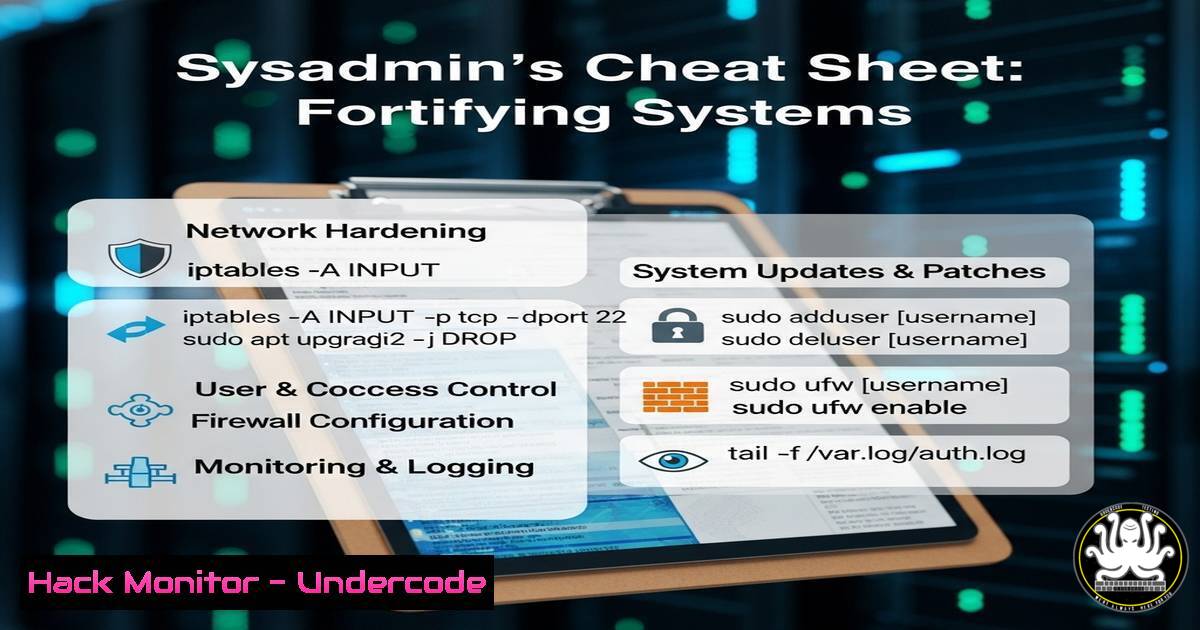
Introduction:
In the relentless landscape of cybersecurity, system administration forms the critical first line of defense. Mastering the command line is not just an efficiency booster; it’s a fundamental security requirement. This guide provides a comprehensive arsenal of verified commands for hardening systems, auditing configurations, and responding to incidents across both Linux and Windows environments.
Learning Objectives:
- Execute system hardening and security audits using native command-line tools.
- Analyze network activity and processes to identify potential malicious behavior.
- Implement foundational security configurations to mitigate common attack vectors.
You Should Know:
1. System Information & Hardening Audit
Gathering a complete snapshot of your system is the first step in understanding its security posture. These commands reveal crucial details about the OS, running services, and installed software.
Linux:
 Get detailed OS and kernel version
uname -a

List all installed packages (Debian/Ubuntu)
dpkg -l

List all installed packages (RHEL/CentOS/Fedora)
rpm -qa

View system uptime and load
uptime

List all currently loaded kernel modules
lsmod
Windows (PowerShell):
 Get detailed OS information
Get-ComputerInfo | select WindowsProductName, WindowsVersion, OsHardwareAbstractionLayer

List all installed applications
Get-WmiObject -Class Win32_Product | Select-Name, Version

Get system uptime
Get-CimInstance -ClassName Win32_OperatingSystem | Select-Object LastBootUpTime
Step-by-step guide:
Open your terminal (Linux) or PowerShell running as Administrator (Windows). Execute each command sequentially. Pipe the output to a text file (e.g., > system_audit.txt) for later review. Pay close attention to outdated software versions and unfamiliar kernel modules or installed applications, as these can be prime indicators of compromise or vulnerability.
2. Network Security & Connection Analysis
Unauthorized network connections are a primary indicator of a breach. Proactively monitoring and analyzing network traffic is essential for detecting exfiltration and command-and-control channels.
Linux:
 Display all listening ports and associated processes
netstat -tulnp
ss -tulnp

Show current firewall rules (iptables)
iptables -L -n -v

Show current firewall rules (ufw)
ufw status verbose
Windows (PowerShell):
 Get all established TCP connections
Get-NetTCPConnection -State Established | Where-Object RemoteAddress -NE "::1" | Format-Table

Show Windows Firewall rules
Get-NetFirewallRule | Where-Object { $_.Enabled -eq 'True' } | Select-Name, DisplayName, Direction, Action | Format-Table

Show listening ports
Get-NetTCPConnection -State Listen
Step-by-step guide:
Run the listening port commands to establish a baseline of expected services. Regularly compare new outputs against this baseline to spot anomalies. Use the firewall rules commands to audit which applications are allowed to communicate and ensure the rules are as restrictive as possible, following the principle of least privilege.
3. Process Interrogation & Malware Detection
Understanding what is running on a system is critical. Attackers often hide malicious software within legitimate processes or use techniques to make their processes blend in.
Linux:
 View a dynamic, real-time process tree
top
htop

List all processes in a hierarchy showing parent/child relationships
ps auxf

Search for a specific process by name
pgrep -l [bash]

Kill a malicious process by its PID
kill -9 [bash]
Windows (PowerShell):
 Get a detailed list of all running processes
Get-Process | Format-Table Name, Id, CPU, Path

Find a process by name and stop it
Get-Process -Name "suspiciousProcess" | Stop-Process -Force

Get a process's file path
(Get-Process -Name "explorer").Path
Step-by-step guide:
Use `top` or `Get-Process` to get a live view of resource consumption. Investigate processes with unusually high CPU or memory usage. Cross-reference the process path (ps aux or (Get-Process).Path) with known legitimate system paths (e.g., C:\Windows\System32\). Use the kill/stop commands to terminate any confirmed malicious activity.
4. File System Integrity and Log Analysis
The file system and logs hold the evidence of intrusion. Checking for unauthorized changes and parsing logs for suspicious events are core forensic tasks.
Linux:
 Find all SUID/SGID files (common privilege escalation vector)
find / -type f ( -perm -4000 -o -perm -2000 ) -exec ls -l {} \; 2>/dev/null

Find all world-writable files
find / -xdev -type f -perm -0002 -exec ls -l {} \; 2>/dev/null

Search for files modified in the last 24 hours
find / -xdev -mtime -1 -type f -exec ls -l {} \;

Tail the authentication log for failed login attempts (Ubuntu/Debian)
tail -f /var/log/auth.log | grep "Failed password"

Tail the authentication log (RHEL/CentOS/Fedora)
tail -f /var/log/secure | grep "Failed password"
Windows (PowerShell):
 Get the last 10 security log events (e.g., failed logins)
Get-EventLog -LogName Security -Newest 10 | Where-Object {$_.InstanceId -eq 4625}

Search for files modified in the last 24 hours in a specific directory
Get-ChildItem -Path C:\ -Recurse -File -ErrorAction SilentlyContinue | Where-Object LastWriteTime -gt (Get-Date).AddDays(-1)

Calculate file hash (for integrity checking)
Get-FileHash -Path C:\path\to\file.exe -Algorithm SHA256
Step-by-step guide:
Regularly run the SUID/SGID and world-writable file finder commands to audit for potential misconfigurations. Schedule the `find` and `Get-ChildItem` commands to run periodically, saving the output to a secure location to create a baseline for file integrity monitoring. Actively monitor authentication logs for brute-force attacks.
5. User Account and Permission Auditing
Privilege escalation often relies on misconfigured user accounts and permissions. A strict audit of who can access what is a non-negotiable security practice.
Linux:
 List all users on the system
cat /etc/passwd | cut -d: -f1

List users with UID 0 (root) privileges
awk -F: '($3 == 0) {print $1}' /etc/passwd

Check a user's sudo privileges
sudo -l -U [bash]

View the last logged-in users
last
Windows (PowerShell & Command Prompt):
 Get all local users
Get-LocalUser

Get members of the Administrators group
Get-LocalGroupMember -Group Administrators

Check effective permissions on a file/folder (ICACLS)
icacls "C:\path\to\sensitive\folder"
Step-by-step guide:
Review the list of all users and verify each account is authorized and necessary. Scrutinize accounts with UID 0 or membership in the Administrators group. The `last` command helps identify dormant or recently accessed accounts that may need review. Use `icacls` to ensure file and directory permissions are not overly permissive.
6. Automated Security Scanning and Patching
Maintaining system security is an ongoing process. Automation is key to ensuring consistent vulnerability scanning and patch application.
Linux:
 Check for available updates (Debian/Ubuntu)
sudo apt update && sudo apt list --upgradable

Check for available updates (RHEL/CentOS/Fedora)
sudo dnf check-update

Scan for vulnerabilities using Lynis (must be installed)
sudo lynis audit system

Check the status of the unattended-upgrades service (Automatic updates)
systemctl status unattended-upgrades
Windows (PowerShell):
 Check for installed Windows updates
Get-HotFix | Sort-Object InstalledOn -Descending | Format-Table InstalledOn, Description, HotFixID

Initiate a manual check for Windows updates (requires PSWindowsUpdate module)
Install-Module PSWindowsUpdate -Force
Get-WindowsUpdate

Check the status of the Windows Update service
Get-Service -Name wuauserv
Step-by-step guide:
Schedule regular apt update/dnf check-update or `Get-WindowsUpdate` checks. For production systems, test patches in a staging environment before deployment. Consider using tools like Lynis on Linux for a deeper security audit. Ensure automatic update services are running and configured according to your organization’s policy.
What Undercode Say:
- Command-Line Proficiency is Non-Negotiable: GUI tools can hide complexity and fail in remote or constrained environments. True security control and visibility are achieved through mastery of the shell and PowerShell.
- Baseline and Compare: Security is not a static state. The most effective use of these commands involves creating known-good baselines and then regularly comparing new outputs to them, making anomalies instantly visible.
- Automate the Mundane: Manual checks are prone to human error and forgetfulness. The real power is realized when these audit and hardening commands are scripted and scheduled, transforming reactive security into a proactive, consistent practice.
The sheer volume and sophistication of attacks targeting system misconfigurations mean manual, infrequent checks are no longer sufficient. The future of system defense lies in the automated, continuous execution of these types of audits, integrated directly into CI/CD pipelines and security orchestration platforms. Sysadmins must evolve from manual operators to architects of automated security, using these fundamental commands as the building blocks for resilient, self-defending infrastructure.
Prediction:
The increasing abstraction of infrastructure through containers and serverless computing will not eliminate the need for these core commands but will shift their execution context. Security will focus on “immutable infrastructure” scans and automated compliance checks within pipelines. The ability to quickly script and deploy these auditing commands across ephemeral, large-scale environments will become the benchmark for effective organizational cybersecurity, making this foundational knowledge more valuable than ever.
🎯Let’s Practice For Free:
IT/Security Reporter URL:
Reported By: Nathanmcnulty Fr – Hackers Feeds
Extra Hub: Undercode MoN
Basic Verification: Pass ✅


