Listen to this Post
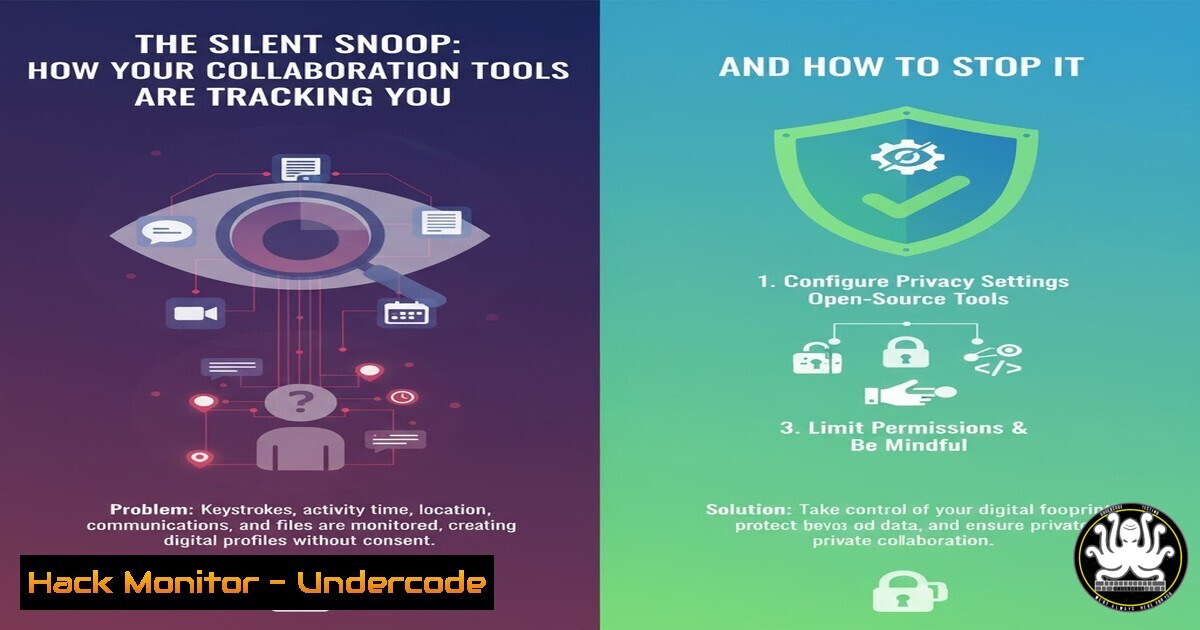
Introduction:
Microsoft Teams has been identified as capable of tracking remote workers by collecting and transmitting Wi-Fi network data. This data collection occurs at the operating system level, rendering traditional security controls like SASE, XDR, and VPNs ineffective, as they operate downstream of the initial data collection point. This article explores the technical mechanisms behind this tracking and provides actionable hardening techniques to reclaim your digital privacy.
Learning Objectives:
- Understand the mechanisms of OS-level data collection by collaboration software.
- Learn host-based firewall rules to block telemetry and data exfiltration.
- Implement network-level monitoring and DNS filtering to detect and prevent unauthorized transmissions.
You Should Know:
1. Blocking Microsoft Telemetry IPs via Windows Firewall
The Windows Firewall can be configured to block outbound connections to known Microsoft telemetry and data collection endpoints. This prevents the transmission of Wi-Fi and other diagnostic data.
Step-by-step guide:
Open an Administrator PowerShell window. The following commands create new outbound rules blocking specific IP ranges associated with Microsoft telemetry. You must first identify the current IPs used by Microsoft’s telemetry services, but common blocks include.
New-NetFirewallRule -DisplayName "Block MS Telemetry IP Range 1" -Direction Outbound -RemoteAddress "20.190.128.0/18" -Action Block
New-NetFirewallRule -DisplayName "Block MS Telemetry IP Range 2" -Direction Outbound -RemoteAddress "40.76.0.0/14" -Action Block
New-NetFirewallRule -DisplayName "Block MS Telemetry IP Range 3" -Direction Outbound -RemoteAddress "52.184.0.0/17" -Action Block
To verify the rules are active, use:
Get-NetFirewallRule -DisplayName "Block MS Telemetry" | Format-Table DisplayName, Enabled, Direction, Action
2. Disabling Windows Telemetry and Wi-Fi Sense
Windows itself has built-in features that collect and share Wi-Fi data. Disabling these services at the OS level is a critical first step.
Step-by-step guide:
Via Group Policy Editor (gpedit.msc), navigate to Computer Configuration > Administrative Templates > Windows Components > Data Collection and Preview Builds. Enable “Configure Telemetry” and set it to “0 – Security [Enterprise Only]”. To disable Wi-Fi Sense, navigate to `Computer Configuration > Administrative Templates > Network > WLAN Service > WLAN Settings` and enable “Turn off Microsoft Wi-Fi Sense”. Via Registry, apply these settings:
reg add "HKLM\SOFTWARE\Policies\Microsoft\Windows\DataCollection" /v "AllowTelemetry" /t REG_DWORD /d 0 /f
reg add "HKLM\SOFTWARE\Microsoft\PolicyManager\default\WiFi\AllowWiFiHotspotReporting" /v "Value" /t REG_DWORD /d 0 /f
reg add "HKLM\SOFTWARE\Microsoft\PolicyManager\default\WiFi\AllowAutoConnectToWiFiSenseHotspots" /v "Value" /t REG_DWORD /d 0 /f
3. Configuring Teams Specific Network Restrictions
You can use the Windows Firewall to create rules specifically targeting the Microsoft Teams executable, limiting its network access to only essential domains.
Step-by-step guide:
First, locate the Teams executable (typically in %LocalAppData%\Microsoft\Teams\current\Teams.exe). Create a firewall rule to block it entirely, then create allow rules for only necessary endpoints for functionality.
New-NetFirewallRule -DisplayName "Block Teams EXE" -Program "%LocalAppData%\Microsoft\Teams\current\Teams.exe" -Direction Outbound -Action Block
To allow connectivity to core Microsoft 365 endpoints (this is a sample; a full list is required for full functionality):
New-NetFirewallRule -DisplayName "Allow Teams to M365" -Program "%LocalAppData%\Microsoft\Teams\current\Teams.exe" -Direction Outbound -RemoteAddress "52.112.0.0/14" -Action Allow
4. Employing DNS Filtering with Pi-hole
DNS filtering can block telemetry domains at the network level, protecting all devices on your network without installing client-side software. Pi-hole is a popular open-source solution.
Step-by-step guide:
After installing Pi-hole on a Raspberry Pi or Linux VM, log into the admin interface and navigate to “Group Management > Adlists”. Add telemetry blocklists such as:
https://raw.githubusercontent.com/kowith337/PersonalFilterList/master/hosts_filter.txt
https://www.github.developerdan.com/hosts/lists/ads-and-tracking-extended.txt
Update Gravity (Pi-hole’s list processing engine) via the admin interface or by running `pihole -g` on the command line. On your client machines, configure their DNS settings to point to your Pi-hole server’s IP address. This will prevent the resolution of known telemetry domains.
5. Monitoring Network Connections with netstat and TCPView
Continuous monitoring is key to understanding what data is being sent. The `netstat` command and Sysinternals TCPView provide real-time visibility into network connections established by Teams and other applications.
Step-by-step guide:
Open Command Prompt or PowerShell as administrator. Use `netstat` to see active connections, filtering for the Teams process.
netstat -anob | findstr "Teams.exe"
For a more dynamic, GUI-based view, download and run TCPView from Microsoft Sysinternals. In TCPView, you can sort by process name to easily identify all connections owned by Teams.exe. Right-clicking on a connection allows you to close it immediately, which is useful for testing.
6. Isolating Applications Using Windows Sandbox
For maximum security during sensitive work, run collaboration tools like Microsoft Teams within an isolated environment like Windows Sandbox. This confines any potential data collection to a temporary, disposable container.
Step-by-step guide:
Enable Windows Sandbox through “Turn Windows features on or off” in the Control Panel. Create a configuration file named `TeamsSandbox.wsb` with the following content to automatically install and run Teams in isolation:
<Configuration>
<MappedFolders>
<MappedFolder>
<HostFolder>C:\TeamsInstall</HostFolder>
<ReadOnly>true</ReadOnly>
</MappedFolder>
</MappedFolders>
<LogonCommand>
<Command>PowerShell -WindowStyle Hidden -Command "Start-Process 'C:\TeamsInstall\TeamsSetup.exe' -ArgumentList '-s'"</Command>
</LogonCommand>
</Configuration>
Place the Teams installer in `C:\TeamsInstall` on your host machine. Double-clicking the `.wsb` file will launch a pristine Sandbox that installs and runs Teams, which is then deleted when the Sandbox is closed.
7. Analyzing Traffic with Wireshark
For deep technical analysis, Wireshark can capture and decrypt network packets to see exactly what data is being transmitted by the Teams application.
Step-by-step guide:
Install Wireshark and launch it as an administrator. Select the primary network interface (e.g., Wi-Fi or Ethernet) and start a capture. In the display filter bar, apply a filter to see only traffic from your machine’s IP, for example: ip.src == 192.168.1.100. To specifically analyze TLS-encrypted traffic from Teams, you can configure Wireshark to use the browser’s or system’s TLS session keys (a complex process requiring environment variables). Simply observing the destination IPs and domains of the connections, however, can be highly revealing.
What Undercode Say:
- The OS is the New Attack Surface. The core issue is one of trust. When the operating system itself is complicit in data collection, any software-based security running on that OS is fundamentally compromised. The threat model has shifted.
- Hardware-Level Isolation is No Longer Theoretical. The argument for hardware-enforced security, once an academic concept, is now a practical necessity for privacy-centric enterprises. Decoupling the device from the network at the hardware level, as proposed by solutions like Byos, represents the next frontier in endpoint protection.
This situation illustrates a paradigm shift in corporate cybersecurity. The traditional perimeter, already dissolved by cloud and remote work, is now being undermined from the endpoint itself. The very tools mandated for productivity are doubling as surveillance vectors. While the commands and techniques provided offer a strong software-based defense, they represent a constant arms race against updates and new telemetry methods. The analysis suggests that for organizations with extreme privacy requirements, a architectural solution that moves network control outside and below the host OS is the only way to achieve a definitive, rather than a mitigatory, victory. This moves the security boundary from the software to the physical hardware layer.
Prediction:
The techniques used by Microsoft Teams are a precursor to a wider industry trend of deep OS-integrated analytics. We predict a rise in “firmware-as-a-perimeter” solutions and a new market for micro-segmentation hardware dongles that provide network-level isolation for individual devices. Furthermore, increased regulatory scrutiny, potentially leading to GDPR-style fines for non-consensual location and network data tracking, is inevitable. This will force software vendors to be more transparent about data collection and provide genuine, easily-accessible opt-out mechanisms.
🎯Let’s Practice For Free:
IT/Security Reporter URL:
Reported By: Matiaskatz Ms – Hackers Feeds
Extra Hub: Undercode MoN
Basic Verification: Pass ✅


