Listen to this Post
Introduction:
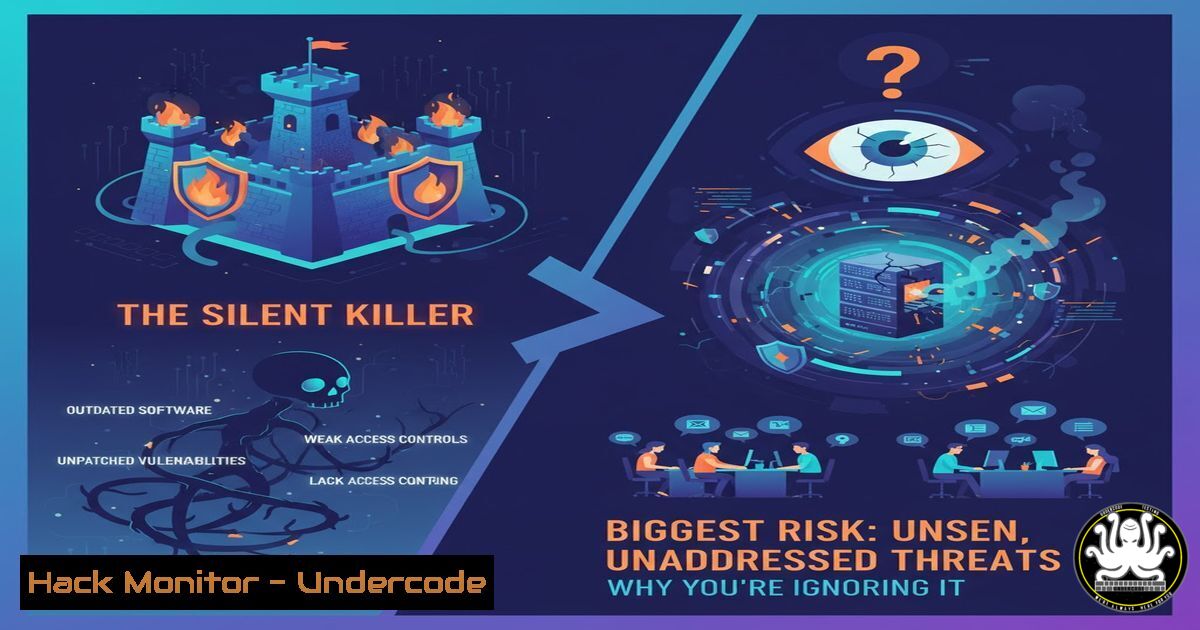
Security Posture Management (SPM) is the critical, yet often overlooked, cybersecurity discipline focused on ‘left of bang’ operations—proactively reducing risk by hardening environments before an attack occurs. While most organizations invest in Security Operations Centers (SOCs) to respond to incidents, they neglect the continuous discovery and mitigation of vulnerabilities in software, configurations, and operational practices that lead to those incidents in the first place. This article provides a technical deep dive into the commands and methodologies essential for building a robust SPM program.
Learning Objectives:
- Understand the core technical domains of Security Posture Management.
- Learn to execute critical commands for discovering and prioritizing security risks.
- Implement step-by-step mitigations for common configuration and vulnerability issues.
You Should Know:
1. Foundational Asset Discovery with Nmap
Before you can secure your environment, you must know what is in it. Nmap is the industry-standard tool for network discovery and security auditing.
nmap -sS -O -sV 192.168.1.0/24
nmap --script vuln 10.0.0.5
nmap -A -T4 scanme.nmap.org
`-sS`: TCP SYN scan (stealthy).
`-O`: Enable OS detection.
-sV: Probe open ports to determine service/version info.
--script vuln: Execute the Nmap Vulnerability Scripting Engine (NSE) to check for known vulnerabilities.
-A: Aggressive scan (enables OS detection, version detection, script scanning, and traceroute).
Step-by-step guide:
- Install Nmap from the official website or your package manager (
sudo apt-get install nmap).
2. Identify your target network range (e.g., `192.168.1.0/24`).
- Run a basic discovery scan:
nmap -sS -O -sV</code>. This will map all active hosts, their operating systems, and running services.</li> <li>For a deeper security audit, run the vulnerability scripts against a specific host: <code>nmap --script vuln [bash]</code>. Review the output to identify critical services with known exploits.</li> </ol> <h2 style="color: yellow;">2. Interpreting Microsoft's Security Exposure Management</h2> Microsoft's ecosystem provides critical insights into your security posture. Understanding the underlying data points is key. [bash] PowerShell to check for Microsoft Defender for Endpoint (MDE) sensor health Get-MpComputerStatus PowerShell to query Azure Resource Graph for insecure configurations Search-AzGraph -Query "SecurityResources | where type == 'microsoft.security/assessments' | where properties.status.code == 'Unhealthy'"
Get-MpComputerStatus: Displays the status of Microsoft Defender Antivirus and the MDE sensor.
Search-AzGraph: Queries Azure resources at scale to find misconfigurations identified by Microsoft Defender for Cloud.Step-by-step guide:
- Access Microsoft Security Exposure Management via the Microsoft 365 Defender portal.
- To validate sensor health locally, open PowerShell as Administrator and run
Get-MpComputerStatus. Ensure `AntivirusEnabled` and `AMServiceEnabled` areTrue. - For cloud posture, install the `Az` PowerShell module (
Install-Module -Name Az). Connect to your tenant (Connect-AzAccount) and use the `Search-AzGraph` command to list all security assessments with an 'Unhealthy' status. This directly mirrors the data surfaced in the Exposure Management portal.
3. Hardening Windows Server Configurations
Misconfigured servers are a primary attack path. Use PowerShell and built-in tools to audit and enforce settings.
Audit PowerShell Script Block Logging (Critical for detecting malicious scripts) Get-ItemProperty -Path "HKLM:\SOFTWARE\Policies\Microsoft\Windows\PowerShell\ScriptBlockLogging" -Name "EnableScriptBlockLogging" Check for SMBv1 (a legacy, insecure protocol) Get-WindowsOptionalFeature -Online -FeatureName SMB1Protocol Disable SMBv1 (requires reboot) Disable-WindowsOptionalFeature -Online -FeatureName SMB1Protocol -Remove
The registry check for `EnableScriptBlockLogging` should return a value of `1` if enabled.
`Get-WindowsOptionalFeature` shows the state of the SMBv1 feature. It should be "Disabled".Step-by-step guide:
1. Open PowerShell as Administrator.
- To audit script logging, run the `Get-ItemProperty` command. If the command fails or returns
0, it is not enabled. Enable it via Group Policy or by setting the registry key value to1. - To check for SMBv1, run
Get-WindowsOptionalFeature -Online -FeatureName SMB1Protocol. If the state is "Enabled", proceed to disable it using the `Disable-WindowsOptionalFeature` cmdlet. A system reboot will be required.
4. Linux Server Security Posture Audit
Linux servers require consistent hardening. These commands check for fundamental security controls.
Check for unattended-upgrades (automatic security patches) dpkg -l | grep unattended-upgrades Audit SSH configuration for password authentication grep -E "^PasswordAuthentication" /etc/ssh/sshd_config Check for unnecessary sudo privileges sudo grep -r "NOPASSWD" /etc/sudoers
The `dpkg` command should return a package listing for
unattended-upgrades.The `grep` for `PasswordAuthentication` should return `no`.
The `sudo` audit command will list any users or groups granted password-less sudo access, a significant security risk.
Step-by-step guide:
1. Connect to your Linux server via SSH.
- Verify automatic updates are installed. If the `dpkg` command returns nothing, install it with
sudo apt-get install unattended-upgrades. - Check the SSH configuration file at
/etc/ssh/sshd_config. Ensure `PasswordAuthentication` is set to `no` to enforce key-based authentication. Restart the SSH service after any changes (sudo systemctl restart sshd). - Audit for password-less sudo access. Review the output of the `sudo grep` command and remove the `NOPASSWD` directive for any non-essential service accounts.
5. Cloud Infrastructure Hardening with AWS CLI
Cloud misconfigurations are a leading cause of data breaches. Use the AWS CLI to audit your environment.
Check for S3 Bucket Public Read Access aws s3api get-bucket-policy-status --bucket my-bucket-name Audit Security Groups for Overly Permissive Rules aws ec2 describe-security-groups --query 'SecurityGroups[?IpPermissions[?ToPort==<code>22</code> && IpRanges[?CidrIp==<code>0.0.0.0/0</code>]]]' Check for unencrypted EBS volumes aws ec2 describe-volumes --filters Name=encrypted,Values=false
The `get-bucket-policy-status` command will indicate if the bucket is publicly writable.
The `describe-security-groups` command lists all security groups with a rule allowing SSH (port 22) from anywhere (0.0.0.0/0).
The `describe-volumes` command with the `encrypted=false` filter shows all unencrypted storage volumes.Step-by-step guide:
- Install and configure the AWS CLI with credentials that have read-only permissions.
- To audit S3 buckets, first list your buckets (
aws s3 ls), then check the public policy status for each. - Run the `describe-security-groups` command. Any output represents a critical finding. Modify the security group rules to restrict source IP ranges to only those necessary.
- Run the `describe-volumes` command. For any unencrypted volumes in use, create an encrypted snapshot and migrate the data.
-
Vulnerability Scanning and Prioritization with Nessus / OpenVAS
Automated vulnerability scanners are the engine of SPM, moving beyond simple port scans.Example OpenVAS (Greenbone) CLI scan initiation gvm-cli socket --xml "<create_task><name>My Posture Scan</name><config id='daba56c8-73ec-11df-a475-002264764cea'/><target id='[TARGET-ID]'/></create_task>" Start the created task gvm-cli socket --xml "<start_task task_id='[TASK-ID]'/>"
This uses the Greenbone Vulnerability Management (GVM) CLI to create and start a scan task using the "Full and fast" scan configuration.
Step-by-step guide:
- Set up a vulnerability scanner like Tenable Nessus or the open-source OpenVAS.
2. Authenticate to the scanner's API or CLI.
- Create a target definition specifying the IP ranges to scan.
- Create a scan task, associating a scan policy (e.g., "Full and fast") with the target.
5. Launch the scan and wait for completion.
- Crucially, import the results into your SPM platform or risk register. Prioritize remediation based on CVSS score, exploit availability, and the business criticality of the affected asset.
7. Proactive Threat Hunting with Sigma Rules
Move beyond alerts and proactively hunt for evidence of compromise using the open-source Sigma rule format.
Example Sigma rule to detect suspicious PsExec activity (abbreviated) title: PsExec Service Execution logsource: category: process_creation detection: selection: Image|endswith: '\PSEXESVC.exe' ParentImage|endswith: '\PSEXEC.exe' condition: selection
This rule would be converted to a query for your specific SIEM (e.g., Splunk, Elasticsearch, Microsoft Sentinel) using the Sigma converter toolchain (
sigmac -t es-qs rule.yml).Step-by-step guide:
- Browse the repository of community-developed Sigma rules on GitHub.
- Identify rules relevant to your threat model (e.g., lateral movement, persistence).
- Use the Sigmac converter tool to translate the YAML rule into a query for your SIEM. Example: `sigmac -t splunk -c tools/config/splunk-windows.yml rules/windows/process_creation/powershell_suspicious_psget.yaml`
4. Run the generated query in your SIEM over a historical period (e.g., 30 days) to hunt for previously undetected malicious activity.
What Undercode Say:
- Governance is the Connective Tissue: The conversation is evolving from a simple "left of bang vs. right of bang" model to a continuous cyber risk governance framework, as emphasized by NIST CSF 2.0. SPM is not a standalone function but a critical data source for informed governance and strategic decision-making.
- AI is the Force Multiplier: Tools like Microsoft Security Copilot represent the future of SPM, where AI will analyze vast exposure datasets to predict attack paths and recommend precise, high-impact mitigations, moving from reactive patching to proactive risk forecasting.
The analysis suggests that organizations treating SPM as a mere checklist for compliance are fundamentally misunderstanding its value. The discipline's true power lies in creating a feedback loop where operational incident data from the SOC informs proactive posture improvement, and posture data guides SOC prioritization. As AI matures, this loop will become automated and predictive, fundamentally changing how security teams allocate resources. Neglecting SPM now means building your future security program on a foundation of unknown and unmanaged risk.
Prediction:
Within the next 3-5 years, AI-driven Security Posture Management platforms will become the central nervous system of cybersecurity programs. They will not only identify current vulnerabilities but will use attack graph modeling and threat intelligence to simulate attacker behavior, predicting the most likely breach paths with high accuracy. This will shift the industry from a reactive "patch Tuesday" mentality to a predictive risk management posture, forcing a consolidation of security tools around these intelligent, autonomous SPM cores. Organizations that fail to adopt this proactive, data-driven approach will find their SOCs overwhelmed by novel and automated attacks that exploit the complex, interconnected vulnerabilities their legacy tools could never see.
🎯Let’s Practice For Free:
IT/Security Reporter URL:
Reported By: Marksimos Security - Hackers Feeds
Extra Hub: Undercode MoN
Basic Verification: Pass ✅🔐JOIN OUR CYBER WORLD [ CVE News • HackMonitor • UndercodeNews ]
📢 Follow UndercodeTesting & Stay Tuned:


