Listen to this Post
Introduction:
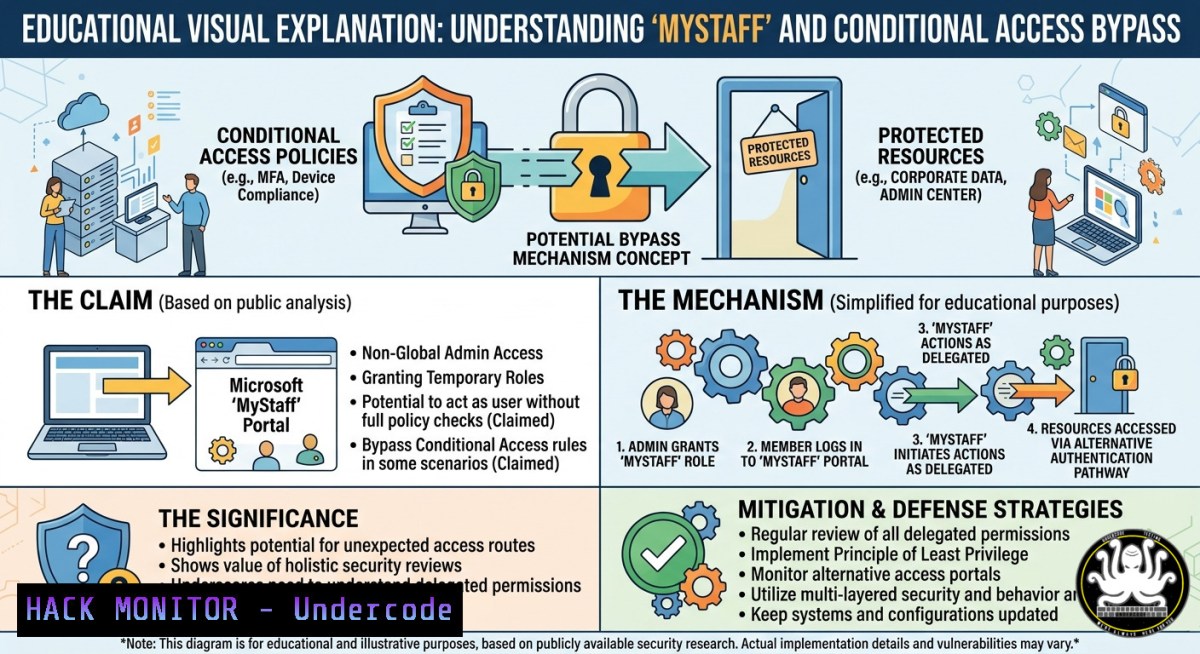
Microsoft Entra ID includes a hidden administrative portal called “My Staff” (mystaff.microsoft.com) that operates outside the default scope of Conditional Access policies designed to protect other admin portals. This oversight allows authorized users—such as teachers or managers—to reset passwords and add phone numbers for users within their assigned administrative units, potentially bypassing your organization’s security controls if not properly addressed.
Learning Objectives:
- Identify the undocumented MyStaff service principal and understand why it is excluded from standard Conditional Access admin portal policies.
- Manually create and scope the MyStaff service principal to enforce Conditional Access policies and close this security gap.
- Analyze token revocation behaviors after password resets, especially in passwordless environments, to prevent lingering session risks.
You Should Know:
- What Is MyStaff and Why Is It a Security Blind Spot?
MyStaff is a legitimate Microsoft portal designed for delegated user management scenarios (e.g., a teacher resetting a student’s password). However, it is not automatically included in the “Microsoft Admin Portals” list within Conditional Access policies. This means that even if you have strict Conditional Access rules requiring MFA, compliant devices, or trusted locations for admin portals, the MyStaff portal remains exempt by default. It communicates via the Microsoft Graph endpoint, which is why standard policy scoping based on cloud app selections misses it. Attackers who compromise a user with administrative unit privileges could leverage this portal to reset passwords or add phone numbers for targeted accounts without triggering your Conditional Access controls.
- Detecting If the MyStaff Service Principal Already Exists
Before adding the MyStaff portal to your Conditional Access policy, you must verify whether its service principal (SPN) is already provisioned in your tenant. Many tenants do not have it by default. Use Microsoft Graph PowerShell to check:
 Install the Microsoft Graph module if not already installed
Install-Module Microsoft.Graph -Scope CurrentUser

Connect to Graph with appropriate permissions (Application.Read.All)
Connect-MgGraph -Scopes Application.Read.All

Check for the MyStaff SPN using its known AppId
$mystaffAppId = "ba9ff945-a723-4ab5-a977-bd8c9044fe61"
$sp = Get-MgServicePrincipal -Filter "AppId eq '$mystaffAppId'"

if ($sp) {
Write-Host "MyStaff SPN exists with ID: $($sp.Id)" -ForegroundColor Green
} else {
Write-Host "MyStaff SPN not found. You need to create it." -ForegroundColor Red
}
If the SPN is missing, you will see a warning. Note that even if the SPN exists, it may still not be included in your Conditional Access policies.
3. Manually Creating the MyStaff Service Principal
To bring the MyStaff portal under your Conditional Access governance, you must explicitly create its service principal using the known AppId. This command registers the enterprise application in your tenant:
 Connect with Application.ReadWrite.All scope
Connect-MgGraph -Scopes Application.ReadWrite.All

Create the MyStaff service principal
New-MgServicePrincipal -AppId "ba9ff945-a723-4ab5-a977-bd8c9044fe61"
After execution, verify creation by rerunning the detection script. The SPN will now appear in your Enterprise Applications list. Without this manual step, Conditional Access policies cannot target “MyStaff” as a cloud app because the object does not exist to be selected.
- Adding MyStaff to a Conditional Access Admin Portals Policy
Once the SPN exists, you can add it to a Conditional Access policy that targets admin portals. You can do this via the Azure Portal or programmatically with Graph API.
Azure Portal Steps:
- Navigate to Entra ID > Protection > Conditional Access > Policies.
- Create a new policy or edit an existing one targeting “Admin portals”.
- Under Cloud apps or actions > Select apps, search for “MyStaff” and add it.
- Configure your access controls (MFA, compliant device, trusted location, etc.).
- Enable the policy and test.
Graph API / PowerShell Method:
First, retrieve the SPN object ID, then update your policy’s `includeApplications` list. Here is an example using Microsoft Graph PowerShell to add MyStaff to an existing policy (replace `$policyId` with your policy ID):
 Connect with Policy.ReadWrite.All and Application.Read.All
Connect-MgGraph -Scopes Policy.ReadWrite.All, Application.Read.All

$policyId = "your-policy-id-here"
$mystaffSp = Get-MgServicePrincipal -Filter "AppId eq 'ba9ff945-a723-4ab5-a977-bd8c9044fe61'"

Get existing policy
$policy = Get-MgIdentityConditionalAccessPolicy -ConditionalAccessPolicyId $policyId

Add MyStaff to the cloud app list (if not already present)
$currentApps = $policy.Conditions.Applications.IncludeApplications
if ($currentApps -notcontains $mystaffSp.AppId) {
$currentApps += $mystaffSp.AppId
$policy.Conditions.Applications.IncludeApplications = $currentApps

Update the policy
Update-MgIdentityConditionalAccessPolicy -ConditionalAccessPolicyId $policyId -BodyParameter $policy
Write-Host "MyStaff added to policy."
}
Important: Microsoft recommends also adding Azure DevOps and Graph Explorer to your admin portals policy, as they similarly bypass default scoping.
5. Token Revocation Quirks for Passwordless Accounts
When a password reset occurs—even in a passwordless environment—the targeted user’s refresh tokens are generally revoked. However, as noted in Microsoft’s documentation (https://learn.microsoft.com/en-us/entra/identity-platform/refresh-tokenstoken-revocation), there is an exception: if an administrator resets a passwordless account through the Azure Portal, token revocation for non-password-based authentication methods (like Windows Hello for Business or FIDO2 keys) may not be triggered. This means an attacker who gains access to a passwordless user’s session could potentially retain access even after an admin performs a password reset. To mitigate this, always combine password resets with explicit token revocation using Revoke-MgUserSignInSession:
 Revoke all sessions for a user after a password reset
Connect-MgGraph -Scopes User.ReadWrite.All
Revoke-MgUserSignInSession -UserId "[email protected]"
6. Hardening Recommendations Beyond MyStaff
The MyStaff discovery highlights a broader principle: many first-party Microsoft applications are not automatically provisioned as service principals, and therefore escape Conditional Access governance. Proactively audit your tenant for missing but risky SPNs. Common candidates include:
– Azure DevOps (AppId: 499b84ac-1321-427f-aa17-267ca6975798)
– Microsoft Graph Explorer (AppId: de8bc8b5-d9f9-48b1-a8ad-b748da725064)
– Azure Portal (certain legacy APIs)
Use the following script to check for multiple known SPNs:
$knownApps = @{
"MyStaff" = "ba9ff945-a723-4ab5-a977-bd8c9044fe61"
"Azure DevOps" = "499b84ac-1321-427f-aa17-267ca6975798"
"Graph Explorer" = "de8bc8b5-d9f9-48b1-a8ad-b748da725064"
}

Connect-MgGraph -Scopes Application.Read.All
foreach ($app in $knownApps.Keys) {
$sp = Get-MgServicePrincipal -Filter "AppId eq '$($knownApps[$app])'"
if (-not $sp) {
Write-Warning "$app SPN missing. Consider creating with: New-MgServicePrincipal -AppId '$($knownApps[$app])'"
}
}
7. Automating MyStaff SPN Creation and Policy Enforcement
To ensure the MyStaff portal never slips through the cracks, integrate its creation and Conditional Access scoping into your tenant provisioning scripts. Below is a complete PowerShell script that checks, creates, and adds MyStaff to an existing “Admin Portals” policy—or creates a new one if none exists.
 Full automation script for MyStaff hardening
$mystaffAppId = "ba9ff945-a723-4ab5-a977-bd8c9044fe61"
$adminPolicyName = "Secure Admin Portals - MyStaff Included"

Connect-MgGraph -Scopes Application.ReadWrite.All, Policy.ReadWrite.All

Step 1: Create SPN if missing
$sp = Get-MgServicePrincipal -Filter "AppId eq '$mystaffAppId'"
if (-not $sp) {
Write-Host "Creating MyStaff SPN..."
$sp = New-MgServicePrincipal -AppId $mystaffAppId
Write-Host "Created SPN with ID: $($sp.Id)"
} else {
Write-Host "MyStaff SPN already exists."
}

Step 2: Find or create Conditional Access policy
$policy = Get-MgIdentityConditionalAccessPolicy -Filter "displayName eq '$adminPolicyName'"
if (-not $policy) {
Write-Host "Creating new Conditional Access policy..."
$policyParams = @{
DisplayName = $adminPolicyName
State = "enabledForReportingButNotEnforced"
Conditions = @{
Applications = @{
IncludeApplications = @($mystaffAppId)
}
Users = @{
IncludeUsers = @("All")
ExcludeUsers = @()
}
Locations = @{
IncludeLocations = @("All")
}
}
GrantControls = @{
BuiltInControls = @("mfa")
Operator = "OR"
}
}
$policy = New-MgIdentityConditionalAccessPolicy -BodyParameter $policyParams
Write-Host "Created new policy. Review and enforce after testing."
} else {
 Add MyStaff to existing policy if missing
$currentApps = $policy.Conditions.Applications.IncludeApplications
if ($currentApps -notcontains $mystaffAppId) {
$currentApps += $mystaffAppId
$policy.Conditions.Applications.IncludeApplications = $currentApps
Update-MgIdentityConditionalAccessPolicy -ConditionalAccessPolicyId $policy.Id -BodyParameter $policy
Write-Host "Added MyStaff to existing policy."
} else {
Write-Host "MyStaff already in policy."
}
}
Write-Host "Hardening complete."
What Undercode Say:
- Hidden service principals are a recurring risk. MyStaff is not an isolated incident; many Microsoft cloud apps are omitted from default Conditional Access scoping, requiring proactive discovery and manual SPN creation.
- Token revocation is not universal. Even after a password reset in passwordless environments, refresh tokens for FIDO2 and Windows Hello may persist. Always follow up with explicit `Revoke-MgUserSignInSession` to ensure complete session termination.
Analysis: This vulnerability underscores a fundamental tension between usability (allowing delegated resets without full admin rights) and security (ensuring consistent policy enforcement). While Microsoft provides the “My Staff” portal as a convenience, its default exclusion from Conditional Access creates a blind spot that security teams must actively close. The ability to manually create service principals is a powerful mitigation, but it relies on administrator awareness—which this discovery rightly raises. Organizations using administrative units should prioritize this hardening to prevent lateral movement or privilege escalation via forgotten portals. Additionally, the token revocation nuance for passwordless accounts reveals that “passwordless” does not mean “sessionless”; old sessions can remain active unless explicitly revoked, creating a persistence vector.
Prediction:
As identity-centric attacks continue to rise, Microsoft will likely update Entra ID to automatically provision critical service principals like MyStaff during tenant creation and include them in default Conditional Access templates. However, until then, attackers will increasingly probe for these hidden portals using reconnaissance tools that enumerate AppIds of known first-party applications. In the next 12–18 months, expect security frameworks (e.g., CIS, NIST) to add explicit controls for auditing and scoping all first-party service principals, not just those visible in the admin portal. Organizations that fail to proactively harden these blind spots will face breaches originating from delegated access abuse—particularly in education and retail sectors where manager-led resets are common. The future of Entra security will demand continuous SPN discovery and automated policy attachment as part of zero-trust architecture.
▶️ Related Video (80% Match):
🎯Let’s Practice For Free:
IT/Security Reporter URL:
Reported By: Jay Kerai – Hackers Feeds
Extra Hub: Undercode MoN
Basic Verification: Pass ✅


