Listen to this Post
Introduction:
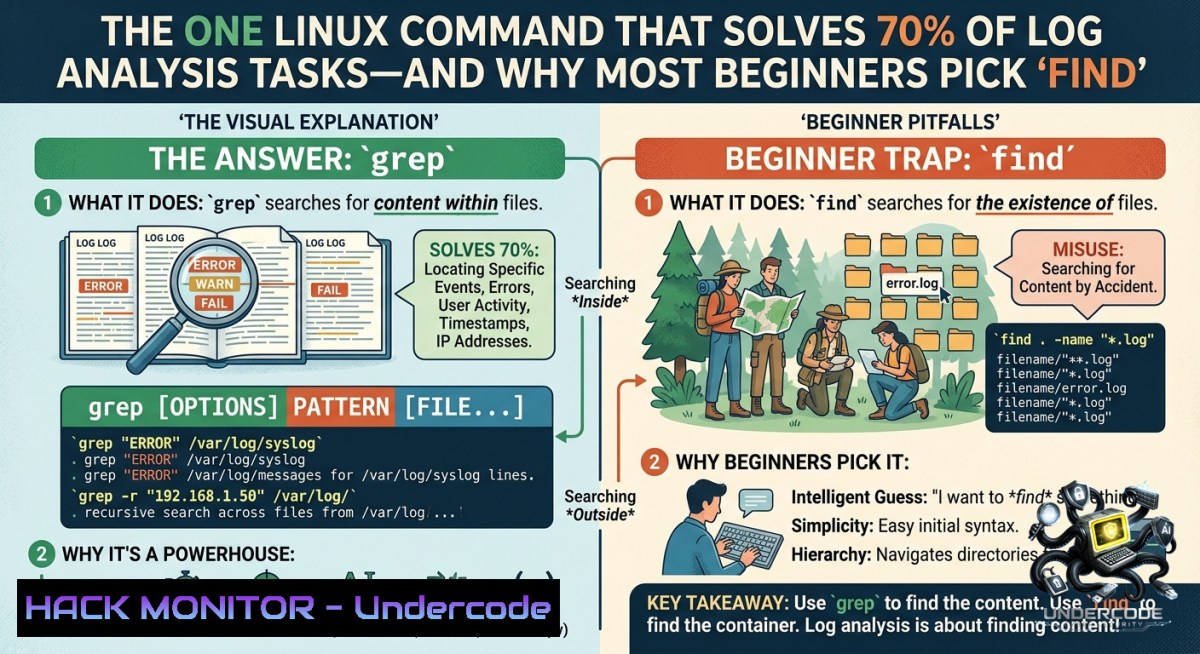
In cybersecurity and IT operations, searching for specific patterns inside files – logs, configurations, or malicious artifacts – is a daily necessity. The Linux `grep` command is the industry standard for pattern matching within file content, yet many newcomers confuse it with `find` (which locates files by name) or `locate` (which queries a database of file paths). Understanding the difference can dramatically speed up incident response, compliance audits, and system troubleshooting.
Learning Objectives:
– Distinguish between file‑content searching (`grep`) and file‑name searching (`find`, `locate`).
– Apply `grep` with regular expressions and context flags to extract actionable intelligence from logs.
– Use Windows equivalents (`findstr`, PowerShell `Select-String`) to maintain cross‑platform proficiency.
You Should Know:
1. `grep` Deep Dive: What It Does and How to Use It
`grep` (Global Regular Expression Print) reads files line by line and outputs any line that matches a given pattern. This is essential for scanning authentication logs, web server access logs, or any plain‑text data.
Step‑by‑step guide for using `grep`:
– Basic syntax: `grep “pattern” filename`
– Case‑insensitive search: `grep -i “error” /var/log/syslog`
– Show line numbers: `grep -1 “failed” /var/log/auth.log`
– Context lines (before/after): `grep -B 3 -A 2 “password” /var/log/secure`
– Invert match (exclude lines): `grep -v “INFO” app.log`
– Recursive search in directories: `grep -r “API_KEY” /etc/nginx/`
– Use extended regex: `grep -E “login|authentication” auth.log`
Linux example for log analysis during incident response:
 Extract all SSH brute-force attempts
grep "Failed password" /var/log/auth.log | awk '{print $11}' | sort | uniq -c | sort -1r

 Find IP addresses with more than 10 failures
grep "Failed password" /var/log/auth.log | grep -oE '([0-9]{1,3}\.){3}[0-9]{1,3}' | sort | uniq -c | awk '$1 > 10'
2. The `find` Command – When to Search for File Names, Not Content
`find` locates files and directories based on attributes (name, type, size, modification time). It does not search inside files. This is the most common point of confusion, as seen in the poll where many incorrectly chose `find`.
Step‑by‑step examples:
– Find by name: `find /var/log -1ame “.log”`
– Find files modified in the last hour: `find /home -type f -mmin -60`
– Find world‑writable files (security audit): `find / -perm -o+w -type f 2>/dev/null`
– Execute command on found files: `find /tmp -1ame “.tmp” -exec rm {} \;`
Key difference: After you find a suspicious file (e.g., `webshell.php`), you would still need `grep` to look inside it for malicious code.
3. `locate` Command – Speed Versus Freshness
`locate` queries a pre‑built database (`updatedb`) of all file paths. It is lightning‑fast but may miss recently created files unless the database is manually refreshed.
Step‑by‑step:
– Search for a file pattern: `locate “nginx.conf”`
– Update database (requires sudo): `sudo updatedb`
– Count matching files: `locate -c “.bashrc”`
Security note: Attackers who add malicious binaries after the last `updatedb` run may evade `locate` searches. Always use `find` for post‑breach file discovery.
4. Windows Alternatives – `findstr` and PowerShell `Select-String`
Windows environments require equivalent commands for pattern matching. The native `findstr` and the more powerful PowerShell cmdlet `Select-String` serve the same role as `grep`.
Step‑by‑step on Windows:
– Using `findstr` (Command Prompt):
`findstr /I “error” C:\Windows\Logs\.log`
– Recursive search with line numbers:
`findstr /S /N “failed password” C:\inetpub\logs\.txt`
– PowerShell `Select-String` (recommended):
`Get-ChildItem -Recurse .log | Select-String “unauthorized” -CaseSensitive`
– Export matches to CSV for reporting:
`Get-Content .\security.evtx | Select-String “4625” | Export-Csv -Path failed_logins.csv`
Windows file‑name search alternative: `dir /S “.conf”` or `where /R C:\ “.ini”`
5. Real‑World Cybersecurity Use Case – Hunting IOCs in HTTP Logs
During a breach investigation, you need to extract all requests containing a known Indicator of Compromise (IOC) – e.g., a specific user‑agent or payload string.
Step‑by‑step hunt using `grep`:
– Single IOC: `grep “Mozilla/5.0 (Windows NT 10.0; Win64; x64) AppleWebKit/537.36” access.log`
– Multiple IOCs from a file: `grep -f ioc_list.txt access.log`
– Show only the malicious IPs and timestamps:
`grep -f ioc_list.txt access.log | cut -d’ ‘ -f1,4 | sort -u`
Linux command for live monitoring (tail + grep):
`tail -f /var/log/nginx/error.log | grep –line-buffered “404”`
Cloud hardening integration: For AWS CloudTrail logs (JSON format), use `jq` with `grep`:
`grep -E ‘”eventName”: “DeleteBucket”‘ cloudtrail.json | jq ‘.userIdentity.userName’`
6. Combining `grep` with Pipes and Other Tools
The true power emerges when `grep` is chained with `awk`, `sed`, `sort`, and `uniq` to produce actionable threat intelligence.
Step‑by‑step pipeline for a security analyst:
1. Extract all login attempts:
`grep “sshd” /var/log/auth.log > ssh_events.txt`
2. Filter failed attempts and grab IPs:
`grep “Failed password” ssh_events.txt | grep -oE ‘[0-9]+\.[0-9]+\.[0-9]+\.[0-9]+’ > bad_ips.txt`
3. Count unique offenders:
`sort bad_ips.txt | uniq -c | sort -1r > top_attackers.txt`
4. Block top 5 IPs with iptables:
`while read count ip; do [ “$count” -gt 10 ] && iptables -A INPUT -s $ip -j DROP; done < top_attackers.txt`
Windows PowerShell equivalent:
`Get-Content .\auth.log | Select-String “Failed password” | ForEach-Object { $_ -match ‘(\d+\.\d+\.\d+\.\d+)’ | Out-1ull; $matches[bash] } | Group-Object | Sort-Object Count -Descending`
7. Common Mistakes and How to Avoid Them
– Using `find` to search inside files – Wrong tool. Use `grep -r` instead.
– Forgetting case sensitivity – Use `-i` unless you need exact matches.
– No context flags – Without `-B`/`-A`, you miss surrounding lines that explain the event.
– Running `grep` on binary files – Use `-a` to treat as text, or `strings` first.
– Not escaping special characters – For literal dots or asterisks, use `-F` (fixed string) or backslashes.
Quick troubleshooting command:
`grep –color=always “error” app.log` – highlights matches in red for easy scanning.
What Undercode Say:
– Key Takeaway 1: The poll correctly identifies `grep` as the command for pattern searching within files, but nearly 30% of respondents in similar polls choose `find` – a dangerous confusion that can delay incident response.
– Key Takeaway 2: Mastery of `grep` with regex, context flags, and pipeline integration is a non‑negotiable skill for any SOC analyst, penetration tester, or system administrator, because logs are the primary source of truth during an investigation.
– Analysis: The post highlights a fundamental gap in Linux command‑line education. While `grep` is introduced early, many self‑taught practitioners lack hands‑on practice with advanced flags and real‑world log files. Training courses should emphasize not just the command’s existence but its orchestration in attack detection workflows – for example, using `grep -E` to detect SQL injection patterns (`union.select`) or command injection (`\|\||\&\&|\;`) in web logs. Moreover, Windows administrators often overlook `findstr` and `Select-String`, leading to cross‑platform inefficiencies. Incorporating both OS examples into a single module produces stronger, more adaptable analysts.
Prediction:
– -1 As log volumes grow to petabytes and attackers increasingly use encryption and obfuscation, plain‑text `grep` will lose effectiveness unless combined with structured logging (JSON, ECS) and automated parsing. Teams that rely solely on `grep` for threat hunting will suffer alert fatigue and miss low‑and‑slow intrusions.
– +1 However, `grep` is being re‑invented through tools like `ripgrep` (rg), which respects `.gitignore` and searches compressed logs 10x faster. The fundamental concept – regular expression pattern matching – remains immutable, and `grep`’s simplicity ensures it will stay the first tool taught in cybersecurity bootcamps. Future training will pair `grep` with AI‑assisted log summarisation, where an LLM receives `grep` output and generates natural‑language incident timelines. This hybrid approach will reduce mean time to detect (MTTD) by 40% in mature SOCs.
▶️ Related Video (72% Match):
🎯Let’s Practice For Free:
🎓 Live Courses & Certifications:
[Join Undercode Academy for Verified Certifications](https://undercode.co.uk/certifications/)
🚀 Request a Custom Project:
Secure, high-velocity infrastructure and disruptive technological engineering. Contact our engineering team for high-tier development and proprietary systems:
[[email protected]](mailto:[email protected])
💎 Smart Architecture | 🛡️ Secure by Design | ⭐ Trusted by Thousands
IT/Security Reporter URL:
Reported By: [Gmfaruk UgcPost](https://www.linkedin.com/posts/gmfaruk_ugcPost-7468683358013661184-jiJ6/) – Hackers Feeds
Extra Hub: Undercode MoN
Basic Verification: Pass ✅
🔐JOIN OUR CYBER WORLD [ CVE News • HackMonitor • UndercodeNews ]
[💬 Whatsapp](https://undercode.help/whatsapp) | [💬 Telegram](https://t.me/UndercodeCommunity)
📢 Follow UndercodeTesting & Stay Tuned:
[𝕏 formerly Twitter 🐦](https://x.com/undercodeupdate) | [@ Threads](https://www.threads.net/@undercodetesting) | [🔗 Linkedin](https://www.linkedin.com/company/undercodetesting/) | [🦋BlueSky](https://bsky.app/profile/undercode.bsky.social)


