Listen to this Post
Introduction:
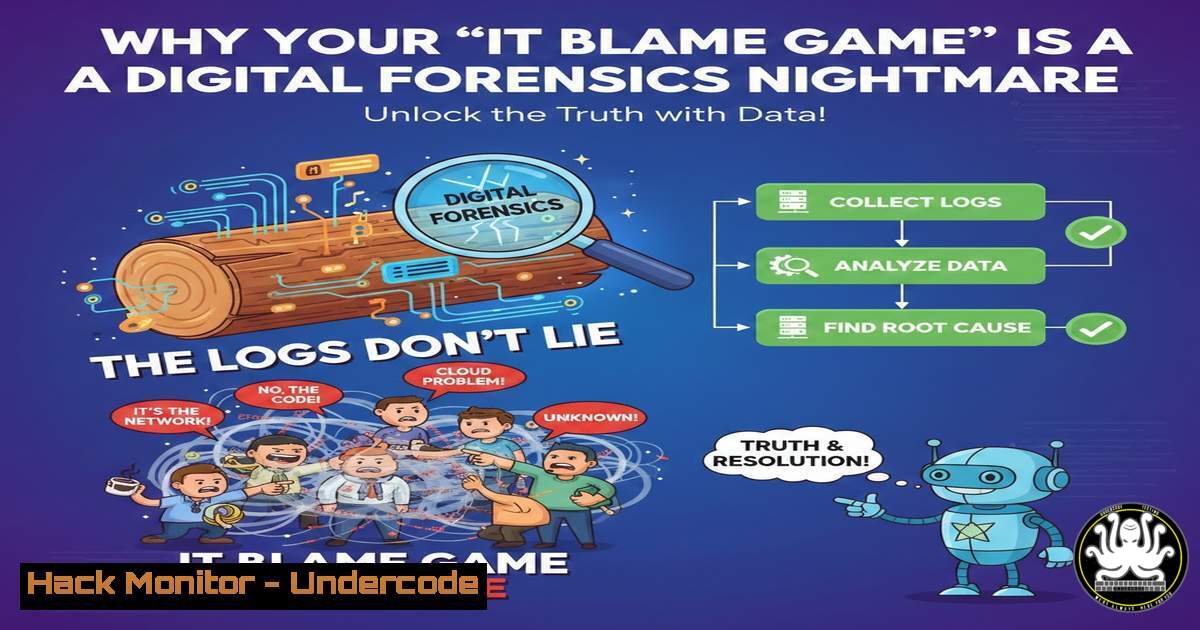
In the modern enterprise, the IT department isn’t just a help desk—it’s the custodian of the organization’s central nervous system. Every click, every login, and every file modification generates a digital artifact. When users attempt to deflect responsibility by blaming “the system,” they are not just delaying a fix; they are challenging a documented reality. Understanding the depth of digital forensics available to system administrators is crucial for maintaining accountability and operational security.
Learning Objectives:
- Understand the scope and permanence of audit logs in a corporate network.
- Learn how to query critical logs on Linux and Windows to verify user activity.
- Identify the types of user denials that are easily disproven by technical evidence.
You Should Know:
- The Unblinking Eye: Auditing Logins and Authentication History
When a user claims they weren’t logged in or didn’t access a system at a specific time, the authentication logs provide the immediate truth. These logs record every successful and failed login attempt, including the source IP address and timestamp.
- Windows (Security Log – Event ID 4624): To check who logged into a Windows machine or domain, you use Event Viewer. However, for rapid investigation, the `wevtutil` command or PowerShell is faster.
Query the Security log for successful logons (Event ID 4624) from the last 24 hours Get-EventLog -LogName Security -InstanceId 4624 -After (Get-Date).AddDays(-1) | Select-Object TimeGenerated, @{name='User';expression={$<em>.ReplacementStrings[bash]}}, @{name='Workstation';expression={$</em>.ReplacementStrings[bash]}} | Format-Table -AutoSize -
Linux (/var/log/auth.log or /var/log/secure): On Debian/Ubuntu systems, authentication logs are stored here. For RHEL/CentOS, it’s
/var/log/secure.Check recent SSH login attempts and sessions sudo cat /var/log/auth.log | grep "sshd" | grep "Accepted" To see last logged-in users and current sessions last -F | head -20
2. Website Visited? The Proxy and DNS Trail
A user might claim they “didn’t click that link” or weren’t browsing non-work-related sites. In a corporate environment, web traffic usually routes through a proxy server, and DNS queries are logged by internal servers.
- DNS Query Logging (Windows Server): If the network uses Windows DNS Server, you can enable debug logging to see every domain resolved.
Check DNS Server log location (usually set in registry or UI) But to query client-specific logs, you often check the Security or Debug log. Get-WinEvent -LogName "DNS Server" | Where-Object { $_.TimeCreated -gt (Get-Date).AddDays(-1) } | Format-Table TimeCreated, Message -AutoSize -
Linux Firewall (iptables/nftables) Logging: If the company uses a Linux gateway with logging rules, you can see outbound connections.
View kernel logs for firewall drops/accepts (depending on rules)
sudo dmesg | grep "DPT=443" | tail -20

Or check specific log files if rsyslog is configured
sudo tail -f /var/log/firewall.log
- Software Installation and Execution: The Shimcache and Sysmon
Denying the installation of unauthorized software is futile. Windows tracks this extensively via the Shimcache (Application Compatibility Cache) and Prefetch files. For more robust tracking, Sysmon is a must.
-
PowerShell (Querying Shimcache via Registry): This requires admin rights and reads data directly from the registry hive.
This command pulls the Shimcache data (though often parsed better with tools like Autoruns)
It shows the last modified time of executed files.
Get-ItemProperty -Path "HKLM:\SYSTEM\CurrentControlSet\Control\Session Manager\AppCompatCache" -Name AppCompatCache
Note: Shimcache is complex; using a tool like `AppCompatCacheParser` from KAPE is recommended for forensics.
-
Windows Installer Logs: Check the Msi.log files or Event Viewer for MsiInstaller events (Event ID 1033/1034).
Find all MSI installations for a specific date
Get-WinEvent -FilterHashtable @{LogName='Application'; ProviderName='MsiInstaller'; ID=1033} |
Where-Object { $_.TimeCreated -gt (Get-Date).AddDays(-2) } |
Select-Object TimeCreated, Message
4. File Modifications and Deletions: The USN Journal
When a user says, “I didn’t delete that file,” the NTFS filesystem itself keeps a record. The Update Sequence Number (USN) Journal is a log of all changes made to files on a volume.
- Windows (fsutil): You can query the USN Journal to see what changed.
First, query the volume to get the Journal ID (usually for C:)
fsutil usn queryjournal C:

Then, read the journal to see recent changes.
This requires parsing; a more practical PowerShell approach:
(This requires the FSRM module or specific .NET calls, often complex)
For daily use, IT professionals rely on tools like `MFT Dump` or `UsnJrnl2Csv` rather than raw commands.
-
Linux (auditd): If you suspect file tampering, configure auditd to watch specific directories.
Add a watch rule for a sensitive directory
sudo auditctl -w /home/user/sensitive_folder -p wa -k file_deletion_watch

Search the audit logs for that key
sudo ausearch -k file_deletion_watch
5. Email Trace Data: The Headers Don’t Lie
Users often claim they never received an email or that the “system lost” their sent message. Email headers contain the entire journey of the message, including timestamps from the Mail Exchange (MX) servers.
- Message Header Analysis: While not a direct command, an admin can pull the message tracking logs from the Exchange server or Microsoft 365 Defender portal.
Exchange On-Premises: Search message tracking logs for a specific sender/recipient
Get-MessageTrackingLog -Sender "[email protected]" -Start (Get-Date).AddDays(-1) -ResultSize Unlimited |
Select-Object Timestamp, EventId, Recipients, MessageSubject
This log will prove if the email was sent, if it was deferred, or if it was rejected by the recipient’s server—instantly disproving the “I sent it, it must be IT’s fault” narrative.
6. Security Training Status: The LMS Logs
When asked why a mandatory module wasn’t completed, the Learning Management System (LMS) logs provide a detailed playback. These systems track when a user logged in, how long they spent on a page, and if they fast-forwarded through videos.
- Database Query (Conceptual): An IT administrator running the LMS backend can query the session data.
-- Example SQL query to check user activity in a Moodle or similar LMS
SELECT user.username, course.fullname, log.timecreated, log.action
FROM mdl_logstore_standard_log as log
JOIN mdl_user as user ON log.userid = user.id
JOIN mdl_course as course ON log.courseid = course.id
WHERE user.username = 'john.doe'
AND log.timecreated > UNIX_TIMESTAMP(DATE_SUB(NOW(), INTERVAL 30 DAY));
This query would return the exact timestamps of the user’s interaction with the training material.
- Device Activity and Policy Violations: The EDR Perspective
Modern Endpoint Detection and Response (EDR) tools (like CrowdStrike, SentinelOne, or Microsoft Defender for Endpoint) go beyond simple logs. They record process trees, command-line arguments, and network connections.
- KQL Query (Microsoft 365 Defender): To prove a user ran a specific command or script, a security analyst might run a Kusto Query.
DeviceProcessEvents
| where Timestamp > ago(1d)
| where DeviceName == "LAPTOP-USER01"
| where ProcessCommandLine contains "suspicious_script.ps1"
| project Timestamp, AccountName, FileName, ProcessCommandLine, InitiatingProcessFileName
This provides undeniable proof of execution, negating any claims of system error.
What Undercode Say:
The core lesson from Michael Forsyth’s post transcends IT; it is a fundamental principle of digital trust. The infrastructure is not designed to catch people, but to catch errors. When a user defaults to blaming technology, they are attempting to fight data with anecdote, a battle they will always lose. The logs provide an immutable source of truth that drives root cause analysis.
Key Takeaway 1: Accountability is not surveillance; it is the bedrock of operational excellence. An environment where the “blame IT” reflex is broken is an environment where problems are solved swiftly because the data is accepted as fact.
Key Takeaway 2: For IT professionals, the logs are a shield. They protect the department from being the organizational scapegoat. However, this power comes with the responsibility to use audit data for fixing systemic issues, not for punitive measures, thereby fostering a culture of transparency.
The post serves as a stark reminder that in the age of pervasive logging, integrity is not just a moral choice but a professional one. The organization’s health depends on working with the facts, and the facts are always recorded.
Prediction:
As AI-driven Security Orchestration, Automation, and Response (SOAR) platforms evolve, we will see the rise of automated “credibility scoring” based on audit trails. When a user reports an incident, the AI will cross-reference their claim with historical log data in real-time, automatically flagging inconsistencies and prioritizing tickets based on the veracity of the reporter. This will eliminate the blame-game entirely, forcing a new level of honesty in human-machine interaction.
▶️ Related Video (80% Match):
🎯Let’s Practice For Free:
IT/Security Reporter URL:
Reported By: Michael Forsyth – Hackers Feeds
Extra Hub: Undercode MoN
Basic Verification: Pass ✅


