Listen to this Post
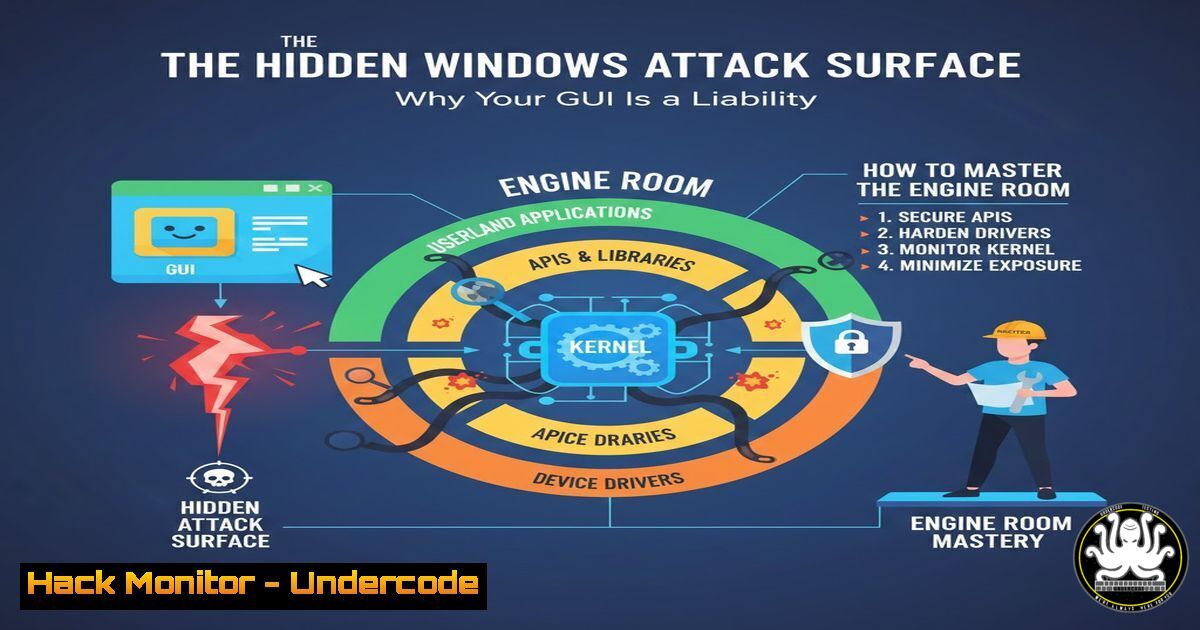
Introduction:
In the world of ethical hacking and penetration testing, an obsessive focus on external tools often obscures the most critical attack surface: the operating system itself. For professionals working in a Windows-dominated enterprise environment, a deep, foundational understanding of Windows internals is what separates a script kiddie from a true security expert. This article deconstructs the essential Windows fundamentals that form the bedrock of advanced offensive and defensive security operations.
Learning Objectives:
- Decode the critical Windows filesystem locations exploited for persistence, privilege escalation, and lateral movement.
- Master built-in utilities and Sysinternals tools to analyze live system behavior and forensic artifacts.
- Develop the methodology to think like an attacker by understanding normal system operation, thereby making anomalies visible.
You Should Know:
1. The Hierarchy of Power: Windows Filesystem Forensics
The Windows filesystem is a meticulously organized blueprint. Understanding the purpose of each key directory allows you to spot malicious artifacts that automated tools might miss.
Step‑by‑step guide:
Start by exploring core directories from an attacker’s perspective. Open Command Prompt as Administrator and run:
dir C:\Windows\System32 /Q
This shows file ownership. Note the `NT SERVICE\TrustedInstaller` ownership on most files; any deviation here is a massive red flag. Next, examine auto-start locations:
 Check for unusual scheduled tasks
schtasks /query /fo LIST /v

Examine common persistence directories
dir "C:\ProgramData\Microsoft\Windows\Start Menu\Programs\StartUp" /a
dir "%APPDATA%\Microsoft\Windows\Start Menu\Programs\Startup" /a
Understanding that `C:\Windows\System32\drivers\` holds kernel drivers, `C:\Windows\Tasks\` holds scheduled job files, and `C:\Windows\System32\winevt\Logs` holds the EVTX log files, allows you to conduct targeted hunts.
- The Abuser’s Paradise: Navigating AppData and User Profiling
The `C:\Users\\AppData` directory is the tripartite heart of userland persistence and data exfiltration. Local,LocalLow, and `Roaming` each serve distinct purposes abused by malware.
Step‑by‑step guide:
To analyze AppData, first, reveal hidden items: In File Explorer, go to View > Options > Change folder and search options > View > select “Show hidden files, folders, and drives.”
From PowerShell, enumerate potentially malicious contents:
 Check for executable files or suspicious scripts in AppData
Get-ChildItem -Path "$env:USERPROFILE\AppData" -Recurse -Force -Include .exe, .dll, .vbs, .ps1, .js -ErrorAction SilentlyContinue | Select-Object FullName, LastWriteTime
Malware often drops payloads in `AppData\Local\Temp` or stores configuration in AppData\Roaming\Microsoft\Windows\Start Menu\Programs\Startup. Compare files against known-good baselines using hashes (Get-FileHash suspicious.exe).
- Hijacking the Path: Program Execution and DLL Search Order
Windows loads executables and DLLs based on a defined search order. Attackers exploit this through DLL Search Order Hijacking or by placing malicious binaries in directories searched before the legitimate one.
Step‑by‑step guide:
To see the current PATH variable (which influences where `cmd.exe` looks for executables), run:
echo %PATH%
In PowerShell: `$env:Path -split ‘;’`
To simulate how an application loads a DLL, use Sysinternals Procmon. Launch Procmon (run as Admin), set a filter for `Path` contains DLL_NAME.dll, and launch the target application. Observe the sequence of directories searched. A common test is to check for writable directories earlier in the search order. Mitigate by using absolute paths or tools like `Sigcheck -m` to verify DLL signatures.
4. Behind the MMC: Leveraging Built-in System Consoles
The Microsoft Management Console (mmc.exe) snap-ins are power-user hubs for configuration and diagnostics. Knowing these shortcuts grants immediate insight into system state.
Step‑by‑step guide:
Press `Win + R` and run these critical consoles:
– services.msc: Analyze services for privilege escalation. Sort by “Log On As” column; any service running as `SYSTEM` or an elevated account with weak file permissions is a target.
– eventvwr.msc: Navigate to Windows Logs > Security. Filter for Event ID 4624 (logon) and 4625 (failed logon) to track authentication. Event ID 4688 shows process creation with command-line arguments—invaluable for forensic timeline.
– secpol.msc: Review Local Security Policy, especially User Rights Assignment like “Debug programs” or “Load and unload device drivers,” which are often targeted.
5. Real-Time Triage: Sysinternals Procmon for Live Analysis
Process Monitor (Procmon) is the ultimate lens into real-time system activity, revealing file, registry, process, and network operations.
Step‑by‑step guide:
1. Download `Procmon.exe` from Microsoft Sysinternals.
2. Run as Administrator.
- Immediately configure filters (Filter > Filter…) to reduce noise. Example: to monitor a specific process, add a filter: `Process Name`
is`explorer.exe` thenInclude. - Reproduce a user action (e.g., clicking a shortcut). Observe the cascade of
RegQueryValue,CreateFile, and `Thread Create` operations. - To hunt malware, look for process creation from unusual locations (Temp, AppData) writing to `HKLM\SOFTWARE\Microsoft\Windows\CurrentVersion\Run` (persistence) or accessing `lsass.exe` process memory (credential theft).
What Undercode Say:
- Depth Over Tools: Mastery of the environment inherently expands your capability. A tool automates a technique; knowledge lets you invent one. Understanding `System32` allows you to spot a rogue
svchost.exe; knowing `AppData` lets you find a stealthy C2 payload. - The Attacker’s Mindset is Built on Normality: You cannot identify anomalous behavior—be it a malicious service, a hijacked DLL search, or a suspicious Registry run key—without a foundational understanding of what normal system behavior looks like. This internal map is your most valuable asset.
Prediction:
The future of sophisticated cyber attacks, particularly ransomware and advanced persistent threats (APTs), will increasingly rely on “living-off-the-land” techniques (LOLBins) and deep OS abstraction layer exploitation. As endpoint detection and response (EDR) solutions improve at flagging known malicious tools, attackers will double down on abusing legitimate Windows components like PowerShell, WMI, COM objects, and the very internals outlined here. Consequently, the demand for security professionals who can analyze malicious behavior within the normal Windows symphony, rather than just scanning for known-bad files, will skyrocket. The next frontier is not in finding new vulnerabilities in applications, but in mastering the silent, built-in orchestra of the OS that attackers have already learned to conduct.
▶️ Related Video (72% Match):
🎯Let’s Practice For Free:
IT/Security Reporter URL:
Reported By: Salik Seraj – Hackers Feeds
Extra Hub: Undercode MoN
Basic Verification: Pass ✅


