Listen to this Post
Introduction:
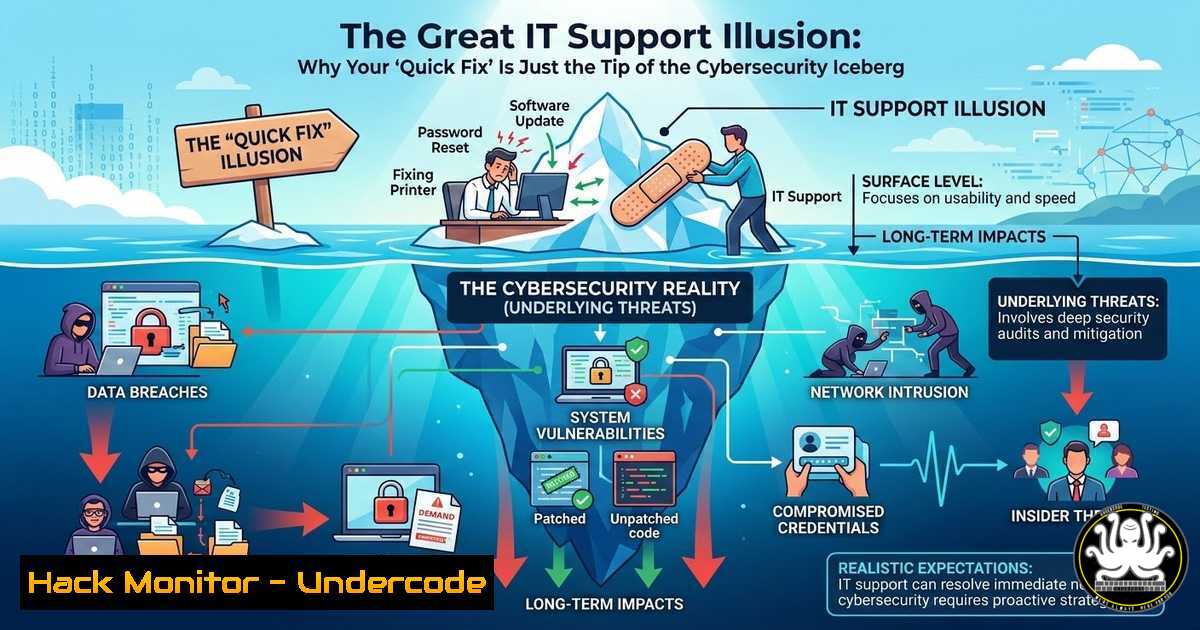
In the high-pressure world of IT and cybersecurity, the line between a simple technical glitch and a full-blown security incident is often thinner than we admit. A recent LinkedIn thread highlighted the humorous, yet relatable, “happy Friday” memes circulating among IT support specialists and cybersecurity professionals. While the content poked fun at the daily struggles of desktop support, it inadvertently underscored a critical reality: the foundational layer of IT support is the first line of defense against sophisticated cyber threats. This article dissects the technical realities behind those memes, providing a step-by-step guide to transforming routine support tasks into proactive security hardening measures.
Learning Objectives:
- Analyze common IT support scenarios to identify underlying security vulnerabilities.
- Implement command-line tools and system configurations to diagnose and mitigate threats during routine troubleshooting.
- Develop a workflow that integrates cybersecurity best practices into standard desktop and network support procedures.
- Deconstructing the Meme: From “Printer Not Working” to “Lateral Movement”
The humor in IT support often stems from user issues that seem trivial—”I can’t log in,” “The internet is down,” or “My computer is slow.” However, a cybersecurity expert views these same symptoms through a different lens. A “slow computer” can be a symptom of cryptojacking malware consuming CPU cycles. An inability to log in could indicate a brute-force attack or credential stuffing. The “desktop support technician” is not just a fixer of problems but a sensor on the ground, capable of identifying the early indicators of compromise (IoCs).
Step-by-Step Guide: Triage Like a Security Analyst
When responding to a standard “computer is slow” ticket, extend your troubleshooting with these security-focused steps:
Windows:
- Check for Anomalous Processes: Open Task Manager (Ctrl+Shift+Esc) and navigate to the “Details” tab. Sort by CPU and Memory.
– Command Line Alternative: Open Command Prompt as Administrator and run:
tasklist /v | findstr /i "cpu memory"
Look for processes with generic names like `svchost.exe` running from unusual user contexts or with high resource consumption.
2. Analyze Network Connections: Identify if any unknown processes are communicating externally.
– Command:
netstat -ano | findstr ESTABLISHED
Note the PID (Process ID) from the output. Cross-reference it with the PID in Task Manager to identify the application. Investigate any connections to IP addresses in foreign countries or known malicious ranges using a service like VirusTotal.
3. Check Startup Programs: Malware often persists by adding itself to startup.
– Command:
wmic startup get caption,command
Disable any suspicious entries.
Linux:
1. Process Anomaly Detection:
top -b -n 1 | head -20
Or for a more detailed view:
ps aux --sort=-%cpu | head -10
2. Network Connection Analysis:
sudo netstat -tunap
This shows all TCP/UDP connections and the associated PID/program name. Look for processes like `bash` or `nc` (netcat) establishing outbound connections, which is highly suspicious.
- The “Happy Friday” Trap: Automating User Errors and Phishing Resilience
The “Happy Friday lol 😆” post often refers to the wave of issues that hit right before the weekend—or the phishing emails promising a “bonus” that land in inboxes. Social engineering remains the most effective attack vector. As an IT professional, hardening systems against user error is a core responsibility.
Step-by-Step Guide: Hardening the Human Layer
Instead of just fixing the issue after a user clicks a malicious link, implement proactive defenses.
1. Implement Application Allowlisting (Windows via AppLocker):
This prevents unauthorized executables from running, even if a user downloads and tries to run them.
– Step 1: Open `gpedit.msc` (Local Group Policy Editor).
– Step 2: Navigate to Computer Configuration -> Windows Settings -> Security Settings -> Application Control Policies -> AppLocker.
– Step 3: Configure rules for Executable Rules, Windows Installer Rules, and Script Rules.
– Step 4: Create a default rule to allow all users to run from `Program Files` and Windows. Then create a deny rule for “ (everything else) for standard users.
– Note: Test extensively in a pilot group first.
2. DNS-Level Content Filtering:
Prevent users from reaching known malicious or phishing sites regardless of the browser or device.
– Linux (using `systemd-resolved` with a DNS filter like Cloudflare’s 1.1.1.2 (Malware Blocking)):
Edit `/etc/systemd/resolved.conf`:
[bash]
DNS=1.1.1.2 1.0.0.2
FallbackDNS=8.8.8.8
Then restart the service:
sudo systemctl restart systemd-resolved
– Windows (via Command Line):
netsh interface ip set dns name="Ethernet" static 1.1.1.2
netsh interface ip add dns name="Ethernet" 1.0.0.2 index=2
(Replace “Ethernet” with your actual interface name).
- From Help Desk to Red Team: Privilege Escalation Awareness
When a user reports an application won’t install or a setting is greyed out, the standard support reflex is to provide local administrator credentials. This is a catastrophic security practice. Understanding how attackers exploit excessive privileges is key.
Step-by-Step Guide: Auditing and Removing Local Admin Rights
Never give users local admin rights. If software needs to be installed, do it via a managed deployment tool (like PDQ, SCCM, or a simple PowerShell script).
1. Audit Current Local Administrators (PowerShell – Windows):
Run as Administrator to see who has high privileges on the machine.
Get-LocalGroupMember -Group "Administrators"
If you see standard user accounts listed here, it’s a security gap.
2. Simulate a User Environment and Test:
Create a standard user account and attempt to perform the task the user reported.
– Create a test user:
New-LocalUser -Name "TestUser" -Password (ConvertTo-SecureString "P@ssw0rd123!" -AsPlainText -Force) -FullName "Test User"
Add-LocalGroupMember -Group "Users" -Member "TestUser"
– Log in as that user and attempt to install the application. Document the exact error.
3. Implement “Just Enough Administration (JEA)”:
For Linux, use `sudo` with granular control, not blanket access.
– Bad Practice: `user ALL=(ALL) ALL` (Gives user full root access).
– Good Practice (in /etc/sudoers.d/custom):
 Allow user to restart only the apache service
user ALL=(root) /usr/bin/systemctl restart apache2
- The “Network Update” Notification: Decrypting TLS Traffic for Anomaly Detection
The notification bar mentions “new feed updates” and network updates. In a corporate environment, “network updates” often mean new firewall rules or SSL inspection policies. As an IT professional, understanding how to securely decrypt and inspect traffic is vital for catching data exfiltration.
Step-by-Step Guide: Setting up TLS Interception (MITM) with Squid (Linux Proxy)
Disclaimer: This should only be done on corporate-owned devices with proper user consent and policy.
1. Install Squid and generate a CA certificate:
sudo apt update && sudo apt install squid openssl -y
cd /etc/squid/
sudo openssl req -new -newkey rsa:2048 -days 365 -nodes -x509 -keyout myCA.pem -out myCA.pem
2. Configure Squid for Bumping:
Edit `/etc/squid/squid.conf`:
 Add at the top
http_port 3128 ssl-bump cert=/etc/squid/myCA.pem generate-host-certificates=on dynamic_cert_mem_cache_size=4MB

ACLs and rules
acl SSL_port port 443
http_access allow SSL_port

Define bumping action
ssl_bump peek all
ssl_bump bump all
3. Deploy the CA Certificate: The `myCA.pem` certificate must be installed in the “Trusted Root Certification Authorities” store on every client machine (via Group Policy on Windows, or `update-ca-certificates` on Linux).
- Cloud Configuration Drift: The Hidden Risk in “Quick Fixes”
The thread’s mention of “Multi-Talented Innovator” and “AI Engineering” points to the modern, fast-paced development environment. In cloud environments (AWS, Azure, GCP), the equivalent of an “IT support quick fix” is a developer opening a security group port to “just test something” and forgetting to close it.
Step-by-Step Guide: Auditing Cloud Security Groups with AWS CLI
This command identifies “wide-open” services that are a prime target for internet scanners.
Prerequisites: Install and configure the AWS CLI (aws configure).
- Describe all security groups and find rules with 0.0.0.0/0 (open to the world):
aws ec2 describe-security-groups --query 'SecurityGroups[].{Name:GroupName, GroupId:GroupId, Ingress:IpPermissions[?IpRanges[?CidrIp==<code>0.0.0.0/0</code>]]}' --output tableThis command outputs a table showing any security group that allows traffic from any IP.
2. Revoke a dangerous rule:
If you find an SSH port (22) open to the world that shouldn’t be, revoke it immediately.
aws ec2 revoke-security-group-ingress --group-id sg-xxxxxxxx --protocol tcp --port 22 --cidr 0.0.0.0/0
6. API Security: The Modern “Printer Driver” Installation
Just as users used to install random printer drivers, modern applications and AI tools rely on APIs. An insecure API key hardcoded in a script is the modern equivalent of a weak password taped to a monitor.
Step-by-Step Guide: Scanning Repos for Exposed API Keys (Git Leaks)
Before an “AI Engineering” project goes live, ensure no secrets are exposed.
1. Install `truffleHog` or `gitleaks`.
 Using go to install gitleaks
go install github.com/gitleaks/gitleaks/v8@latest
2. Scan your current directory for secrets:
gitleaks detect --source . -v
3. For pre-commit hooks (prevention):
Create a `.pre-commit-config.yaml` file:
repos:
- repo: https://github.com/gitleaks/gitleaks
rev: v8.16.1
hooks:
- id: gitleaks
This prevents developers from committing code with passwords or keys in the first place.
What Undercode Say:
- The Meme is the Canary: The jokes shared by IT support professionals are often early warnings about systemic issues—burnout, understaffing, and lack of proper security tooling. Ignoring the humor means ignoring the problem.
- Security is a Support Function: The most sophisticated firewall is useless if the helpdesk gives out admin credentials to every user with a software installation request. Technical support is security support. By integrating the command-line checks and configuration hardening steps outlined above, the IT support specialist evolves from a “fixer” into a “defender.”
- Automation is Key: Manually checking every PC for anomalies is impossible. The commands provided should be the basis for automated scripts and monitoring alerts. For example, a weekly cron job running `netstat` and reporting unusual connections is more effective than a manual check during a support call.
Prediction:
The future of IT support will be driven by AI-augmented troubleshooting, but this will create a new attack surface. Attackers will soon target the AI models used by helpdesks to generate false troubleshooting steps that actually deploy malware. We will see a rise in “Prompt Injection” attacks against corporate support chatbots, tricking them into providing malicious PowerShell commands to unsuspecting employees. The “helpful” IT support meme will evolve into a “dangerous” cybersecurity threat.
▶️ Related Video (74% Match):
🎯Let’s Practice For Free:
IT/Security Reporter URL:
Reported By: Marcel Blackbeard – Hackers Feeds
Extra Hub: Undercode MoN
Basic Verification: Pass ✅


