
Listen to this Post
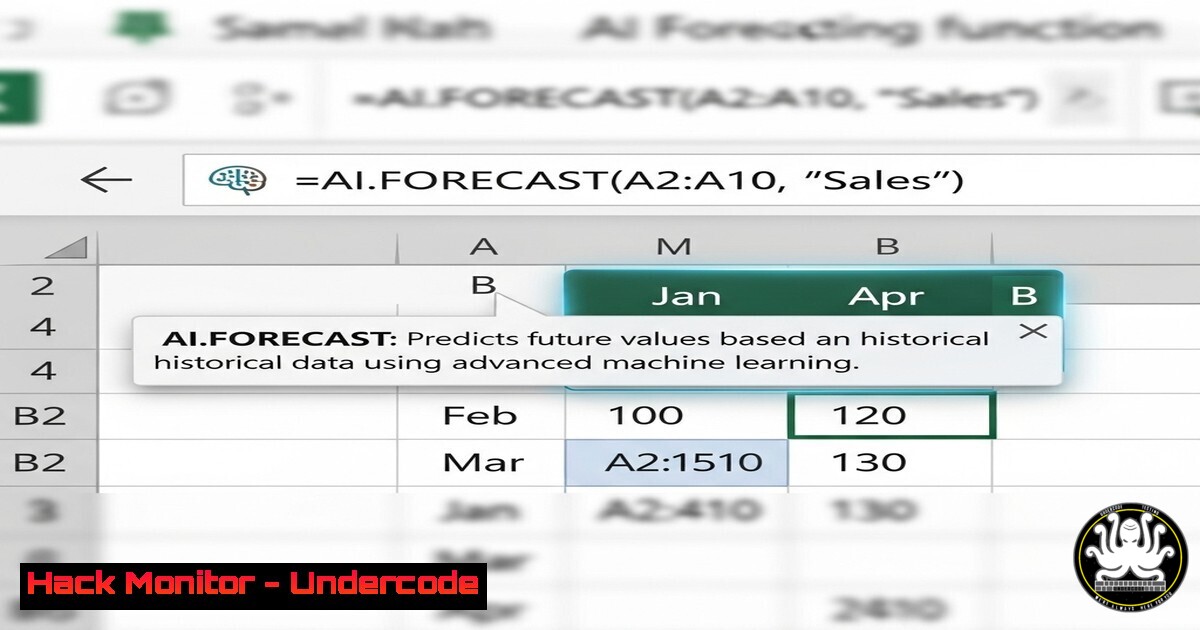
Introduction
Microsoft’s new =COPILOT() function in Excel integrates AI-powered natural language processing to transform how users analyze data, generate insights, and automate workflows. This innovation marks a significant leap in productivity tools, enabling professionals to perform complex tasks without deep technical expertise.
Learning Objectives
- Understand how =COPILOT() enhances Excel with AI-driven automation.
- Learn key commands and functions to maximize efficiency in data analysis.
- Explore security considerations when using AI-powered tools in enterprise environments.
You Should Know
- How to Use the =COPILOT() Function in Excel
Microsoft’s =COPILOT() allows users to input natural language prompts directly into Excel, generating dynamic results.
Example Command:
=COPILOT("Analyze sales trends from A1:A12 and predict next quarter")
Step-by-Step Guide:
1. Open Excel and select a cell.
- Type `=COPILOT(“your prompt”)` and reference relevant data ranges.
- Press Enter—Excel will process the request and return AI-generated insights.
2. Automating Data Cleaning with AI
=COPILOT() can clean and format datasets automatically.
Example Command:
=COPILOT("Remove duplicates and format column B as currency")
How It Works:
- The AI identifies duplicates and applies currency formatting without manual intervention.
3. Generating Predictive Models
Example Command:
=COPILOT("Create a linear regression model for A1:A20 vs. B1:B20")
Steps:
1. Input the command with the target dataset.
- Excel generates a regression analysis with coefficients and R² values.
4. AI-Powered Data Visualization
Example Command:
=COPILOT("Generate a bar chart comparing Q1 and Q2 sales")
Result:
- Excel auto-generates a chart based on the provided data.
- Security Best Practices for AI in Excel
Since =COPILOT() processes data in the cloud, enterprises must ensure:
- Security Best Practices for AI in Excel
- Data encryption (use Microsoft Purview for compliance).
- Access controls (restrict sensitive data via Azure AD).
- Audit logs (enable Microsoft Defender for Office 365 monitoring).
What Undercode Say
- Key Takeaway 1: AI in Excel democratizes data analysis but requires governance to prevent misuse.
- Key Takeaway 2: Enterprises must balance automation with security to avoid exposing sensitive data.
Analysis:
The =COPILOT() function is a game-changer for business intelligence, but organizations must implement strict data policies. AI-driven tools reduce manual work but introduce risks if not properly secured.
Prediction
By 2026, 90% of enterprise Excel users will rely on AI functions like =COPILOT(), leading to faster decision-making but also increasing the need for AI governance frameworks. Companies that adopt early will gain a competitive edge, while those ignoring security may face compliance risks.
For more details, visit Microsoft’s official blog: Bring AI to Your Formulas with the COPILOT Function in Excel.
🎯Let’s Practice For Free:
IT/Security Reporter URL:
Reported By: Satyanadella I – Hackers Feeds
Extra Hub: Undercode MoN
Basic Verification: Pass ✅


