Listen to this Post
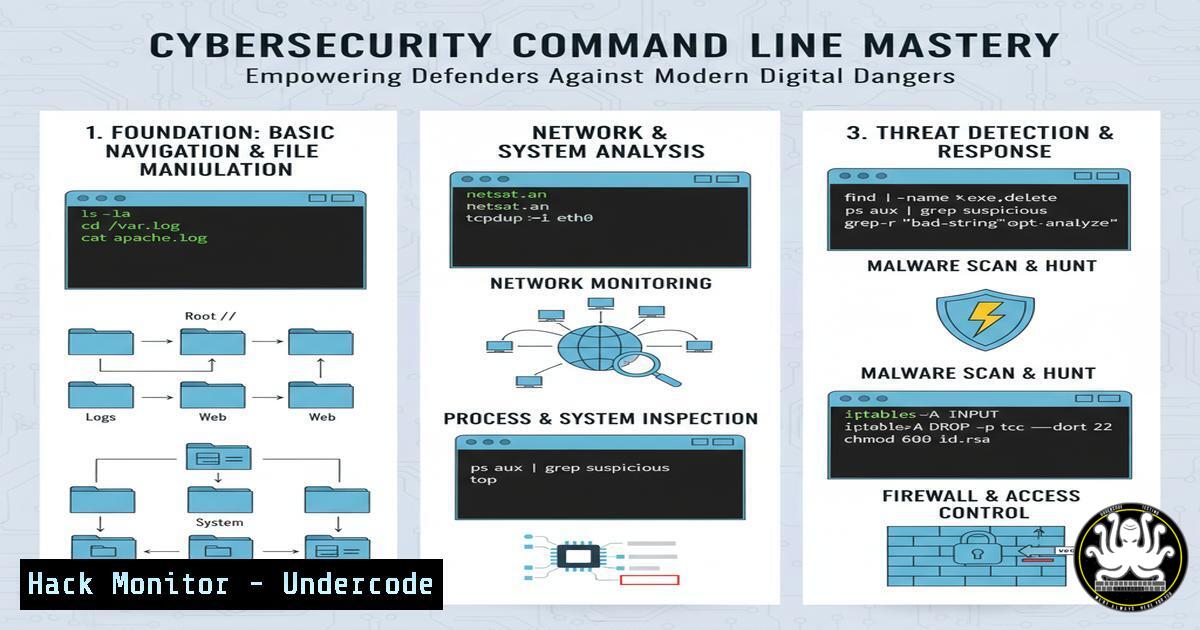
Introduction:
In an era of sophisticated cyber-attacks, proficiency with the command line is no longer a niche skill but a fundamental requirement for IT and security professionals. Mastering core utilities across Linux and Windows environments provides the granular control and visibility needed to detect, analyze, and mitigate threats that GUI tools often miss. This guide provides the essential command-line knowledge to harden systems, investigate incidents, and automate security tasks.
Learning Objectives:
- Execute fundamental system interrogation and process analysis commands on Linux and Windows.
- Utilize command-line tools for basic network reconnaissance and traffic analysis.
- Implement command-line techniques for file integrity checking and log analysis.
You Should Know:
1. System Interrogation and Process Analysis
Understanding what is running on a system is the first step in any investigation. These commands provide a snapshot of system activity.
Linux (`ps aux`) / Windows (`Get-Process`)
The `ps aux` command on Linux provides a detailed, snapshot-in-time list of all running processes, including the user running them, their PID, and resource consumption. On Windows, the PowerShell cmdlet `Get-Process` offers similar functionality. This is critical for identifying malicious or unauthorized processes.
How to use:
1. Open a terminal (Linux) or PowerShell (Windows).
- For Linux, type `ps aux | less` to page through the list. Use `ps aux | grep [bash]` to find a specific process.
- For Windows, type `Get-Process` to list all processes. Use `Get-Process -Name “chrome”` to find processes by name.
- Analyze the output for unknown processes, unusually high CPU/Memory usage, or suspicious process paths.
2. Network Reconnaissance and Connection Mapping
Attackers establish network connections for command and control and data exfiltration. Mapping these connections is vital for containment.
Linux (`netstat -tulpn`) / Windows (`netstat -ano`)
The `netstat` command displays network statistics. The flags `-tulpn` (Linux) show listening ports (-l) and the associated process name/PID (-p), which is essential for identifying backdoors. The `-ano` flag (Windows) shows all connections and listening ports and the owning Process ID (-o).
How to use:
- Run `sudo netstat -tulpn` on Linux to see all listening ports and the processes bound to them.
- Run `netstat -ano` on Windows to see all active connections and their corresponding PID.
- Cross-reference the PID with your process list (e.g., `Get-Process -Id 1234` on Windows) to identify malicious applications listening on network ports.
3. File System Investigation and Integrity Checking
Malware often involves tampering with system files. Detecting these changes is a cornerstone of digital forensics.
Linux (find / -mtime -1 -type f) / Windows (Get-ChildItem -Path C:\ -Recurse -File | Where-Object {$_.LastWriteTime -gt (Get-Date).AddDays(-1)})
These commands find files modified in the last 24 hours. The Linux `find` command is a powerful utility for searching with countless filters. The Windows PowerShell one-liner uses `Get-ChildItem` (alias `dir` or ls) with a filter for the `LastWriteTime` property.
How to use:
- To find files on Linux modified in the last day:
sudo find / -mtime -1 -type f 2>/dev/null | less. The `2>/dev/null` suppresses permission denied errors. - To find files on Windows modified in the last day, run the long PowerShell command above. For easier reading, you can pipe to
Select-Object FullName, LastWriteTime. - Investigate any unexpected modifications in critical directories like
/bin,/sbin,/etc, orC:\Windows\System32.
4. Log Analysis for Threat Hunting
System and application logs contain a treasure trove of forensic data, but you need the right tools to parse them efficiently.
Linux (grep -i "failed" /var/log/auth.log | head -20) / Windows (Get-WinEvent -FilterHashtable @{LogName='Security'; ID=4625} | Select-Object -First 10)
`grep` is the quintessential tool for filtering text. Here, it searches for failed login attempts in an authentication log. On Windows, the `Get-WinEvent` PowerShell cmdlet allows powerful querying of the Windows Event Log. ID 4625 is the event ID for a failed account login.
How to use:
- On Linux, use `sudo grep -i “failed” /var/log/secure` or `/var/log/auth.log` to see authentication failures.
- To count failure attempts by IP:
sudo grep "Failed password" /var/log/auth.log | awk '{print $11}' | sort | uniq -c | sort -nr. - On Windows, run the `Get-WinEvent` command to pull all recent failed login events (Event ID 4625) from the Security log.
5. Active Directory Enumeration (Windows)
For attackers and defenders in a Windows environment, understanding Active Directory is paramount.
Windows (Get-ADUser -Filter -Properties | Select-Object Name, LastLogonDate, Enabled)
This PowerShell command (requires the RSAT Active Directory module) retrieves all users in the domain, their last logon time, and whether their account is enabled. This is crucial for identifying stale accounts that can be used by attackers or should be disabled.
How to use:
1. Open PowerShell with appropriate permissions.
- Run
Get-ADUser -Filter -Properties LastLogonDate | Select-Object Name, SamAccountName, LastLogonDate, Enabled | Export-Csv -Path "C:\temp\all_users.csv" -NoTypeInformation. - Import the CSV file and sort by `LastLogonDate` to identify accounts that haven’t been used in years, which are prime targets for compromise.
6. Vulnerability Assessment with Package Management
Knowing which software versions are installed and what updates are available is basic cyber hygiene.
Linux (apt list --upgradable) / Windows (wmic qfe list full)
On Debian/Ubuntu systems, `apt update` followed by `apt list –upgradable` shows all packages with available updates. On Windows, the `wmic qfe list full` command lists all installed patches and hotfixes, which can be used to verify a patch management policy.
How to use:
- On Linux: Run `sudo apt update` to refresh the package list, then `apt list –upgradable` to see what needs patching.
- On Windows: Run `wmic qfe get Caption,Description,HotFixID,InstalledOn` for a more readable list of installed updates and their installation dates.
- Regularly audit this list against known vulnerability databases (e.g., CVE) for your critical applications.
7. API Security Testing with cURL
APIs are a primary attack vector. The `curl` command is an indispensable tool for manually testing API endpoints and authentication.
Linux/Windows (curl -H "Authorization: Bearer <token>" -X GET http://api.example.com/v1/users`)…/v1/users/456`) to see if you can access another user’s data (Insecure Direct Object Reference or IDOR).
This command tests an API endpoint that requires Bearer Token authentication. The `-H` flag adds a header, and `-X GET` specifies the HTTP method (GET is default, but often explicitly stated).
<h2 style="color: yellow;"> How to use:</h2>
1. Obtain a valid authentication token for the API.
2. Construct the `curl` command with the correct headers, method, and URL.
3. Test for common issues like improper access controls by changing the user ID in the request (e.g., `.../v1/users/123` to
What Undercode Say:
- The Command Line is Your Primary Weapon. GUI tools abstract away critical details and are often slower. True expertise is built by understanding the raw data and interactions that commands provide.
- Automation is Force Multiplication. These commands are not just for manual use; they are the building blocks for scripts that can automate security monitoring, compliance checks, and incident response across an entire enterprise.
The relentless automation of attacks by threat actors means manual defense is a losing battle. The commands outlined are the foundational syntax for building defensive automation. Mastery of these allows security teams to shift from reactive analysis to proactive, scalable defense, scripting responses to common threats and continuously monitoring their environment at a scale that matches the adversary.
Prediction:
The future of cybersecurity will be dominated by AI-driven attacks that can autonomously probe and exploit systems at unprecedented speed. However, the command line will remain the bedrock of defense. The next generation of security tools will be AI-powered co-pilots that accept natural language queries but execute their functions through enhanced command-line interfaces. Professionals who deeply understand the commands and scripts that underpin these AI tools will be uniquely positioned to validate, tune, and ultimately trust the automated defenses of tomorrow.
🎯Let’s Practice For Free:
IT/Security Reporter URL:
Reported By: https://lnkd.in/p/d5G3XkFh – Hackers Feeds
Extra Hub: Undercode MoN
Basic Verification: Pass ✅


