Listen to this Post
Introduction:
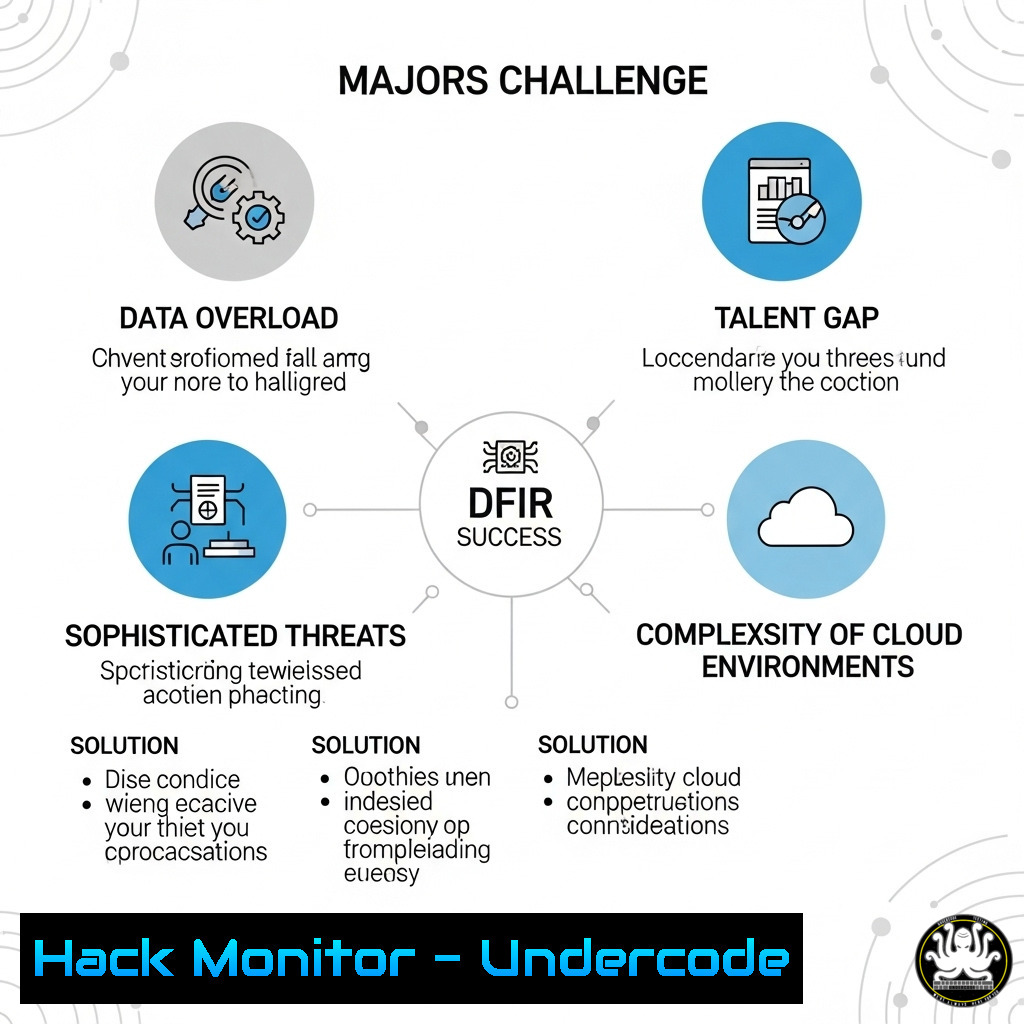
Digital Forensics and Incident Response (DFIR) professionals face a constant battle against technical and legal obstacles when gathering and preserving evidence. This article dissects the four most prevalent challenges—legal admissibility, evidence types, data volume, and evidence dynamics—and provides the verified technical commands and methodologies to overcome them, ensuring your evidence stands up in court.
Learning Objectives:
- Master the legal principles of admissibility, authenticity, and completeness for digital evidence.
- Identify and acquire key digital artifacts from Windows systems using industry-standard tools.
- Implement a forensically sound workflow to maintain Chain of Custody (CoC) and evidence integrity.
You Should Know:
1. Legal Admissibility and Evidence Acquisition
The foundation of any investigation is a forensically sound acquisition. This means using write-blockers and creating a verifiable hash of the evidence to prove it was not altered.
Command/Tool: `FTK Imager` (GUI) or `dcfldd` for Linux-based acquisitions.
Step-by-Step Guide:
Step 1: Connect the suspect drive through a hardware write-blocker to your forensic workstation.
Step 2: Acquire the evidence. In a command prompt or terminal, use `dcfldd` to create a raw disk image and its hash simultaneously.
dcfldd if=/dev/sdb of=evidence.img hash=sha256 hashlog=evidence.hash
Step 3: Verify integrity. Always verify the hash of your image against the original log before and after analysis.
sha256sum evidence.img
cat evidence.hash
What this does: The `dcfldd` command creates a bit-for-bit copy (if=input file, of=output file) of the drive /dev/sdb. The `hash=sha256` option calculates a SHA-256 hash during the acquisition, and `hashlog` saves it to a file. This hash is your primary proof of evidence authenticity.
2. Targeted Evidence Collection with KAPE
Full disk images are often impractical. Triage collection focuses on the most valuable artifacts quickly and efficiently.
Command/Tool: `KAPE` (Kroll Artifact Parser and Extractor)
Step-by-Step Guide:
Step 1: Download KAPE and open an administrative command prompt in its directory.
Step 2: Execute a collection. To collect common Windows artifacts (MFT, USN Journal, Event Logs, Prefetch, etc.) from the C: drive.
kape.exe --tsource C: --tdest D:\Evidence\ --tflush --target !SANS_Triage
Step 3: Review output. KAPE will create a ZIP file and a CSV catalog in your target destination (--tdest).
What this does: KAPE is a powerful collection tool. `–tsource` defines the target source drive, `–tdest` is where evidence is saved, `–tflush` clears the destination before writing, and `–target !SANS_Triage` uses a pre-defined collection of critical triage artifacts.
3. Volatile Memory Analysis with Volatility 3
A system’s RAM is a treasure trove of evidence (running processes, network connections, open files) that is lost on shutdown.
Command/Tool: `Volatility 3`
Step-by-Step Guide:
Step 1: Acquire memory. Use a tool like `WinPmem` or `AVML` (for Linux) to dump the physical memory to a file (e.g., memdump.raw).
Step 2: Identify the profile. Volatility 3 often auto-detects the OS, but you can list plugins to confirm.
python3 vol.py -f memdump.raw windows.info
Step 3: Analyze running processes.
python3 vol.py -f memdump.raw windows.pslist
python3 vol.py -f memdump.raw windows.psscan
What this does: `pslist` enumerates active processes from the EPROCESS linked list, while `psscan` scans memory for previously terminated or hidden processes (rootkits), making it crucial for identifying malware.
4. Analyzing File System Timestamps (MACE)
Determining when a file was created, modified, accessed, or when its MFT entry was changed is critical for building a timeline.
Command/Tool: `The Sleuth Kit (TSK)` – `istat` and `fls`
Step-by-Step Guide:
Step 1: Analyze the MFT entry for a specific file to view its MACB (Modified, Accessed, Changed, Born) times.
istat -f ntfs evidence.img 12345
(Where `12345` is the inode number of the file)
Step 2: Create a body file for timeline analysis using fls.
fls -r -m C: / evidence.img > bodyfile.txt
Step 3: Sort the timeline.
mactime -b bodyfile.txt -d > timeline.csv
What this does: `istat` parses the Master File Table (MFT) entry for a file, showing all timestamp data. `fls` recursively (-r) lists files and directories in a machine-parsable format (-m) for timeline generation. `mactime` sorts this data chronologically.
5. Maintaining Chain of Custody with Cryptographic Hashes
Every interaction with evidence must be logged and its integrity verified. This is a procedural and technical requirement.
Command/Tool: `md5sum` / `sha256sum` (Linux), `Get-FileHash` (Windows PowerShell)
Step-by-Step Guide:
Step 1: Hash at acquisition. As shown in section 1, hash the evidence when you first create it.
Step 2: Hash before any analysis. Before opening an evidence file in any tool, verify its hash.
Get-FileHash -Path C:\Evidence\evidence.img -Algorithm SHA256
Step 3: Compare. Ensure the computed hash matches the one taken at acquisition. Any discrepancy breaks the chain of custody and renders the evidence inadmissible.
What this does: These hashing algorithms generate a unique alphanumeric string (a “fingerprint”) for a file. Any change to the file, even a single bit, will completely change this fingerprint, proving tampering.
6. Analyzing Log Files for Evidence Tampering
Logs are key evidence. The Windows Security log (4688) specifically logs process creation, which can show execution of wiping tools.
Command/Tool: Windows Event Viewer / `Get-WinEvent` (PowerShell)
Step-by-Step Guide:
Step 1: Extract process creation events from a collected EVTX log file.
Get-WinEvent -Path .\Security.evtx -FilterXPath "[System[EventID=4688]]" | Select-Object TimeCreated, Message | Format-List
Step 2: Look for suspicious binaries like cipher.exe /w, format, sdelete, rm -rf, shred, or unknown executables executed around the time of alleged evidence deletion.
What this does: This PowerShell command parses the Security event log, filtering for only Event ID 4688 (A new process was created). This allows an investigator to audit every command and program executed on the system.
7. Leveraging Autopsy for Holistic Analysis
Autopsy provides a GUI-based platform to conduct a coordinated analysis of multiple evidence types, from file system artifacts to web history and keywords.
Command/Tool: `Autopsy` (GUI)
Step-by-Step Guide:
Step 1: Create a new case in Autopsy and add your disk image (evidence.img).
Step 2: Run ingest modules. Select key modules like “Email Parser,” “EXIF Parser,” “Recent Activity,” “File Type Identification,” and “Keyword Search.”
Step 3: Analyze results. Use the built-in timeline viewer, result filters, and report generator to correlate findings and explore the data holistically.
What this does: Autopsy automates the extraction and correlation of dozens of artifact types, allowing an investigator to move from raw data to actionable intelligence much faster than with command-line tools alone, though CLI proficiency remains essential.
What Undercode Say:
- The Legal Framework is Your First Weapon. Technical skill is useless if evidence is thrown out. The CoC and hashing are not optional best practices; they are the absolute bedrock of forensic integrity. Automation with tools like `dcfldd` and scripts is key to making this routine and error-free.
- Timeline Analysis is King. Isolating artifacts is helpful, but correlating them chronologically is what reveals the true story of an incident. The sequence of a file being modified, a suspicious process executing, and then the file being deleted is compelling evidence that standalone artifacts cannot provide. Mastering `fls` and `mactime` is a fundamental analyst skill.
The challenges of data volume and anti-forensics techniques are only growing. The solution isn’t just faster hardware, but smarter, more targeted collection (KAPE) and deep, correlated analysis (Volatility, TSK, Autopsy). The analyst who understands both the legal constraints and the technical depth of the artifacts will always be the most effective.
Prediction:
The increasing adoption of encrypted storage (BitLocker, FileVault) and ephemeral, cloud-based workloads will render traditional disk imaging largely obsolete within the next 5-7 years. DFIR will pivot heavily toward live-response triage (KAPE, Velociraptor) and volatile memory analysis at scale. Investigations will rely on API-driven evidence collection from cloud platforms (AWS, Azure, GCP) and SaaS applications. The analysts who thrive will be those who master scripting and automation to collect and analyze evidence programmatically from a diverse and rapidly changing landscape, all while maintaining the unbroken chain of custody required for legal proceedings.
🎯Let’s Practice For Free:
IT/Security Reporter URL:
Reported By: Moaz Morad – Hackers Feeds
Extra Hub: Undercode MoN
Basic Verification: Pass ✅


