Listen to this Post
Introduction:
In the relentless landscape of modern cyber threats, a robust backup strategy is no longer just an IT best practice—it is the final, non-negotiable barrier between a minor operational hiccup and catastrophic data loss. As highlighted by security analyst Samuel Agoziem, the frequency and scheduling of backups directly correlate with the amount of data an organization can salvage following a ransomware attack, where adversaries specifically target backup repositories to maximize damage.
Learning Objectives:
- Understand the critical relationship between backup frequency and Recovery Point Objective (RPO).
- Learn how to implement a layered backup strategy using native Linux and Windows tools.
- Master the configuration of immutable backups to defend against ransomware targeting backup infrastructure.
You Should Know:
- Implementing a Layered Backup Strategy with Native Tools
The core of a resilient backup schedule is layering: combining real-time, daily, and weekly snapshots to balance resource utilization with data protection. The post emphasizes that “the gap between your last backup and the attack determines how much data you lose.” To minimize this gap for critical assets without overwhelming network bandwidth, we must automate.
For Linux (using `rsync` and cron), we can create a layered approach. `rsync` is ideal for incremental backups, only copying changed data. This script simulates a daily backup of a critical financial database (/var/lib/mysql) to a local backup drive (/mnt/backup).
Step‑by‑step guide:
- Create the backup script: Open a terminal and create a new file: `sudo nano /usr/local/bin/layered_backup.sh`
2. Add the script content:
!/bin/bash
 Daily Backup for Operational Data
TIMESTAMP=$(date +"%Y%m%d")
SOURCE_DIR="/var/lib/mysql"
BACKUP_ROOT="/mnt/backup"
DAILY_DIR="$BACKUP_ROOT/daily/$TIMESTAMP"

Create directory
mkdir -p $DAILY_DIR

Perform incremental rsync (backup only new/changed files)
rsync -avz --delete $SOURCE_DIR $DAILY_DIR

Weekly Full Backup (Runs on Sunday)
if [ $(date +"%u") -eq 7 ]; then
WEEKLY_DIR="$BACKUP_ROOT/weekly/week_$(date +"%Y%W")"
mkdir -p $WEEKLY_DIR
 Full copy with archive permissions
cp -r $SOURCE_DIR $WEEKLY_DIR
echo "Weekly full backup completed."
fi
3. Make it executable: `sudo chmod +x /usr/local/bin/layered_backup.sh`
- Schedule with Cron: `sudo crontab -e` and add:
– `0 2 /usr/local/bin/layered_backup.sh` (Runs daily at 2:00 AM)
For Windows, using native `PowerShell` and `Task Scheduler` is equally effective. The following script leverages robocopy, a robust file copy utility, to mirror critical folders with multi-threaded performance, ideal for operational data.
Step‑by‑step guide:
1. Open PowerShell as Administrator.
- Create a script file: `New-Item -Path “C:\Scripts\BackupStrategy.ps1” -ItemType File -Force`
3. Edit the script and paste:
 Parameters
$source = "C:\CriticalData"
$destRoot = "D:\Backups"
$date = Get-Date -Format "yyyy-MM-dd"

Daily Incremental (using robocopy with mirroring)
robocopy $source "$destRoot\Daily\$date" /MIR /R:2 /W:5

Weekly Full (if day is Sunday)
if ((Get-Date).DayOfWeek -eq 'Sunday') {
robocopy $source "$destRoot\Weekly\Week_$(Get-Date -Format '%W')" /E /COPY:DAT /R:2 /W:5
Write-Host "Weekly full backup executed."
}
4. Create Scheduled Task: Use Task Scheduler to run this daily. Set the trigger to “Daily” and the action to “Start a program” with powershell.exe -ExecutionPolicy Bypass -File "C:\Scripts\BackupStrategy.ps1".
2. Continuous Protection: Leveraging Filesystem Snapshots
Continuous backup, as noted in the post, is vital for mission-critical systems. While true real-time replication often requires third-party tools, native filesystem snapshots (ZFS on Linux, Volume Shadow Copy on Windows) provide near-instantaneous recovery points that act as a form of continuous protection against user error or rapid corruption.
For Linux (ZFS), snapshots are incredibly efficient. Assuming you have a ZFS dataset tank/data:
– List current snapshots: `zfs list -t snapshot`
– Create an automatic snapshot script to run every hour: `zfs snapshot tank/data@hourly-$(date +%Y%m%d-%H%M)`
– Automate with cron: `0 /usr/bin/zfs snapshot tank/data@hourly-$(date +\%Y\%m\%d-\%H\%M)`
– Restore from a snapshot: `zfs rollback tank/data@hourly-20260115-0200` (This reverts the entire dataset to that exact moment).
For Windows, Volume Shadow Copy (VSS) serves this purpose. It allows for “Previous Versions” restoration without administrative overhead for end-users.
– Enable VSS via PowerShell:
 Get the drive
$drive = Get-WmiObject -Class Win32_Volume -Filter "DriveLetter='C:'"
 Enable shadow copy
$drive.EnableShadowCopy($drive.DeviceID)
– Configure schedule: By default, Windows creates snapshots twice daily. To increase frequency for critical data, use the `vssadmin` command:
vssadmin Add ShadowStorage /For=C: /On=C: /MaxSize=10GB
Then, modify the Task Scheduler library (Task Scheduler Library -> Microsoft -> Windows -> SystemRestore) to trigger more frequently (e.g., every 4 hours) for the `SR` task.
3. Hardening Backups Against Ransomware
Samuel Agoziem’s post implies a critical truth: if the adversary can delete or encrypt your backups, your recovery plan fails. The “Best Practice Approach” requires making backups immutable and logically separated from the production environment.
Step‑by‑step guide to hardening:
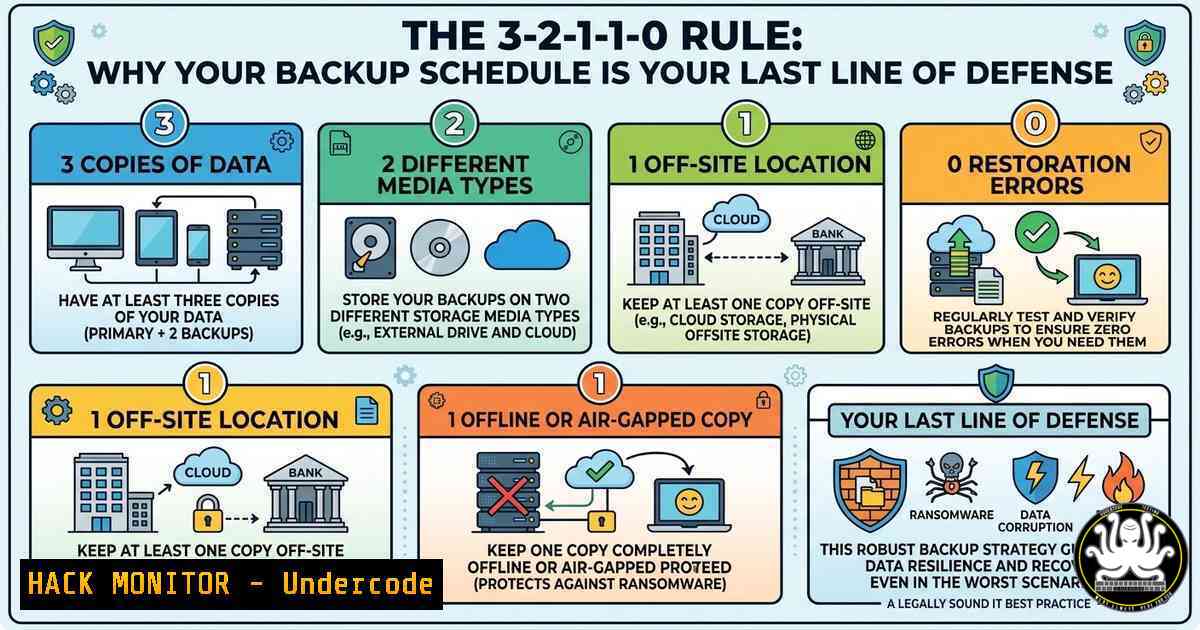
- Implement the 3-2-1-1-0 Rule: 3 copies of data, 2 different media, 1 offsite copy, 1 immutable copy, and 0 errors.
- Linux Hardening with
chattr: Protect backup files from accidental deletion or modification by the `root` user using the immutable flag. After your backup completes, run:sudo chattr +i /mnt/backup/daily/20260115/financial_data.sql
Note: This prevents even `rm -rf` from deleting the file until the flag is removed (
chattr -i). - Windows Hardening with Controlled Folder Access: Use Windows Defender’s Controlled Folder Access to block untrusted processes from modifying backup directories.
Enable Controlled Folder Access
Set-MpPreference -EnableControlledFolderAccess Enabled
Add backup folder to protection list
Add-MpPreference -ControlledFolderAccessProtectedFolders "D:\Backups"
Allow specific backup software
Add-MpPreference -ControlledFolderAccessAllowedApplications "C:\Scripts\BackupStrategy.ps1"
- Network Segmentation: Ensure backup servers are not domain-joined and utilize separate credentials. Use firewall rules (Linux `iptables` or Windows
New-NetFirewallRule) to restrict backup traffic to only the backup server IP, blocking SMB/RPC access from general workstations.
4. Simulating a Ransomware Recovery Drill
Theory is useless without practice. To verify your schedule, you must perform a recovery drill. This tests your Recovery Time Objective (RTO) and ensures your layered strategy functions.
Step‑by‑step guide for a drill:
- Isolate a test machine: Disconnect a test VM from the network.
- Simulate the attack: On Linux, you can simulate encryption by changing file extensions (though in a real drill, you restore from backup).
find /testdata -type f -exec mv {} {}.encrypted \;On Windows, you might rename files: `Get-ChildItem -Path C:\TestData -Recurse | Rename-Item -NewName {$_.name + “.crypt”}`
3. Execute Recovery:
- Linux: Stop services, unmount corrupted volume, and restore from the last immutable snapshot.
systemctl stop mysql
umount /var/lib/mysql
zfs rollback tank/data@hourly-20260115-0200
mount /var/lib/mysql
systemctl start mysql
- Windows: Use `wbadmin` to recover the specific folder from the backup created by Task Scheduler.
wbadmin start recovery -version:01/15/2026-02:00 -itemType:File -items:C:\CriticalData -recoveryTarget:C:\RestoredData
- Validate: Verify file integrity using checksums (
sha256sumon Linux, `Get-FileHash` on PowerShell) to confirm the restored data matches the expected hash.
What Undercode Say:
- RPO is Security: The frequency of backups directly defines your risk exposure; daily backups are insufficient for transactional financial systems where even one day of data loss could be catastrophic.
- Immutability is Mandatory: Ransomware actors increasingly wait days before detonating payloads to ensure backups are also encrypted. Immutable storage (WORM) or offline tapes are no longer optional for compliance but essential for survival.
- Automation vs. Verification: Automating backups with cron or Task Scheduler is the first step, but the “0 errors” in the 3-2-1 rule requires constant monitoring. A silent backup failure is functionally equivalent to having no backup at all.
Prediction:
As AI-driven ransomware evolves to hunt for and delete backup catalogs before encryption, the industry will shift toward “air-gapped” and “immutable” as default architectures rather than premium features. We predict that within the next two years, regulatory frameworks (like SEC and GDPR) will mandate quarterly recovery drills and proof of immutable backup storage for financial and healthcare sectors, treating backup hygiene as a primary audit point equivalent to endpoint protection. The professionals who master the orchestration of native tools (rsync, zfs, vssadmin, robocopy) to create resilient, layered architectures will become the new frontline defenders against data extortion.
▶️ Related Video (82% Match):
🎯Let’s Practice For Free:
IT/Security Reporter URL:
Reported By: Samuel Agoziem – Hackers Feeds
Extra Hub: Undercode MoN
Basic Verification: Pass ✅


