Listen to this Post
Introduction:
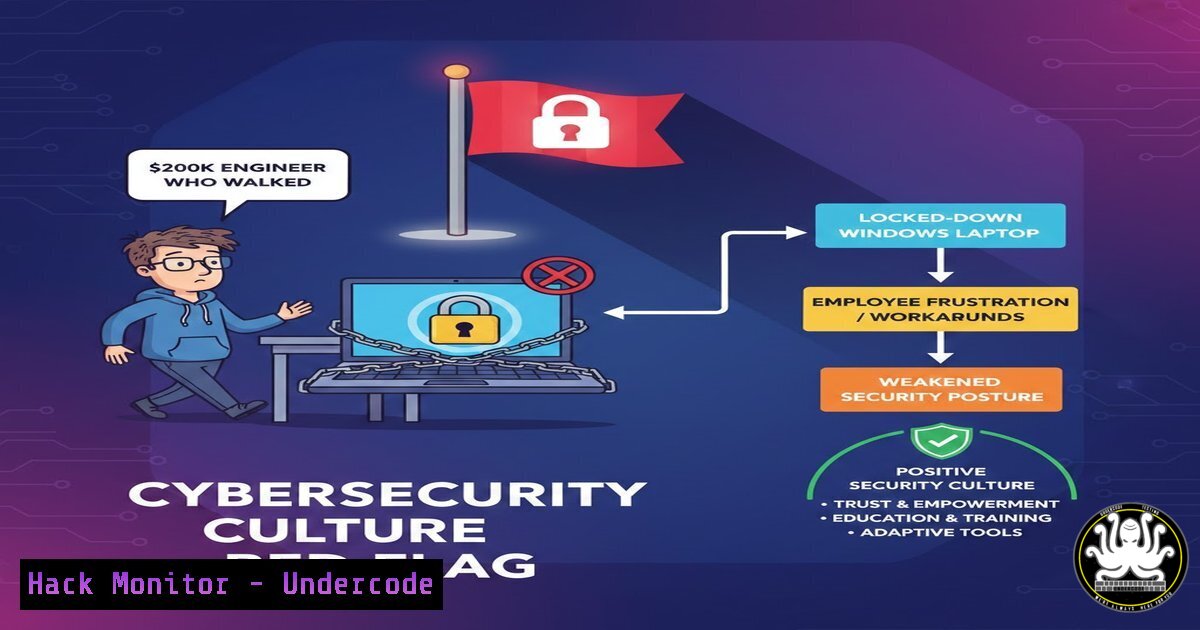
In the high-stakes world of cybersecurity and software engineering, the tools provided to developers are not just a matter of preference—they are a direct reflection of a company’s security posture and its respect for technical expertise. A recent viral LinkedIn debate highlighted a Senior Backend Engineer who rescinded a $200,000 job offer because the employer mandated a locked-down Windows 11 laptop, forbidding macOS or Linux. While some view this as an overreaction, cybersecurity professionals recognize this as a profound cultural和技术 signal. For engineers tasked with building and securing Linux-based cloud infrastructure, forcing them to develop through the abstraction layer of Windows Subsystem for Linux (WSL) introduces friction, potential security misconfigurations, and signals a fundamental misunderstanding of the production environment.
Learning Objectives:
- Analyze the security and performance implications of developing for Linux targets on Windows vs. native environments.
- Identify common “permission drift” and filesystem conflicts that occur in cross-OS development and how they lead to production vulnerabilities.
- Evaluate the risks of resource isolation (vmmem, systemd) in virtualized development stacks.
- Implement secure configuration checks for WSL to mitigate compliance issues in regulated industries.
- Compare endpoint management strategies (MDM) against developer experience and security efficacy.
You Should Know:
- The Native Advantage: Why “It Runs in WSL” Isn’t Good Enough for Production Security
The core argument from the dissenting engineer, Samuele Giampieri, is that developing for Linux on Windows via WSL introduces a “pathetic shadow” of the real environment. From a cybersecurity perspective, this isn’t elitism; it’s about runtime integrity.
When you develop natively on Linux, you interact directly with the upstream kernel. WSL2, however, uses a customized Microsoft kernel. While compatible, it lacks certain real-time patches and hardware-specific drivers that could affect low-level networking or security module interactions (like AppArmor or SELinux).
Step‑by‑step guide: Checking Kernel Differences
To understand the delta between your WSL kernel and a production Ubuntu server, you must compare the configurations.
1. On your WSL Terminal (Ubuntu/Debian):
 Check the WSL kernel version
uname -r
 View the kernel config (if available)
zcat /proc/config.gz | head -n 20
2. On a Native Linux Server (or EC2 instance):
 Check the native kernel version
uname -r
 Compare the security options enabled (e.g., CONFIG_SECURITY, CONFIG_SECCOMP)
zgrep "CONFIG_SECURITY" /proc/config.gz
What this does: This reveals if the WSL kernel has the same hardening flags (like `CONFIG_STATIC_USERMODEHELPER` or CONFIG_SECURITY_SELINUX) compiled in as your production kernel. Mismatches here can lead to scenarios where security controls tested on WSL behave differently in production, creating a false sense of security.
- The “Permission Drift” Nightmare: When `chmod` Betrays You
A senior engineer, Jarosław Kruk, quipped that a system that can’t run `chmod -R 777` “isn’t a system, it’s an application.” This highlights a critical issue: file permission mismanagement across Windows and Linux leads to security misconfigurations.
WSL stores Linux files in a hidden folder, but if a developer edits those files using Windows tools (Notepad, Explorer), the Linux metadata (permissions, ownership) can be corrupted. This “permission drift” results in world-writable files or incorrect ownership that, when deployed, violate the Principle of Least Privilege.
Step‑by‑step guide: Mitigating Permission Drift
To prevent production deployments from inheriting broken permissions, developers must enforce strict workflows.
1. Isolate the Project: Store all code intended for Linux deployment strictly within the WSL filesystem (/home/username/projects). Never store code in `/mnt/c/` (the Windows drive).
2. Set Strong Defaults: Configure WSL to not allow Windows tools to modify Linux files.
– Create the file /etc/wsl.conf.
– Add the following to prevent Windows interop:
[bash]
enabled=false
appendWindowsPath=false

[bash]
umask=077
3. Verify Permissions: Before a commit, run a security scan on the repo:
 Find files with excessive permissions (world-writable)
find /path/to/project -type f -perm -002 -exec ls -l {} \;

Fix common web server permission issues securely
sudo chown -R www-data:www-data /var/www/html
sudo find /var/www/html -type f -exec chmod 644 {} \;
sudo find /var/www/html -type d -exec chmod 755 {} \;
What this does: This ensures that the filesystem metadata remains consistent with Linux standards, preventing accidental exposure of configuration files containing API keys or database passwords in production.
- Network Anomalies: VPNs, IP Bridges, and the “Ghost Process” Plague
Security researchers often require low-level network access for packet crafting or analysis. Giampieri noted that the “virtualized network stack makes managing IP bridges and VPNs a constant headache.” In a WSL2 setup, the VM has its own virtualized network adapter using NAT (Network Address Translation). This breaks advanced network manipulation and can cause VPNs to leak traffic or fail to route properly.
Step‑by‑step guide: Diagnosing WSL Network Conflicts
If a penetration tester or DevOps engineer must use Windows for compliance reasons, they need to verify network isolation.
1. Check Routing Tables: Inside WSL, run:
ip route show
 Look for the default route. It usually points to a virtual NIC on the Windows host.
2. Test VPN Passthrough: On Windows, connect to your corporate VPN. From WSL, attempt to ping an internal corporate resource. If it fails, the VPN is not routing traffic to the WSL VM.
ping [internal-server-ip]
3. Force WSL2 to use the Host’s Network (Mirrored Mode): To resolve this, Windows 11 supports mirrored network mode.
– Create or edit `C:\Users\
– Add:
[bash]
networkingMode=mirrored
dnsTunneling=true
firewall=true
autoProxy=true
– Restart WSL: `wsl –shutdown` in PowerShell (Admin), then restart your WSL terminal.
What this does: Mirrored mode places the WSL2 network interface on the same network as the Windows host, allowing VPNs and complex firewall rules to apply seamlessly to Linux apps.
- The vmmem Resource Hog: Denial of Service on Your Own Laptop
Giampieri’s critique of the `vmmem` process is a security and performance concern. A resource leak that consumes all available RAM can cause a local Denial of Service (DoS), halting development and potentially causing data loss. This is particularly dangerous when running memory-intensive security tools like fuzzers or malware sandboxes.
Step‑by‑step guide: Capping WSL2 Resource Usage
To prevent the WSL VM from starving the host OS (and your security tools), you must impose strict limits.
1. Edit `.wslconfig` on your Windows host (`C:\Users\\.wslconfig`).
2. Set hard limits:
[bash]
memory=4GB  Limits the VM to 4GB of RAM
processors=2  Limits to 2 vCPUs
swap=2GB
localhostForwarding=true
3. Apply the configuration: Open PowerShell as Administrator.
wsl --shutdown
Then restart your WSL terminal.
What this does: This ensures that even if a rogue process or a memory leak occurs in the Linux environment, it cannot consume all the physical RAM on the Windows host, preserving system stability for threat hunting or secure coding.
5. Compliance and Security Tooling: The MDM Dilemma
Commenter Kevin D. raised the valid point of “fleet management” and MDM (Mobile Device Management). In regulated industries (finance, healthcare), IT must enforce policies via tools like Microsoft Intune or CrowdStrike. A locked-down Windows laptop is easier to manage than a diverse fleet of Macs and Linux machines. However, from a cybersecurity architect’s view, “manageability” should not trump “security efficacy.” If developers bypass security controls to get their work done (Shadow IT), the network is less secure.
Step‑by‑step guide: Hardening a Windows 11 Machine for Secure Dev Work
If a developer is forced onto Windows, they should harden it to allow secure development without breaking compliance.
1. Enable Core Isolation and Memory Integrity: This is a Windows security feature that prevents attacks from inserting malicious code into high-security processes.
– Go to Windows Security > Device Security > Core Isolation.
– Turn on Memory Integrity. (Requires restart).
2. Configure the Windows Firewall for WSL: To ensure WSL apps aren’t bypassing the firewall.
– Open Windows Defender Firewall with Advanced Security.
– Create inbound/outbound rules specifically for `vmmem` or the WSL network profile to ensure traffic is inspected.
3. Use Windows Sandbox for Untrusted Code: Instead of running suspicious code in your primary WSL instance, use the built-in Windows Sandbox (a lightweight VM).
– Enable it via Turn Windows features on or off > Windows Sandbox.
– This provides an isolated, ephemeral environment for testing malware or untrusted scripts without compromising the host or the development WSL instance.
What Undercode Say:
- Key Takeaway 1: A restrictive hardware policy is not just an HR issue; it is a security control that can backfire. Forcing senior engineers into unfamiliar, constrained environments (like a locked-down Windows host for Linux kernel development) increases the likelihood of security bypasses, Shadow IT, and configuration errors in production.
- Key Takeaway 2: The debate over WSL vs. Native is a debate about fidelity. Security testing requires a high-fidelity reproduction of the production environment. Relying on a virtualization layer (WSL) introduces variables—kernel differences, permission drift, and network quirks—that can mask critical vulnerabilities until it’s too late.
The engineer who walked away from $200k wasn’t being petty; they were making a risk assessment. They recognized that a company that prioritizes IT uniformity over engineering excellence likely has a brittle security culture. When organizations standardize on tools that hinder the core function of their security team—writing secure, reliable code—they inadvertently filter out the very talent capable of defending them.
Prediction:
In the next 3-5 years, we will see a rise in “Developer Experience (DevEx) Security” as a distinct domain. Companies will begin offering “security-hardened Linux thin clients” or “developer-specific MacOS fleets” managed by lightweight, containerized endpoint security agents rather than monolithic Windows MDM policies. The organizations that fail to adapt will face a “talent gap” in cybersecurity, as the most capable defenders will simply refuse to work in environments that shackle them with the wrong tools, leaving those companies vulnerable to attacks that their own policies helped create.
▶️ Related Video (76% Match):
🎯Let’s Practice For Free:
IT/Security Reporter URL:
Reported By: Samuele Giampieri – Hackers Feeds
Extra Hub: Undercode MoN
Basic Verification: Pass ✅


