Listen to this Post
Introduction:
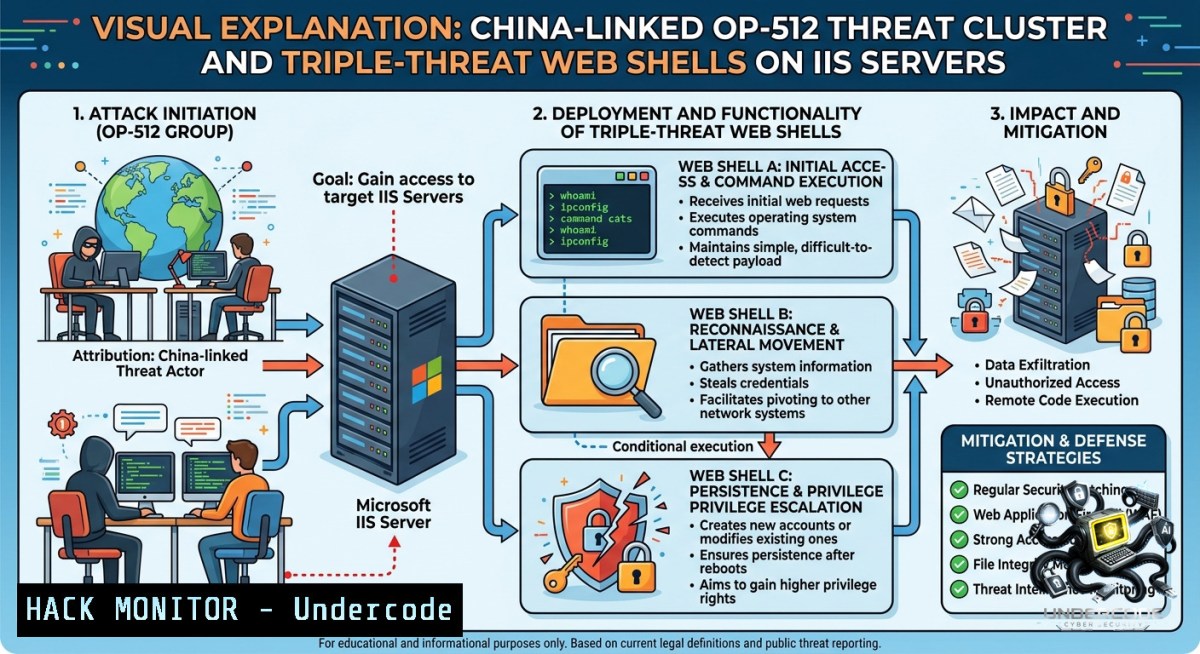
The quiet hum of your web server could be the only warning of a silent compromise. A newly identified, China-linked threat cluster designated OP-512 has been actively targeting Microsoft IIS servers, deploying a sophisticated custom web shell framework to gain persistent remote access, execute commands, and discreetly report compromised servers back to its operators. This marks the fourth known group within the past year to focus specifically on IIS vulnerabilities, signaling a sustained and coordinated campaign for cyber espionage.
Learning Objectives:
– Understand the OP-512 threat cluster’s custom web shell framework and its evasion techniques.
– Learn to detect the presence of OP-512’s web shells using forensic and system-level commands.
– Implement hardening measures on Windows IIS servers to mitigate initial access vectors.
You Should Know:
1. Deconstructing the OP-512 Attack Framework
The core of the OP-512 campaign is a custom framework comprising three distinct web shells, each designed for a specific function: remote access, command execution, and automated reporting back to the attacker. The group’s primary targets are legacy or unpatched IIS servers, with a particular focus on Windows Server 2016 running outdated .NET Framework 4.0 environments.
After the initial compromise, often achieved by exploiting a vulnerability or a weak configuration, the attackers inject a web shell via the IIS worker process (`w3wp.exe`). This process then “phones home” to a domain controlled by the attacker, announcing its presence. To hide their tracks, OP-512 employs “timestomping,” a technique that alters file timestamps to mask the creation and modification times of their malicious artifacts.
Step‑by‑step guide for detecting OP-512 activity:
As a defender, you must proactively hunt for signs of this activity. Here are verified commands for a Windows IIS environment.
Step 1: Identify Suspicious w3wp.exe Subprocesses
The web shell is typically executed under the worker process. Use PowerShell to list all running processes and their child processes to spot anomalies.
 List all w3wp.exe processes with their full command lines
Get-WmiObject Win32_Process -Filter "name = 'w3wp.exe'" | Select-Object ProcessId, CommandLine

 Find and list all active network connections from w3wp.exe
Get-1etTCPConnection | Where-Object {$_.OwningProcess -in (Get-Process w3wp).Id}
Step 2: Hunt for Web Shells on Disk
Web shells often masquerade with deceptive names (e.g., `aspnet_client.aspx`, `css_normal.aspx`) in web directories. This command searches all web roots for recently created .aspx or .ashx files, which are common web shell formats.
 Search for all .aspx files modified in the last 7 days, excluding standard system directories
Get-ChildItem -Path "C:\inetpub\wwwroot\" -Recurse -Include .aspx, .ashx | Where-Object {$_.LastWriteTime -gt (Get-Date).AddDays(-7)} | Select-Object FullName, LastWriteTime, Length
Step 3: Detect Timestomping
Attackers may modify file timestamps to `2000-01-01 00:00:00` to hide the file. This script identifies files with an abnormal creation-to-last-write ratio.
 Find files with creation time older than 30 days but last write time less than 24 hours ago
Get-ChildItem -Path "C:\inetpub\wwwroot\" -Recurse -File | Where-Object {
$_.CreationTime -lt (Get-Date).AddDays(-30) -and
$_.LastWriteTime -gt (Get-Date).AddHours(-24)
} | Select-Object FullName, CreationTime, LastWriteTime
Step 4: Monitor for Automated Reporting
Look for outbound DNS queries or HTTP requests to newly registered or suspicious domains from your IIS servers.
 Using PowerShell to query the DNS cache for unresolved or suspicious domains
Get-DnsClientCache | Where-Object {$_.Entry -like "." -and $_.Status -eq "Pending"}

 Alternatively, check the IIS logs for unusual POST requests
Get-Content "C:\inetpub\logs\LogFiles\W3SVC1\u_ex.log" | Select-String "POST" | Select-String ".aspx"
Analysis: The successful execution of these steps can reveal an ongoing compromise. The presence of a suspicious `w3wp.exe` process talking to an unknown external IP address is a critical indicator. Finding a web shell with a modified timestamp confirms the use of evasion techniques like timestomping.
2. The Privilege Escalation Vector: Mitigating the Potato Suite
Once a foothold is established, OP-512 operators are known to escalate privileges to `SYSTEM` level using the “Potato Suite” of privilege escalation tools (e.g., JuicyPotato, SweetPotato). These tools exploit specific Windows service configurations, particularly those involving DCOM or MS-RPC, to execute code with high integrity.
Step‑by‑step guide to harden against Potato-style attacks:
Step 1: Audit for Privilege Escalation Attempts
Monitor for attempts to trigger privileged COM object instantiation. This command looks for specific event IDs related to service creation and token impersonation.
 Query the Security Event Log for Event IDs 4674 (attempts to assign privileges) and 4697 (new service creation)
Get-WinEvent -FilterHashtable @{LogName='Security'; ID=4674,4697} | Where-Object {$_.Message -like "SeImpersonatePrivilege" -or $_.Message -like "potato"}
Step 2: Enforce Windows Defender Application Control (WDAC)
One of the most effective mitigations against unknown binaries (like Potato tools) is to restrict which executables can run.
 Step 2.1: Create a base WDAC policy to allow all system files and Microsoft-signed binaries
New-CIPolicy -FilePath "C:\WDAC_Policies\BasePolicy.xml" -Level Publisher -UserPEs

 Step 2.2: Merge a "deny all" rule for non-allowed paths (conceptual; requires multiple policies)
 This blocks execution from Temp and user-writable directories
 NOTE: A full WDAC deployment is complex; see Microsoft docs for production use.
Step 3: Review Local Service Privileges
The Potato suite relies on a service account having the `SeImpersonatePrivilege`. Use this command to enumerate which accounts have this powerful right.
 Open command prompt as administrator
whoami /priv | findstr "SeImpersonatePrivilege"

 To check for all accounts, use the secedit command
secedit /export /cfg C:\sec_config.txt
findstr /i "SeImpersonatePrivilege" C:\sec_config.txt
Analysis: Limiting the `SeImpersonatePrivilege` to only essential service accounts is crucial. The presence of this privilege on standard IIS application pool identities is a misconfiguration that attackers actively exploit.
3. The Initial Access Vector: Hacking IIS Configurations
Before OP-512 can deploy its web shells, it needs initial access. Attackers commonly exploit known web application vulnerabilities, insecure file upload mechanisms, or exposed configuration files (like `web.config`). A common and often overlooked vector is the lack of input validation on the `X-Forwarded-For` header or leaving debugging features enabled in production.
Step‑by‑step guide to secure IIS configurations:
Step 1: Disable Debugging and Detailed Errors
Detailed error messages can leak sensitive system information, such as .NET framework versions and internal paths.
<!-- In the web.config file of your application, ensure this is set -->
<configuration>
<system.web>
<!-- Turn off custom errors and show only remote errors -->
<customErrors mode="Off" />
<!-- Disable tracing -->
<trace enabled="false" pageOutput="false" />
</system.web>
</configuration>
Step 2: Enforce Strict Request Filtering
Limit the size of requests and block dangerous HTTP methods and file extensions. This can be done via IIS Manager or command line:
 Deny access to web.config and sensitive extensions
Add-WebConfigurationProperty -Filter "system.webServer/security/requestFiltering/fileExtensions" -1ame "." -Value @{fileExtension=".config"; allowed="false"}
Add-WebConfigurationProperty -Filter "system.webServer/security/requestFiltering/fileExtensions" -1ame "." -Value @{fileExtension=".aspx"; allowed="true"}  Keep for app

 Block high-risk HTTP methods
 Use IIS Manager: Select site -> Request Filtering -> HTTP Verbs tab -> Deny Verb...
 Add: TRACE, TRACK, DEBUG, OPTIONS, DELETE
Step 3: Lock Down File Upload Directories
If your application allows file uploads, ensure the upload directory cannot execute scripts.
<!-- In the web.config of the upload folder (e.g., /uploads/) -->
<configuration>
<system.webServer>
<handlers>
<!-- Remove all handlers so no code is executed -->
<clear />
</handlers>
<staticContent>
<!-- Serve only specific safe content types -->
<mimeMap fileExtension=".jpg" mimeType="image/jpeg" />
<mimeMap fileExtension=".png" mimeType="image/png" />
<mimeMap fileExtension=".txt" mimeType="text/plain" />
<!-- Remove other mime types -->
</staticContent>
</system.webServer>
</configuration>
Analysis: A hardened configuration is the first line of defense. By disabling unnecessary features and locking down file uploads, you eliminate the most common pathways that operators like OP-512 use to inject their web shells.
4. Using Sysmon and EDR for Advanced Web Shell Detection
Traditional file scans may not catch a polymorphic or in-memory web shell. This is where advanced monitoring with Sysinternals’ Sysmon (System Monitor) and an EDR solution becomes critical.
Step‑by‑step guide to configure advanced logging:
Step 1: Install and Configure Sysmon
Sysmon logs process creation, network connections, and file changes with deep detail, which can then be forwarded to a SIEM.
 Download Sysmon from Microsoft
Invoke-WebRequest -Uri "https://live.sysinternals.com/Sysmon64.exe" -OutFile "C:\Sysmon\Sysmon64.exe"

 A minimal configuration to detect web shell activity
$sysmonConfig = @"
<Sysmon>
<EventFiltering>
<ProcessCreate onmatch="exclude">
<Image condition="end with">\w3wp.exe</Image>
</ProcessCreate>
<NetworkConnect onmatch="include">
<Image condition="end with">\w3wp.exe</Image>
</NetworkConnect>
<FileCreateTime onmatch="include">
<TargetFilename condition="end with">.aspx</TargetFilename>
</FileCreateTime>
</EventFiltering>
</Sysmon>
"@
$sysmonConfig | Out-File -FilePath "C:\Sysmon\config.xml"

 Install Sysmon with the configuration
C:\Sysmon\Sysmon64.exe -accepteula -i C:\Sysmon\config.xml
Step 2: Query Sysmon Events for Web Shell Indicators
 Find network connections initiated by w3wp.exe to external IPs (non-RFC 1918)
Get-WinEvent -FilterHashtable @{LogName='Microsoft-Windows-Sysmon/Operational'; ID=3} | Where-Object {
$_.Message -match "w3wp.exe" -and
$_.Message -1otmatch "192\.168\.|10\."  Exclude private ranges
} | Select-Object TimeCreated, Message

 Find new .aspx files created in sensitive directories
Get-WinEvent -FilterHashtable @{LogName='Microsoft-Windows-Sysmon/Operational'; ID=11} | Where-Object { $_.Message -match "\.aspx" -and $_.Message -match "wwwroot" }
Analysis: Sysmon provides a granular audit trail that standard logging often misses. A sudden spike in `w3wp.exe` network connections to new IP addresses, or the creation of `aspx` files outside of a deployment window, are immediate red flags.
5. Containment and Incident Response for a Suspected OP-512 Compromise
Upon confirming a web shell, immediate containment is critical to prevent lateral movement and data exfiltration.
Step‑by‑step guide for incident response:
Step 1: Isolate the Compromised Server
Immediately block all outbound internet access from the server, except to your patch management and SIEM systems.
 On the IIS server (as admin), create a block-all outbound firewall rule
New-1etFirewallRule -DisplayName "BLOCK-OUT-ALL-EXCEPT-DOMAIN" -Direction Outbound -Action Block -RemoteAddress "0.0.0.0/0"

 Allow only your domain network (IP range)
New-1etFirewallRule -DisplayName "ALLOW-OUT-TO-DOMAIN" -Direction Outbound -Action Allow -RemoteAddress "192.168.1.0/24"  Replace with your corporate IP range

 Alternatively, disable the network adapter for extreme isolation
Disable-1etAdapter -1ame "Ethernet" -Confirm:$false  Identify the correct adapter name first
Step 2: Capture Forensic Evidence
Before cleaning the system, preserve volatile data.
 Create a forensic directory
New-Item -ItemType Directory -Path "C:\Forensics\OP512_$(Get-Date -Format 'yyyyMMdd_HHmmss')"

 Capture running processes and network connections to a text file
Get-Process | Out-File -FilePath "C:\Forensics\running_processes.txt"
Get-1etTCPConnection | Out-File -FilePath "C:\Forensics\network_connections.txt"

 Capture the contents of the IIS logs for the suspected period
Get-Content "C:\inetpub\logs\LogFiles\W3SVC1\u_ex.log" -Tail 10000 | Out-File -FilePath "C:\Forensics\iis_logs_recent.txt"

 Create a copy of the suspicious web shell (do not execute it!)
Copy-Item -Path "C:\inetpub\wwwroot\path\to\shell.aspx" -Destination "C:\Forensics\shell.aspx.suspicious"
Step 3: Remove the Web Shell and Investigate Persistence
 Kill the specific w3wp.exe process hosting the web shell (identify PID first)
Stop-Process -Id [bash] -Force

 Delete the web shell file and clear temporary files
Remove-Item -Path "C:\inetpub\wwwroot\path\to\shell.aspx" -Force
Remove-Item -Path "C:\Windows\Temp\" -Force -Recurse

 Check for scheduled tasks and new user accounts
Get-ScheduledTask | Where-Object {$_.TaskPath -1otlike "Microsoft"} | Out-File -FilePath "C:\Forensics\suspicious_tasks.txt"
Get-LocalUser | Where-Object {$_.Enabled -eq $true} | Out-File -FilePath "C:\Forensics\local_users.txt"
Analysis: Response must be swift and decisive. Isolation prevents the attacker from exfiltrating data or installing additional backdoors. The forensic capture provides valuable IoCs for threat hunting across the rest of the network.
6. Network-Level Detection and Blocking
Network monitoring can identify OP-512’s command-and-control (C2) traffic before a web shell is ever activated.
Step‑by‑step guide to configure network defenses:
Step 1: Decrypt and Inspect SSL/TLS Traffic
Many modern web shells use HTTPS to blend in. Implement TLS inspection on your firewall or proxy.
– On pfSense/OPNsense, configure an SSL/TLS inspection proxy.
– On Microsoft Defender for Endpoint, enable SSL/TLS inspection.
Step 2: Hunt for C2 Beaconing Patterns
Use a SIEM or Zeek (formerly Bro) to detect regular beacon intervals.
 Using Zeek on a Linux network monitor to detect periodic connections
 Create a Zeek script or use the sumstats framework to track connection intervals
 This conceptual command shows how to extract HTTP POSTs to .aspx files
zeek -Cr traffic.pcap http-header | grep "POST" | grep ".aspx" | awk '{print $7, $1}' | sort | uniq -c | sort -1r
Step 3: Block Known Malicious IPs and Domains
Use threat intelligence feeds to automatically update your firewall block lists.
 On Windows Firewall, you can create rules for known malicious IPs (hypothetical block)
New-1etFirewallRule -DisplayName "Block OP-512 C2" -Direction Outbound -RemoteAddress 185.130.5.253, 45.155.205.233 -Action Block
Analysis: A layered defense that includes network inspection can detect and block the C2 channel. Even if the web shell is planted, breaking the communication path neuters its effectiveness.
What Undercode Say:
The emergence of OP-512 is not just another cyber threat; it is a paradigm shift in web server exploitation. The group’s move towards a modular, three-part web shell framework demonstrates an unprecedented level of operational security, specifically engineered to bypass signature-based detection systems that have long been the industry standard. By actively tampering with forensic artifacts like file timestamps, they are not just covering their tracks—they are directly challenging the integrity of post-incident investigations. This sophisticated approach demands an equally advanced defense, moving beyond simple patching to proactive threat hunting and configuration hardening. The targeting of legacy IIS servers highlights a persistent, industry-wide failure to manage technical debt, leaving many organizations vulnerable to actors who actively seek out these neglected systems.
Key Takeaway 1: Signature-based detection is no longer sufficient. Organizations must implement behavior-based monitoring and EDR solutions that can detect anomalous process behavior and network connections originating from the IIS worker process (`w3wp.exe`).
Key Takeaway 2: A strong initial configuration is your best defense. Strict request filtering, disabled debugging, and isolated upload directories are non-1egotiable security controls for any internet-facing IIS server.
Prediction:
– -1 Increased Sophistication of Web Shells: Future iterations of OP-512 will incorporate in-memory only web shells that never touch the disk, making them invisible to traditional file-based scans.
– -1 Exploitation of Zero-Day .NET Vulnerabilities: Given the group’s focus on custom frameworks, a pivot to exploiting undisclosed vulnerabilities in the .NET framework or IIS itself is highly likely, leading to a new wave of supply chain attacks.
– +1 Evolution of Cyber Insurance Requirements: In the next 2-3 years, insurance providers will mandate the use of EDR and WDAC policies on all public-facing infrastructure, turning the financial screws to force widespread adoption of these advanced defenses.
▶️ Related Video (82% Match):
🎯Let’s Practice For Free:
🎓 Live Courses & Certifications:
[Join Undercode Academy for Verified Certifications](https://undercode.co.uk/certifications/)
🚀 Request a Custom Project:
Secure, high-velocity infrastructure and disruptive technological engineering. Contact our engineering team for high-tier development and proprietary systems:
[[email protected]](mailto:[email protected])
💎 Smart Architecture | 🛡️ Secure by Design | ⭐ Trusted by Thousands
IT/Security Reporter URL:
Reported By: [Mohit Hackernews](https://www.linkedin.com/posts/mohit-hackernews_a-new-china-linked-threat-cluster-is-going-share-7468641830667141120-YLa9/) – Hackers Feeds
Extra Hub: Undercode MoN
Basic Verification: Pass ✅
🔐JOIN OUR CYBER WORLD [ CVE News • HackMonitor • UndercodeNews ]
[💬 Whatsapp](https://undercode.help/whatsapp) | [💬 Telegram](https://t.me/UndercodeCommunity)
📢 Follow UndercodeTesting & Stay Tuned:
[𝕏 formerly Twitter 🐦](https://x.com/undercodeupdate) | [@ Threads](https://www.threads.net/@undercodetesting) | [🔗 Linkedin](https://www.linkedin.com/company/undercodetesting/) | [🦋BlueSky](https://bsky.app/profile/undercode.bsky.social)


