Listen to this Post
Introduction:
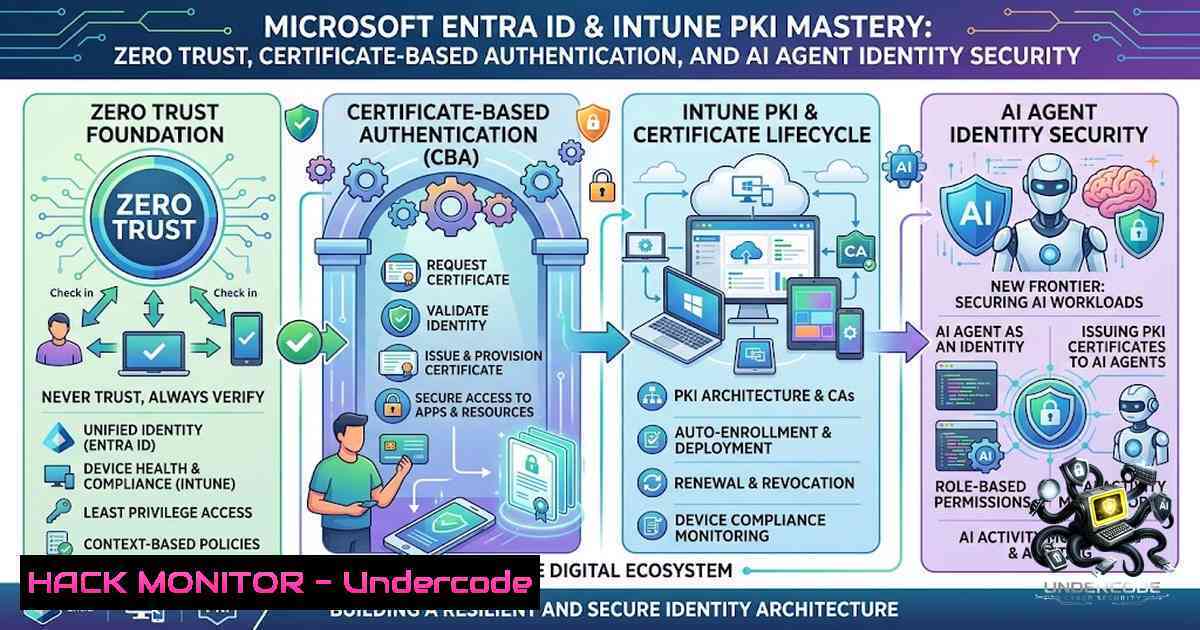
In an era where identity is the new perimeter, securing modern enterprise environments demands a multi-layered approach that spans identity governance, certificate-based authentication, and emerging AI agent identities. A recent community meetup hosted by InSpark brought together leading experts to dissect three critical pillars of Microsoft’s security ecosystem: Entra ID tenant hardening for multi-organizational scenarios, Intune PKI deployment for certificate-based authentication (CBA), and the groundbreaking Agent 365 identity framework. This article distills those technical deep-dives into actionable strategies, complete with verified commands, configuration walkthroughs, and hardening scripts that every security professional and IT administrator needs to fortify their Microsoft Entra ID infrastructure against modern threats.
Learning Objectives:
- Objective 1: Master the configuration and security hardening of Microsoft Entra ID tenants for multi-organizational environments, implementing Zero Trust principles and cross-tenant access controls.
- Objective 2: Deploy and operationalize Microsoft Intune Cloud PKI to enable seamless certificate-based authentication without on-premises NDES infrastructure, reducing attack surface and administrative overhead.
- Objective 3: Understand and implement Microsoft Entra Agent ID to govern, authenticate, and secure AI agent identities within Agent 365, ensuring consistent policy enforcement across human and non-human identities.
You Should Know:
- Multi-Tenant Entra ID Security Hardening: Zero Trust Configuration
Managing multiple Entra ID tenants for defense organizations or large enterprises requires a systematic approach to Zero Trust. The foundation begins with establishing Microsoft Entra ID as a Zero Trust platform—a tenant populated with user identities and licensed for user- and device-based access policies. However, securing privileged access remains paramount: only assign Microsoft Entra permissions to cloud-only accounts and mandate hardware passkeys or certificate-based authentication for administrative roles.
Step‑by‑step guide for multi-tenant Entra ID hardening:
- Assess Cross-Tenant Access Settings: Navigate to Entra ID > External Identities > Cross-tenant access settings. Review and restrict inbound and outbound access to trusted organizations only. Implement B2B direct connect for seamless yet secure collaboration.
-
Implement Entitlement Management: Use Microsoft Entra ID Governance to create access packages that assign and review access rights across tenants. This ensures that users only retain permissions necessary for their role.
-
Automate Lifecycle Management: Sync user creation and deletion across tenancies using lifecycle policies. When an employee leaves, automated deprovisioning removes access across all tenants, preventing orphaned accounts.
-
Enforce Conditional Access Policies: Create conditional access policies that require multi-factor authentication (MFA), compliant devices, and trusted locations. For multi-tenant scenarios, use the “All cloud apps” filter and apply policies to guest users.
-
Monitor with PowerShell: Use the Microsoft Entra PowerShell module to audit and enforce security defaults. Below is a script to check if identifier URI protection is enabled—a critical setting that blocks insecure app ID URIs:
 Connect to Entra ID
Connect-Entra -Scopes "Application.Read.All", "Policy.Read.All"

Check identifier URI protection state
$policy = Get-EntraPolicy -PolicyType "AppManagementPolicy"
if ($policy.Definition -match "uriAdditionWithoutUniqueTenantIdentifier") {
Write-Host "Identifier URI protection is ENABLED" -ForegroundColor Green
} else {
Write-Host "Identifier URI protection is DISABLED - please enable" -ForegroundColor Red
}

Disconnect cleanly
Disconnect-Entra
Always run `Disconnect-Entra` to remove credentials and contexts, reducing the risk of unauthorized access if the session remains open.
- Intune Cloud PKI: Certificate-Based Authentication Without On-Premises Complexity
Traditional PKI deployments required complex on-premises NDES infrastructure and certificate connectors. Microsoft Cloud PKI eliminates this burden by providing a two-tier CA hierarchy entirely within Intune, automating SCEP-based certificate issuance and renewal while monitoring certificate health across the organization.
Step‑by‑step guide for deploying Intune Cloud PKI:
- Create the Root CA: In the Microsoft Intune admin center, navigate to Tenant administration > Cloud PKI. Select Create and provide a descriptive name for your root CA. Configure the validity period (typically 5–10 years) and key size (2048-bit or higher).
-
Create the Issuing CA: After the root CA is established, create an issuing CA subordinate to the root. This CA will handle actual certificate issuance. Set a shorter validity period (e.g., 1–2 years) and configure the certificate template for SCEP.
-
Configure Certificate Profiles: Navigate to Devices > Configuration profiles > Create profile. Select Windows 10 and later and choose SCEP certificate as the profile type. Configure the certificate settings:
– Certificate type: User or Device
– Subject name format: `CN={{UserPrincipalName}}` for users or `CN={{DeviceName}}` for devices
– Key storage provider: Trusted Platform Module (TPM) if available
– Key usage: Digital signature and key encipherment
- Deploy to Target Groups: Assign the certificate profile to Azure AD groups containing your target devices or users. The certificates will be automatically provisioned upon device enrollment or user sign-in.
-
Verify Deployment: In the Intune admin center, check the profile status under Devices > Monitor > Certificate status. For on-device verification, open certlm.msc (Local Machine certificates) and expand Trusted Root Certification Authorities > Certificates to confirm the root CA certificate is present.
-
Troubleshoot with certutil: If certificates fail to deploy, use the following PowerShell command to repair the certificate store:
 Get the thumbprint of the problematic certificate
certutil -store my

Repair the certificate store
certutil -repairstore my "THUMBPRINT_VALUE"
- Entra ID Certificate-Based Authentication (CBA): Enabling Passwordless Access
Certificate-based authentication in Entra ID allows users to authenticate using smart cards or device certificates instead of passwords, significantly reducing phishing risks. The configuration requires uploading all certificate authorities (CAs) in the certification path to the Entra ID trust store—missing any CA causes authentication failures.
Step‑by‑step guide for enabling Entra ID CBA:
- Upload Certificate Authorities: Sign in to the Entra admin center as a Global Administrator. Navigate to Protection > Security Center > Public Key Infrastructure. Click Add and upload your root and intermediate CA certificates in `.cer` or `.pem` format.
-
Configure Authentication Method: Go to Entra ID > Security > Authentication methods > Certificate-based authentication. Set Enable to Yes. Optionally, target specific user groups by selecting Select users > Add users and groups.
-
Configure Username Bindings: Under the CBA policy, define how the certificate maps to the user object. Common bindings include:
– Principal Name: Maps the certificate’s Subject Alternative Name (SAN) to the user’s UserPrincipalName
– RFC822 Name: Maps the certificate’s email field to the user’s email attribute
– Subject Key Identifier: For device certificates
- Enable Certificate-Based Authentication: Once all configurations are complete, enable Entra ID CBA on the tenant. Users will now see a “Use a certificate” option during sign-in.
-
Test Authentication: Use a device with a valid certificate installed and attempt to sign in to a Microsoft 365 application. If multiple certificates exist, the user will be prompted to select the relevant one.
-
Agent 365 and Entra Agent ID: Securing the AI Workforce
With the proliferation of AI agents in enterprise environments, managing their identities has become as critical as managing human identities. Microsoft Agent 365 assigns each AI agent a first-class identity in Entra Agent ID, enabling organizations to apply consistent authentication, authorization, lifecycle management, and policy enforcement as agents scale. This ensures that agents are traceable, authenticated, authorized, and secured—just like any user in your organization.
Step‑by‑step guide for implementing Entra Agent ID governance:
- Discover Agents: Use Agent 365 to discover AI agents operating within your organization. Each discovered agent can be assigned an Entra Agent ID.
-
Define Agent Identity Blueprints: Create blueprints that define the characteristics and permissions of a class of agents. For example, a “Customer Support Agent” blueprint might have read access to customer records but no write permissions.
-
Apply Conditional Access Policies: Just as you would for human users, apply conditional access policies to agent identities. Require MFA for sensitive operations or restrict agent access to trusted IP ranges.
-
Govern Agent Lifecycles: Use Entra ID Governance to automate agent onboarding, permission reviews, and offboarding. When an agent is decommissioned, its identity is automatically disabled.
-
Monitor Agent Activity: Leverage Entra ID audit logs and sign-in logs to monitor agent authentication attempts and access patterns. Anomalies—such as an agent accessing data outside its blueprint—trigger alerts.
-
Hardening Entra ID with Conditional Access and App Management Policies
Beyond baseline configurations, advanced hardening measures protect against token theft, lateral movement, and privilege escalation. Conditional access policies should be augmented with app management policies that enforce secure identifier URI formats and block insecure application registrations.
Step‑by‑step guide for advanced Entra ID hardening:
- Enable Identifier URI Protection: Microsoft Entra ID now provides protection to block the addition of insecure identifier URIs to app registrations. To check if this protection is enabled, run the PowerShell script from the `entra-apps-identifier-uri-protection` repository. The protection is enabled by setting the `uriAdditionWithoutUniqueTenantIdentifier` property.
-
Deploy Better Security Defaults: For organizations still relying on basic security defaults, deploy a conditional access policy set that provides improved security. The `BetterSecDefaults` PowerShell script creates policies for MFA, legacy authentication blocking, and risky sign-in detection:
 Clone the BetterSecDefaults repository
git clone https://github.com/biffalo/BetterSecDefaults.git
cd BetterSecDefaults

Run the interactive script
.\BetterSecDefaults.ps1
- Restrict Legacy Authentication: Create a conditional access policy that blocks legacy authentication protocols (POP, IMAP, SMTP, etc.). This prevents attackers from using older, less secure protocols to compromise accounts.
-
Implement Risk-Based Conditional Access: Integrate with Microsoft Defender for Identity to detect and respond to risky sign-ins. Configure policies to require MFA or block access entirely when risk levels exceed a threshold.
-
Regularly Audit Privileged Roles: Use Entra ID Privileged Identity Management (PIM) to enforce just-in-time access for administrative roles. Require approval and justification for elevation, and set expiration times for privileged assignments.
What Undercode Say:
-
Key Takeaway 1: The convergence of identity management, PKI, and AI agent security is not optional—it is the new baseline for enterprise security. Organizations that treat these as separate silos will be outpaced by threats that exploit identity-based attack vectors.
-
Key Takeaway 2: Certificate-based authentication eliminates the password as a primary attack surface, but it requires meticulous CA trust chain management. Missing a single intermediate CA can break authentication for thousands of users—validate every certificate path before enabling CBA tenant-wide.
Analysis: The meetup’s focus on Entra ID, Intune PKI, and Agent 365 reflects a broader industry shift toward identity-centric security architectures. Microsoft’s investment in Entra Agent ID signals that AI agents are no longer experimental—they are enterprise workloads requiring the same governance rigor as human employees. The deprecation of on-premises NDES in favor of Cloud PKI reduces infrastructure complexity and attack surface, but it demands that administrators become proficient in cloud-1ative certificate management. The multi-tenant hardening guidance underscores a reality: mergers, acquisitions, and federated partnerships create identity sprawl that must be actively governed, not passively monitored. As AI agents proliferate, the ability to observe, govern, and protect these non-human identities will separate resilient organizations from those that fall victim to agent-based privilege escalation or data exfiltration.
Prediction:
- +1 The adoption of Microsoft Cloud PKI will accelerate throughout 2026-2027, rendering traditional on-premises NDES connectors obsolete. Organizations that migrate early will benefit from reduced operational costs and improved certificate renewal automation.
-
+1 Entra Agent ID will become the de facto standard for AI agent identity management, with major enterprises mandating Agent ID enrollment for all production AI workloads by Q1 2027, driving demand for identity governance training and certifications.
-
-1 Organizations that delay implementing certificate-based authentication will experience a 30-40% increase in password-related security incidents, as attackers increasingly leverage AI-powered phishing to harvest credentials.
-
-1 The complexity of multi-tenant Entra ID configurations will lead to misconfigurations in 25% of organizations, exposing cross-tenant access vulnerabilities unless robust automated auditing and PowerShell-based compliance checks are implemented.
-
+1 The integration of conditional access policies with Agent ID will enable dynamic, risk-based authentication for AI agents, allowing organizations to enforce granular permissions based on agent behavior, location, and data sensitivity—transforming AI security from a reactive to a proactive discipline.
▶️ Related Video (74% Match):
https://www.youtube.com/watch?v=0qZzcK1mHwA
🎯Let’s Practice For Free:
🎓 Live Courses & Certifications:
Join Undercode Academy for Verified Certifications
🚀 Request a Custom Project:
Secure, high-velocity infrastructure and disruptive technological engineering. Contact our engineering team for high-tier development and proprietary systems:
[email protected]
💎 Smart Architecture | 🛡️ Secure by Design | ⭐ Trusted by Thousands
IT/Security Reporter URL:
Reported By: Gisteren Waren – Hackers Feeds
Extra Hub: Undercode MoN
Basic Verification: Pass ✅


