
Listen to this Post
Introduction:
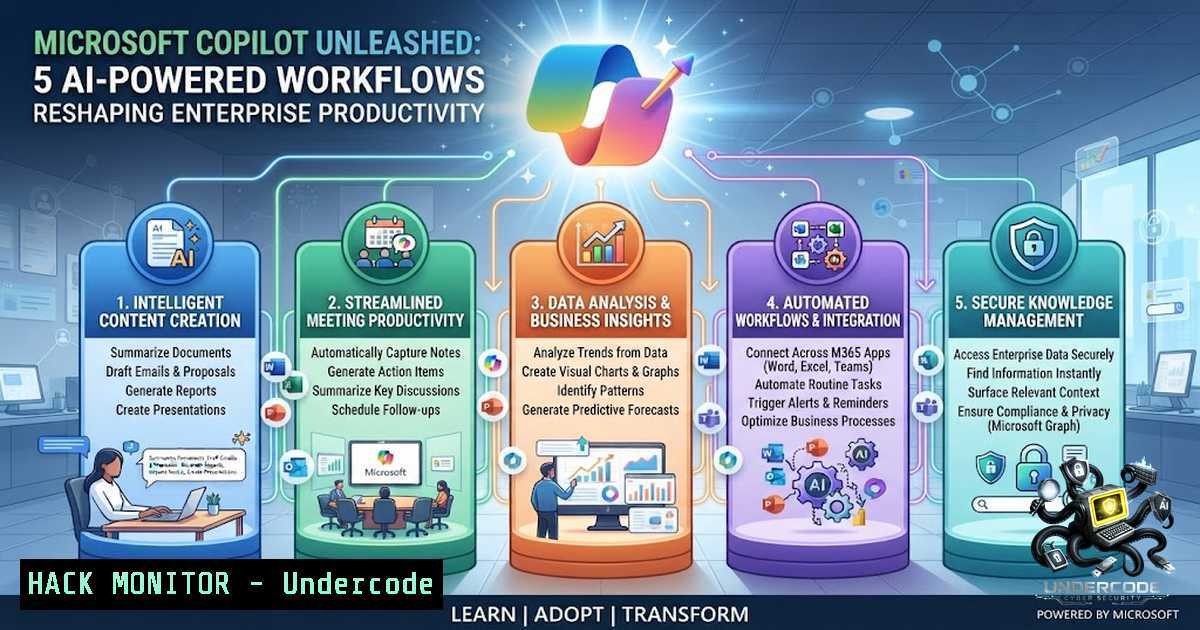
Microsoft 365 Copilot is not merely an AI chatbot—it is a generative AI-powered assistant embedded directly into the fabric of Word, Excel, PowerPoint, Outlook, Teams, SharePoint, and OneDrive. Unlike consumer AI tools, Copilot respects your organization’s existing security, compliance, and data protection controls, accessing only data that users are authorized to see. The five practical workflows shared by Ankit Agarwal—transforming documents into presentations, summarizing videos and webpages, enriching Excel data, improving business writing, and searching across Microsoft 365—represent a fundamental shift from manual repetition to AI-assisted execution. This article breaks down each workflow with technical depth, administrative commands, and security considerations for the modern enterprise.
Learning Objectives:
- Understand the architectural foundation of Microsoft 365 Copilot and its integration with Microsoft Graph
- Master five practical Copilot workflows to eliminate repetitive tasks and accelerate decision-making
- Learn administrative PowerShell commands, security configurations, and deployment best practices
- Explore API integrations, compliance frameworks, and governance strategies for enterprise-scale Copilot adoption
- Document-to-Presentation Transformation: From Word to PowerPoint in Minutes
The ability to transform a Word document into a polished PowerPoint presentation is one of Copilot’s most time-saving features. This workflow eliminates the manual drudgery of copying bullet points, reformatting slides, and aligning design elements.
What This Does:
Copilot analyzes the structure, headings, and key content of your Word document, then generates a complete PowerPoint deck with suggested slide layouts, bullet points, and even speaker notes. It leverages Microsoft Graph to access your document’s content and applies your organization’s branding templates where configured.
Step-by-Step Guide:
- Open your Word document in Microsoft 365 Word.
- Select the Copilot icon (or use the ribbon command) and choose “Create a presentation from this document.”
- Specify the desired number of slides and any thematic preferences (e.g., “focus on data insights” or “executive summary style”).
- Review the generated PowerPoint—Copilot produces a draft with slide titles, content placeholders, and suggested imagery.
- Refine and finalize using natural language prompts like “add a summary slide” or “condense the technical details into an appendix.”
Administrative & Security Considerations:
- Permissions Audit: Before deploying Copilot licenses, audit SharePoint permissions, OneDrive sharing defaults, and Teams channel access. Copilot inherits these permissions—oversharing risks exposing sensitive content.
- Sensitivity Labels: Copilot respects Microsoft Purview sensitivity labels, applying them to generated content.
- PowerShell Command to Verify Copilot License Assignment:
Get-MgUser -All | Where-Object {$_.AssignedLicenses -match "Microsoft 365 Copilot"} | Select-Object DisplayName, UserPrincipalName
- Video and Webpage Summarization: Extracting Insights Without the Noise
Copilot can summarize YouTube videos, lengthy articles, and webpages, extracting key insights without requiring you to watch or read everything. This capability is powered by Copilot’s ability to process web-grounded data and, with a Microsoft 365 Copilot license, connect to your organizational content.
What This Does:
When you provide a URL or video link, Copilot analyzes the transcript (for videos) or the textual content (for webpages) and generates a concise summary with bullet-pointed key takeaways.
Step-by-Step Guide:
- Open Copilot Chat in Microsoft 365 (accessible from the Copilot app or directly in Teams/Outlook).
- Paste the URL of the YouTube video or webpage into the chat prompt.
- Use a prompt such as: “Summarize this video and list the top 5 actionable insights.” or “Extract the main arguments and supporting data from this article.”
- Refine the output by asking follow-up questions: “What are the counterarguments presented?” or “Generate a one-paragraph executive summary.”
Technical Deep Dive:
- Data Grounding: With a Microsoft 365 Copilot license, the AI can reference your SharePoint and OneDrive files, Teams chats, and emails to provide context-aware summaries.
- API Integration: Developers can build custom agents that use the Microsoft Graph API to retrieve and summarize content programmatically.
Security & Compliance:
- Enterprise Data Protection (EDP): Copilot Chat with EDP applies your organization’s identity model, sensitivity labels, retention policies, and audit controls.
- Admin Controls: Use PowerShell to manage federated connectors and control which external sources Copilot can access:
Get-MgExternalConnection | Where-Object {$_.Name -eq "YouTubeConnector"} | Disable-MgExternalConnection
- Excel Data Enrichment and Analysis: Natural Language Meets Spreadsheets
Copilot transforms Excel from a manual data-crunching tool into an interactive analyst. You can add columns, categorize data, explain complex formulas, and uncover insights using natural language.
What This Does:
Copilot interprets your natural language queries and translates them into Excel functions, pivot tables, charts, and data transformations. It can explain existing formulas, suggest improvements, and generate new calculations.
Step-by-Step Guide:
1. Open Excel and load your dataset.
- Select the Copilot button in the ribbon (or right-click a cell and choose “Explain with Copilot”).
3. Type a natural language request, such as:
- “Add a column that calculates the percentage change from Q1 to Q2.”
- “Categorize customers by spending tier: High, Medium, Low.”
- “Explain what this VLOOKUP formula does.”
- Review the suggested changes—Copilot shows the formula or transformation before applying it.
- Accept or modify the suggestion, then continue analyzing with follow-up prompts.
PowerShell & Administrative Commands:
- Enable Audit Logging for Copilot in Excel:
Set-AdminAuditLogConfig -UnifiedAuditLogIngestionEnabled $true
- Monitor Copilot Usage in Excel:
Search-UnifiedAuditLog -Operations "CopilotInteraction" -StartDate (Get-Date).AddDays(-7) -EndDate (Get-Date) | Format-Table CreationTime, UserIds, Operation
Security Best Practices:
- Data Loss Prevention (DLP): Configure Microsoft Purview DLP policies to prevent Copilot from exporting sensitive data from Excel.
- Insider Risk Management: Enable Purview Insider Risk Management to detect anomalous Copilot activity, such as bulk data exports.
4. Business Writing Enhancement: Tone, Clarity, and Professionalism
Copilot refines emails, reports, and proposals with better tone, clarity, and professionalism. It acts as an AI-powered editor that understands context, audience, and organizational voice.
What This Does:
Copilot analyzes your draft and suggests improvements in grammar, style, tone, and structure. It can rewrite content for different audiences (e.g., executives vs. technical teams), adjust formality, and ensure consistency with your organization’s branding.
Step-by-Step Guide:
- Open Word, Outlook, or Teams and start composing your document or email.
- Highlight the text you want to refine or place your cursor where you want new content.
- Select the Copilot icon and choose an action:
– “Rewrite this for a more professional tone.”
– “Make this more concise.”
– “Adapt this for a non-technical audience.”
4. Review the suggestions—Copilot provides multiple versions with explanations of the changes.
5. Accept, reject, or further customize the suggested rewrite.
Technical Integration:
- Microsoft Graph Context: Copilot draws from your emails, chats, meetings, and files to generate responses that are contextual and actionable.
- Custom Prompts: Create reusable prompt templates for common writing tasks (e.g., quarterly reports, client proposals, internal announcements).
Security & Compliance:
- Retention Policies: Copilot inherits Microsoft 365 retention policies, ensuring that generated content is retained or deleted according to organizational rules.
- Audit Trails: All Copilot interactions are auditable, providing a complete record of who generated or modified what content.
- Unified Search Across Microsoft 365: One Prompt, Everywhere
Copilot enables you to search across Outlook, Teams, SharePoint, and OneDrive from a single prompt. This unified search capability eliminates the need to switch between apps and manually hunt for information.
What This Does:
When you ask Copilot a question, it queries your entire Microsoft 365 tenant—emails, chats, documents, meetings, and calendar events—and returns a synthesized answer with citations. It respects your existing permissions, so users only see content they are authorized to access.
Step-by-Step Guide:
- Open Copilot Chat (available in the Copilot app, Teams, or Outlook).
2. Type a question such as:
- “What were the key decisions from last week’s project review meeting?”
- “Find the latest version of the Q3 sales forecast.”
- “Summarize my unread emails from the CEO.”
- Review the synthesized answer—Copilot cites sources (emails, files, meeting transcripts) so you can verify the information.
- Drill down by asking follow-up questions: “Show me the full email thread about that decision.”
Administrative Configuration:
- Enable or Disable Windows Copilot via Group Policy:
 Registry key to turn off Windows Copilot
reg add "HKCU\Software\Policies\Microsoft\Windows\WindowsCopilot" /v TurnOffWindowsCopilot /t REG_DWORD /d 1 /f
- Reinstall Copilot App for All Users (Windows 11):
Get-AppxPackage -AllUsers Microsoft.Copilot | ForEach {Add-AppxPackage -DisableDevelopmentMode -Register "$($_.InstallLocation)\AppxManifest.xml"}
Governance Best Practices:
- Phased Deployment: Do not deploy Copilot licenses to every user on day one. Start with high-impact departments (marketing, finance, HR, sales) where ROI is fastest.
- Oversharing Remediation: Before assigning licenses, audit and remediate SharePoint permissions, OneDrive sharing defaults, and Teams channel access.
- Role-Based Access: Assign the right admin roles and permissions for Copilot administration.
What Undercode Say:
- Key Takeaway 1: Microsoft 365 Copilot is not a replacement for human judgment—it is a force multiplier that handles repetitive, time-consuming tasks so professionals can focus on higher-value decisions, creativity, and execution. The five workflows highlighted—document-to-presentation, video summarization, Excel analysis, writing enhancement, and unified search—represent the tip of the iceberg.
-
Key Takeaway 2: Enterprise-grade security is baked into Copilot’s architecture. It inherits your existing Microsoft 365 security and compliance settings, respects sensitivity labels, applies retention policies, and supports audit trails. However, organizations must proactively audit permissions, remediate oversharing, and implement governance frameworks before wide-scale deployment.
Analysis:
The LinkedIn post by Ankit Agarwal underscores a critical truth: most professionals are only scratching the surface of what Copilot can do. The five workflows he shared are practical, immediately applicable, and address real pain points—document creation, information overload, data analysis, writing quality, and information retrieval. However, the post does not address the security, compliance, and administrative dimensions that are essential for enterprise adoption. Organizations that deploy Copilot without proper governance risk data exposure, regulatory non-compliance, and user confusion. The key to success lies in treating Copilot administration as an ongoing discipline rather than a one-time setup. IT leaders must assign proper admin roles, implement Purview DLP and Insider Risk Management, and provide user training to maximize ROI and minimize risk. The future of work is not about working harder—it’s about working smarter with AI as a trusted copilot.
Prediction:
- +1 Enterprise adoption of Microsoft 365 Copilot will accelerate by 300% over the next 18 months as organizations realize that AI-assisted workflows are not optional but essential for competitive advantage.
-
+1 The AB-900 (Microsoft 365 Certified: Copilot and Agent Administration Fundamentals) and AB-730 (AI Business Professional) certifications will become baseline requirements for IT administrators and business professionals alike.
-
-1 Organizations that fail to audit permissions and implement governance before deploying Copilot will experience data breaches, compliance violations, and insider risk incidents, leading to regulatory fines and reputational damage.
-
-1 The skills gap in AI prompt engineering and Copilot administration will widen, creating a talent shortage that drives up salaries for certified professionals and delays AI transformation initiatives.
-
+1 Microsoft will continue to expand Copilot’s capabilities with agent mode, new AI agents, and deeper integration with Microsoft Graph, transforming it from a productivity tool into an autonomous work orchestrator.
-
-1 Over-reliance on Copilot for decision-making without human validation will lead to costly errors, particularly in financial modeling, legal drafting, and strategic planning—underscoring the need for human-in-the-loop workflows.
-
+1 The convergence of Copilot with Microsoft Purview, Sentinel, and Defender will create a unified security and compliance fabric, enabling organizations to govern AI usage with the same rigor as traditional data protection.
-
+1 By 2027, Microsoft 365 Copilot will be as ubiquitous as email, with every knowledge worker using AI-assisted workflows for at least 50% of their daily tasks, fundamentally reshaping job descriptions and performance metrics.
▶️ Related Video (86% Match):
https://www.youtube.com/watch?v=15b1udf4dZ4
🎯Let’s Practice For Free:
🎓 Live Courses & Certifications:
Join Undercode Academy for Verified Certifications
🚀 Request a Custom Project:
Secure, high-velocity infrastructure and disruptive technological engineering. Contact our engineering team for high-tier development and proprietary systems:
[email protected]
💎 Smart Architecture | 🛡️ Secure by Design | ⭐ Trusted by Thousands
IT/Security Reporter URL:
Reported By: Ankit Agarwal04 – Hackers Feeds
Extra Hub: Undercode MoN
Basic Verification: Pass ✅


