
Listen to this Post
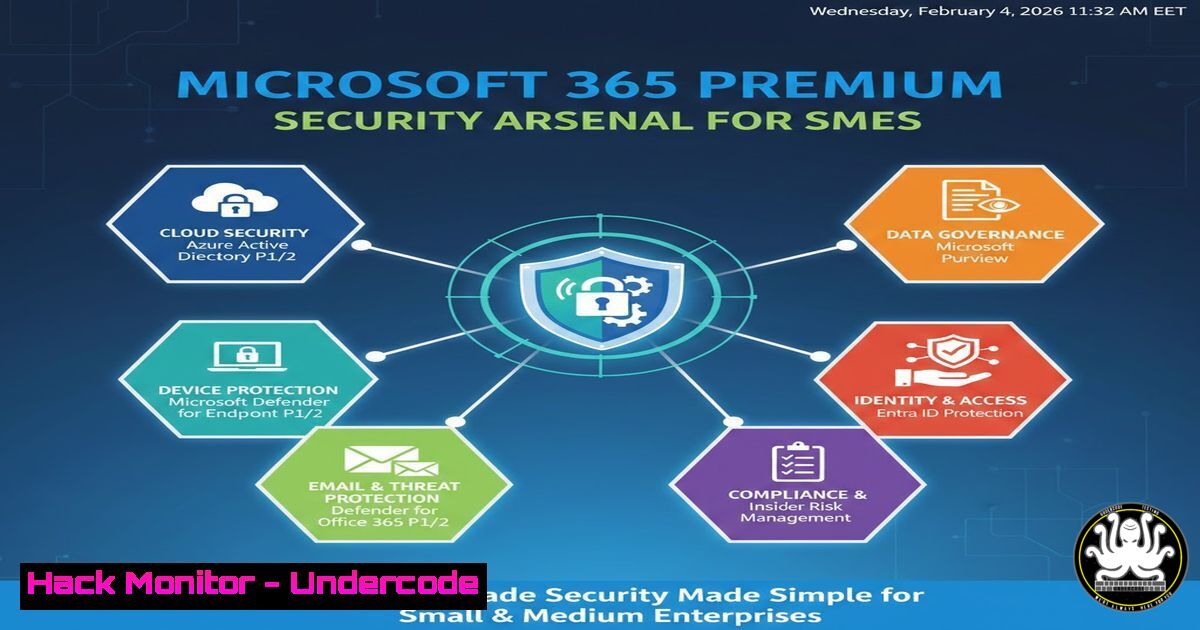
Introduction:
In today’s perimeter-less workplace where BYOD (Bring Your Own Device) is the norm, traditional security models are obsolete. The choice between Microsoft 365 Standard and Premium is not a feature comparison; it’s the difference between having a lock on your front door and deploying a 24/7 security detail with intelligent threat detection. For SMEs, Microsoft 365 Premium packages the sophisticated security posture of global enterprises into an accessible suite, fundamentally shifting defense from reactive to proactive.
Learning Objectives:
- Understand the critical security gaps in Microsoft 365 Standard that Premium fills.
- Learn to implement and configure core Premium components: Intune, Conditional Access, and Microsoft Defender.
- Develop a step-by-step action plan to harden your SME’s cloud and endpoint security posture.
You Should Know:
- Beyond Basic MFA: Architecting Zero Trust with Conditional Access
Microsoft 365 Standard offers basic Multi-Factor Authentication (MFA), but Premium unlocks Conditional Access (CA)—the policy engine that enforces a Zero Trust “never trust, always verify” model. CA allows you to gate access based on user, device, location, application sensitivity, and real-time risk signals.
Step‑by‑step guide explaining what this does and how to use it.
- Navigate to the Security Perimeter: Access the Microsoft Entra admin center (https://entra.microsoft.com).
- Create a Policy: Go to `Protection` > `Conditional Access` > `Policies` and click
+ Create new policy. - Define Users & Apps: Under
Assignments, select the target users (e.g., “All users”) and the cloud applications (e.g., “Microsoft 365 SharePoint Online”). - Set Conditions: This is the core. Under
Conditions, configure rules like:
Device platforms: Include `Android` and `iOS` for BYOD.
Locations: Configure `Named locations` to block or require MFA for access from high-risk countries.
Client apps: Apply stricter policies toMobile apps and desktop clients. - Grant Access Controls: Under
Grant, choose `Require multi-factor authentication` and `Require device to be marked as compliant` (this ties into Intune). Set the session for continuous evaluation. - Enable and Report: Set policy to `Report-only` initially to monitor impact, then switch to
On. -
Taming the BYOD Beast with Microsoft Intune for Compliance
Unmanaged personal devices are a top attack vector. Intune, included in Premium, provides Mobile Device Management (MDM) and Mobile Application Management (MAM). It ensures that only devices meeting your security standards—encrypted, passcode-protected, free of jailbreaks—can access corporate data.
Step‑by‑step guide explaining what this does and how to use it.
- Set Device Compliance Policies: In the Microsoft Intune admin center (https://intune.microsoft.com), go to `Devices` > `Compliance policies` > `Policies` >
Create policy. - Select Platform: Choose a platform (e.g.,
Windows 10 and later). Create separate policies for iOS/iPadOS and Android.
3. Configure Security Baselines: Mandate critical settings:
For Windows: Require BitLocker encryption, a minimum OS version, and firewall enabled.
For iOS: Require a passcode of minimum length, and block jailbroken devices.
For Android: Require device encryption and threat scan from Defender.
4. Deploy to Groups: Assign the policy to relevant Azure AD user groups (e.g., “All Employees”).
5. Verify Compliance: Use the `Device compliance` dashboard to see which devices are Compliant, Noncompliant, or In grace period. Non-compliant devices are automatically blocked by Conditional Access policies.
- From Signature to AI: Deploying Microsoft Defender for Endpoint
Standard has Defender Antivirus; Premium includes Microsoft Defender for Endpoint (MDE)—an enterprise-grade EDR (Endpoint Detection and Response) platform. It uses AI, behavioral analysis, and a global threat intelligence cloud to detect, investigate, and automate response to advanced threats.
Step‑by‑step guide explaining what this does and how to use it.
- Onboard Devices: In the Microsoft Defender portal (https://security.microsoft.com), go to `Settings` > `Endpoints` >
Onboarding. Select the operating system. - Deploy the Sensor: For Windows devices managed by Intune, download the Intune onboarding configuration package and deploy it as a Win32 app or via a device configuration profile.
3. For Manual Windows Testing (Local PowerShell):
 Download the onboarding package from the Defender portal first, then run:
cd "C:\Path\To\OnboardingPackage"
.\WindowsDefenderATPLocalOnboardingScript.cmd
4. Configure Attack Surface Reduction (ASR) Rules: In the Defender portal, navigate to `Configuration management` > Attack surface reduction rules. Enable critical rules like “Block executable content from email client and webmail” and “Block process creations originating from PSExec and WMI commands.”
5. Hunt for Threats: Use the Advanced Hunting feature (KQL queries) to proactively search for IOCs.
DeviceProcessEvents
| where FileName in~ ("powershell.exe", "cmd.exe")
| where InitiatingProcessFileName =~ "outlook.exe"
| project Timestamp, DeviceName, FileName, FolderPath, ProcessCommandLine
4. The Passwordless Future: Implementing Strong Authentication Controls
Premium provides tools to move beyond vulnerable passwords. Combined with Conditional Access, you can enforce phishing-resistant MFA methods like Windows Hello for Business, FIDO2 security keys, and the Microsoft Authenticator app (in passwordless mode).
Step‑by‑step guide explaining what this does and how to use it.
- Enable Authentication Methods: In the Microsoft Entra admin center, go to `Protection` > `Authentication methods` >
Policies. - Configure Microsoft Authenticator: Select
Microsoft Authenticator, enable it for target users, and underConfigure, set `Authentication mode` to `Passwordless phone sign-in` for the strongest security. - Register Users: Direct users to https://mysignins.microsoft.com/security-info to register their preferred, admin-allowed methods.
- Create a Passwordless CA Policy: Build a new Conditional Access policy targeting all cloud apps. Under
Grant, select `Require authentication strength` and create a new authentication strength named “Passwordless” that includes only `Microsoft Authenticator (passwordless)` andFIDO2 security key. This policy will eventually replace legacy MFA. -
Automating Incident Response with Defender’s Automated Investigation and Remediation (AIR)
When a threat is detected, every second counts. Defender for Endpoint’s AIR capabilities can automatically investigate alerts, correlate evidence across the kill chain, and take approved remediation actions (quarantine files, kill processes) without waiting for an overwhelmed IT admin.
Step‑by‑step guide explaining what this does and how to use it.
- Review and Set Automation Levels: In the Defender portal, go to `Settings` > `Endpoints` >
Advanced features. Ensure `Automated investigation` is turned on. - Configure Remediation Levels: Navigate to `Permissions` > `Endpoints` >
Roles. Edit the `Security Operations` role (or create a custom one) to set theRemediation level. `Full – remediate threats automatically` is recommended for SMEs with limited SOC staff. - Review Incident Queue: Go to `Incidents & alerts` >
Incidents. Click on an incident to see the `Investigation graph` showing the automated investigation’s scope and actions taken. - Approve Pending Actions: In the
Action center, review any pending remediation actions that require manual approval based on your organization’s risk tolerance. This provides oversight without sacrificing speed.
What Undercode Say:
- Premium is Not an Upgrade, It’s a Paradigm Shift. The transition from Standard to Premium moves you from tool management to policy-driven security orchestration, where compliance, identity, and endpoint security are seamlessly integrated.
- The ROI is Measured in Breaches Prevented. The cost of Premium is trivial compared to the financial, operational, and reputational cost of a single successful ransomware attack or data breach facilitated by an unmanaged device or a phished credential.
The analysis is clear: Microsoft 365 Standard provides essential utilities, but in the modern threat landscape, it leaves critical gaps in device governance, proactive threat hunting, and automated response. For any SME serious about security, the advanced controls in Premium—specifically Intune’s compliance enforcement, Conditional Access for dynamic policy, and Defender EDR’s AI-driven detection—are non-negotiable. They transform your environment from a collection of individually defended endpoints into a cohesive, intelligent, and self-healing security organism.
Prediction:
Within two years, the baseline feature set of “business” cloud suites will converge with today’s “premium” security offerings, driven by escalating regulatory pressures and insurance requirements. AI-powered, automated security posture management (like Microsoft’s Copilot for Security integrated into Defender and Intune) will become the primary interface for SME IT admins, making complex configurations accessible and turning reactive security teams into proactive strategists. The differentiation will shift from having these tools to how effectively they are configured and automated—making the skills to manage these platforms the most valuable commodity in SME IT.
▶️ Related Video (82% Match):
🎯Let’s Practice For Free:
IT/Security Reporter URL:
Reported By: Cybersecuritymonth Microsoft365premium – Hackers Feeds
Extra Hub: Undercode MoN
Basic Verification: Pass ✅


