
Listen to this Post
Introduction:
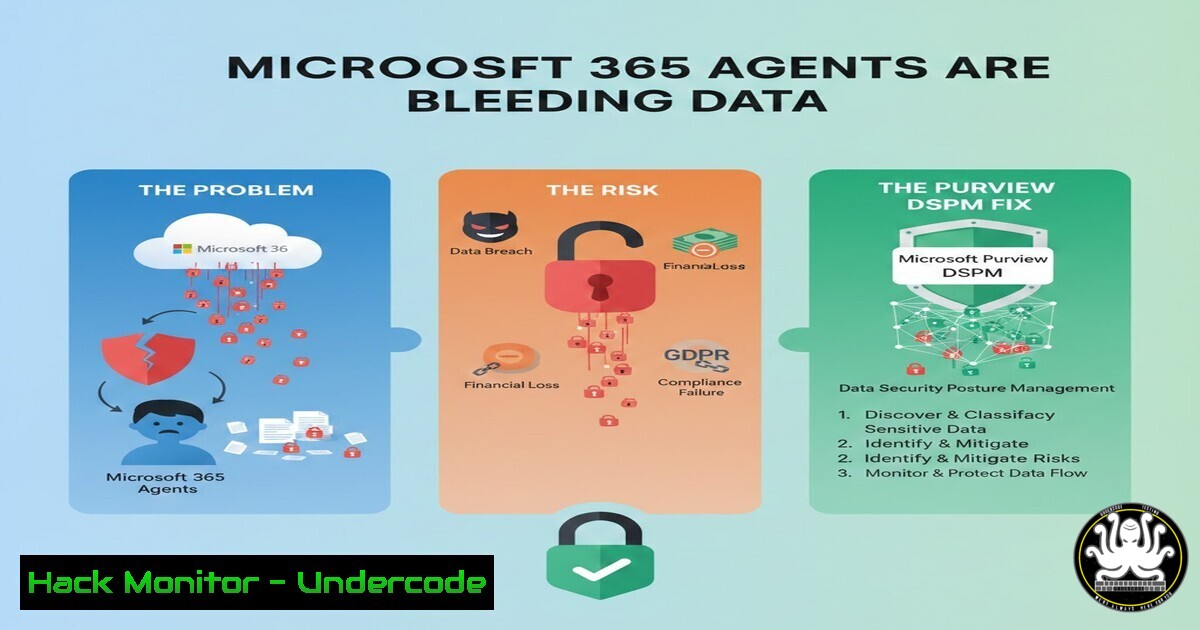
The administration of Microsoft 365 has shifted from managing user mailboxes and group memberships to governing autonomous AI agents that read, summarize, and act on your most sensitive corporate data. With Agentic AI breaches now outpacing traditional GenAI incidents by a factor of three, organizations are discovering that legacy DLP policies do not stop an LLM plugin from exfiltrating legal contracts via API calls. Microsoft’s new Purview Data Security Posture Management (DSPM) portal provides the visibility and controls necessary to map these agent–data interactions before they become supply chain headlines.
Learning Objectives:
- Understand how Microsoft Purview DSPM discovers and classifies AI agent activity within a M365 tenant.
- Execute hands-on reconnaissance commands to identify exposed sensitive data and overprivileged service principals.
- Implement remediation workflows that govern agent access to SharePoint, OneDrive, and Exchange without breaking business automation.
You Should Know:
- Enabling Microsoft Purview DSPM (Preview) and Establishing a Baseline
Microsoft Purview DSPM is not enabled by default. The portal focuses on three pillars: sensitive data discovery, agent permissions mapping, and data lineage visualization. To activate it, navigate to the Microsoft Purview compliance portal, select Data Security Posture Management (Preview) , and run a full scan.
Step‑by‑step guide:
- Log in to https://purview.microsoft.com with Global Admin or Compliance Admin rights.
2. Select Solutions > Data Security Posture Management.
- Click Get started and agree to the preview terms.
- Under Settings, enable AI hub and Sensitive info types.
- Initiate a full tenant scan (this may take 2–24 hours depending on tenant size).
PowerShell verification (Windows):
Connect-IPPSSession -UserPrincipalName [email protected]
Get-DLPCompliancePolicy | Format-Table Name, Mode, Workload
Get-DLPComplianceRule | Where-Object {$_.BlockAccess -eq $true}
These commands confirm existing DLP policies and highlight whether any rules actually block AI agents—most do not, as they are scoped to user actions only.
- Mapping AI Agents and Service Principals to Data Sources
Agentic AI often operates through service principals or Microsoft 365 applications that have been granted Graph API permissions. These are the hidden pathways used by tools like Copilot Studio or third-party AI plugins.
Step‑by‑step guide:
- In Purview DSPM, navigate to AI hub > Agent inventory.
- Review the list of detected agents and their last activity timestamp.
- Click any agent to view Data access patterns—this shows which SharePoint sites, OneDrive folders, or mailboxes the agent has queried.
Azure AD PowerShell (Windows) – Identify high‑risk service principals:
Connect-MgGraph -Scopes "Application.Read.All", "Policy.Read.All"
Get-MgServicePrincipal -All | Where-Object {$_.AppRoleAssignmentRequired -eq $false} | Select DisplayName, Id, AppId
Get-MgServicePrincipalAppRoleAssignedTo -ServicePrincipalId "ID" | FL
This reveals service principals that do not require assignment (often overly permissive) and the specific Graph permissions they hold.
Linux (optional cross‑platform with Azure CLI):
az login --allow-no-subscriptions
az ad sp list --query "[?appRoleAssignmentRequired==<code>false</code>].{Name:displayName, ID:appId}" -o table
Security teams can run this from any Linux jumpbox to audit for overprivileged agents.
3. Locating “Radioactive” Data: SharePoint and OneDrive Hotspots
DSPM’s Data map feature highlights where sensitive information resides—and which agents have accessed it. Adversa’s report cited that 70% of GenAI incidents involved data the organization did not know was exposed.
Step‑by‑step guide:
- In Purview DSPM, select Data map > Sensitive locations.
- Filter by sensitivity labels (e.g., “Highly Confidential”) or info types (e.g., Credit Card, Passport).
3. Export the report as CSV.
- Cross‑reference with the Agent inventory to see which agents touched these locations.
SharePoint Online PowerShell (Windows):
Connect-SPOService -Url https://tenant-admin.sharepoint.com
Get-SPOSite -IncludePersonalSite $true -Limit All | ForEach-Object {
Get-SPOSiteGroup -Site $<em>.Url | Where-Object {$</em>.Roles -like "Full Control"}
}
This command lists all sites and identifies groups with Full Control—often a sign of excessive permissions that AI agents inherit.
- Simulating an Agentic AI Credential Theft (Red Team Exercise)
To understand the risk, simulate an attacker harvesting OAuth tokens from a compromised agent. This is how the “crypto thefts” mentioned in the post occur—agents are tricked into using their credentials to perform unauthorized transactions.
Step‑by‑step guide (controlled lab only):
- Create a test service principal with `Files.ReadWrite.All` and
Mail.Read. - Use a tool like TokenTactics to request a token for the SP.
- Use the token to access SharePoint via Graph API.
Linux simulation (using curl and jq):
 Obtain token via client credentials flow
CLIENT_ID="your_app_id"
CLIENT_SECRET="your_secret"
TENANT_ID="your_tenant"
RESOURCE="https://graph.microsoft.com"

TOKEN=$(curl -X POST -H "Content-Type: application/x-www-form-urlencoded" \
-d "client_id=$CLIENT_ID&scope=https://graph.microsoft.com/.default&client_secret=$CLIENT_SECRET&grant_type=client_credentials" \
https://login.microsoftonline.com/$TENANT_ID/oauth2/v2.0/token | jq -r '.access_token')

Enumerate OneDrive files (abusing Files.ReadWrite.All)
curl -H "Authorization: Bearer $TOKEN" "https://graph.microsoft.com/v1.0/me/drive/root/children"
If this token is stolen, an attacker can silently read all files the agent can access—without MFA.
- Remediation: Govern Agent Access with Conditional Access and App Policies
Microsoft now supports Conditional Access for workload identities. This is the critical control missing from most tenants.
Step‑by‑step guide:
- In Entra admin center, go to Protection > Conditional Access > Policies.
2. Select New policy and choose Workload identities.
- Target the service principals identified in Step 2.
- Set Grant > Require multifactor authentication (for service principals that support it) or Block access for unused agents.
- Enable the policy in Report‑only mode for 7 days, then switch to On.
Graph API PowerShell (Windows):
Connect-MgGraph -Scopes "Policy.ReadWrite.ConditionalAccess"
$policy = @{
DisplayName = "Block Agentic AI from Unapproved Tenants"
State = "enabledForReportingButNotEnforced"
Conditions = @{
Applications = @{ IncludeServicePrincipals = @("ServicePrincipalID") }
}
GrantControls = @{ BuiltInControls = @("block") }
}
New-MgIdentityConditionalAccessPolicy -BodyParameter $policy
6. Harden APIs Against Agent Abuse
DSPM also exposes API calls made by agents. Over‑permissioned Graph API scopes are the root cause of “API abuses” cited in the original post.
Step‑by‑step guide:
- In Purview DSPM, go to AI hub > API access.
2. Review each agent’s consented permissions.
- Remove any unused or high‑risk delegated permissions (e.g.,
Mail.ReadWrite,Sites.FullControl).
Manual Graph API consent revocation (Linux):
 Requires admin consent endpoint
az rest --method PATCH \
--uri "https://graph.microsoft.com/v1.0/servicePrincipals/SP_OBJECT_ID" \
--headers "Content-Type=application/json" \
--body '{"appRoleAssignments":[]}'
This removes all app role assignments, forcing the agent to re‑authenticate with least privilege.
What Undercode Say:
- Key Takeaway 1: The AI agent attack surface is not theoretical; DSPM data confirms that most tenants have service principals with `Files.ReadWrite.All` that no administrator remembers approving. Inventory before you govern.
- Key Takeaway 2: Traditional DLP is blind to API‑to‑API exfiltration. Purview DSPM bridges the gap between “who owns the data” and “what automation touches it.” Without workload identity Conditional Access, you are relying on honor system security.
- Analysis: The shift from user‑centric to agent‑centric security requires rethinking identity as non‑human. Organizations that delay DSPM adoption will find themselves in the 2026 breach statistics—not because they lacked policies, but because they lacked visibility into policies that were already broken.
Prediction:
By Q3 2026, regulatory bodies (GDPR, CCPA, and emerging AI‑specific laws) will mandate AI Data Posture Audits similar to PCI DSS. Microsoft Purview DSPM will become a compliance necessity, not just a security nice‑to‑have. Expect the rise of Agent Security Posture Management (ASPM) as a dedicated market category, merging DSPM with CIEM and SSPM. The tenants that treat agent permissions as critical infrastructure today will be the only ones not scrambling for incident response retainer increases tomorrow.
▶️ Related Video (82% Match):
🎯Let’s Practice For Free:
IT/Security Reporter URL:
Reported By: Abdelhamid Hafez – Hackers Feeds
Extra Hub: Undercode MoN
Basic Verification: Pass ✅


