
Listen to this Post
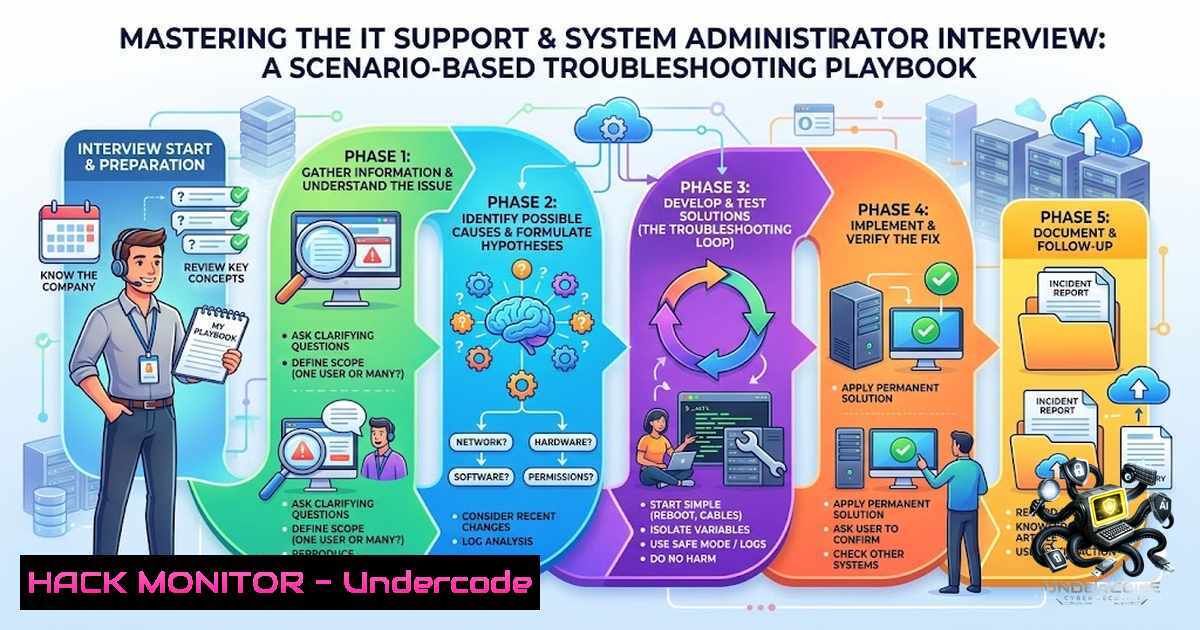
Introduction:
In the high-stakes world of IT support and system administration, technical knowledge is merely table stakes. The true differentiator between a good candidate and a great one is the ability to demonstrate a structured, logical troubleshooting approach under pressure. This article transforms common interview scenarios into a practical, command-rich playbook, covering everything from Active Directory and Group Policy to Microsoft 365 and access management, ensuring you’re not just reciting facts but showcasing the problem-solving skills that employers desperately seek.
Learning Objectives:
- Master the core PowerShell and command-line utilities for diagnosing and resolving Active Directory user and computer issues.
- Develop a systematic methodology for troubleshooting Group Policy application failures and Microsoft 365 connectivity problems.
- Acquire the practical skills to manage access controls and permissions across both Windows and Linux environments.
- Active Directory & User Management: The Heart of Enterprise IT
Active Directory (AD) is the cornerstone of most corporate networks, centralizing the management of users, computers, and security permissions. An interviewer will almost certainly probe your ability to manage and troubleshoot it. Your answer shouldn’t just be about resetting a password; it should demonstrate a deep understanding of the tools and a methodical diagnostic process.
Step‑by‑Step Guide: Diagnosing and Resolving a “User Cannot Login” Scenario
When a user reports they cannot log in, avoid jumping to conclusions. Follow this structured approach:
- Verify Account Status: The most common issues are locked-out or disabled accounts. Open PowerShell as an administrator and use the `ActiveDirectory` module to check the account’s status.
Import the Active Directory module (if not already loaded)
Import-Module ActiveDirectory

Check if the user account is enabled and if the password is set to never expire
Get-ADUser -Identity "username" -Properties Enabled, PasswordNeverExpires, LockedOut

To specifically check if an account is locked out
Get-ADUser -Identity "username" -Properties LockedOut
If the account is disabled or locked, you can re-enable or unlock it:
Unlock a user account
Unlock-ADAccount -Identity "username"

Enable a disabled user account
Set-ADUser -Identity "username" -Enabled $true
-
Verify Password Status: If the account is active, check if the password has expired.
Check password expiry and last set date
Get-ADUser -Identity "username" -Properties PasswordLastSet, PasswordExpired
If the password is expired, you can set a new one or force a change at next logon.
Set a new password (the password must meet complexity requirements)
Set-ADAccountPassword -Identity "username" -Reset -1ewPassword (ConvertTo-SecureString -AsPlainText "NewP@ssw0rd" -Force)

Force the user to change their password at next logon
Set-ADUser -Identity "username" -ChangePasswordAtLogon $true
-
Check Network and Domain Connectivity: If the account is fine, the issue may be network-related. From the user’s machine, run:
Flush DNS cache and re-register DNS records
ipconfig /flushdns
ipconfig /registerdns

Test connectivity to the domain controller on critical ports (LDAP: 389, DNS: 53, Kerberos: 88)
Using the built-in PortQry utility
portqry -1 <DomainControllerIP> -p UDP -e 389
-
Verify Domain Controller Health: If the issue is widespread, the domain controller itself might have problems. Run diagnostics from a domain controller:
Run a comprehensive health check on the domain controller
dcdiag /v

Check the replication status
repadmin /showrepl
2. Group Policy Troubleshooting: When Policies Don’t Apply
Group Policy Objects (GPOs) are powerful but can be a source of immense frustration when they don’t apply as expected. Interviewers ask about this to see if you understand the policy processing hierarchy and the tools to debug it.
Step‑by‑Step Guide: Forcing and Verifying GPO Application
- Force an Immediate Update: The first step is to force a policy refresh on the client machine.
Force a background refresh of all Group Policy settings
gpupdate /force
It’s important to note that some policy settings (like those for software installation or folder redirection) may require a reboot to take full effect.
-
Verify Applied Policies: After the update, generate a report to see which policies have actually been applied to the user and computer.
Generate a summary of applied Group Policy Objects (GPOs)
gpresult /r
For a more detailed, HTML-based report, use:
gpresult /h C:\temp\GPReport.html
- Check Policy Application Status: If policies are still not applying, check the operational logs for errors.
– Open Event Viewer.
– Navigate to Applications and Services Logs > Microsoft > Windows > GroupPolicy > Operational.
– Run `gpupdate` and immediately check this log for any errors that indicate why a policy failed.
- Reset Local Group Policy (as a last resort): If local policies are corrupted and preventing application, you can reset them.
Delete the local Group Policy folders to reset them to default
RD /S /Q "%WinDir%\System32\GroupPolicy"
RD /S /Q "%WinDir%\System32\GroupPolicyUsers"
Reboot the machine
shutdown /r /t 0
3. Microsoft 365 Administration: The Cloud Imperative
With most organizations moving to the cloud, proficiency in Microsoft 365 (M365) administration is non-1egotiable. Interviewers want to see that you can manage identities, troubleshoot connectivity, and use PowerShell for automation.
Step‑by‑Step Guide: Troubleshooting Microsoft 365 Connectivity and Mail Flow
- Check Service Health: Before diving into client-side issues, always verify that the service itself is healthy.
– Go to the Microsoft 365 admin center > Health > Service health.
– Look for any active advisories or incidents that might be affecting your tenant.
- Verify User License and Sign-in Status: A common issue is an unlicensed user or a blocked sign-in. Use the Microsoft 365 admin center or PowerShell (with the `ExchangeOnlineManagement` module).
Connect to Exchange Online
Connect-ExchangeOnline

Check the license and sign-in status for a user
Get-User -Identity "username" | fl UserPrincipalName, Licensing, AccountDisabled
-
Troubleshoot Outlook Connectivity: If Outlook is showing a “Disconnected” status, it’s often a local issue.
– Check “Work Offline” Mode: In Outlook, go to the Send/Receive tab and ensure the Work Offline button is not toggled on.
– Test Web Access: Have the user log in to Outlook on the web (OWA) . If it works there, the problem is with the local Outlook profile or configuration.
– Run in Safe Mode: Launch Outlook in safe mode to disable all add-ins. This helps determine if a third-party add-in is causing the issue.
outlook.exe /safe
– Create a New Outlook Profile: If the issue persists, the user’s Outlook profile may be corrupted. Create a new profile from the Control Panel > Mail > Show Profiles.
- Use the Microsoft Support and Recovery Assistant: This is a powerful, automated tool provided by Microsoft that can diagnose and fix many common Outlook and M365 issues.
– Download and run the Microsoft Support and Recovery Assistant from the official Microsoft website.
4. Access Management & Permissions: Securing the Fortress
Managing who has access to what is a fundamental security principle. You need to be comfortable with both the Windows (icacls) and Linux (chmod, chown) command-line tools for managing file system permissions.
Step‑by‑Step Guide: Auditing and Modifying File System Permissions
- Windows (Using
icacls): The `icacls` command is the go-to tool for viewing and modifying NTFS permissions.
– View Current Permissions: To see who has what access to a file or folder:
icacls "C:\Path\to\Folder"
– Grant Permissions: To grant a user `Modify` permissions to a folder.
icacls "C:\Path\to\Folder" /grant "DOMAIN\Username":M
(Common permission levels: `F` = Full Control, `M` = Modify, `RX` = Read & Execute, `R` = Read, `W` = Write)
– Remove a User: To remove a user’s permissions entirely.
icacls "C:\Path\to\Folder" /remove "DOMAIN\Username"
- Linux (Using `chmod` and
chown): These commands are essential for managing permissions on Linux systems.
– View Current Permissions:
ls -l /path/to/file_or_folder
– Change Ownership (chown): Change the owner and group of a file.
 Change the owner
sudo chown username /path/to/file
 Change the owner and group
sudo chown username:groupname /path/to/file
– Change Permissions (chmod): Modify read (4), write (2), and execute (1) permissions for the owner, group, and others.
 Give the owner read, write, and execute (7), and the group and others read and execute (5)
sudo chmod 755 /path/to/script.sh

Recursively change permissions for a directory and all its contents
sudo chmod -R 755 /path/to/directory
Note: Using `sudo` is often required when modifying permissions on system files or directories.
5. The Interview Mindset: Demonstrating Your Process
Interviewers aren’t just looking for the right answer; they want to see the process you use to arrive at it. When faced with a scenario-based question, follow this mental framework:
- Clarify and Isolate: Start by asking clarifying questions. What exactly is the user experiencing? When did it start? Is it just one user or many? This immediately shows you’re a critical thinker.
- Rule Out the Obvious: Before diving into complex diagnostics, check the simple things. Is the computer on? Is it connected to the network? Is the caps lock key on?
- Formulate a Hypothesis: Based on the information gathered, form a potential cause. “I suspect the user’s account is locked out.”
- Test Your Hypothesis: Use the appropriate tools (like the PowerShell commands we’ve covered) to test your theory.
- Iterate: If your first hypothesis is wrong, use the new information to form a new one and test again. This shows resilience and a logical approach.
What Undercode Say:
- Key Takeaway 1: Technical expertise is a given; the true measure of a candidate is their structured troubleshooting methodology and ability to articulate their thought process clearly under pressure.
- Key Takeaway 2: Proficiency with command-line tools (PowerShell for Windows, Bash for Linux) is non-1egotiable for modern IT roles. Automation and efficient diagnostics are the keys to success.
Analysis: This post effectively bridges the gap between theoretical knowledge and practical application, which is precisely what modern IT interviews demand. By focusing on scenario-based questions, it forces candidates to move beyond rote memorization and demonstrate their critical thinking and problem-solving skills. The inclusion of specific, actionable commands transforms abstract concepts into a tangible skill set, empowering candidates to walk into an interview with confidence. The emphasis on a structured approach—from Active Directory to Group Policy to cloud services—reflects the increasingly integrated nature of today’s IT environments, where a system administrator must be a generalist capable of navigating on-premises, cloud, and hybrid infrastructures seamlessly.
Prediction:
- +1 The demand for IT professionals who can articulate a clear troubleshooting process will continue to rise as IT environments become more complex and intertwined.
- +1 Hands-on, command-line proficiency will become an even more critical differentiator in the hiring process, as automation and scripting become standard requirements for all but the most entry-level support roles.
- -1 Candidates who rely solely on GUI-based tools and cannot adapt to command-line interfaces will find themselves increasingly marginalized in the job market, as employers prioritize efficiency and the ability to automate repetitive tasks.
- +1 The integration of AI-powered diagnostic tools will augment, but not replace, the need for human troubleshooters who can understand the underlying systems and interpret the results.
- +1 Scenario-based interviewing will become the dominant hiring practice for technical roles, as it is the most effective way to predict a candidate’s on-the-job performance.
- -1 Organizations that fail to invest in continuous training for their IT staff on these core technologies risk creating a skills gap that will leave them vulnerable to security incidents and operational inefficiencies.
- +1 The ability to manage and secure identities across on-premises Active Directory and cloud-based Entra ID (formerly Azure AD) will be a foundational requirement for all IT roles, blurring the lines between support, administration, and security.
- +1 As remote and hybrid work models persist, the skills to troubleshoot connectivity issues (VPN, M365, Outlook) will remain in high demand, making this type of preparation guide invaluable.
- -1 The rapid pace of change in cloud platforms means that any specific command or procedure has a shelf life, making it crucial for IT professionals to focus on understanding core concepts and learning how to learn, rather than just memorizing commands.
- +1 Ultimately, the IT professionals who thrive will be those who combine deep technical knowledge with excellent communication skills and a relentless, methodical approach to problem-solving.
▶️ Related Video (84% Match):
🎯Let’s Practice For Free:
🎓 Live Courses & Certifications:
Join Undercode Academy for Verified Certifications
🚀 Request a Custom Project:
Secure, high-velocity infrastructure and disruptive technological engineering. Contact our engineering team for high-tier development and proprietary systems:
[email protected]
💎 Smart Architecture | 🛡️ Secure by Design | ⭐ Trusted by Thousands
IT/Security Reporter URL:
Reported By: Sayed Hamza – Hackers Feeds
Extra Hub: Undercode MoN
Basic Verification: Pass ✅


