Listen to this Post
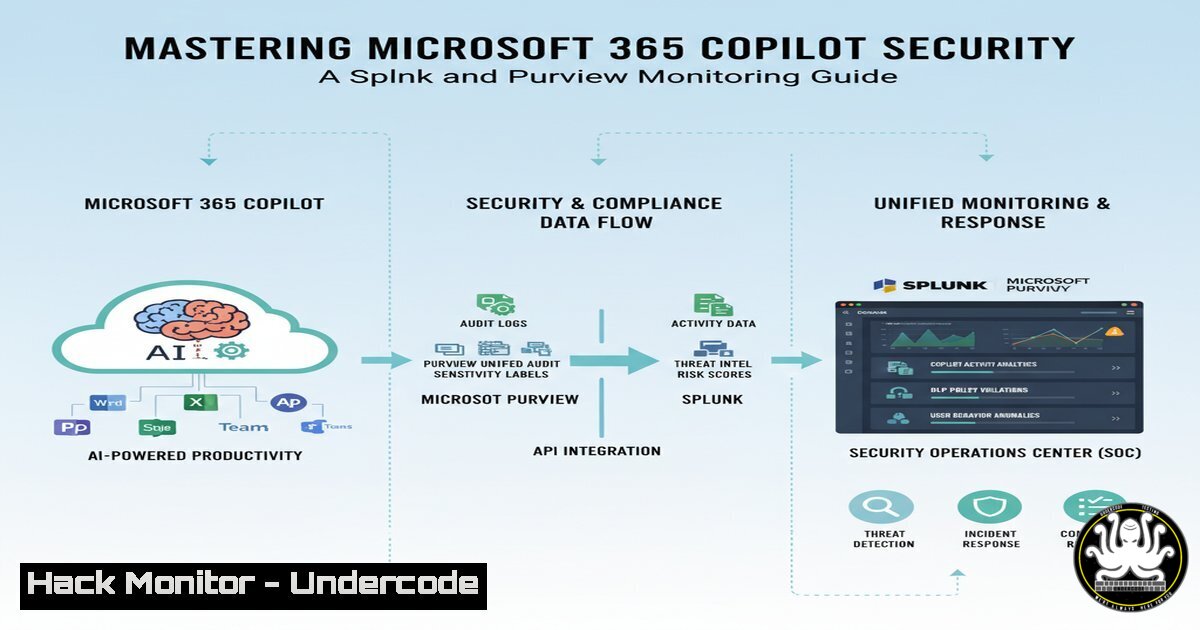
Introduction:
The integration of Microsoft 365 Copilot promises unprecedented productivity gains, but it simultaneously introduces a new frontier of security risks. Over-permissioned users can inadvertently expose sensitive data, while sophisticated AI prompt attacks represent an emerging threat vector. This guide details how to leverage Splunk and Microsoft Purview eDiscovery to establish robust security monitoring for Copilot activities, transforming raw audit logs into actionable intelligence.
Learning Objectives:
- Understand the key security risks associated with Microsoft 365 Copilot deployment.
- Learn how to configure and collect Copilot audit logs within the Microsoft 365 ecosystem.
- Gain practical skills for analyzing Copilot activity in Splunk using SPL queries and integrating with Purview for deep-dive investigations.
You Should Know:
1. Enabling the Foundation: Microsoft 365 Audit Logging
Before any analysis can begin, you must ensure that the Unified Audit Log is activated. This is a prerequisite for capturing Copilot activity.
 PowerShell Command to Enable Unified Audit Logging
Set-AdminAuditLogConfig -UnifiedAuditLogIngestionEnabled $true
Step-by-step guide:
This PowerShell command, executed within the Exchange Online PowerShell module, is the foundational step. It enables the capture of events across Microsoft 365 services, including Copilot interactions. Without this setting enabled, critical security data will not be recorded. Connect to Exchange Online PowerShell using `Connect-ExchangeOnline` and run the command as a global administrator.
2. Identifying Copilot Activity with the Search-UnifiedAuditLog Cmdlet
Once logging is enabled, you can proactively search for Copilot-related events to understand usage patterns.
 PowerShell Command to Search for Copilot Events
Search-UnifiedAuditLog -StartDate (Get-Date).AddDays(-7) -EndDate (Get-Date) -Operations "CopilotInteraction" -ResultSize 5000
Step-by-step guide:
This command queries the audit log for the specific `CopilotInteraction` operation from the last seven days. The `-ResultSize` parameter controls the number of records returned. This is crucial for establishing a baseline of normal activity and for initial investigations into potential policy violations or suspicious prompts.
- Ingesting M365 Audit Logs into Splunk via the Data Connector
To analyze this data at scale, it must be fed into your SIEM, Splunk.Splunk inputs.conf configuration for Microsoft 365 Office 365 API [office365://o365_audit] tenant_id = YOUR_TENANT_ID client_id = YOUR_CLIENT_ID client_secret = YOUR_CLIENT_SECRET index = o365 interval = 300 content_type = Audit.General
Step-by-step guide:
This configuration block for Splunk’s `inputs.conf` file sets up the Office 365 API data connector. You must replace the placeholder values with your Azure AD app registration details (tenant, client ID, and secret). The `content_type = Audit.General` ensures the ingestion of audit logs, which include Copilot events. After configuration, restart the Splunk forwarder to begin data flow.
4. Core SPL Search: Identifying All Copilot Interactions
With data in Splunk, you can now write SPL queries to monitor Copilot usage.
index=o365 Workload=Microsoft.Office.Copilot
| stats count by UserId, Operation
| table _time, UserId, Operation, ClientIP, ObjectId
Step-by-step guide:
This basic SPL query filters the `o365` index for all events where the workload is Microsoft.Office.Copilot. It then presents a table showing the timestamp, user, operation type, source IP address, and the document ID (ObjectId) that was interacted with. This is your primary dashboard query for real-time monitoring.
5. Hunting for Data Exfiltration via Copilot
A primary risk is users querying Copilot about documents they should not access. This query helps identify such activity.
index=o365 Workload=Microsoft.Office.Copilot
| search "TargetFileName=confidential" OR "TargetFileName=password" OR "TargetFileName=HR"
| transaction UserId, SessionId
| table _time, UserId, ClientIP, TargetFileName, ExtendedProperties
Step-by-step guide:
This hunting query searches for Copilot interactions with files containing sensitive keywords in their names. The `transaction` command groups events by user and session, allowing you to see all actions performed in a single interaction. The `ExtendedProperties` field often contains the prompt text, which is critical for investigation.
6. Correlating Failed Logins with Copilot Access
This advanced query correlates potential account compromise with Copilot usage.
index=o365 (Workload=AzureActiveDirectory ResultStatus=Failure) OR (Workload=Microsoft.Office.Copilot)
| transaction UserId maxspan=15m
| search Workload=Microsoft.Office.Copilot AND "EventSource=AzureActiveDirectory:Failure"
| table _time, UserId, ClientIP, ResultStatus, Operation
Step-by-step guide:
This SPL uses a transaction to link events within a 15-minute window. It identifies instances where a failed login for a user (Workload=AzureActiveDirectory ResultStatus=Failure) is quickly followed by a successful Copilot interaction from a different IP. This is a strong indicator of a compromised account being used to query sensitive data via AI.
7. Deep-Dive Investigation with Microsoft Purview eDiscovery
When Splunk alerts on a suspicious session, Purview eDiscovery provides the definitive evidence.
 Navigate to: Microsoft Purview compliance portal > eDiscovery (Premium) > Cases
 Create a new case, add custodians (the user in question), and create a search.
 Search Query in Purview eDiscovery
(ActivityType:CopilotInteraction) AND (User:<suspicious_user_email>)
Step-by-step guide:
Splunk provides the “who, when, and where,” but Purview eDiscovery captures the “what.” After creating a case in the Purview portal, you can run a precise search for the user’s Copilot activity. This will return the exact prompts submitted and the AI’s responses, which is necessary for confirming a data leak or prompt injection attack.
What Undercode Say:
- Proactive Logging is Non-Negotiable: The single most critical failure point is not enabling Unified Audit Logging before deploying Copilot. This creates a permanent blind spot.
- Correlation is Key to Detection: Isolated Copilot events are low-fidelity alerts. The real security value comes from correlating this activity with other signals like authentication anomalies, data sensitivity labels, and permissions changes.
The paradigm shift introduced by generative AI like Copilot requires a parallel evolution in security monitoring. Treating it as just another application log is insufficient. The combination of Splunk for broad, correlated security analytics and Microsoft Purview for deep, evidentiary-grade investigation creates a defensible security posture. The focus must move from merely detecting known-bad prompts to understanding the context of usage—why is this user, from this location, querying this specific document now? This contextual analysis is the new frontier of insider threat and data loss prevention programs.
Prediction:
The techniques outlined here represent the first generation of AI security monitoring. As prompt injection attacks become more sophisticated and AI-generated social engineering escalates, we predict a rapid market consolidation around specialized AI Security Posture Management (AI-SPM) tools. These platforms will natively integrate LLM-specific threat intelligence, automate red-teaming of AI assistants, and provide real-time policy enforcement at the prompt level, moving beyond simple monitoring to active prevention. Organizations that fail to adapt their SOC playbooks and invest in these specialized skills will face significant data exposure risks.
🎯Let’s Practice For Free:
IT/Security Reporter URL:
Reported By: Activity 7376011873151889408 – Hackers Feeds
Extra Hub: Undercode MoN
Basic Verification: Pass ✅


