Listen to this Post
Introduction:
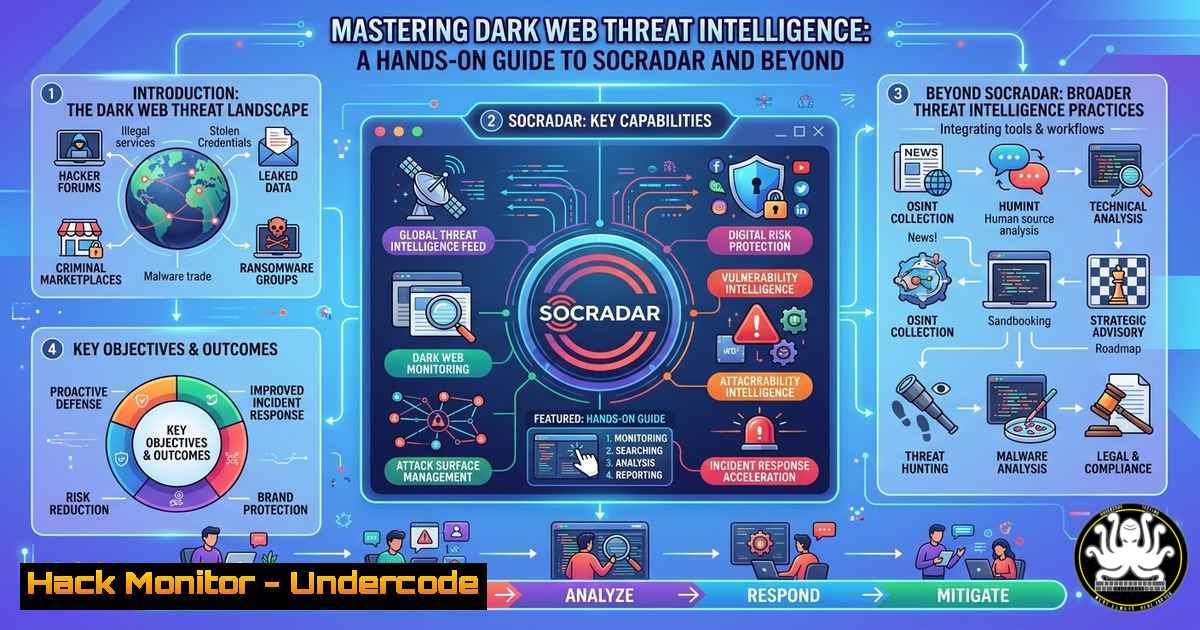
In the constantly shifting landscape of cybersecurity, the dark web remains a primary breeding ground for pre-attack intelligence, leaked credentials, and ransomware negotiations. For security professionals, manually scouring these hidden forums is impractical and dangerous. Automated Threat Intelligence Platforms (TIPs) like SOCRadar have become essential for converting this noise into actionable data. This article provides a technical walkthrough on leveraging such tools for daily dark web monitoring, extracting indicators of compromise (IOCs), and integrating this intelligence into your security operations.
Learning Objectives:
- Understand how to register and configure a free threat intelligence feed (like SOCRadar) for dark web monitoring.
- Learn to extract, verify, and operationalize IOCs from ransomware and data leak reports.
- Master basic OSINT command-line techniques to supplement automated tools.
You Should Know:
1. Registering and Configuring Your Threat Intelligence Feed
The foundation of proactive defense is a steady stream of curated intelligence. The original post highlights a free offering from SOCRadar for Japanese-language dark web and ransomware news.
Step‑by‑step guide:
- Access the Platform: Navigate to the provided registration link (e.g., `https://lnkd.in/gAgFW5qs` or the main SOCRadar site) and locate the “Start for Free” or “無償版” (Free Version) option.
- Account Setup: Complete the registration using a corporate email address. Verify your email to activate the dashboard.
- Configuring Feeds: Once logged in, navigate to the “Threat Feeds” or “My Intelligence” section.
– Action: Select industries relevant to your organization (e.g., Finance, Healthcare, Technology).
– Action: Toggle specific feed types: Dark Web, Ransomware, and Data Leaks.
– Language Settings: Since the offer specifies Japanese, ensure the “Japanese” language filter is active to receive translated or regional threat reports.
4. Delivery Method: Configure how you receive updates. Most platforms allow email digests (daily) or API pulls. For automation, note the API endpoint and generate an API key.
- Extracting Indicators of Compromise (IOCs) from Daily Reports
Once you start receiving daily digests (like the “DarkWebNews” and “RansomwareNews” mentioned), the real work begins: turning news into defense.
Step‑by‑step guide using Linux command line:
Assume you have downloaded a ransomware report as report.txt.
1. Extract IP Addresses: Use `grep` with a regex pattern to pull out IPv4 addresses.
grep -E -o "([0-9]{1,3}.){3}[0-9]{1,3}" report.txt | sort -u > malicious_ips.txt
2. Extract Domains: Pull domain names from the text.
grep -E -o "([a-zA-Z0-9]+.[a-zA-Z]{2,})" report.txt | sort -u > malicious_domains.txt
3. Verify with whois: Before blocking, verify the age of a domain. Newly registered domains related to a breach are highly suspicious.
whois suspicious-domain.com | grep "Creation Date"
- Simulating API Integration for IOC Blocking (Python Example)
To move from reactive to proactive, you can automate the blocking of these IOCs on your firewall or SIEM.
Step‑by‑step guide (Conceptual Script):
This script fetches IOCs from a TIP and prepares them for a Palo Alto firewall dynamic block list.
import requests
import json

Replace with your SOCRadar API endpoint and key
api_url = "https://api.socradar.com/v1/feeds/iocs"
headers = {"API-Key": "YOUR_API_KEY_HERE"}

try:
response = requests.get(api_url, headers=headers, timeout=10)
if response.status_code == 200:
data = response.json()
ip_list = [item['value'] for item in data['iocs'] if item['type'] == 'ip']

Format for Palo Alto (simple list)
with open('palo_alto_block_list.txt', 'w') as f:
for ip in ip_list:
f.write(f"{ip}\n")
print(f"Extracted {len(ip_list)} IPs for blocking.")
else:
print(f"API Error: {response.status_code}")
except Exception as e:
print(f"Connection failed: {e}")
- Manual Deep Dive: Accessing the Dark Web Safely (OSINT)
While tools scrape the dark web, analysts sometimes need to verify a leak manually. This requires strict operational security.
Step‑by‑step guide for secure access:
- Environment Setup: Never use your host machine. Use a dedicated VM (Virtual Machine) that is isolated or set to route all traffic through a VPN before Tor.
– Linux Command: `sudo apt install tor torbrowser-launcher`
2. Configure Torsocks: To run command-line tools anonymously, prefix them with torsocks.
– Example: torsocks curl http://someonionaddress.onion` (Note: Curl cannot natively handle `.onion` addresses; this is for non-onion sites via Tor).torsocks lynx http://exampledarkwebmarket.onion`
- Better: Use `lynx` for text-based browsing:
3. Hashing Found Credentials: If you find a database dump, never view the plaintext passwords. Immediately check if your corporate credentials are present by hashing them (e.g., using sha256sum) and comparing them to the hashes in the dump.
5. Setting Up RSS Alerts for Ransomware Groups
Many ransomware gangs host leak sites on the dark web. Several OSINT projects convert these `.onion` sites to RSS feeds for safe monitoring.
Step‑by‑step guide (Linux):
- Find a Tor-to-RSS Proxy: (Use with caution, as these proxies see your requests). Alternatively, run your own RSS aggregator via Tor.
- Using
rssgossip: This Python script can scan for mentions.Install via pip pip install rssgossip Search for mentions of your company name in recent ransomware feeds rssgossip --match "YourCompanyName" https://raw.githubusercontent.com/osint-toolkits/ransomware-feeds/main/feeds.opml
6. Cloud Hardening Based on Threat Intelligence
If the intelligence report indicates a new vulnerability in a web app (e.g., Apache Log4j), you must immediately audit your cloud assets.
Step‑by‑step guide (AWS CLI):
- Identify Affected Instances: If the threat is a new Apache vulnerability, list all EC2 instances with specific tags.
aws ec2 describe-instances --filters "Name=tag:Application,Values=web-server" --query 'Reservations[].Instances[].InstanceId' --output text
- Check for Outdated Packages: Use AWS Systems Manager (SSM) to run a command on all instances to check the software version.
aws ssm send-command --document-name "AWS-RunShellScript" --targets "Key=tag:Application,Values=web-server" --parameters "commands='apache2 -v | grep version'" --output text
What Undercode Say:
- Automation is Non-Negotiable: The volume of chatter on the dark web makes manual monitoring impossible. Using a TIP like SOCRadar to automate the collection and parsing of daily ransomware news is the first step toward a defensible network.
- Context is King: Extracting an IP address is useless without context. The true value of the intelligence lies in the “why”—is this IP a C2 server for the latest ransomware variant targeting your sector? Always correlate IOCs with the threat actor profiles provided in the reports.
- Actionable Intelligence Loop: The workflow doesn’t end at receiving an email. The extracted data must be fed into blocklists (firewalls), detection rules (SIEM), and vulnerability management scans to close the loop. The commands provided above bridge the gap between “knowing” and “doing.”
Prediction:
As AI lowers the barrier to entry for cybercriminals, the volume of “noise” on dark web forums will exponentially increase. Consequently, the role of AI-driven filtering in TIPs will shift from “nice-to-have” to “mandatory.” We will likely see a convergence where threat intelligence platforms not only deliver news but also autonomously deploy virtual patches or modify WAF (Web Application Firewall) rules in response to detected dark web chatter about zero-day exploits, creating a near-real-time, self-healing security posture.
▶️ Related Video (84% Match):
🎯Let’s Practice For Free:
IT/Security Reporter URL:
Reported By: Carlos Koichi – Hackers Feeds
Extra Hub: Undercode MoN
Basic Verification: Pass ✅


