Listen to this Post
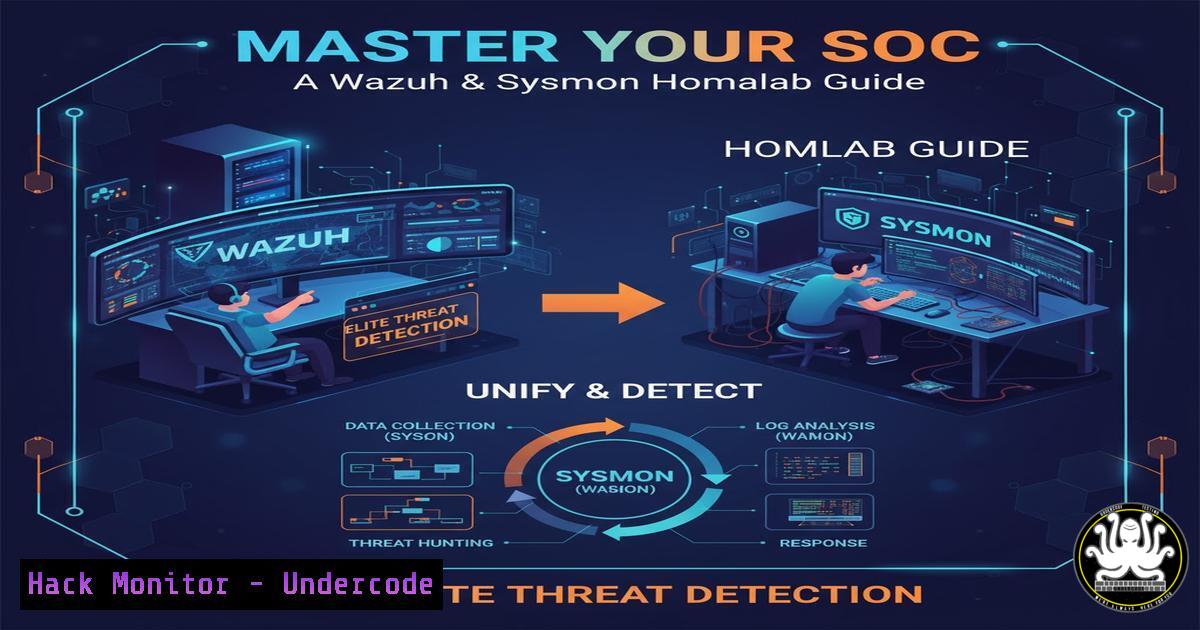
Introduction:
Building a robust Security Operations Center (SOC) homelab is a critical step for any aspiring cybersecurity professional. By integrating the powerful Wazuh open-source SIEM with Microsoft’s detailed Sysmon endpoint monitoring, you can create a production-grade detection environment on a single Ubuntu server. This hands-on approach provides invaluable experience in log aggregation, configuration management, and proactive threat hunting.
Learning Objectives:
- Deploy a fully integrated Wazuh stack (Indexer, Dashboard, Server) on Ubuntu.
- Install and configure Sysmon on Windows for detailed endpoint visibility.
- Create custom detection rules and navigate the Wazuh dashboard for security monitoring.
You Should Know:
1. Ubuntu Server Preparation and Virtualization
 Update the system packages
sudo apt update && sudo apt upgrade -y

Install essential build tools
sudo apt install -y curl gnupg lsb-release

Verify the Ubuntu version
lsb_release -a
A properly prepared Ubuntu server is the foundation. Begin by updating all system packages to patch known vulnerabilities. The `lsb_release` command confirms your OS version, ensuring compatibility with the Wazuh installation scripts. Always run these commands in a virtualized environment like VMware or VirtualBox to isolate your lab from your host machine.
2. Installing the Wazuh Indexer
 Download and install the Wazuh indexer
curl -s https://packages.wazuh.com/key/GPG-KEY-WAZUH | sudo gpg --no-default-keyring --keyring /usr/share/keyrings/wazuh.gpg --import && echo "deb [signed-by=/usr/share/keyrings/wazuh.gpg] https://packages.wazuh.com/4.x/apt/ stable main" | sudo tee -a /etc/apt/sources.list.d/wazuh.list

sudo apt update
sudo apt install -y wazuh-indexer

Start and enable the indexer
sudo systemctl daemon-reload
sudo systemctl enable wazuh-indexer
sudo systemctl start wazuh-indexer

Check the installation status
sudo systemctl status wazuh-indexer
The Wazuh Indexer, based on OpenSearch, is the data storage and retrieval engine. These commands first import the official Wazuh GPG key to verify package authenticity, then add the Wazuh repository to your system’s sources. After installation, using `systemctl` to enable and start the service ensures it runs automatically after reboots. The status check confirms the service is active and running without errors.
3. Deploying the Wazuh Server
 Install the Wazuh server
sudo apt install -y wazuh-manager

Start and enable the manager
sudo systemctl daemon-reload
sudo systemctl enable wazuh-manager
sudo systemctl start wazuh-manager

Check the manager status
sudo systemctl status wazuh-manager

Verify the manager is listening on port 1514
sudo netstat -tulpn | grep 1514
The Wazuh Server (manager) is the core component that processes and analyzes data from all connected agents. The installation mirrors the indexer process. The `netstat` command verification is crucial—it confirms the manager is properly bound to port 1514/TCP and ready to accept connections from agents. Without this, your endpoints cannot communicate their security events to the SIEM.
4. Setting Up the Wazuh Dashboard
 Install the Wazuh dashboard
sudo apt install -y wazuh-dashboard

Start and enable the dashboard
sudo systemctl daemon-reload
sudo systemctl enable wazuh-dashboard
sudo systemctl start wazuh-dashboard

Check the dashboard status
sudo systemctl status wazuh-dashboard

Verify dashboard is accessible on port 5601
sudo netstat -tulpn | grep 5601
The Wazuh Dashboard provides the web interface for visualizing security data. After installation, verify it’s running on port 5601. You can then access it via https://<your-server-ip>:5601. The default credentials are admin:admin, which should be changed immediately after initial login for security.
5. Generating and Installing Wazuh Agents
 On the Wazuh server, generate an agent package for Windows
sudo /var/ossec/bin/manage_agents

On a Windows endpoint, install the agent and register it
 Download the Windows agent .msi from https://packages.wazuh.com/4.x/windows/
 Run: msiexec /i wazuh-agent-4.7.2-1.msi /q WAZUH_MANAGER='SERVER_IP' WAZUH_AGENT_GROUP='default'
The `manage_agents` tool on the Wazuh server generates unique authentication keys for each agent. For Windows endpoints, download the corresponding .msi installer and execute it with the `/q` flag for a silent installation, specifying your Wazuh server’s IP address. This registers the endpoint with your SIEM infrastructure.
6. Installing Sysmon on Windows
 Download Sysmon from Microsoft Sysinternals
 Install with a configuration file
Sysmon.exe -i -accepteula

Apply a custom configuration (like SwiftOnSecurity's)
Sysmon.exe -c sysmonconfig-export.xml

Verify installation in Event Viewer
eventvwr.msc
Sysmon provides detailed visibility into Windows system activity. The `-accepteula` parameter automatically accepts the end-user license agreement. After installation, applying a robust configuration file (like the widely-used SwiftOnSecurity template) filters noise and focuses on potentially malicious activity. Check Windows Event Viewer under “Applications and Services Logs/Microsoft/Windows/Sysmon/Operational” to verify proper installation and event collection.
7. Configuring Sysmon with Advanced XML
<!-- Example Sysmon configuration snippet for process creation -->
<Sysmon schemaversion="4.90">
<EventFiltering>
<ProcessCreate onmatch="include">
<Image condition="end with">cmd.exe</Image>
<ParentImage condition="end with">explorer.exe</ParentImage>
</ProcessCreate>
</EventFiltering>
</Sysmon>
This XML configuration tells Sysmon to log specifically when `cmd.exe` is launched by explorer.exe. The `onmatch=”include”` directive means only events matching these criteria are logged. This targeted approach reduces log volume while capturing potentially suspicious activity, such as command prompt execution from the graphical interface—a common technique in fileless attacks.
8. Forwarding Windows Events to Wazuh
 On the Wazuh agent, configure the ossec.conf to collect Windows events
<ossec_config>
<localfile>
<location>Microsoft-Windows-Sysmon/Operational</location>
<log_format>eventchannel</log_format>
</localfile>
</ossec_config>

Restart the Wazuh agent to apply changes
sudo systemctl restart wazuh-agent
This configuration enables the Wazuh agent to collect events from the Sysmon operational log channel. After modifying the `ossec.conf` file, restarting the agent service applies the changes. The Wazuh server will then begin receiving detailed endpoint data, which appears in the dashboard under the Security Events module.
9. Creating Custom Wazuh Rules for Sysmon Events
<!-- Custom Wazuh rule for detecting suspicious process creation -->
<group name="sysmon,">
<rule id="100100" level="5">
<field name="win.eventdata.image">.tmp\</field>
<description>Process execution from temporary directory.</description>
</rule>
</group>
This custom XML rule creates an alert when any process executes from a `.tmp` directory—a common tactic in malware execution. The rule ID should be unique (above 100000 for custom rules). The `level=”5″` defines the alert severity. Place this rule in `/var/ossec/etc/rules/local_rules.xml` and restart the Wazuh manager for it to take effect.
10. Wazuh Dashboard Navigation and Search
// Wazuh dashboard query for Sysmon process creation events
{
"query": {
"bool": {
"must": [
{ "match": { "data.win.system.channel": "Microsoft-Windows-Sysmon/Operational" } },
{ "match": { "data.win.system.eventID": "1" } }
]
}
}
}
This JSON query filters the Wazuh dashboard to show only Sysmon process creation events (Event ID 1). Use this in the “Discover” section of the dashboard to focus your threat hunting. You can modify the eventID to search for other activities: 3 (network connections), 11 (file creation), or 13 (registry modifications).
11. Monitoring Agent Health and Connectivity
 Check the status of all connected agents
sudo /var/ossec/bin/agent_control -l

Get detailed information about a specific agent
sudo /var/ossec/bin/agent_control -i <agent-id>

Check for recent agent connections
sudo tail -f /var/ossec/logs/ossec.log | grep -i "agent"
The `agent_control` tool is essential for SOC operations. The `-l` flag lists all registered agents with their connection status, IP address, and last keep-alive timestamp. Regularly monitoring this output helps identify disconnected or compromised endpoints. The tail command with grep provides real-time monitoring of agent connectivity in the system logs.
12. Integrating Threat Intelligence Feeds
 Add a custom threat intelligence feed to Wazuh
<ossec_config>
<integration>
<name>virustotal</name>
<api_key>YOUR_API_KEY</api_key>
<rule_id>100100,100101</rule_id>
<alert_format>json</alert_format>
</integration>
</ossec_config>
This configuration integrates VirusTotal with Wazuh. When alerts trigger from your custom rules (IDs 100100, 100101), Wazuh automatically queries VirusTotal for threat intelligence. This enrichment provides context for your alerts, helping distinguish false positives from genuine threats. Similar configurations work for other feeds like AlienVault OTX.
13. Creating Comprehensive Detection Rules
<!-- Rule to detect potential lateral movement -->
<rule id="100102" level="10">
<if_sid>100100</if_sid>
<field name="win.eventdata.parentImage">\domaincontroller\</field>
<description>Possible lateral movement: process spawned from domain controller.</description>
</rule>
This advanced rule builds upon our earlier temporary directory rule, adding context by checking if the parent process originated from a domain controller. This pattern often indicates lateral movement in compromised networks. The `level=”10″` makes this a high-severity alert, potentially triggering automated responses or immediate analyst attention.
What Undercode Say:
- Endpoint Visibility is Non-Negotiable: Sysmon provides the granular data necessary to detect modern attacks that bypass traditional antivirus solutions.
- Integration Creates Force Multiplication: The combination of Wazuh’s correlation engine with Sysmon’s detailed logging creates a detection capability rivaling commercial EDR platforms.
The homelab approach demonstrated here bridges the gap between theoretical knowledge and practical SOC skills. While enterprise environments have more complexity, the core principles of log collection, normalization, and analysis remain consistent. This Wazuh-Sysmon stack particularly excels at detecting living-off-the-land techniques where attackers use built-in system tools maliciously. The true value emerges when analysts move beyond basic installation to crafting custom detection rules tailored to specific threat models, transforming raw data into actionable security intelligence.
Prediction:
The democratization of enterprise-grade security tools through open-source platforms like Wazuh will accelerate skill development across the cybersecurity industry. Within two years, we predict that hands-on experience with production-style SIEM deployments will become a baseline requirement for SOC analyst positions. Furthermore, as attack techniques evolve, the integration of behavioral analytics and machine learning modules into these open-source platforms will make advanced threat hunting accessible to organizations of all sizes, fundamentally changing how small and medium businesses approach security monitoring.
🎯Let’s Practice For Free:
IT/Security Reporter URL:
Reported By: Vanaja Asmath – Hackers Feeds
Extra Hub: Undercode MoN
Basic Verification: Pass ✅


