Listen to this Post
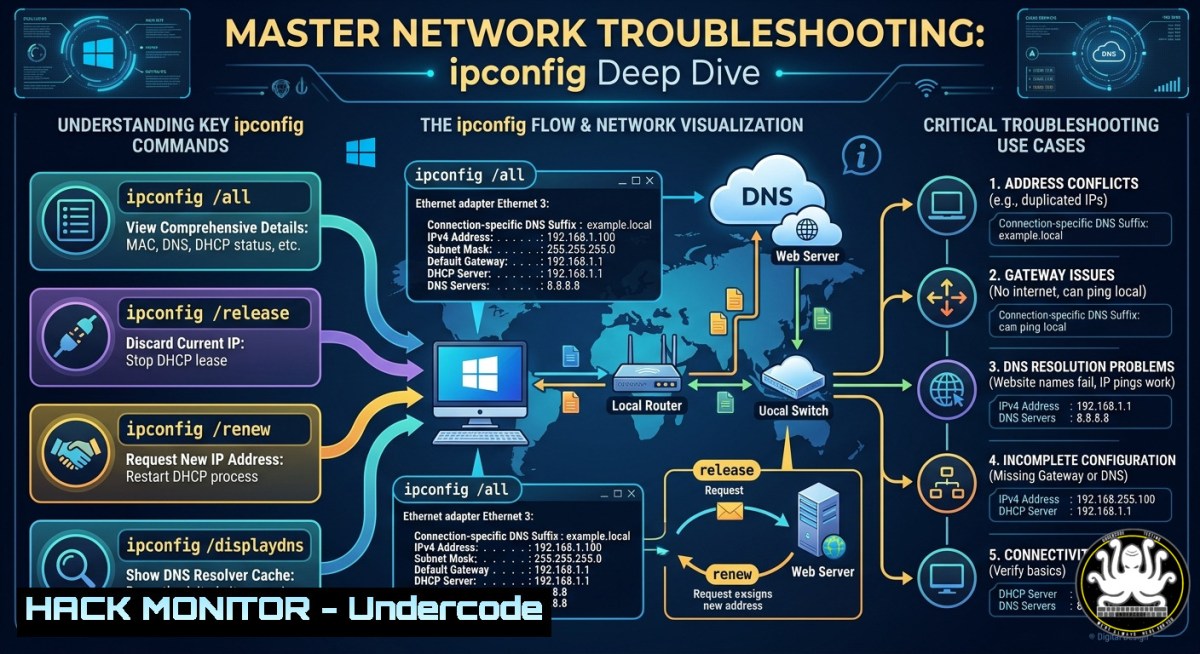
Introduction:
The Windows `ipconfig` command is a foundational utility that every network engineer, IT support specialist, and security analyst relies on for real-time network diagnostics. From identifying IP address conflicts to forcing DHCP lease renewals and flushing poisoned DNS caches, this small command provides big visibility into Layer 2 and Layer 3 connectivity issues—making it indispensable for CCNA candidates and seasoned administrators alike.
Learning Objectives:
- Execute and interpret `ipconfig` parameters to diagnose IP, DHCP, and DNS faults.
- Perform a complete DHCP lease release/renew and flush the DNS resolver cache.
- Automate network reset procedures using batch scripts and compare Windows commands with Linux equivalents.
You Should Know:
- Checking Full Network Configuration – The Power of `/all`
The basic `ipconfig` displays only your IP address, subnet mask, and default gateway. Adding `/all` reveals critical details: MAC address, DHCP server IP, DNS servers, lease obtain/expiration times, and whether NetBIOS over TCP/IP is enabled. This is your first step in any troubleshooting workflow.
Step‑by‑step guide:
- Open Command Prompt as Administrator (right‑click Start → Terminal (Admin)).
2. Type `ipconfig /all` and press Enter.
- Locate your active network adapter (Ethernet or Wi-Fi).
4. Verify:
DHCP Enabled: Yes (for dynamic addressing)Autoconfiguration Enabled: Yes
– `Lease Obtained` / `Lease Expires` – check for abnormal values (e.g., already expired)
– `DNS Servers` – confirm they match your organization’s expected resolvers
Windows command:
ipconfig /all | findstr /i "dhcp dns default gateway"
Linux equivalent (using `ip` and `nmcli`):
ip addr show
nmcli dev show <interface>
- Resolving DHCP Failures – Release and Renew (
/release&/renew)
When a Windows client fails to obtain a valid IP (e.g., 169.254.x.x APIPA address), the DHCP lease may be corrupted or the server unreachable. Releasing discards the current lease, and renewing forces a fresh DHCP handshake—often fixing “No Internet” errors after a network change.
Step‑by‑step guide:
1. Run Command Prompt as Administrator.
- Type `ipconfig /release` to drop the current IPv4 lease.
- Confirm with `ipconfig /all` that the adapter now shows
0.0.0.0. - Type
ipconfig /renew. This broadcasts a DHCPDISCOVER and may take 5–10 seconds. - If renewal fails, check physical connectivity, then run:
netsh int ip reset && netsh winsock reset
Reboot afterwards.
Troubleshooting tip: For a specific adapter, use `ipconfig /release “Wi-Fi”` or ipconfig /renew "Ethernet0".
- DNS Cache Forensics and Flushing (
/displaydns&/flushdns)
Windows caches DNS query results to speed up repeated lookups. Attackers can poison this cache (DNS spoofing) or misconfigured records may point to old IPs. Viewing the cache with `/displaydns` shows every domain recently resolved, while `/flushdns` clears it entirely—essential after changing DNS servers or mitigating a spoofing attempt.
Step‑by‑step guide to view and flush:
1. Open an admin Command Prompt.
- Type `ipconfig /displaydns` – scroll through the output. Each entry includes:
– Record name (domain)
– Record type (A, AAAA, CNAME)
– Time‑to‑live (TTL)
3. To wipe the cache: `ipconfig /flushdns`
- Verify success: you should see “Successfully flushed the DNS Resolver Cache.”
- Restart the DNS Client service if flushing doesn’t clear entries:
net stop dnscache && net start dnscache
Linux equivalent:
sudo systemd-resolve --flush-caches  systemd distros
sudo service nscd restart  legacy
- Advanced Parameters – Registering DNS and Viewing Class IDs
`/registerdns` manually forces registration of the computer’s hostname and IP with the DNS server – useful after changing a static IP or hostname without rebooting. `/showclassid` displays DHCP class identifiers (e.g.,
User,Vendor), and `/setclassid` changes them – an advanced technique for network access control (NAC) or custom DHCP policies.
Step‑by‑step:
- After setting a static IP or renaming a PC, run:
ipconfig /registerdns
Wait 15 seconds for the server to process.
- Check your DHCP class ID on interface “Ethernet”:
ipconfig /showclassid Ethernet
3. Set a new class ID (e.g., “StudentLab”):
ipconfig /setclassid Ethernet StudentLab
4. Release/renew to apply the change: `ipconfig /release Ethernet && ipconfig /renew Ethernet`
5. Cross‑Platform Network Diagnostics – Linux Tools for the CCNA Pro
While `ipconfig` is Windows‑only, Linux and macOS use `ifconfig` (legacy) and the modern `ip` command. Understanding both empowers you to troubleshoot mixed environments. For DHCP renewal on Linux, use `dhclient` or nmcli.
Step‑by‑step Linux network reset:
1. View interfaces: `ip link show`
2. Release current DHCP lease (if using `dhclient`):
sudo dhclient -r eth0
3. Obtain a new lease:
sudo dhclient eth0
4. Alternatively, with NetworkManager:
nmcli connection down "Wired connection 1"
nmcli connection up "Wired connection 1"
5. Flush DNS on Linux (systemd‑resolved):
sudo resolvectl flush-caches
6. Automating Network Resets with Batch Scripts
Create a one‑click `.bat` script that performs a full network stack reset – ideal for helpdesk teams or when users frequently encounter “Limited Connectivity”.
Sample script (`Reset-Network.bat`):
@echo off
echo Releasing IP...
ipconfig /release
echo Flushing DNS...
ipconfig /flushdns
echo Renewing IP...
ipconfig /renew
echo Registering DNS...
ipconfig /registerdns
echo Resetting Winsock and IP stack...
netsh winsock reset
netsh int ip reset
echo Please restart your computer.
pause
Run as Administrator. After reboot, test connectivity with `ping 8.8.8.8` and nslookup google.com.
7. Real‑World Security Scenario – Detecting DHCP Spoofing
A rogue DHCP server on your network can assign malicious gateways or DNS resolvers (man‑in‑the‑middle). Use `ipconfig /all` to identify the “DHCP Server” IP address. If it’s not your company’s legitimate DHCP server, you’ve found an attack.
Mitigation commands:
- On Windows, run `ipconfig /release && ipconfig /renew` – but if the rogue server replies faster, you’ll stay compromised.
- Use `arp -a` to find the MAC address of the rogue DHCP server, then switch‑port security or `shutdown` the port.
- Enable DHCP snooping on Cisco switches (global config):
ip dhcp snooping
ip dhcp snooping vlan 1
interface GigabitEthernet0/1
ip dhcp snooping trust
What Undercode Say:
Key Takeaway 1: `ipconfig` is not just a “lookup” tool – its combination of DHCP management (/release, /renew) and DNS cache forensics (/displaydns, /flushdns) makes it a first responder for both connectivity and security incidents.
Key Takeaway 2: Mastering the Linux equivalents (ip, dhclient, resolvectl) elevates a network professional from Windows‑only troubleshooting to cross‑platform incident response – a critical skill for modern cloud and hybrid environments.
Analysis (approx. 10 lines):
The humble `ipconfig` command exemplifies the principle that powerful diagnostics don’t require bloated GUI tools. In security operations, flushing DNS cache (/flushdns) after a phishing attack prevents residual malicious redirections, while `/displaydns` can reveal suspicious domains queried by malware. From a CCNA perspective, understanding DHCP lease timers and DNS registration behavior directly translates to configuring Cisco routers as DHCP servers and verifying client states. Moreover, the command’s batch scriptability allows automated remediation – a key component of SOAR playbooks. As networks evolve with Zero Trust and SD‑WAN, the ability to manually inspect and reset Layer 2/3 parameters remains a non‑negotiable skill. Finally, comparing `ipconfig` with Linux’s `ip` and `nmcli` reveals architectural differences: Windows integrates DHCP and DNS into the same utility, while Unix‑like systems favor modular tools – but both ultimately serve the same purpose. This knowledge is why every Network+ and CCNA curriculum includes command‑line fundamentals.
Prediction:
As network automation and infrastructure‑as‑code expand, traditional CLI commands like `ipconfig` will not disappear but instead become wrapped in APIs and PowerShell modules (e.g., Get‑NetIPAddress, Clear‑DnsClientCache). However, the underlying logic of DHCP lease negotiation and DNS caching remains unchanged. Future security threats will increasingly target DNS over HTTPS (DoH) and DHCPv6, requiring updated versions of `ipconfig` to expose these parameters. Professionals who deeply understand what `ipconfig /all` actually reads (registry keys, NDIS drivers, the DNS resolver cache) will be better equipped to debug next‑gen network issues than those who rely solely on GUI troubleshooters. Expect Microsoft to enhance the command with real‑time telemetry and AI‑driven repair suggestions, but the core syntax will stay relevant for another decade.
▶️ Related Video (78% Match):
🎯Let’s Practice For Free:
IT/Security Reporter URL:
Reported By: Sayed Hamza – Hackers Feeds
Extra Hub: Undercode MoN
Basic Verification: Pass ✅
🎓 Live Courses & Certifications:
Join Undercode Academy for Verified Certifications
🚀 Request a Custom Project:
Secure, high-velocity infrastructure and disruptive technological engineering. Contact our engineering team for high-tier development and proprietary systems:
[email protected]


