
Listen to this Post
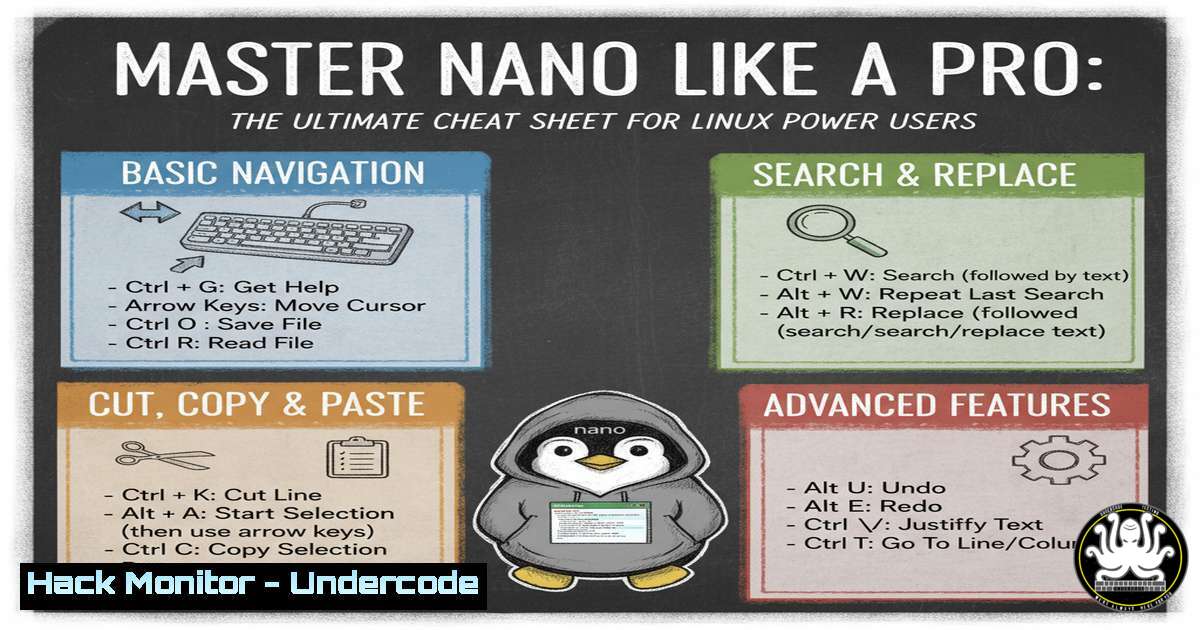
Introduction:
The GNU Nano text editor is a cornerstone of Linux system administration and development, offering a straightforward yet powerful alternative to more complex editors like Vim or Emacs. For professionals in cybersecurity and IT, mastering Nano’s shortcuts and features is not just about convenience—it’s about efficiency and precision when editing critical configuration files, scripts, and logs directly on a server. This guide will transform you from a casual Nano user into a terminal power user.
Learning Objectives:
- Master essential keyboard shortcuts for navigation, editing, and file management.
- Leverage advanced features like search-and-replace with regular expressions and multi-buffer workflows.
- Configure Nano for optimal productivity with syntax highlighting and line numbering.
You Should Know:
1. Fundamental File Operations
Verified Linux commands and Nano shortcuts:
`nano filename` – Opens a file for editing.
`Ctrl + O` – Write Out (Save) the current file.
`Ctrl + X` – Exit Nano.
`Ctrl + S` – Save the current file (alternative shortcut).
`nano +line,column filename` – Opens a file at a specific line and column.
Step‑by‑step guide explaining what this does and how to use it:
To begin editing a system configuration file, such as your SSH daemon config, you would open a terminal and type nano /etc/ssh/sshd_config. Once inside, make your necessary changes. To save the file without exiting, press Ctrl + O. You will be prompted to confirm the filename; press Enter. To exit the editor and return to the terminal, press Ctrl + X. If you have unsaved changes, Nano will prompt you to save them.
2. Core Navigation and Editing
Verified Nano shortcuts:
`Ctrl + F` – Move forward one character.
`Ctrl + B` – Move backward one character.
`Ctrl + Space` – Move forward one word.
`Alt + Space` – Move backward one word.
`Ctrl + A` – Move to the beginning of the current line.
`Ctrl + E` – Move to the end of the current line.
`Ctrl + V` – Move forward one page.
`Ctrl + Y` – Move backward one page.
`Ctrl + _` – Go to a specific line and column number.
`Ctrl + K` – Cut the current line (or marked region) into the cut buffer.
`Ctrl + U` – Uncut (Paste) the contents of the cut buffer at the cursor position.
`Alt + 6` – Copy the current line (or marked region) into the cut buffer.
`Ctrl + 6` – Begin marking text for selection. Use navigation keys to highlight, then use `Ctrl + K` to cut or `Alt + 6` to copy.
Step‑by‑step guide explaining what this does and how to use it:
Efficient navigation is key to speed. Instead of holding the arrow keys, use `Ctrl + F` and `Ctrl + B` to move by character. To jump by words, use `Ctrl + Space` and Alt + Space. To cut three consecutive lines, position your cursor on the first line and press `Ctrl + K` three times. All three lines are now stored. Move to your desired location and press `Ctrl + U` to paste them. To copy text without cutting it, first mark it with Ctrl + 6, navigate to highlight the text, then press `Alt + 6` to copy it. You can then paste it with Ctrl + U.
3. Advanced Search and Replace
Verified Nano shortcuts:
`Ctrl + W` – Search for a text string.
`Alt + W` – Repeat the last search.
`Alt + R` – Search and Replace.
`Alt + C` – Turn case sensitivity on/off for search.
`Alt + B` – Use regular expressions (regex) for search.
`Ctrl + \` – Replace a string (same as Alt + R).
Step‑by‑step guide explaining what this does and how to use it:
To find every instance of “PasswordAuthentication” in a file, press Ctrl + W, type the term, and press Enter. Press `Alt + W` to jump to the next occurrence. To replace “yes” with “no” for this setting, press Alt + R. You will be prompted for the search term (“yes”) and the replacement text (“no”). You can then choose to replace the current instance (Y), all instances (A), or skip the current one (N). For power users, enabling regex with `Alt + B` allows for pattern-based searches, such as `^` to find all commented-out lines that start with a hash symbol.
4. Multi-Buffer and Window Management
Verified Nano shortcuts:
`F9` – Open a new file buffer (Menu).
`F10` – Exit Nano/Close current buffer.
`Alt + ,` – Switch to the previous buffer.
`Alt + .` – Switch to the next buffer.
`Alt + >` – Go to the next buffer (alternative).
`Alt + <` - Go to the previous buffer (alternative).
`Ctrl + R` - Insert another file into the current one.
Step‑by‑step guide explaining what this does and how to use it:
Nano allows you to work on multiple files simultaneously. To open a second file while keeping the first one open, press `F9` (or `Ctrl + R` to browse and insert a file's contents). You can switch between your open files using `Alt + .` (next) and `Alt + ,` (previous). This is invaluable for comparing configuration files or copying snippets from one script to another. The status bar at the bottom will always show the name of the currently active buffer.
5. Display and Configuration Tweaks
Verified Nano commands and configuration:
`Alt + P` – Toggle line number display on/off.
`Alt + A` – Toggle text selection on/ off (same as Ctrl + 6).
`Alt + S` – Toggle soft wrapping of lines.
`Alt + L` – Toggle hard wrapping of lines (auto-newline).
`Alt + Y` – Toggle syntax highlighting for programming languages.
`nano -l filename` – Opens a file with line numbers enabled.
`~/.nanorc` – The user-specific configuration file for Nano.
Step‑by‑step guide explaining what this does and how to use it:
To make Nano more developer-friendly, you can enable permanent line numbers. Instead of toggling them with `Alt + P` each time, you can create or edit the `~/.nanorc` file and add the line set linenumbers. This will enable line numbers for every file you open. Similarly, you can add `set smooth` for soft wrapping or `set autoindent` for better code formatting. For syntax highlighting, you may need to download a separate package (e.g., nanosyntax-highlighting) and include the syntax rules in your `.nanorc` file.
6. Justification and Text Formatting
Verified Nano shortcuts:
`Alt + J` – Justify the current paragraph.
`Alt + D` – Justify the entire document.
`Alt + T` – Check the spelling of the current document (requires spell check utility).
`Ctrl + J` – Justify the current paragraph (alternative).
Step‑by‑step guide explaining what this does and how to use it:
While less common in code, justification is useful for writing documentation or README files within the terminal. To format a block of text into a neat paragraph, first ensure your text is within a width of 72 characters (or your set width). Place your cursor anywhere inside the paragraph and press Alt + J. Nano will automatically reflow the text to fit the specified width, creating clean, justified paragraphs. For a full document reformat, use Alt + D.
7. Getting Help and Diagnostics
Verified Nano shortcuts:
`Ctrl + G` – Display the complete help menu with all shortcuts.
`Ctrl + C` – Report cursor position (line, column, character position).
`F1` – Display help (same as Ctrl + G).
`F13` – Display help (on some systems).
Step‑by‑step guide explaining what this does and how to use it:
If you ever forget a shortcut, the built-in help is your best friend. Pressing `Ctrl + G` will bring up a comprehensive list of all available commands, organized by category. This is the fastest way to rediscover a function without leaving the editor. Furthermore, when debugging a script, knowing the exact position of a syntax error is crucial. Press `Ctrl + C` to get a real-time report of your current line number, column number, and character position in the status bar at the bottom of the screen.
What Undercode Say:
- Efficiency is the New Security: For sysadmins and security professionals, time spent fumbling with an editor is time not spent patching vulnerabilities or analyzing threats. Mastering Nano’s shortcuts directly contributes to a faster and more effective security response workflow.
- Ubiquity is an Asset: Nano is pre-installed on virtually every Linux distribution and is far more accessible to junior team members than Vim. Standardizing on Nano for basic file edits can reduce onboarding time and human error.
The analysis is clear: in high-stakes IT and cybersecurity environments, tool mastery is non-negotiable. While more complex editors have their place, Nano’s low barrier to entry and high efficiency ceiling make it an unsung hero of the terminal. Investing the time to internalize this cheat sheet pays immediate dividends in productivity, allowing professionals to manipulate files, scripts, and configurations with unparalleled speed and confidence. This isn’t just about editing text; it’s about streamlining core operational workflows.
Prediction:
The future of system administration and DevOps is leaning towards greater automation and containerization. However, the need for direct, terminal-based file manipulation will persist, especially for debugging containers, managing immutable infrastructure, and performing emergency recovery on minimal systems. Nano’s simplicity and reliability position it as a persistent, critical tool in the tech stack. As AI-assisted coding grows, the fundamental skill of efficiently editing configuration and script files in a bare-bones environment will become even more distinctive and valuable for cybersecurity experts and senior engineers.
🎯Let’s Practice For Free:
IT/Security Reporter URL:
Reported By: Activity 7379559008199802880 – Hackers Feeds
Extra Hub: Undercode MoN
Basic Verification: Pass ✅


