Listen to this Post
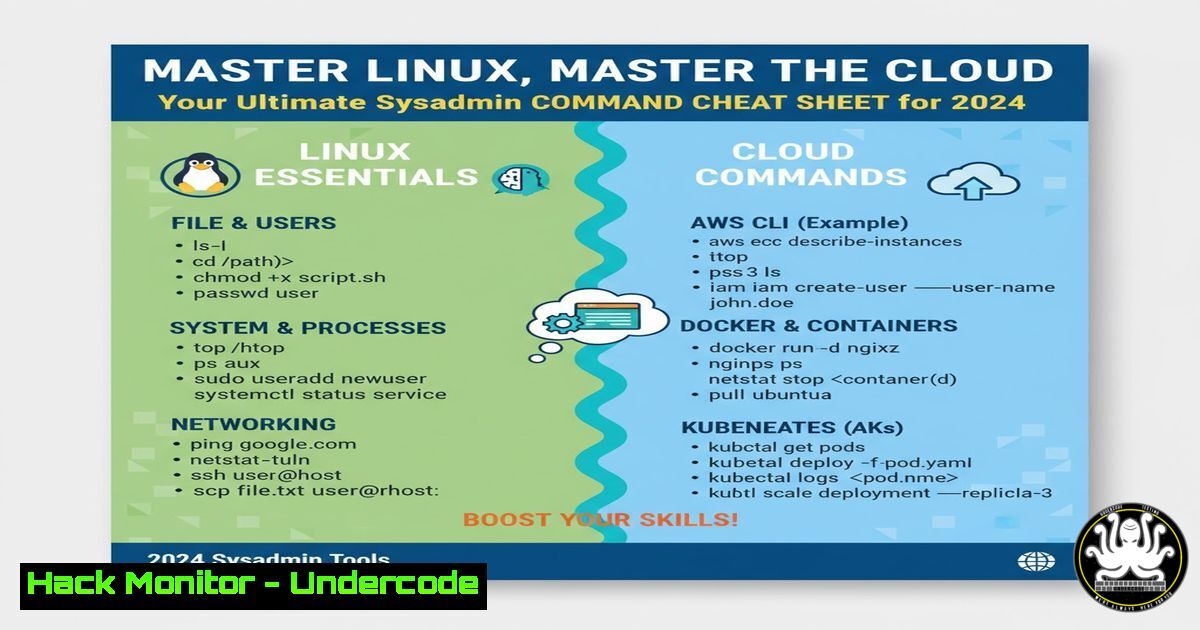
Introduction:
In today’s digital ecosystem, Linux is the undisputed backbone of the cloud, powering over 90% of global infrastructure. For aspiring cybersecurity professionals, DevOps engineers, and system administrators, proficiency in Linux is not just an advantage—it is an absolute necessity. This article provides a foundational command-line toolkit to navigate, secure, and administer Linux systems, bridging the gap between theoretical knowledge and practical, hands-on execution.
Learning Objectives:
- Acquire proficiency in fundamental Linux commands for file management, process control, and user administration.
- Understand and apply critical commands for system monitoring, network diagnostics, and security hardening.
- Develop the skills to analyze system logs, manage permissions, and automate tasks through scripting.
You Should Know:
1. File System Navigation and Manipulation
Mastering the Linux filesystem is the first step toward system control. These commands allow you to traverse directories, create content, and manage files effectively.
 1. List directory contents in detailed format
ls -la
 2. Change directory to the root
cd /
 3. Print the current working directory
pwd
 4. Create a new directory
mkdir new_folder
 5. Create a new empty file
touch new_file.txt
 6. Copy a file
cp new_file.txt copy_of_file.txt
 7. Move or rename a file
mv new_file.txt renamed_file.txt
 8. Remove a file (use with extreme caution)
rm renamed_file.txt
 9. Remove an empty directory
rmdir new_folder
 10. View file contents
cat /etc/hostname
Step-by-step guide: The `ls -la` command is your primary tool for inspecting directory contents. The `-l` flag provides a long listing with details like permissions and ownership, while `-a` shows hidden files. Always use `pwd` to confirm your location before making changes, and be exceptionally careful with rm, especially with the `-r` (recursive) and `-f` (force) flags, as they can lead to irreversible data loss.
2. User and Permission Management
A core tenet of Linux security is managing who can access what. These commands control user accounts and file permissions.
 11. Create a new user
sudo adduser new_user
 12. Switch to another user
su - new_user
 13. Change file ownership
sudo chown new_user:new_group file.txt
 14. Change file permissions (read, write, execute for owner)
chmod 750 script.sh
 15. View detailed permission structure of a file
ls -l script.sh
Step-by-step guide: The `chmod` command uses octal notation (e.g., 750) or symbolic notation (e.g., u=rwx,g=rx,o=) to set permissions. `750` means the owner (7) has read, write, and execute; the group (5) has read and execute; and others (0) have no permissions. Always use the principle of least privilege when assigning permissions.
3. Process and Service Management
Understanding what is running on your system is critical for performance and security. These commands allow you to monitor and control processes.
 16. Display currently running processes
ps aux
 17. Display a dynamic, real-time view of running processes
top
 18. Terminate a process by PID
kill 1234
 19. Terminate a process by name
pkill process_name
 20. Check the status of a system service
systemctl status ssh
 21. Start a system service
sudo systemctl start ssh
 22. Enable a service to start on boot
sudo systemctl enable ssh
Step-by-step guide: Use `ps aux | grep process_name` to find a specific process and its PID. The `kill` command sends a termination signal; use `kill -9 PID` as a last resort for unresponsive processes. `systemctl` is the central tool for managing services on modern Linux distributions (systemd).
4. Network Configuration and Diagnostics
A sysadmin must be able to configure network interfaces and troubleshoot connectivity issues.
 23. Display network interface configuration
ip addr show
 24. Check the routing table
ip route
 25. Test connectivity to a host
ping -c 4 google.com
 26. Display network connections
netstat -tuln
 27. Trace the path to a remote host
traceroute google.com
 28. Lookup domain information
dig google.com
 29. Configure a network interface (temporary)
sudo ip addr add 192.168.1.100/24 dev eth0
Step-by-step guide: The `ip` command suite has largely replaced older tools like ifconfig. `netstat -tuln` shows all listening ports (-l) for TCP (-t) and UDP (-u), without resolving names (-n), which is crucial for identifying unauthorized services. `dig` provides detailed DNS information essential for troubleshooting web services.
5. System Monitoring and Log Analysis
Proactive monitoring and log analysis are your first line of defense against performance degradation and security incidents.
 30. Display system memory usage
free -h
 31. Report disk space usage
df -h
 32. Estimate file and directory space usage
du -sh /var/log
 33. Monitor the system log in real-time
sudo tail -f /var/log/syslog
 34. Search for a specific term in logs
sudo grep "error" /var/log/syslog
 35. Display the last system boot time
who -b
 36. View currently logged-in users
w
Step-by-step guide: The `tail -f` command is indispensable for live debugging of services. Combine `grep` with log files to filter for specific events like “Failed password” in `/var/log/auth.log` to spot brute-force attacks. `df -h` provides a human-readable overview of disk usage to prevent systems from running out of space.
6. Security Hardening and Auditing
These commands help you audit your system’s security posture and implement basic hardening measures.
 37. Check for failed login attempts
sudo lastb
 38. Display login history
last
 39. Check the integrity of files against the package manager (Debian/Ubuntu)
sudo debsums -c
 40. Find files with SUID/SGID bits set (potential privilege escalation)
find / -perm /6000 2>/dev/null
 41. Check for open ports with a network scanner
sudo nmap -sS localhost
 42. Update the local package index
sudo apt update
 43. Upgrade installed packages
sudo apt upgrade
Step-by-step guide: The `find / -perm /6000` command locates files with SUID or SGID permissions, which can be a security risk if the binary is vulnerable. Regularly running `apt update && apt upgrade` is critical for patching known vulnerabilities. `nmap` is an essential tool for auditing which ports are open and accessible.
7. Automation and Scripting Fundamentals
Automation is key to efficient system administration. Shell scripts allow you to bundle these commands into powerful workflows.
!/bin/bash
 44. Basic script skeleton
 45. Using a variable
BACKUP_DIR="/backup"
 46. Conditional check for directory existence
if [ ! -d "$BACKUP_DIR" ]; then
mkdir -p "$BACKUP_DIR"
fi
 47. For loop to iterate
for user in $(ls /home); do
echo "Processing $user"
done
 48. Create a compressed archive
tar -czf "$BACKUP_DIR/backup_$(date +%F).tar.gz" /etc
Step-by-step guide: This basic backup script demonstrates core scripting concepts. The shebang `!/bin/bash` tells the system to use the Bash interpreter. Variables store data, conditional statements (if..then..fi) make decisions, and loops (for..do..done) automate repetitive tasks. The `tar` command creates a timestamped compressed archive, a common administrative task.
What Undercode Say:
- Foundational Fluency is Non-Negotiable: The command line is the interface to the system’s soul. Without fluency in these core commands, advanced tasks in cybersecurity and DevOps are impossible.
- Context is King: Knowing a command is only 50% of the battle. Understanding when and why to use it—for example, using `netstat` to investigate a breach versus `ss` for faster socket analysis—is what separates a junior admin from a senior engineer.
The discourse around the free Linux Foundation course highlights a critical industry trend: the democratization of high-quality technical education. While certifications provide structured learning paths, the true value is realized only when theoretical knowledge is relentlessly applied in a lab environment. The positive reception from seasoned engineers like Dennis Tei-Muno, who vouches for the Linux Foundation’s quality, underscores that the fundamentals never change. The anecdote from Anisul Islam about accidentally using `rm -rf` serves as a timeless reminder of the power and peril of the command line. This collective knowledge, shared freely, forms the bedrock of a robust and accessible tech community.
Prediction:
As cloud-native technologies and AI-driven operations continue to evolve, the foundational role of Linux will only solidify. We predict a surge in demand for professionals who can not only execute these basic commands but also understand their security implications within complex, automated orchestration platforms like Kubernetes. The next wave of cyber-attacks will increasingly target misconfigurations and vulnerabilities at this foundational OS layer, making advanced Linux skills the primary defense mechanism for securing the software supply chain and cloud infrastructure.
🎯Let’s Practice For Free:
IT/Security Reporter URL:
Reported By: Saedf Securityengineering – Hackers Feeds
Extra Hub: Undercode MoN
Basic Verification: Pass ✅


