Listen to this Post
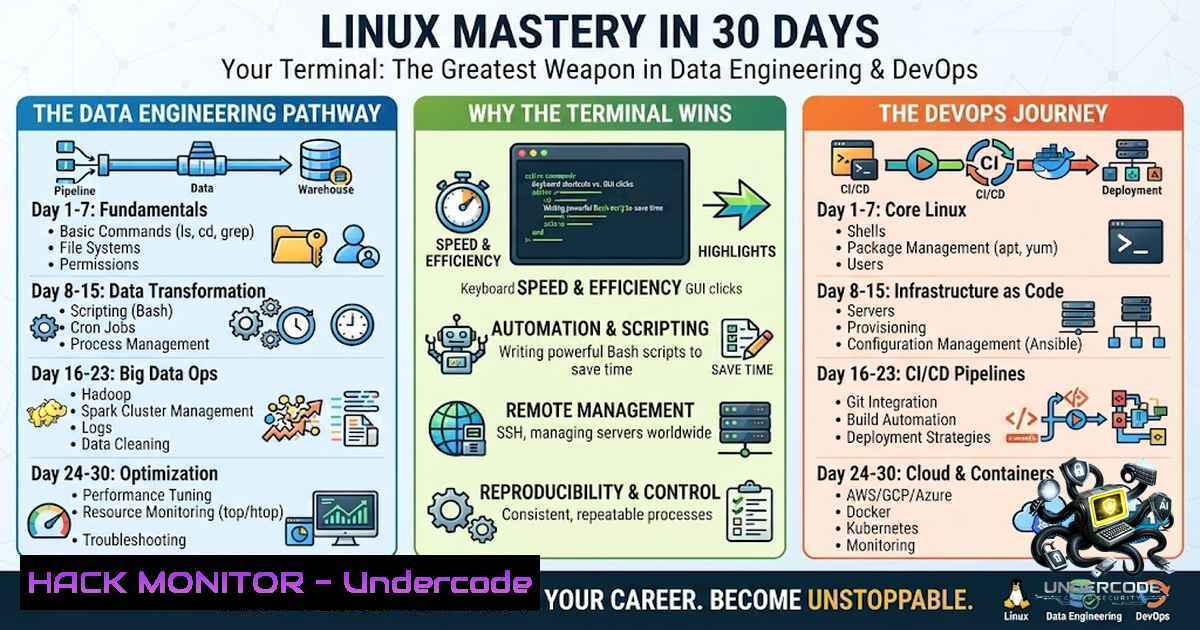
Introduction:
In the fast-paced worlds of data engineering, DevOps, and cloud computing, Linux is no longer optional—it is the foundational operating system upon which modern infrastructure is built. From Docker containers and Apache Airflow pipelines to CI/CD automation and cloud server provisioning, nearly every tool in the modern tech stack quietly assumes a working familiarity with the Linux command line. Yet many professionals treat Linux as a black box, merely copying commands from tutorials without truly understanding how the system works under the hood. This article breaks down the essential Linux concepts every data engineer and DevOps professional must master, moving beyond rote memorization toward genuine operational thinking.
Learning Objectives:
- Understand the hierarchical structure of the Linux filesystem and how it differs from Windows-based systems.
- Master essential terminal commands for navigation, file manipulation, and process management.
- Learn how input/output redirection and pipes enable powerful command-line data processing.
- Gain practical skills for managing Linux environments in Docker, cloud platforms, and CI/CD pipelines.
- Develop the operational mindset needed to troubleshoot and optimize Linux-based infrastructure.
You Should Know:
1. Demystifying the Linux Filesystem: Where Everything Lives
Unlike Windows, which uses drive letters like C: or D:, Linux organizes all files and directories under a single root directory—the forward slash (/). This unified hierarchy is the key to understanding how Linux systems are structured. At the top sits the root (/), and from there, everything branches outward like an inverted tree. Critical directories include `/home` (user files), `/etc` (system configuration files), `/var` (variable data like logs), `/tmp` (temporary files), and `/bin` or `/usr/bin` (essential user commands). Each file in the system is represented by an inode (index node), a data structure that stores metadata such as file size, permissions, ownership, and the physical location of data blocks on disk. Understanding this structure allows engineers to know exactly where configuration files live, where logs are written, and how to locate critical system resources.
Step‑by‑step guide to exploring the filesystem:
- Open your terminal and view the root directory: `ls /`
2. Explore the directory hierarchy: `ls -la /etc` to see configuration files with detailed permissions - Check disk usage and inode information: `df -h` (human-readable disk space) and `df -i` (inode usage)
4. Examine a file’s inode details: `stat /etc/passwd`
- Find large files consuming disk space: `du -sh / | sort -hr | head -10`
2. Essential Terminal Commands: Navigation, Creation, and Documentation
The real power of Linux lies not in memorizing hundreds of commands, but in understanding a core set of tools and knowing how to find help when needed. Basic navigation commands form the foundation: `pwd` (print working directory), `ls` (list directory contents), `cd` (change directory), `mkdir` (make directory), and `rm` (remove files or directories). File operations include `touch` (create empty file), `cp` (copy), `mv` (move/rename), and `cat` (concatenate and display). Perhaps the most important skill is knowing how to access documentation: `man` (manual pages) and `–help` flags provide instant reference for almost any command. The `man` command opens detailed manual pages that explain command syntax, options, and examples—an indispensable resource when working in unfamiliar territory.
Step‑by‑step guide to terminal mastery:
1. Navigate to your home directory: `cd ~`
- Create a new directory for practice: `mkdir linux_practice`
3. Move into it: `cd linux_practice`
4. Create a text file: `touch notes.txt`
5. View the file’s details: `ls -la`
- Read the manual for the `ls` command: `man ls` (press `q` to exit)
- Add content to the file using echo: `echo “Linux is powerful” > notes.txt`
8. Display the file content: `cat notes.txt`
3. Input/Output Redirection: Taking Control of Data Flow
One of the most powerful concepts in Linux is the ability to control where command input comes from and where output goes. By default, commands read from standard input (stdin—your keyboard) and write to standard output (stdout—your terminal screen). Redirection operators change this behavior. The `>` operator redirects stdout to a file, overwriting any existing content; `>>` appends to a file instead of overwriting. Error messages are sent to standard error (stderr), which can be redirected separately using `2>` or merged with stdout using 2>&1. This capability is essential for logging, automating reports, and debugging scripts in production environments.
Step‑by‑step guide to mastering redirection:
- Save command output to a file: `ls -la > directory_listing.txt`
2. Append additional output: `echo “New entry” >> directory_listing.txt`
3. Redirect errors separately: `ls /nonexistent 2> error.log`
- Merge stdout and stderr into one file: `ls /nonexistent &> all_output.log`
5. Use input redirection to feed a file into a command: `sort < unsorted_list.txt` 6. Combine redirection with command execution in scripts for automated logging
4. Pipes: Building Powerful Command Chains
While redirection controls where data goes, pipes (|) connect commands directly, taking the output of one command and feeding it as input to another. This creates powerful processing pipelines without the need for intermediate files. For example, `cat access.log | grep “ERROR” | sort | uniq -c | sort -1r` processes a log file to count unique error messages, sorted by frequency—all in a single line. Pipes are the foundation of the Unix philosophy: write programs that do one thing well and connect them together. In data engineering, pipes enable rapid data transformation, log analysis, and system monitoring directly from the command line.
Step‑by‑step guide to using pipes effectively:
- Count the number of files in a directory: `ls | wc -l`
2. Find all running processes and filter for a specific service: `ps aux | grep nginx`
3. List the 5 largest files in a directory: `ls -lhS | head -5`
4. Display unique IP addresses from an access log: `cat access.log | awk ‘{print $1}’ | sort | uniq`
5. Chain multiple commands for complex data processing: `cat data.csv | cut -d’,’ -f2 | sort | uniq -c | sort -1r`
6. Monitor system logs in real-time with filtering: `tail -f /var/log/syslog | grep “error”` - Shell and Bash: The Engine Behind the Terminal
The shell is the program that interprets your commands and communicates with the operating system kernel. Bash (Bourne Again SHell) is the default shell on most Linux distributions and a critical tool for any engineer. Beyond interactive use, Bash allows you to write scripts—files containing a series of commands that execute sequentially. Shell scripting enables automation of repetitive tasks, from backing up data to deploying applications across multiple servers. Key scripting concepts include variables, conditional statements (if/else), loops (for/while), and functions. A well-written Bash script can save hours of manual work and reduce human error in critical operations.
Step‑by‑step guide to creating your first Bash script:
1. Create a new script file: `touch my_first_script.sh`
2. Make it executable: `chmod +x my_first_script.sh`
- Open the file in a text editor: `nano my_first_script.sh`
4. Add the shebang line to specify the interpreter: `!/bin/bash`
5. Write your commands, for example:
echo "Starting backup process..."
timestamp=$(date +%Y%m%d_%H%M%S)
mkdir -p /backup/$timestamp
cp -r /important/data /backup/$timestamp/
echo "Backup completed at $timestamp"
6. Save the file and run it: `./my_first_script.sh`
- Schedule the script with cron for automation: `crontab -e` and add `0 2 /path/to/my_first_script.sh`
- Linux in the Real World: Docker, Airflow, and Cloud Infrastructure
Linux knowledge is the invisible glue holding together modern data and DevOps stacks. Docker containers run on the Linux kernel, leveraging namespaces and cgroups for isolation—understanding Linux processes is essential for container debugging. Apache Airflow, the popular workflow orchestration tool, runs on Linux servers and requires familiarity with environment variables, file permissions, and process management. Cloud environments like AWS, GCP, and Azure are predominantly Linux-based; knowing how to SSH into instances, manage packages with `apt` or yum, and configure services is non-1egotiable. Infrastructure automation tools like Ansible, Terraform, and CI/CD pipelines (Jenkins, GitLab CI) all execute commands on Linux agents. The ability to read system logs (journalctl, dmesg), monitor resource usage (top, htop, iotop), and troubleshoot network issues (netstat, ss, traceroute) separates effective engineers from those who merely copy-paste solutions.
Step‑by‑step guide for Linux in DevOps contexts:
- Connect to a remote server via SSH: `ssh user@server_ip`
2. Update package lists and install software: `sudo apt update && sudo apt install -y docker.io`
3. Start and manage a service: `sudo systemctl start docker && sudo systemctl enable docker`
4. Check system resource usage: `htop` (install if needed:sudo apt install htop) - View recent system logs: `journalctl -xe -1 50`
6. Monitor a specific log file in real-time: `tail -f /var/log/nginx/access.log`
7. Check open network ports: `ss -tulpn`
- Debug container issues: `docker ps -a` and `docker logs container_name`
7. Security Hardening: Protecting Linux Environments
Security is paramount in any production Linux environment. Key practices include managing user permissions with the principle of least privilege, using `sudo` for administrative tasks, and regularly updating packages to patch vulnerabilities. The `chmod` and `chown` commands control file access, while `umask` sets default permissions for new files. Firewall configuration with `ufw` or `iptables` restricts network access, and SSH hardening (disabling root login, using key-based authentication) prevents unauthorized access. In data engineering contexts, securing data pipelines means ensuring that sensitive information is encrypted, access logs are monitored, and API keys and credentials are never hard-coded in scripts (use environment variables or secret management tools instead). Linux provides the foundation for all these security controls, and understanding them is critical for protecting infrastructure.
Step‑by‑step guide to basic Linux security hardening:
- Set secure file permissions: `chmod 600 ~/.ssh/id_rsa` (private key) and `chmod 644 ~/.ssh/id_rsa.pub`
2. Disable root SSH login: edit `/etc/ssh/sshd_config` and set `PermitRootLogin no`
3. Configure a firewall: `sudo ufw allow 22/tcp` and `sudo ufw enable`
4. Set default umask for users: add `umask 027` to `/etc/profile`
5. Regularly check for updates: `sudo apt update && sudo apt upgrade -y`
6. Monitor authentication logs: `sudo tail -f /var/log/auth.log`
- Use `fail2ban` to block brute-force attempts: `sudo apt install fail2ban`
What Undercode Say:
- Key Takeaway 1: True Linux mastery is not about memorizing commands—it is about developing an operational mindset that understands how systems are structured, how they communicate, and how engineers interact directly with infrastructure.
- Key Takeaway 2: The terminal is intimidating only until you start using it consistently. With regular practice, it transforms from a source of complexity into a source of control and efficiency.
Analysis: The journey from copying commands to thinking operationally represents a fundamental shift in how engineers approach infrastructure. Many professionals learn Linux by searching for solutions to specific problems—”how to unzip a file,” “how to kill a process”—without ever understanding the underlying system. This fragmented approach works for basic tasks but fails when troubleshooting complex issues or designing resilient systems. Akinola Makinde’s 30-day learning challenge emphasizes slowing down to understand why things work, not just how to execute commands. This deeper understanding pays dividends across the entire technology stack: Docker containers make sense when you understand process isolation; Airflow pipelines are easier to debug when you know how Linux manages processes and files; cloud infrastructure becomes less abstract when you can SSH into a server and navigate it confidently. The data engineering and DevOps ecosystems increasingly assume Linux fluency, making this foundational knowledge not just beneficial but essential for career growth.
Prediction:
- +1 The demand for Linux-proficient data engineers and DevOps professionals will continue to grow as organizations migrate more workloads to cloud-1ative architectures, creating sustained career opportunities for those with deep operational knowledge.
- +1 AI-powered coding assistants will make command memorization less important, but the ability to think operationally and understand system behavior will become even more valuable as engineers move from writing code to orchestrating complex distributed systems.
- -1 Professionals who rely solely on copying commands without understanding underlying principles will find themselves increasingly disadvantaged as infrastructure grows more complex and troubleshooting requires deeper system knowledge.
- -1 The proliferation of containerization and orchestration tools does not reduce the need for Linux skills—it actually increases it, as these tools abstract away complexity but require understanding to debug effectively.
- +1 Organizations will increasingly invest in Linux training programs for their engineering teams, recognizing that operational proficiency directly correlates with system reliability and incident response speed.
- +1 The integration of Linux knowledge with data engineering workflows will become a standard competency, with job descriptions explicitly requiring fluency in terminal operations, shell scripting, and system administration.
🎯Let’s Practice For Free:
🎓 Live Courses & Certifications:
Join Undercode Academy for Verified Certifications
🚀 Request a Custom Project:
Secure, high-velocity infrastructure and disruptive technological engineering. Contact our engineering team for high-tier development and proprietary systems:
[email protected]
💎 Smart Architecture | 🛡️ Secure by Design | ⭐ Trusted by Thousands
IT/Security Reporter URL:
Reported By: Akinola Makinde – Hackers Feeds
Extra Hub: Undercode MoN
Basic Verification: Pass ✅


