
Listen to this Post
Introduction:
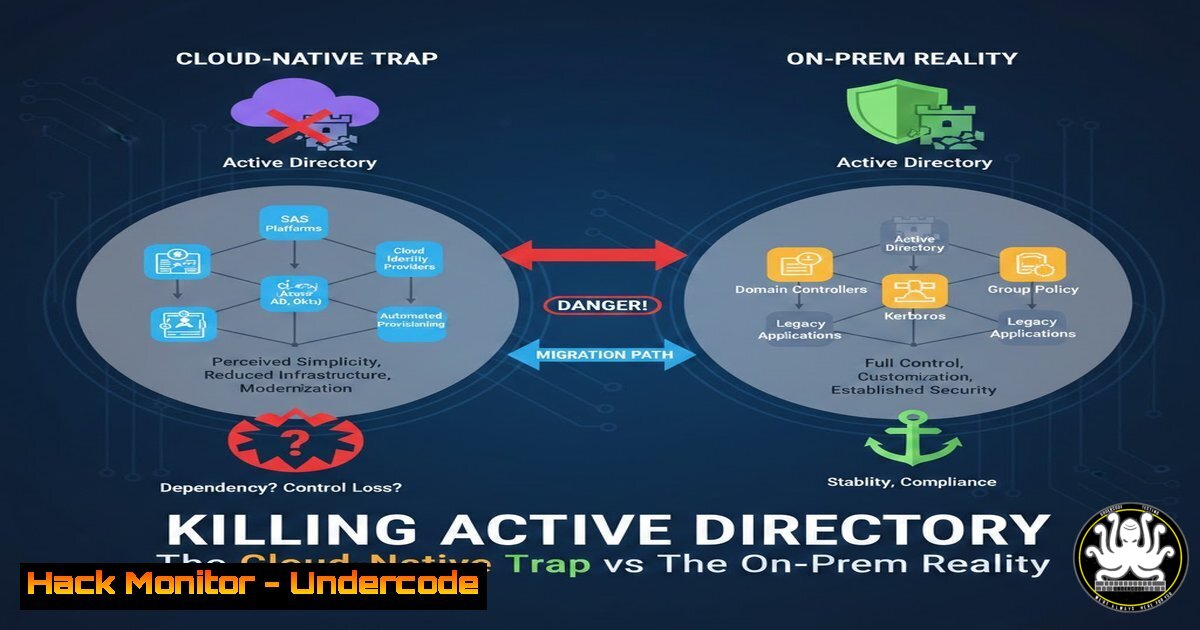
The cybersecurity community is currently locked in a heated debate: should we “kill” Active Directory (AD)? On the surface, migrating to cloud-native identity providers like Entra ID promises a reduced attack surface and modern access controls. However, this discussion often overlooks the deep technical debt and infrastructure dependencies that make AD irreplaceable for many enterprises. This article dissects the reality of hybrid identity models, providing the technical commands and architectural insights needed to navigate the transition without breaking your security posture.
Learning Objectives:
- Analyze the feasibility of eliminating on-premises Active Directory based on organizational scale.
- Execute security hardening commands for hybrid AD/Entra ID environments.
- Identify legacy dependencies (LDAP, Kerberos, GPOs) that prevent full cloud migration.
- Implement Privileged Identity Management (PIM) and Conditional Access policies.
- Differentiate between “AD insecurity” caused by misconfiguration versus architectural flaws.
You Should Know:
- Auditing the Technical Debt: The LDAP and Kerberos Dependency Hunt
Before deciding to “kill” AD, you must inventory every service binding to it. Legacy applications often have LDAP hardcoded, and infrastructure relies on Kerberos authentication. Removing AD without addressing these breaks critical ERP systems like SAP.
Step‑by‑step guide: Identifying LDAP Binds and Kerb Dependencies
To find services still pointing to your on-prem Domain Controllers, run the following PowerShell commands from a Domain Controller or a management machine with RSAT tools:
 Find all accounts with non-expiring passwords (often service accounts)
Get-ADUser -Filter {PasswordNeverExpires -eq $true -and Enabled -eq $true} -Properties Name, PasswordNeverExpires | Format-Table Name

Query DNS for service records pointing to old DCs
Get-DnsServerResourceRecord -ZoneName "yourdomain.local" -RRType A | Where-Object {$_.HostName -like "dc"}

Check for systems still using NTLM (a sign of legacy auth)
Get-WinEvent -FilterHashtable @{LogName='Security'; ID=4776} -MaxEvents 50 | Format-List
On Linux servers that might be bound via SSSD or Winbind, check:
 Check if the system is joined to AD
realm list
 Test LDAP connectivity to the old domain controller
ldapsearch -x -H ldap://your-dc.yourdomain.local -b "dc=yourdomain,dc=local"
This inventory reveals the “strangler vines” of technical debt that must be refactored before migration.
- Conditional Access and PIM: Building the Cloud-Native Control Plane
If the goal is to shift user identity to the cloud, you must implement robust controls in Entra ID. The conversation highlighted “Conditional Access” and “PIM” as critical tools that are often misconfigured or underutilized.
Step‑by‑step guide: Enforcing Privileged Identity Management (PIM)
PIM ensures admins have just-in-time access rather than standing privileges. To configure this via the Azure Portal (or Graph API), the logic is as follows:
1. In the Azure Portal, navigate to Microsoft Entra ID > Identity Governance > Privileged Identity Management.
2. Select Azure AD roles.
3. Choose a high-risk role (e.g., Global Administrator).
4. Click Settings and update the activation rules:
- Require Azure MFA.
- Require justification on activation.
- Set a maximum activation duration (e.g., 8 hours).
- Add eligible members: Instead of making users “Permanent Active,” assign them as “Eligible.”
- For automation, use the Microsoft Graph PowerShell SDK:
Install module if needed: Install-Module Microsoft.Graph
Connect-MgGraph -Scopes "PrivilegedAccess.ReadWrite.AzureAD"
Create a PIM setting for a role (Example for Global Admin)
$params = @{
roleDefinitionId = "62e90394-69f5-4237-9190-012177145e10"  Global Admin ID
settings = @{
approvalRequired = $true
maximumGrantPeriodInMinutes = 480
requireJustification = $true
requireMfa = $true
}
}
Note: This is a conceptual example; actual implementation requires the unifiedRoleManagementPolicy object.
Without PIM, moving to the cloud simply migrates the risk rather than mitigating it.
-
The GPO Conundrum: Migrating Group Policies to Intune
A major technical blocker mentioned is the reliance on complex Group Policy Objects (GPOs). AD is not just an identity store; it is a configuration management engine. “Killing AD” means migrating these settings to a modern device management solution like Microsoft Intune.
Step‑by‑step guide: Converting GPOs to Intune Policies
- Use the Microsoft Policy Analyzer (available from Microsoft) to inventory your current GPOs.
- For Windows 10/11 devices, you can use the Group Policy Analytics feature in the Microsoft Intune console.
– Go to Intune > Devices > Group Policy Analytics.
– Import your GPO backup (.cab file) or directly from a live domain.
– The tool will analyze the settings and tell you which are supported in MDM (Mobile Device Management) and which are not (e.g., legacy drive maps, specific software installs).
3. For settings that are supported, create a Settings Catalog policy in Intune and apply the same configurations.
4. Command-line check: On a test client, once the Intune policy applies, verify the registry or security settings using PowerShell:
 Check if a specific security policy (e.g., Account Lockout Threshold) applied
Get-LocalUser -Name "Administrator" | Select-Object
 Or check a registry key typically set by GPO
Get-ItemProperty -Path "HKLM:\SOFTWARE\Policies..."
The unsupported settings often represent the “debt” that forces companies to keep at least a read-only AD or on-prem infrastructure.
- Hardening the Existing AD: The “Do Nothing” Option
As noted by Thomas SAUTIER, a properly architected AD is robust. Often, the call to “kill AD” stems from a lack of proper hygiene. Before migrating, harden what you have.
Step‑by‑step guide: Implementing AD Tiering and Cleanup
1. Clean up dormant accounts:
 Find accounts not logged in for 90+ days
Search-ADAccount -AccountInactive -TimeSpan 90.00:00:00 -UsersOnly | Disable-ADAccount -WhatIf
2. Implement tiering:
- Tier 0: Domain Controllers, Identity Management systems.
- Tier 1: Server Administrators.
- Tier 2: Workstation Administrators.
- Use Group Policy and Restricted Groups to ensure admins in Tier 2 cannot log into Tier 0 servers.
3. Rotate service account passwords:
 For managed service accounts, this is automatic. For standard accounts:
Set-ADAccountPassword -Identity "svc_legacyapp" -Reset -NewPassword (ConvertTo-SecureString -AsPlainText "NewComplexP@ssw0rd!" -Force)
This reduces the “insecure” reputation of AD by eliminating standing privileges and cleaning up old objects.
- Conditional Access Policies: The Gatekeeper for Hybrid Access
In a hybrid model, Conditional Access policies act as the decision engine, blocking or allowing access based on location, device health, and risk.
Step‑by‑step guide: Blocking Legacy Authentication
Attackers love legacy auth (POP, SMTP, IMAP) as it bypasses MFA. To block it via the Azure portal:
1. Navigate to Microsoft Entra ID > Security > Conditional Access.
2. Create a new policy named “Block Legacy Auth.”
3. Assign it to All Users.
- Under Cloud apps or actions, select All cloud apps.
- Under Conditions > Client apps, check Exchange ActiveSync clients and Other clients (which covers legacy protocols).
- Under Access controls > Grant, set to Block access.
7. Enable the policy.
To verify, attempt to connect to Exchange Online via PowerShell with basic authentication; it should fail.
What Undercode Say:
- AD is not the enemy; standing privileges are. The debate misplaces blame on a protocol stack that, when properly segmented and monitored, remains more auditable than hastily configured cloud sprawl.
- Hybrid is the only realistic destination for enterprises. The path forward is not “kill AD,” but “reduce AD’s attack surface” while building a cloud identity wrapper. The technical debt of on-prem applications ensures that LDAP and Kerberos will linger for another decade.
- Cloud migration without governance duplicates risk. Migrating to Entra ID without mature IAM governance and PIM simply shifts the complexity, creating blind spots in SaaS applications that are harder to monitor than a well-lit on-prem Domain Controller.
Prediction:
We will see a rise in “Identity Fabrics” that attempt to bridge on-prem AD and Entra ID without requiring full application refactoring. However, major breaches in the next 24 months will likely originate from misconfigured cloud sync tools (like Entra Connect) that expose on-prem AD credentials to the internet, proving that hybrid, when done poorly, offers the worst of both worlds. The “kill AD” narrative will soften into “encapsulate AD” as organizations realize the cost of rewriting legacy authentication logic is prohibitive.
▶️ Related Video (88% Match):
🎯Let’s Practice For Free:
IT/Security Reporter URL:
Reported By: Teva B – Hackers Feeds
Extra Hub: Undercode MoN
Basic Verification: Pass ✅


