
Listen to this Post
Introduction:
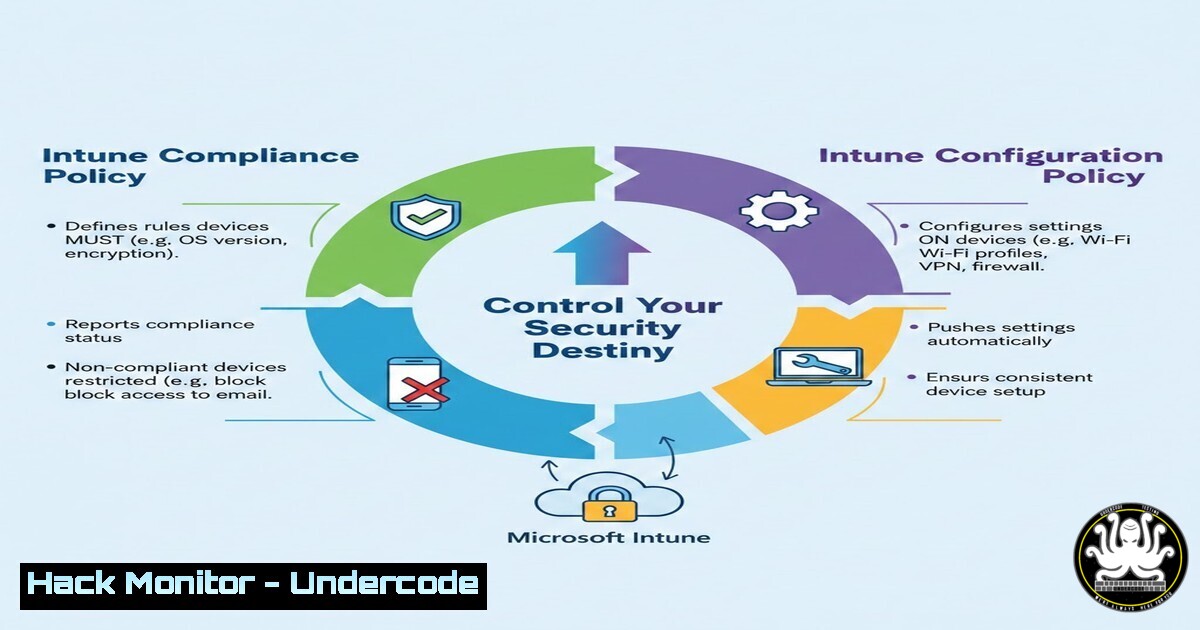
In the modern enterprise, the battleground for security has shifted to the endpoint. With the proliferation of remote work and BYOD, Microsoft Intune (part of Microsoft Endpoint Manager) has become the central nervous system for device management. However, confusion between its two core policy types—Compliance and Configuration—can lead to catastrophic security gaps or a miserable user experience. Understanding the distinct roles of “Health Checks” versus “Setup Rules” is the cornerstone of a Zero Trust architecture.
Learning Objectives:
- Differentiate the functional purpose of Intune Compliance Policies and Configuration Policies.
- Analyze how Conditional Access integrates with Compliance Policies for dynamic access control.
- Implement step-by-step configurations to harden Windows and mobile endpoints.
- Troubleshoot common policy conflicts using native tools and PowerShell.
- Apply real-world hardening techniques for cloud-managed identities.
You Should Know:
1. Compliance Policies: The Gatekeeper of Trust
What the Post Says (Extended):
As highlighted in the post, Compliance Policies act as the “security health check” for devices. They do not configure features; they evaluate the state of features that should already be active. These policies answer the question: “Can this device be trusted right now?” If a device fails these checks—such as having BitLocker disabled or running an outdated OS version—Conditional Access can immediately block access to corporate resources like Exchange Online or SharePoint.
Step‑by‑step guide: Auditing Compliance Status via PowerShell
To verify compliance status across your tenant without navigating the GUI, you can use the Microsoft Graph PowerShell SDK.
1. Install the required module (Run as Administrator):
Install-Module Microsoft.Graph -Scope CurrentUser
2. Connect to Graph with the necessary scope:
Connect-MgGraph -Scopes "DeviceManagementManagedDevices.Read.All", "DeviceManagementConfiguration.Read.All"
- Retrieve all devices and filter by compliance state:
Get-MgDeviceManagementManagedDevice -All | Select-Object DeviceName, OperatingSystem, ComplianceState, UserPrincipalName | Where-Object {$_.ComplianceState -ne "compliant"}This command lists all non-compliant devices, helping you identify whether users are blocked due to missing BitLocker or a missing critical update.
Linux (Compliance Analogy):
While Intune doesn’t natively manage Linux in the same way, the concept of compliance exists in tools like openscap. To check if your Ubuntu system complies with a standard policy (e.g., CIS benchmarks), you would run:
sudo apt install libopenscap8 scap-security-guide
oscap xccdf eval --profile xccdf_org.ssgproject.content_profile_cis --results-arf results.xml /usr/share/xml/scap/ssg/content/ssg-ubuntu2004-ds.xml
2. Configuration Policies: The Blueprint of the Device
What the Post Says (Extended):
Configuration Policies are the “setup rules.” They push settings down to the device to ensure uniformity. While Compliance Policies judge the outcome, Configuration Policies enforce the action. For example, a Configuration Policy will deploy the firewall rules to block USB storage, while the Compliance Policy will later check to ensure those rules are still intact and haven’t been tampered with by a local admin.
Step‑by‑step guide: Deploying a Custom Firewall Rule via Intune (Windows 10/11)
Instead of relying on the user or a legacy GPO, you can use Intune’s Settings Catalog to enforce a strict firewall rule for outbound traffic.
- Navigate to Microsoft Intune admin center > Devices > Configuration profiles > Create profile.
- Select Platform: Windows 10 and later. Profile type: Settings Catalog.
3. Click Add settings and search for “Firewall”.
4. Configure the following rule:
- Firewall Rule Name: `Block_Tor_Outbound`
– Firewall Rule Application File Path: `C:\Users\\Downloads\tor.exe` (or a specific path) - Firewall Rule Action: `Block`
– Firewall Rule Direction: `Out`
– Firewall Rule Protocol: `TCP`
– Firewall Rule Local Ports: `9001, 9030` (common Tor ports)
5. Assign the policy to a test group.
Verification on the Client (Windows):
Once the policy syncs, verify it locally using PowerShell (Run as Admin):
Get-NetFirewallRule -DisplayName "Block_Tor_Outbound" | Get-NetFirewallApplicationFilter
Get-NetFirewallRule -DisplayName "Block_Tor_Outbound" | Get-NetFirewallPortFilter
This confirms the application path and port restrictions are applied correctly.
3. The Synergy: Conditional Access as the Judge
The post implies that Compliance is useless without Conditional Access (CA). A Compliance Policy is merely a label until a CA policy tells Azure AD to read that label and decide the fate of the authentication request.
Step‑by‑step guide: Building the Conditional Access Rule
To force non-compliant devices to re-authenticate or be blocked:
- In Microsoft Entra admin center > Protection > Conditional Access > Create new policy.
- Assign to Users (e.g., all users) and Cloud apps (e.g., Office 365).
- Under Conditions, configure Client apps to include “Mobile apps and desktop clients”.
4. Under Access controls > Grant, select:
-
 Require device to be marked as compliant</li>
<li>[bash] Require all the selected controls</li>
</ul>

<h2 style="color: yellow;">5. Enable policy and set to On.</h2>

<h2 style="color: yellow;">Troubleshooting Login Failures (Windows Event Logs):</h2>

When a user is blocked, the specific error code (usually 5300 or 5303) can be found locally. On the Windows client, check:
Event Viewer > Applications and Services Logs > Microsoft > Windows > AAD > Operational
Look for Event ID 1140 or 1105, which detail why the token was denied based on device state.

<h2 style="color: yellow;">4. Handling Conflicts: When Compliance and Configuration Collide</h2>

What happens if a Configuration Policy sets "Minimum Password Length = 4" for legacy app compatibility, but a Compliance Policy requires "Minimum Password Length >= 8"? The device will technically have the Configuration Policy applied (setting it to 4), but the Compliance Policy will mark it as non-compliant, blocking access.

<h2 style="color: yellow;">Step‑by‑step guide: Detecting Policy Conflicts with PowerShell</h2>

You can use the Intune Data Warehouse or Graph to detect these "settings drift" scenarios.

[bash]
 Get all configuration policies that target device restrictions
$configPolicies = Get-MgDeviceManagementConfigurationPolicy | Where-Object {$_.Name -like "Password"}

Get all compliance policies
$compliancePolicies = Get-MgDeviceManagementCompliancePolicy

Manual comparison required here—or use the 'Settings Catalog' view in the UI to see overlapping settings.
Write-Host "Review these policies for overlap in the 'Device Password' category."
$configPolicies | Format-Table Name, Description
$compliancePolicies | Format-Table Name, Description
Pro Tip: Microsoft Intune’s Reports > Policy section now shows a “Settings” view that visualizes where two policies are managing the same setting.
5. Advanced Hardening: Mobile (iOS/Android) Specifics
The original post mentions blocking rooted/jailbroken devices. This is a classic Compliance Policy action. However, Configuration Policies can further lock down mobile devices.
Step‑by‑step guide: Android Enterprise Work Profile Hardening
To prevent data leakage from managed apps to personal apps:
- Create an App Protection Policy (APP) (Mobile Application Management):
– Go to Apps > App protection policies > Create policy > Android.
2. Configuration:
- Data protection: Block “Save copies of org data” to personal storage.
- Conditional launch: Set the max PIN attempts before wiping managed data.
- Require safety net device attestation (on Android): This acts as a compliance check inside the app, even if the device isn’t fully enrolled.
This ensures that even if a device is rooted (and the Compliance Policy fails), the app data is automatically wiped or blocked at the app layer.
6. Mitigation: Remediation via PowerShell Scripts
When a device is non-compliant (e.g., Defender is off), Intune can offer a grace period. However, you can automate remediation by deploying a proactive remediation script.
Step‑by‑step guide: Proactive Remediation for Defender Tampering
- In Intune, go to Reports > Endpoint analytics > Proactive remediations.
2. Create a script package.
- Detection Script (PowerShell): Checks if Defender is running.
$Defender = Get-Service -Name WinDefend -ErrorAction SilentlyContinue
if ($Defender.Status -eq 'Running') {
Write-Output "Compliant"
exit 0
} else {
Write-Output "Non-Compliant"
exit 1
}
4. Remediation Script (PowerShell): Starts Defender.
Start-Service -Name WinDefend
Set-MpPreference -DisableRealtimeMonitoring $false
5. Assign to devices. This runs before the compliance check, attempting to fix the issue automatically.
What Undercode Say:
- Policy Types are Not Interchangeable: Treating Configuration Policies as security checks or Compliance Policies as deployment tools will break your Zero Trust model. Compliance is the “verdict,” Configuration is the “law.”
- Layered Defense Wins: Relying solely on Compliance Policies for security is reactive (blocking access after a failure). Combining them with Configuration Policies (proactive lockdown) and App Protection Policies (data-layer security) creates a robust defense-in-depth.
In today’s hybrid identity landscape, Microsoft Intune has evolved from a simple MDM to a critical security control plane. Administrators must move beyond the “set it and forget it” mentality. The distinction between Compliance and Configuration is not just semantics; it is the dividing line between a managed device and a secure, trusted endpoint. As attackers increasingly target endpoint misconfigurations rather than software vulnerabilities, mastering these Intune policies becomes as fundamental as patching.
Prediction:
As Artificial Intelligence integrates deeper into Microsoft Security, we will see the emergence of Dynamic Compliance Policies. Instead of static rules (e.g., “OS must be 22H2”), AI will analyze user behavior and device risk signals in real-time, creating temporary compliance scores. A device might be considered “conditionally compliant” even with an older OS if the user is on a trusted network and exhibiting low-risk behavior, while another device might be blocked instantly despite passing all technical checks due to anomalous login patterns. This will shift the focus from “policy definitions” to “policy intelligence.”
▶️ Related Video (84% Match):
🎯Let’s Practice For Free:
IT/Security Reporter URL:
Reported By: Suresh Kumar – Hackers Feeds
Extra Hub: Undercode MoN
Basic Verification: Pass ✅🔐JOIN OUR CYBER WORLD [ CVE News • HackMonitor • UndercodeNews ]
📢 Follow UndercodeTesting & Stay Tuned:


