Listen to this Post
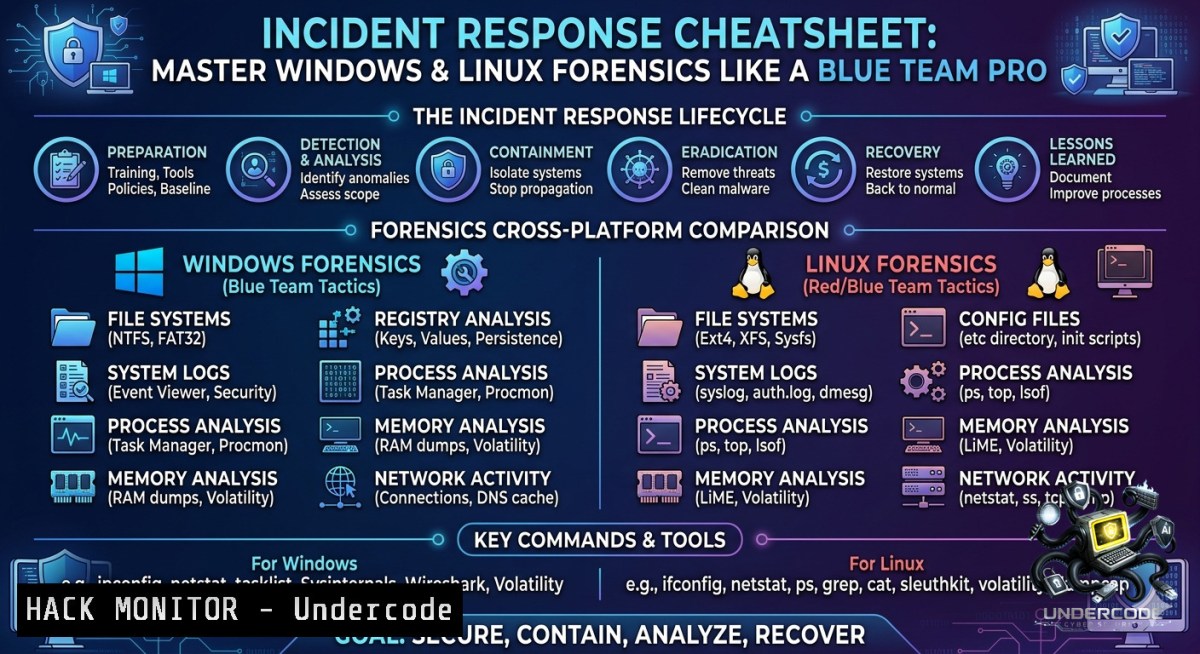
Introduction:
Incident response (IR) is the disciplined process of detecting intrusions, investigating compromised systems, and collecting digital evidence to understand the scope and impact of a security breach. Security professionals rely on systematic checklists to examine user accounts, processes, services, scheduled tasks, files, logs, network connections, firewall rules, and active sessions across both Windows and Linux environments.
Learning Objectives:
– Identify and extract critical forensic artifacts (user accounts, processes, network connections) on Linux and Windows systems using native command-line tools.
– Apply step‑by‑step IR investigation techniques to detect persistence mechanisms, suspicious cron jobs, hidden services, and unauthorized file modifications.
– Execute incident response playbooks for both operating systems, including log analysis, memory inspection, and firewall configuration review.
You Should Know:
1. User Account & Authentication Analysis (Linux & Windows)
Step‑by‑step guide to detecting rogue accounts, privilege escalations, and anomalous login activity.
Linux commands:
– List all users: `cat /etc/passwd | grep -E “/bin/bash|/bin/sh”` – shows only shell‑accessible accounts.
– Check password aging: `passwd -S
– Find orphaned files (potential deleted user): `find / -1ouser -1ogroup 2>/dev/null`.
– Review sudo privileges: `cat /etc/sudoers` or `visudo -c` to validate syntax.
– Failed logins: `sudo grep “Failed password” /var/log/auth.log` (Debian/Ubuntu) or `/var/log/secure` (RHEL/CentOS).
– `lastlog` – reports last login of each user; `last -f /var/log/wtmp` – entire login history.
Windows PowerShell (Admin):
– List local users: `Get-LocalUser | Select-Object Name,Enabled,LastLogon`
– Check domain users (if joined): `net user /domain`
– Find hidden accounts: `Get-WmiObject -Class Win32_UserAccount -Filter “LocalAccount=True” | Select-Object Name,Disabled,Lockout`
– SID to username: `wmic useraccount get name,sid`
– Audit logon events: `Get-EventLog -LogName Security -InstanceId 4624,4625 -1ewest 50` (4624=success,4625=failure).
2. Running Processes & Suspicious Executables
Step‑by‑step process hunting – identify malware, reverse shells, and hidden injects.
Linux:
– `ps auxf` – tree view showing parent/child relationships.
– `top -c` – real‑time with full command line.
– `lsof -i -P -1` – list open network files (connections without hostname resolution).
– Find processes without terminal: `ps -e j | grep -v “tty”`
– Check process binary integrity: `sha256sum /proc/
– Kill suspicious: `kill -9
Windows (CMD & PowerShell):
– `tasklist /v /fo CSV` – detailed verbose list in CSV for filtering.
– PowerShell: `Get-Process | Select-Object Name,Id,Path,Company,CPU | Format-Table`
– Detect unsigned binaries: `Get-Process | Where-Object {$_.Company -eq $null}`
– `wmic process get name,parentprocessid,processid,commandline /format:csv`
– Forensics: Use `tasklist /m` to list loaded DLLs per process.
3. Scheduled Tasks & Cron Jobs (Persistence Hunting)
Step‑by‑step to uncover attacker‑created recurring tasks.
Linux cron & systemd timers:
– List user crontabs: `crontab -l -u
– System crons: `cat /etc/crontab` and inspect `/etc/cron.d/`, `/etc/cron.hourly/`, etc.
– Systemd timers: `systemctl list-timers –all` – show last/next trigger.
– Find hidden jobs: `grep -r “/5 \” /etc/cron` – look for unusual schedules.
Windows Task Scheduler:
– `schtasks /query /fo LIST /v` – verbose list of all tasks.
– PowerShell: `Get-ScheduledTask | Get-ScheduledTaskInfo | Select-Object TaskName,LastRunTime,NextRunTime,LastTaskResult`
– Export to CSV: `schtasks /query /fo CSV > tasks.csv`.
– Look for tasks running from temp folders: `Get-ScheduledTask | Where-Object {$_.Actions.Execute -like “temp”}`
4. Network Connections & Open Ports (C2 Detection)
Step‑by‑step to find active command‑and‑control channels and unusual listeners.
Linux:
– `netstat -tulnap` – all listening ports and established connections (numeric).
– `ss -tunap` – modern replacement, faster.
– `lsof -i @
– `arp -a` – check for ARP spoofing or unexpected MACs.
– Monitor real‑time: `watch -1 1 “ss -tunap | grep ESTAB”`
Windows:
– `netstat -anob` – shows owning PID and executable (Admin required).
– `Get-1etTCPConnection | Select-Object LocalAddress,LocalPort,RemoteAddress,RemotePort,State,OwningProcess` – PowerShell.
– Map ports to services: `Get-Process -Id (Get-1etTCPConnection -LocalPort 4444).OwningProcess`
– `netstat -rn` – check routing table for persistence.
5. File System Anomalies & Permissions Abuse
Step‑by‑step to locate backdoored binaries, SUID exploits, and newly modified files.
Linux:
– Find files modified in last 24h: `find / -type f -mtime -1 -ls 2>/dev/null`
– Find SUID/SGID binaries (privilege escalation): `find / -perm /4000 -type f 2>/dev/null`
– World‑writable files: `find / -perm -2 -type f 2>/dev/null`
– Check hidden directories: `ls -laR /home//.`
– Integrity check: `rpm -Va` (RHEL) or `debsums` (Debian).
Windows (CMD & PowerShell):
– Find files created in last 7 days: `forfiles /P C:\ /S /D +0 /C “cmd /c echo @file @fdate”`
– PowerShell: `Get-ChildItem -Path C:\ -Recurse -ErrorAction SilentlyContinue | Where-Object {$_.CreationTime -gt (Get-Date).AddDays(-1)}`
– Find hidden alternate data streams: `dir /R` (CMD).
– Check SMB shares: `net share` and `Get-SmbShare | ft Name,Path,Description`.
6. Log Entries & Event Investigation
Step‑by‑step to parse authentication logs, process creation events, and service changes.
Linux (systemd journal and syslog):
– `journalctl -xe` – last boot errors.
– `journalctl _COMM=sshd` – SSH logs.
– `grep “Accepted password” /var/log/auth.log` – successful logins.
– `zgrep “Failed” /var/log/auth.log.2.gz` – rotated logs.
– `last -i` – show all logins with source IP.
Windows Event Viewer (PowerShell):
– Get last 50 security events: `Get-WinEvent -FilterHashtable @{LogName=’Security’; StartTime=(Get-Date).AddHours(-24)} | Select-Object TimeCreated,Id,Message`
– Specific event IDs: 4624 (logon), 4625 (fail), 4688 (process creation), 4698 (scheduled task), 5140 (file share).
– Export to XML: `Get-WinEvent -FilterXPath “[System[EventID=4688]]” | Export-Clixml -Path processes.xml`
7. Firewall Configuration & Active Sessions
Step‑by‑step to review inbound/outbound rules and active file shares.
Linux iptables/nftables:
– `iptables -L -1 -v` – list rules with packet counters.
– `iptables -t nat -L` – check NAT rules (often abused for redirects).
– `nft list ruleset` (if using nftables).
– Active SMB sessions: `smbstatus`.
Windows Defender Firewall & Net Sessions:
– `netsh advfirewall show allprofiles`
– `netsh advfirewall firewall show rule name=all | findstr “Enabled”`
– List inbound rules allowing any: `Get-1etFirewallRule -Direction Inbound -Action Allow | Where-Object {$_.Enabled -eq $true}`
– Active file shares: `net session` (remote connected users).
– `net file` – opened shared files.
What Undercode Say:
– Key Takeaway 1: Incident response is not about running a single tool but methodically enumerating nine critical areas—from user accounts to firewall rules—using both native OS commands and lightweight scripts. The provided Linux and Windows cheatsheets give defenders a repeatable, platform‑specific playbook that works even in air‑gapped or minimal environments.
– Key Takeaway 2: Persistence mechanisms (cron jobs, scheduled tasks, registry run keys) and network connections to unusual external IPs are the two highest‑yield indicators of compromise. Combining `netstat` with process inspection and log correlation reduces false positives and accelerates triage.
Analysis (~10 lines): The content from Yashika Dhir (Hacking Articles) emphasizes a dual‑platform approach, covering Linux commands like `ss`, `find / -1ouser`, and `journalctl` alongside Windows PowerShell cmdlets and legacy `net` commands. This is critical because most IR teams manage hybrid environments. The structured table of contents (user accounts → processes → services → cron → files → logs → network → firewall → sessions) follows the SANS IR model. Missing in the excerpt are memory forensics (Volatility) or YARA scanning, but for live response, this cheatsheet is production‑ready. The inclusion of both GUI and CLI methods (e.g., Task Scheduler GUI vs `schtasks`) respects that investigators may have GUI access. One practical improvement would be adding hash‑checking commands to verify critical binaries (e.g., `Get-FileHash` in PowerShell). Overall, it’s a solid field reference for SOC analysts.
Expected Output:
Introduction:
In modern cyber attacks, dwell time averages 10 days before detection. Incident response cheatsheets bridge the gap between panic and methodical investigation—providing memorized commands to spot rogue user accounts, hidden processes, and covert network tunnels on both Linux and Windows systems without relying on third‑party agents.
What Undercode Say:
– Key Takeaway 1: Live response commands must be executed in a specific order to avoid altering evidence. Start with volatile data (network connections, processes) before non‑volatile (files, logs).
– Key Takeaway 2: Automation of these checks via a simple bash/PowerShell script can reduce investigation time from hours to minutes, but always record timestamps and command outputs for court‑ready documentation.
Prediction:
– +1 By 2027, incident response will shift from manual cheatsheets to AI‑augmented assistants that auto‑suggest investigation paths based on real‑time telemetry.
– -1 The increasing adoption of immutable infrastructure and ephemeral containers will render many traditional IR commands less effective, forcing defenders to focus on orchestration logs rather than host‑level forensics.
– +1 Cloud providers will embed IR checklists directly into their native console (AWS Inspector, Azure Monitor) making cross‑platform cheatsheets like this one the foundation for automated remediation playbooks.
– -1 Attackers will increasingly target memory‑only malware that leaves no file artifacts, requiring defenders to add live‑memory acquisition commands (e.g., `dd` of /proc/kcore, Windows `DumpIt`) to every IR kit.
▶️ Related Video (82% Match):
🎯Let’s Practice For Free:
🎓 Live Courses & Certifications:
[Join Undercode Academy for Verified Certifications](https://undercode.co.uk/certifications/)
🚀 Request a Custom Project:
Secure, high-velocity infrastructure and disruptive technological engineering. Contact our engineering team for high-tier development and proprietary systems:
[[email protected]](mailto:[email protected])
💎 Smart Architecture | 🛡️ Secure by Design | ⭐ Trusted by Thousands
IT/Security Reporter URL:
Reported By: [Yashika Dhir](https://www.linkedin.com/posts/yashika-dhir_incident-response-cheatsheet-windows-linux-ugcPost-7465410225177526272-cJEa/) – Hackers Feeds
Extra Hub: Undercode MoN
Basic Verification: Pass ✅
🔐JOIN OUR CYBER WORLD [ CVE News • HackMonitor • UndercodeNews ]
[💬 Whatsapp](https://undercode.help/whatsapp) | [💬 Telegram](https://t.me/UndercodeCommunity)
📢 Follow UndercodeTesting & Stay Tuned:
[𝕏 formerly Twitter 🐦](https://x.com/undercodeupdate) | [@ Threads](https://www.threads.net/@undercodetesting) | [🔗 Linkedin](https://www.linkedin.com/company/undercodetesting/) | [🦋BlueSky](https://bsky.app/profile/undercode.bsky.social)


