
Listen to this Post
Introduction:
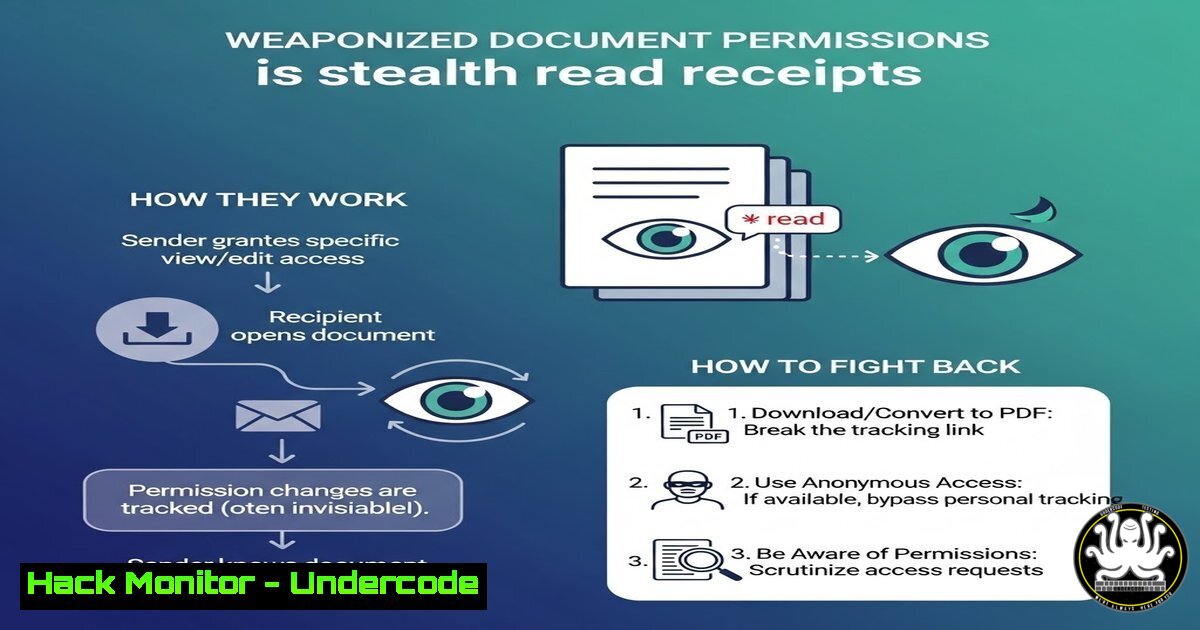
In an era where email remains the backbone of corporate communication, the subtle shift from attachments to cloud‑hosted document links has introduced a new privacy loophole. What appears to be a harmless sharing permission request can actually function as a covert read receipt, silently confirming to the sender that you have engaged with the content. This technique exploits the access‑control mechanisms of platforms like SharePoint, OneDrive, and Google Drive, turning a standard productivity feature into a potential tracking tool. For cybersecurity professionals, understanding this behavior is essential to protect organizational data and employee privacy.
Learning Objectives:
- Understand how permission‑based document links can be used to track email engagement.
- Learn to detect and analyze tracking attempts using network and email header inspection.
- Implement defensive configurations at both user and administrative levels to mitigate unwanted tracking.
- Explore the attack vectors that abuse this mechanism in phishing and reconnaissance campaigns.
- Gain hands‑on experience with forensic commands and tools to investigate suspicious document links.
You Should Know:
1. The Anatomy of a Permission‑Based Tracking Link
When a sender shares a document via a link (e.g., “Request access” in SharePoint) instead of attaching it, the recipient must click the link and request permissions to view the file. The moment they click, the cloud service logs the event—often notifying the owner via email or dashboard. This turns the simple act of clicking into an undeniable “read receipt.”
Step‑by‑step guide to inspect such links on Linux/macOS:
- Use `curl` to examine HTTP headers without fully downloading content:
curl -I "https://yourcompany.sharepoint.com/:w:/r/path/to/document"
Look for headers like
X‑SharePointHealthScore,SPRequestGuid, or `Set‑Cookie` that indicate interaction with Microsoft servers. - For Google Drive links, check the response headers:
curl -I "https://docs.google.com/document/d/1abc123/edit?usp=sharing"
A `200 OK` vs. `302 Found` can hint at whether the document exists and if tracking parameters are embedded.
- To simulate a click without actually accessing the document, use `wget` with `–server-response` and limit download size:
wget --server-response --spider "https://drive.google.com/file/d/..."
On Windows (PowerShell):
Invoke-WebRequest -Uri "https://example.sharepoint.com/..." -Method Head
The response object will contain headers that may reveal the backend tracking infrastructure.
2. Detecting Permission Requests as Tracking Evidence
Beyond headers, you can analyze the email itself for clues. Many cloud services embed unique tracking pixels or redirect URLs that log access.
Email header analysis on Linux:
Save the email as a `.eml` file and use `grep` to isolate URLs:
grep -Eo '(http|https)://[^"]+' email.eml | sort -u
Then manually inspect each URL’s domain—if it points to `login.microsoftonline.com` or `accounts.google.com` with a `?state=` parameter, it’s likely an authentication challenge that also logs the attempt.
Using `tcpdump` to capture live traffic when you click the link:
sudo tcpdump -i eth0 -A -s 0 host <your-ip> and host <sharepoint-domain>
Start the capture before clicking the link, then stop immediately after. Look for `POST` requests containing your email or device fingerprint.
3. Mitigating Unwanted Tracking at the User Level
Users can reduce their exposure by disabling automatic content loading in email clients and using disposable email addresses for document access.
Outlook (Windows):
- Go to File > Options > Trust Center > Trust Center Settings > Automatic Download.
- Check “Don’t download pictures automatically in HTML e‑mail messages.”
- This also blocks many tracking pixels, but note that link clicks are still logged when you actively click.
Thunderbird (cross‑platform):
- Preferences > Privacy > Mail Content – uncheck “Allow remote content in messages.”
- For links, consider using a browser’s private mode or a sandboxed environment to open suspicious document links.
Browser privacy extensions (uBlock Origin, Privacy Badger) can block known tracking domains associated with SharePoint and Google Workspace, though they may also break legitimate access.
4. Hardening Cloud Sharing Configurations for Administrators
Organizations can prevent internal tracking abuse by fine‑tuning sharing settings.
SharePoint Online / OneDrive for Business (Microsoft 365 admin center):
– Navigate to SharePoint > Policies > Sharing.
– Set default link permissions to “Specific people” only, and disable “Allow access requests” unless absolutely necessary.
– Audit sharing activity via the Unified Audit Log using PowerShell:
Search-UnifiedAuditLog -StartDate (Get-Date).AddDays(-7) -Operations "SharingInvitationCreated"
– This reveals who requested access to which documents and when.
Google Workspace:
- In the Admin console, go to Apps > Google Workspace > Drive and Docs > Sharing settings.
- Disable “Notify people when you share items” to reduce automatic email alerts, but note that this does not stop access logging.
- Use Vault to retain and search Drive logs for access patterns.
5. Attack Vectors Exploiting Permission Tracking
Cybercriminals have weaponized this behavior for reconnaissance. By sending a malicious document link that requires “access,” the attacker can verify active email addresses and potential victims. When the target clicks and requests permission, the attacker receives a notification—confirming the email is monitored and the user is willing to engage.
Simulating an attacker‑side view (ethical use only):
- Create a test SharePoint site with a dummy document.
- Share the link with a colleague and request access via the platform’s “Request access” feature.
- Monitor the site’s Site Usage or Access Requests list (often available in site settings).
- This demonstrates how quickly a simple link can become a tracking beacon.
Defensive training: Train users to treat any unexpected document link with suspicion. If a document is expected, advise them to navigate to the shared folder directly (e.g., through the company SharePoint home page) rather than clicking the email link.
6. Forensic Analysis of Document Link Traffic
For deeper investigation, combine network forensics with log analysis.
Using Wireshark to capture and filter HTTP/HTTPS traffic:
- Set a capture filter for the email sender’s domain:
host sharepoint.com or host googleapis.com. - After clicking the link, stop the capture and use the display filter `http.request or tls.handshake.type == 1` to see the initial connection.
- Look for `GET` requests to `/personal/` (OneDrive) or `/document/d/` (Google Docs) – these often contain a unique user ID or email in the URL parameters.
On Linux, you can also use `ngrep`:
sudo ngrep -d eth0 -W byline host sharepoint.com and port 443
This displays live traffic matching the pattern.
7. Advanced Defenses: Email Gateways and Metadata Stripping
Implementing a secure email gateway (SEG) can help strip tracking links or rewrite them to safe versions.
Example: Configuring Mimecast or Proofpoint to rewrite SharePoint links:
– Create a policy that replaces external document links with a warning page that logs the click but anonymizes the requester.
– Alternatively, use URL defense features that sandbox the link before allowing access.
Metadata analysis with `exiftool`:
If you actually download a document (with permission), examine its metadata for tracking IDs:
exiftool downloaded.docx
Look for fields like Company, Last Modified By, or custom properties that may contain user identifiers.
What Undercode Say:
- Key Takeaway 1: The convergence of collaboration tools and email has created a new privacy frontier; a simple “request access” is now a silent engagement tracker.
- Key Takeaway 2: Defending against this requires a multi‑layer approach: user awareness, client‑side blocking, and administrative controls over cloud sharing policies.
- Analysis: This phenomenon underscores how unintended consequences of feature design can be repurposed for surveillance. Organizations must reassess their data‑sharing defaults and educate employees that clicking a link is not a neutral act. As remote work persists, the line between productivity and privacy continues to blur, demanding proactive security hygiene.
Prediction:
As awareness grows, we will see the rise of “privacy‑preserving document access” standards—such as zero‑knowledge proofs that verify a user’s identity without revealing when they clicked. Meanwhile, regulatory bodies may step in to classify these tracking mechanisms as a form of electronic surveillance, requiring explicit consent. Until then, the arms race between those who track and those who wish to remain invisible will intensify, with email security vendors racing to offer “click‑anonymizing” features as a competitive advantage.
▶️ Related Video (74% Match):
🎯Let’s Practice For Free:
IT/Security Reporter URL:
Reported By: Joe Sophos – Hackers Feeds
Extra Hub: Undercode MoN
Basic Verification: Pass ✅


