Listen to this Post
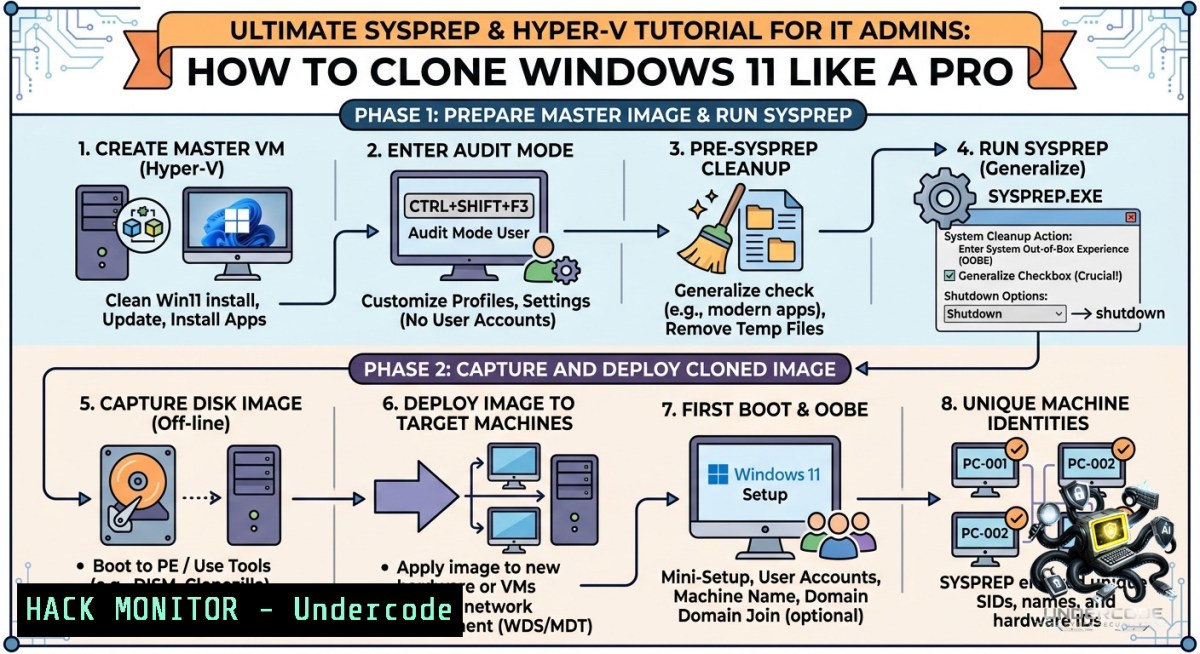
Introduction:
System Preparation Tool (Sysprep) is Microsoft’s built-in solution for preparing a Windows installation for imaging and deployment. By generalizing a reference machine, Sysprep removes all unique, computer-specific information—such as the computer’s Security Identifier (SID), product key, drivers, and logs—effectively resetting it to a “like-1ew” state ready for cloning. This process is critical for IT administrators creating master images for mass deployment on multiple devices, as failing to generalize can lead to duplicate SIDs, network conflicts, and unpredictable activation issues.
Learning Objectives:
– Understand the purpose and function of Sysprep in Windows 11 deployment workflows.
– Learn to prepare a Windows 11 Virtual Machine in Hyper-V for Sysprep.
– Execute Sysprep via both graphical interface and command-line, including the `/mode:vm` parameter.
– Identify and resolve common Sysprep failures, including application and update conflicts.
– Capture a generalized image using DISM for redeployment on multiple machines.
You Should Know:
1. How to Use SYSPREP on a Windows 11 Hyper-V Virtual Machine
This section provides a step-by-step walkthrough for preparing a Windows 11 virtual machine in Hyper-V for Sysprep and deployment.
1. Preparation: Install the Windows 11 VM as usual but during the initial Out-of-Box Experience (OOBE) setup (when the language screen appears), press Ctrl + Shift + F3 to instantly reboot the system into Audit Mode. This is where you install applications, drivers, and updates without creating user accounts. Creating a Hyper-V checkpoint before running Sysprep is highly recommended to allow quick rollback if issues arise.
2. Access Sysprep: While in Audit Mode, the Sysprep tool may launch automatically. If not, navigate to the folder `C:\Windows\System32\Sysprep` and double-click `sysprep.exe`.
3. Run the Tool (GUI):
– In the System Preparation Tool window, under “System Cleanup Action”, select Enter System Out-of-Box Experience (OOBE).
– Check the Generalize box.
– Under “Shutdown Options”, select Shutdown.
– Click OK to begin the process. The VM will shut down upon completion, which indicates it is ready for deployment.
4. Run the Tool (Command Line): Open an elevated Command Prompt and execute the following to achieve the same result as above:
cd C:\Windows\System32\Sysprep
sysprep /oobe /generalize /shutdown
What this does: The `/oobe` switch forces the target device to boot into the fresh setup screen, `/generalize` removes all unique system data, and `/shutdown` turns off the computer, allowing you to safely capture the image.
5. Optimize for Virtual Machines: When running Sysprep on a Hyper-V VM, use the `/mode:vm` parameter. This allows Sysprep to skip certain device detection steps, significantly speeding up the first boot on the target machines:
sysprep /oobe /generalize /shutdown /mode:vm
This is a crucial step for IT teams deploying many VMs. Some guides also recommend this command for creating templates for Autopilot deployment.
2. Mastering SYSPREP Command Line Switches and Automation
To achieve zero-touch deployments, you must understand the powerful switches available for Sysprep. The command line is far more powerful and automatable than the GUI.
– `/audit`: Immediately reboots the system into Audit Mode for further customization. Useful after Sysprep has failed to restart configuration.
– `/oobe`: Configures the system to boot into the Windows Welcome screen (OOBE) on its next startup. This is mandatory for end-user deployment.
– `/generalize`: The core switch. It strips the image of SIDs, restores points, and event logs to make it hardware-agnostic.
– `/reboot` / `/shutdown` / `/quit`: Determines the action after Sysprep finishes: restart immediately, shut down (recommended for imaging), or exit the tool.
– `/unattend:
sysprep /generalize /oobe /shutdown /unattend:C:\unattend.xml
The answer file (`unattend.xml`) can be configured to skip the license key screen, automatically create a local administrator account, and join the computer to a domain. For virtual environments, this is the key to creating “golden images” that deploy without a single mouse click.
3. Capturing Your Generalized Windows 11 Image with DISM
Once Sysprep has shut down the machine, do not turn it back on. Booting the machine after Sysprep will restart the OOBE, contaminating the master image. You must capture the image while the OS is offline, usually by booting into a Windows PE environment.
1. Boot from WinPE: Boot your generalized machine from a USB drive containing Windows PE or a Windows 11 installation media. Select Repair your computer → Troubleshoot → Advanced Options → Command Prompt.
2. Identify the Drive: In the Command Prompt, determine the drive letter of your installation. It often changes in WinPE. Use the following commands:
diskpart
list volume
Note the drive letter for the Windows partition (e.g., `D:`). Type `exit` to leave DiskPart.
3. Capture the Image: Run the DISM command to capture the generalized installation as a `.wim` or `.ffu` file. The following command saves the image to a file named `Win11_Image.wim` on your E: drive:
dism /capture-image /imagefile:E:\Win11_Image.wim /capturedir:D:\ /name:"Windows 11 Image" /compress:max
What this does: `/capture-image` creates an image file; `/capturedir` specifies the source drive of the generalized Windows installation; `/name` is a required identifier for the image, and `/compress:max` reduces the file size.
4. Troubleshooting: Why SYSPREP Fails and How to Fix It
Sysprep is notoriously sensitive. The following are the most common failure points and their solutions.
– Microsoft Store App Conflicts: Sysprep often fails if Microsoft Store apps are updated or installed for specific users but not provisioned for all users. The error log typically shows `Package was installed for the user, but not provisioned for all users`. To resolve, remove the offending app using PowerShell. Common culprits include Microsoft Edge and OneDrive. As an administrator, run:
Get-AppxPackage -AllUsers | Where-Object -Property Name -Like "OneDrive" | Remove-AppxPackage -AllUsers
You can also list all provisioned packages with `Get-AppxProvisionedPackage -Online` and remove them.
– Cumulative Updates: Occasionally, a specific Windows cumulative update will break the Sysprep process entirely. If Sysprep works on a clean build but fails after applying updates, the update is the likely cause. You may need to uninstall the recent update or use a different build for your golden image.
– BitLocker Encryption: Sysprep cannot generalize a drive encrypted with BitLocker. You must decrypt the drive before running Sysprep. For Windows 11 VMs where BitLocker is enabled by default, run:
manage-bde -off C:
You can verify the status with `manage-bde -status`. Do not run Sysprep until decryption is complete.
– Activation and Licensing: Generalizing a machine will reset its activation status. Any machine deployed from the image will be unactivated by default. For volume licensing, you can either input the key during deployment via an answer file or activate post-deployment. If you see duplicate Client Machine IDs (CMID) on your KMS server, you must rerun Sysprep with `SkipRearm` set to `0` instead of `1` to ensure the CMID is cleared from the image.
– Checking Logs: When Sysprep fails, it is rarely silent. Always check the log files located in `C:\Windows\System32\Sysprep\Panther`:
– `setupact.log`: Provides a detailed step-by-step record of the Sysprep process and is the first place to look for warnings.
– `setuperr.log`: Contains a concise list of specific errors that occurred during the process.
5. Cloud Hardening: Automating SYSPREP and OOBE with Unattend Files
For large-scale deployments, manually clicking through the OOBE defeats the purpose of an automated golden image. An answer file (`unattend.xml`) automates this process entirely. Using a combination of Sysprep and an answer file is considered a best practice for enterprise environments. It ensures consistent settings across devices and streamlines the entire deployment process.
A simple `unattend.xml` can skip the license agreement page, set the local keyboard layout, and create a local administrator account without any user input. Place the file in `C:\Windows\Panther` (for deployments) or reference it directly via the `/unattend` switch when running Sysprep.
Example command to apply the answer file:
C:\Windows\System32\Sysprep\sysprep.exe /generalize /oobe /reboot /unattend:'C:\unattend.xml'
What Undercode Say:
– Key Takeaway 1: Sysprep is mandatory for any cloned or imaged Windows deployment to ensure unique SIDs and compliance. Skipping it will lead to a corrupted Active Directory and network conflicts.
– Key Takeaway 2: Hyper-V and other virtual environments provide the perfect, isolated space for building reusable golden images, with snapshots allowing safe testing of Sysprep.
– Analysis: For IT administrators, mastering Sysprep is not just a technical skill; it is a core requirement for modern systems lifecycle management. The shift to virtualized endpoints and VDI (Virtual Desktop Infrastructure) has made the ability to create, generalize, and deploy a hardened, customized Windows image an essential part of any cybersecurity and IT asset management strategy. By automating the process with answer files, you not only save time but also reduce the risk of human error, ensuring that every deployed endpoint meets your organization’s strict security baselines from the very first boot. The most efficient workflows involve a combination of audit mode for software installation, PowerShell for bloatware removal, and a well-configured unattend.xml to skip the OOBE entirely.
Prediction:
– +1 As virtual desktop infrastructure (VDI) and Windows 365 Cloud PCs become standard, Sysprep will evolve into a more integrated cloud-1ative service, automating image generalization within the cloud portal without requiring manual command-line intervention.
– -1 With the increasing complexity of Windows components and app-store dependencies, Sysprep errors will become more frequent and harder to diagnose, requiring IT teams to invest heavily in advanced log analysis and tooling outside of the standard Sysprep suite.
▶️ Related Video (74% Match):
🎯Let’s Practice For Free:
🎓 Live Courses & Certifications:
[Join Undercode Academy for Verified Certifications](https://undercode.co.uk/certifications/)
🚀 Request a Custom Project:
Secure, high-velocity infrastructure and disruptive technological engineering. Contact our engineering team for high-tier development and proprietary systems:
[[email protected]](mailto:[email protected])
💎 Smart Architecture | 🛡️ Secure by Design | ⭐ Trusted by Thousands
IT/Security Reporter URL:
Reported By: [Windows11 Astuce](https://www.linkedin.com/posts/windows11-astuce-tuto-ugcPost-7469433266534735872–Gqf/) – Hackers Feeds
Extra Hub: Undercode MoN
Basic Verification: Pass ✅
🔐JOIN OUR CYBER WORLD [ CVE News • HackMonitor • UndercodeNews ]
[💬 Whatsapp](https://undercode.help/whatsapp) | [💬 Telegram](https://t.me/UndercodeCommunity)
📢 Follow UndercodeTesting & Stay Tuned:
[𝕏 formerly Twitter 🐦](https://x.com/undercodeupdate) | [@ Threads](https://www.threads.net/@undercodetesting) | [🔗 Linkedin](https://www.linkedin.com/company/undercodetesting/) | [🦋BlueSky](https://bsky.app/profile/undercode.bsky.social)


