Listen to this Post
Introduction:
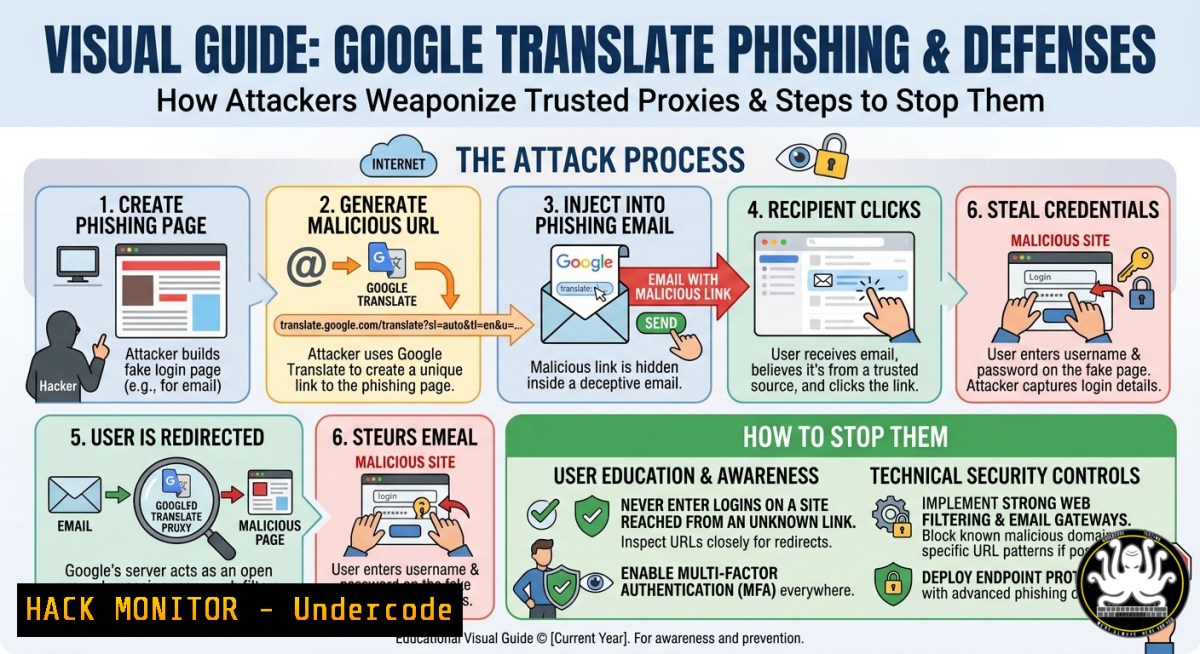
Threat actors are increasingly abusing legitimate web services like Google Translate as a malicious proxy, serving phishing content directly from Google’s infrastructure. This technique evades traditional URL filters because the malicious payload is hosted under a trusted google.com domain. Understanding how attackers embed harmful domains inside composite DNS queries and redirect chains is now critical for modern security teams.
Learning Objectives:
- Detect and analyze phishing campaigns that abuse Google Translate and other trusted translation services.
- Investigate composite DNS queries to uncover hidden malicious domains and redirect patterns.
- Implement defensive measures including DNS filtering, HTTP header inspection, and browser policy controls.
You Should Know:
1. Anatomy of a Google Translate Phishing Attack
Attackers craft a URL like: `https://translate.google.com/translate?sl=auto&tl=en&u=https://malicious-site.com/fake-login`. When a victim clicks, Google fetches the malicious page, proxies its content, and serves it under a google.com subdomain. This bypasses many email and web filters that trust Google.
To identify such abuse, inspect the `Referer` and `Host` headers in HTTP logs. Below are commands to search web server logs for translate.google.com referrers:
Linux (grep):
sudo grep "translate.google.com" /var/log/nginx/access.log | awk '{print $1, $7}'
Windows (PowerShell):
Select-String -Path "C:\inetpub\logs\LogFiles\W3SVC1.log" -Pattern "translate.google.com" | ForEach-Object { $_ -split ' ' | Select-Object -Index 9,5 }
Step-by-step guide to detect abuse:
- Collect proxy or firewall logs for outbound requests to
translate.google.com. - Extract the `u=` parameter value from the query string.
- Decode URL-encoded characters (
%3A→:, `%2F` →/). - Check if the decoded destination domain is not on your approved list.
- Block any `u=` parameter pointing to uncategorized or high-risk domains.
-
Composite DNS Queries – How Attackers Hide Malicious Domains
Composite DNS queries involve splitting a malicious domain into multiple pieces across different DNS record types (TXT, CNAME, MX) or subdomain labels. Attackers reassemble these on the fly to avoid static domain blacklists.
Use `dig` to extract suspicious TXT records that may contain encoded payloads:
dig +short txt malicious-example.com
For Windows, use `nslookup -type=TXT malicious-example.com`
Step-by-step analysis:
- Identify domains with unusually long or numerous TXT records.
- Decode any base64 strings found (e.g.,
echo "encodedstring" | base64 -d). - Look for patterns like
sub1.malicious.com, `sub2.malicious.com` pointing to same IP. - Use `dnstracer` to follow CNAME chains: `dnstracer -s . malicious.com`
5. Cross-reference resolved IPs with threat intelligence feeds.
3. Redirect Chains – Following the Breadcrumbs
Attackers often chain multiple redirects (HTTP 302, 301) through legitimate services before landing on a phishing page. This complicates detection and attribution.
To trace redirects manually using `curl`:
curl -L -v -o /dev/null -w "%{url_effective}\n" "https://translate.google.com/translate?u=https://bit.ly/3xyz123"
On Windows (with curl):
curl -L -v https://translate.google.com/translate?u=https://tinyurl.com/fakelogin -UseBasicParsing
Mitigation:
- Configure web gateways to inspect all redirect chains beyond two hops.
- Block URL shortening services combined with translation proxies.
- Deploy browser extensions that warn when a redirect leaves the original trusted domain.
4. Hardening Email Gateways Against Translation-Based Phishing
Email filters often allow links to google.com. Attackers embed translate.google.com links with malicious `u=` parameters in emails.
Sieve filter rule (Linux mail server):
if anyof (header :contains "Subject" "Verify",
body :contains "translate.google.com/translate?u=") {
fileinto "Quarantine";
stop;
}
Microsoft 365 Defender custom rule (PowerShell):
New-TransportRule -Name "BlockGoogleTranslatePhish" -SubjectContainsWords "Verify","Account" -BodyContainsAnyOf @("translate.google.com/translate?u=","https://translate.google.com/translate?u=http") -SetQuarantine
Step-by-step email gateway hardening:
- Extract all instances of `translate.google.com/translate?u=` from email logs.
- Manually review the destination URLs using a sandbox.
3. Add regex detection: `translate\.google\.com/translate\?.?u=(https?|ftp)://`
- Apply rate-limiting for translation requests from internal users.
- Enable DMARC rejection to prevent spoofed sender domains.
5. DNS Sinkholing and Blocking Malicious Composite Queries
Use a local DNS resolver (e.g., Pi-hole, Bind9) to sinkhole suspicious domains based on query patterns.
Pi-hole regex blocklist addition:
(^|.)translate.google.com/.\?.u=http
..translate.goog..&u=https?://
Bind9 response policy zone (RPZ) example:
zone "rpz.local" {
type master;
file "/etc/bind/db.rpz";
};
 In db.rpz:
translate.google.com CNAME .
.translate.google.com CNAME .
Step-by-step sinkhole deployment:
- Install Pi-hole: `curl -sSL https://install.pi-hole.net | bash`
2. Add custom regex filters as above.
3. Set Pi-hole as primary DNS via DHCP.
4. Monitor query logs for blocked translation requests.
- Tune regex to avoid breaking legitimate use (e.g., allow internal translation).
-
Windows Registry Hardening to Prevent Translation Proxy Bypass
On Windows endpoints, restrict the use of Google Translate via Group Policy by blocking the domain at the host level.
Hosts file modification (requires admin):
Add to `C:\Windows\System32\drivers\etc\hosts`:
0.0.0.0 translate.google.com
0.0.0.0 translate.googleapis.com
PowerShell script to enforce:
$hostsPath = "$env:windir\System32\drivers\etc\hosts"
$entries = @("0.0.0.0 translate.google.com", "0.0.0.0 translate.googleapis.com")
$entries | Out-File -FilePath $hostsPath -Append -Encoding ASCII
Group Policy Object (GPO) steps:
- Open GPMC, create new GPO “Block Translate Proxy”.
- Navigate to Computer Configuration → Preferences → Windows Settings → Hosts.
- Add two entries with IP 0.0.0.0 and hostnames as above.
4. Link GPO to target OUs.
5. Run `gpupdate /force` on endpoints.
What Undercode Say:
- Trusted services are the new attack surface. Google Translate, LinkedIn, and even AWS CloudFront are actively abused as malicious proxies. Security teams must inspect parameters, not just domains.
- Composite DNS queries evade signature-based detection. Defenders need behavioral analytics – looking for anomalous TXT record sizes, rapid CNAME changes, or subdomain label entropy.
- Proactive mitigation is possible: sinkhole translation proxy URLs, implement regex in email filters, and train users to examine the full URL after “u=”. No single control stops this – layered defense wins.
Prediction:
By 2027, we will see mainstream adoption of AI-driven “redirect chain visualizers” in SIEMs and email gateways. Attackers will shift from Google Translate to other CDN-based translation services (Bing, Yandex, DeepL). Simultaneously, DNS-over-HTTPS (DoH) will be weaponized to hide composite queries, forcing a new generation of machine-learning detectors that analyze encrypted DNS metadata without decryption. Organizations that ignore parameter-level inspection will become primary phishing victims within 18 months.
▶️ Related Video (74% Match):
🎯Let’s Practice For Free:
IT/Security Reporter URL:
Reported By: Ren%C3%A9e Burton – Hackers Feeds
Extra Hub: Undercode MoN
Basic Verification: Pass ✅


