Listen to this Post
Introduction:
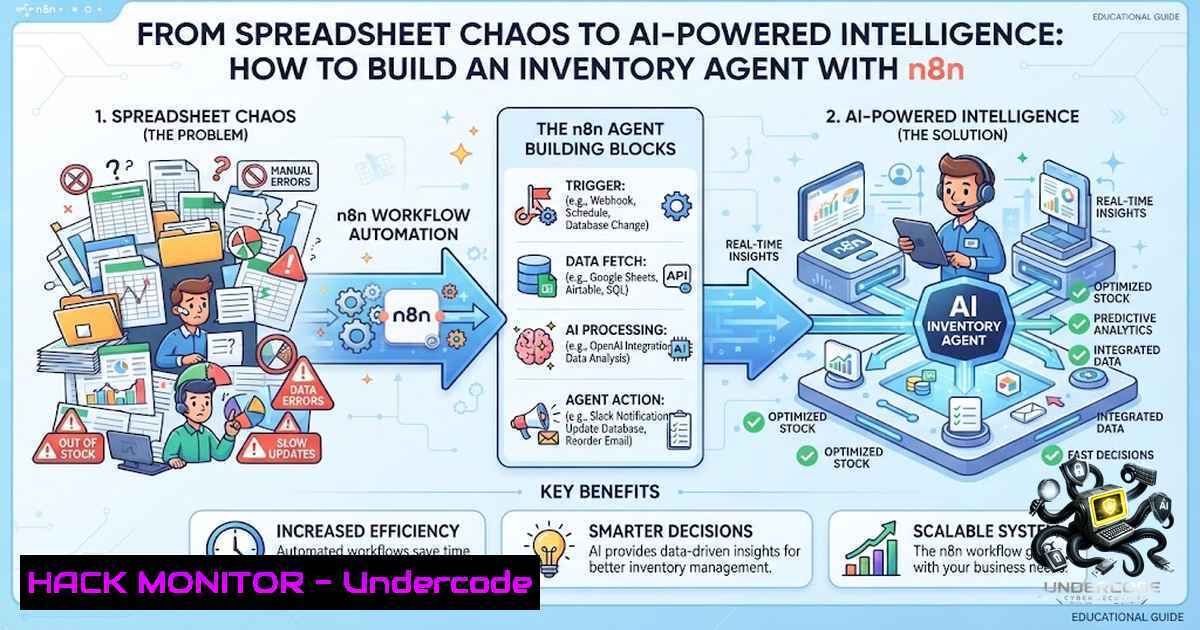
Traditional business workflows often trap critical data inside static spreadsheets, requiring manual queries and time-consuming lookups. However, the convergence of Low-Code automation platforms and Large Language Models (LLMs) has democratized the creation of AI agents capable of interacting with this data via natural language. By connecting n8n’s workflow automation with Google Sheets and a group chat model, we can construct an intelligent system that not only retrieves inventory data but also appends updates, effectively transforming a flat file into a conversational database.
Learning Objectives:
- Build a multi-agent collaborative system using n8n’s Group Chat model to handle inventory queries.
- Integrate external APIs (Google Sheets) with AI tools to enable real-time data retrieval and modification.
- Implement custom tools within a LangChain-like framework to handle specific actions like searching and appending rows.
- Understand the architecture of a “read/write” AI agent that maintains context via Simple Memory.
You Should Know:
1. Orchestrating the Agentic Workflow in n8n
The core of this project relies on n8n, a low-code tool that allows you to “connect anything to everything.” Unlike standalone Python scripts, n8n provides a visual interface to build the logic that powers the AI.
Step-by-step guide explaining what this does and how to use it:
– The Trigger: Use a “Webhook” node to listen for POST requests. This acts as the entry point for user queries (e.g., Slack messages or a custom chat UI).
– The Memory Node: Implement the “Simple Memory” node (or Redis/Built-in Memory) to store conversation history. This ensures the agent knows you asked about “burgers” five turns ago.
– The Group Chat Agent: Configure an “AI Agent” node set to “Group Chat” mode. Define the system prompt—e.g., “You are an inventory assistant. You have access to tools to read and write data to a sheet.” This node orchestrates the chain of thought.
– The Google Sheets Node: Use the native “Google Sheets” node to read specific ranges. For optimal performance, avoid reading the entire sheet. Instead, use filters in your search tool to query specific rows.
– Configuration Tip: To connect Google Sheets, you must set up OAuth2 in n8n. Ensure your sheet is structured with clear headers (e.g., Item, Quantity, Category) as these will be passed as context to the LLM.
2. Crafting Custom Tools for Data Interaction
In traditional RAG (Retrieval-Augmented Generation), we fetch context. In this agentic architecture, we build tools that the LLM can call based on the user’s intent.
Step-by-step guide explaining what this does and how to use it:
– Tool 1: “searchInventory” – In the Agent node, define a custom tool that uses the Google Sheets node to perform a `LIST` or `SEARCH` operation. The tool expects a parameter like query_item. The AI translates “How many burgers?” into query_item: "burger".
– Tool 2: “appendInventory” – This tool triggers a Google Sheets `UPDATE` or `APPEND` operation. It requires item, quantity, and `category` as parameters.
– Implementation Note: Use the “Code” node in n8n to parse the AI’s structured output if necessary. Ensure the agent returns a confirmation message (e.g., “I have added 30 new fries to the inventory”) to close the feedback loop.
– Logical Flow: When a user asks a question, the Group Chat agent analyzes the intent. If it is a “Read,” it executes Tool 1. If it is a “Write,” it executes Tool 2. The Simple Memory node stores these actions to ensure the LLM doesn’t repeat itself.
3. Architectural Deep Dive: Agents and Memory
A standard API call to GPT is stateless. By using a “Group Chat Model” and “Simple Memory,” we simulate a stateful team of agents working together.
Step-by-step guide explaining what this does and how to use it:
– Agent Roles: The “Group Chat” setup allows you to assign roles (e.g., “Data Fetcher,” “Inventory Manager”). The LLM acts as the “Supervisor” deciding which agent to call.
– Memory Management: “Simple Memory” stores the conversation history in the workflow. To optimize, set a `window_size` to prevent token overload.
– N8N Configuration: In the `Group Chat` node settings, map the memory to the session ID. This allows for multi-user support without cross-contamination.
– Command to test: You can trigger the webhook endpoint (e.g., /webhook/inventory) using cURL:
curl -X POST http://localhost:5678/webhook/inventory \
-H "Content-Type: application/json" \
-d '{"chatInput": "What is the quantity of fries?"}'
4. Security and API Hardening for Production
While the prototype works, moving this to production requires hardening the Google Sheets API and n8n configuration.
Step-by-step guide explaining what this does and how to use it:
– Scope Limitation: Ensure the OAuth scope for Google Sheets is restricted to `https://www.googleapis.com/auth/spreadsheets.readonly` if the agent is only reading. If you need to append, restrict the scope specifically.
– Secrets Management: In n8n, use the “Environment Variables” or n8n Vault to store your LLM API keys and Google Sheet IDs. Avoid hardcoding IDs.
– Input Sanitization: The Agent node is susceptible to prompt injection. Implement a middleware “HTTP Request” node that filters out specific system-level commands before it hits the LLM.
– Rate Limiting: Deploy a “Rate Limit” node (available via n8n community nodes) to prevent abuse of the Google Sheets API quota.
5. Enhancing UI/UX: Beyond the Terminal
An AI agent is only as good as its interface. Building a simple frontend allows non-technical stakeholders to leverage the system.
Step-by-step guide explaining what this does and how to use it:
– Custom Chat UI: Use the n8n “Webhook Response” node to return a structured JSON payload. Connect this to a React or Vue.js frontend.
– AI-Powered Responses: Instead of just returning the “Quantity,” instruct the AI to generate a friendly response: “We currently have 240 fries available, Chef!”
– Low-Code Webhooks: You can connect this workflow to Telegram or Slack via native n8n nodes. For Telegram, simply paste your bot token and listen for messages that trigger the AI.
– Command to verify sheet access: Use the `gcloud` CLI to test your credentials:
gcloud auth print-access-token --project=YOUR_PROJECT_ID
6. Extended Capabilities: Multi-Sheet and Inventory Analytics
Expand the AI agent to handle multiple sheets and generate forecast analytics.
Step-by-step guide explaining what this does and how to use it:
– Multi-Sheet Integration: Configure the AI agent to receive the `Sheet_ID` as a parameter from the user. The AI can then determine which sheet to query.
– Analytics Tools: Create a tool that calls the Google Sheets API to `SUM` the total quantity for a specific item.
– Code Example (n8n Function node): Process the data before sending it to the LLM:
// Function node to generate an analytical summary
const data = $input.all();
const totals = {};

data.forEach(row => {
const item = row.json.item;
const qty = parseInt(row.json.quantity);
if(totals[bash]) totals[bash] += qty;
else totals[bash] = qty;
});

return { json: { analysis: totals } };
What Undercode Say:
Key Takeaway 1: This project represents a shift from “Software as a Tool” to “Software as a Teammate.” By integrating spreadsheets with AI, the developer is eliminating the friction of structured query languages, enabling domain experts (like inventory managers) to interact with data using natural language.
Key Takeaway 2: The use of n8n and Google Sheets offers a “Serverless” approach to AI agents. By leveraging cloud-based storage and a low-code automation server, the entire solution costs pennies to run on a VPS, making enterprise-grade AI accessible to startups and freelancers.
Analysis: This architecture is a classic example of “Agentic RAG.” While it avoids the complex vector database setup of traditional RAG, it relies heavily on the LLM’s reasoning capabilities to parse the Google Sheets headers correctly. To ensure accuracy, it’s crucial to include a “validation step” in the n8n workflow that checks if the AI has hallucinated a column name before executing the API call. Additionally, scaling this to thousands of rows may require implementing a caching mechanism (e.g., Redis) to reduce API call latency. The trend here points toward “Compound AI Systems,” where multiple tools are stitched together to perform complex reasoning, moving away from monolithic models.
Prediction:
- +1 This workflow will accelerate the adoption of “AI Agents for SMBs” in 2026, as tools like n8n and Zapier lower the barrier to entry for building custom business logic without coding.
- +1 We will see a rise in “Conversational BI” (Business Intelligence), where spreadsheets become the primary source of truth for AI-driven decision-making, reducing the need for dashboard creation.
- -1 Increased reliance on third-party connectors (Google Sheets, n8n) introduces a supply chain security risk; a compromised LLM prompt could inadvertently expose sensitive inventory data.
- +1 The skills required to build this (API integration, prompt engineering, workflow automation) are becoming core competencies for computer science undergraduates, bridging the gap between academia and industry demands.
- -1 Without a proper understanding of token limits and cost management, running a group chat model for high-volume inventory tasks can incur substantial costs, making cost-optimization an essential part of the DevOps lifecycle.
▶️ Related Video (80% Match):
🎯Let’s Practice For Free:
🎓 Live Courses & Certifications:
Join Undercode Academy for Verified Certifications
🚀 Request a Custom Project:
Secure, high-velocity infrastructure and disruptive technological engineering. Contact our engineering team for high-tier development and proprietary systems:
[email protected]
💎 Smart Architecture | 🛡️ Secure by Design | ⭐ Trusted by Thousands
IT/Security Reporter URL:
Reported By: Atika Emaan – Hackers Feeds
Extra Hub: Undercode MoN
Basic Verification: Pass ✅


