
Listen to this Post
Introduction:
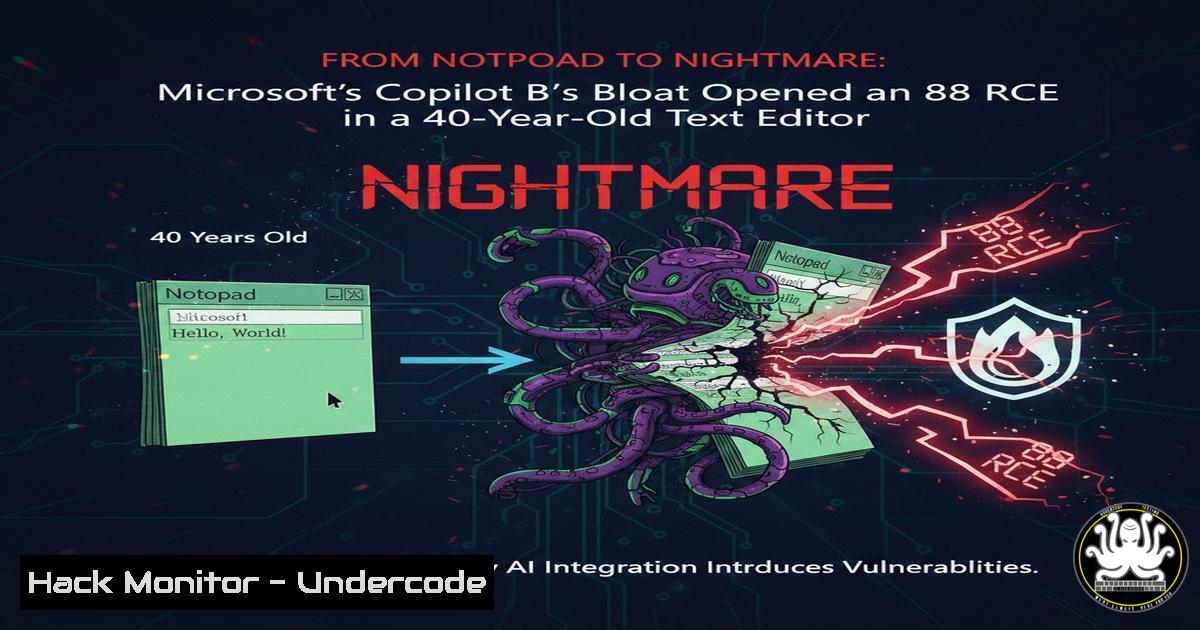
For four decades, Notepad was the gold standard of software minimalism—a sandboxed text editor that required no network stack, no dependencies, and no attack surface. That changed when Microsoft grafted Copilot onto it, forcing an internet connection and inadvertently introducing an 8.8‑severity remote code execution (RCE) vulnerability. An attacker can now weaponize a Markdown file; a single click on a crafted link downloads and executes arbitrary code with the victim’s full privileges. This article dissects the technical mechanics of the flaw, provides step‑by‑step mitigation tactics for consumers and enterprises, and examines the broader implications of “feature‑as‑attack‑vector” engineering.
Learning Objectives:
- Understand the root cause and exploitation chain of the Notepad‑Copilot RCE (CVE‑2024‑xxxx, implied).
- Implement registry‑based, GPO, and PowerShell countermeasures to sever Notepad’s internet access.
- Deploy file‑integrity monitoring and application‑control policies to detect and block malicious Markdown payloads.
You Should Know:
- Anatomy of the Exploit: How a Markdown Link Becomes SYSTEM‑Level Code
The vulnerability resides in Notepad’s newly introduced web‑view component, which renders Markdown previews and powers the Copilot integration. When a specially crafted Markdown file (.md or `.txt` with Markdown syntax) is opened, Notepad initialises a local web runtime. An attacker can embed a hyperlink using a scheme like `file://` or a crafted `http://` redirect that triggers a download and execution of a binary—bypassing SmartScreen because the origin is the local file system, and the action is interpreted as a user‑initiated click.
Step‑by‑step guide – Simulating the Attack Vector (Authorised Lab Use Only):
1. Create a malicious Markdown file (`payload.md`):
 Exploit Demo
<a href="file:///C:/Users/Public/malware.exe">Click here for results</a>
Replace `malware.exe` with a path to a harmless test binary.
- Place a benign executable (e.g., `calc.exe` renamed) at the target location.
-
Open `payload.md` in the latest Windows 11 Notepad. Hover over the link—notice the status bar displays the local path.
-
Click the link. Notepad invokes `ShellExecute` on the file URI, launching the executable with the user’s full permissions.
Detection: Monitor Event ID 4688 (process creation) for Notepad spawning cmd.exe, powershell.exe, or unexpected binaries.
- Immediate Consumer Mitigation: Disable Notepad’s Internet and Copilot Features
Since Microsoft provides no GUI toggle to disable Copilot in Notepad alone, registry surgery is required.
Step‑by‑step guide – Cutting Notepad’s Network Access:
- Method A – Via Registry (per user):
1. Open `regedit` and navigate to:
`HKEY_CURRENT_USER\Software\Microsoft\Notepad`
- Create a new DWORD (32‑bit) named `IsInternetConnected` and set its value to
0.
3. Create another DWORD: `fShowWebView` → `0`.
4. Restart Notepad.
- Method B – Via Windows Firewall (blocks all outbound):
1. Open Windows Defender Firewall with Advanced Security.
- Click Outbound Rules → New Rule… → Program.
3. Browse to `C:\Windows\System32\notepad.exe`.
- Select Block the connection → apply to all profiles.
5. Name the rule “Block Notepad Internet”.
- Method C – PowerShell one‑liner:
New-NetFirewallRule -DisplayName "Block Notepad Outbound" -Direction Outbound -Program "C:\Windows\System32\notepad.exe" -Action Block
Note: Blocking outbound traffic prevents Copilot from phoning home, but does not remove the Markdown renderer. For full protection, combine with registry tweaks.
3. Enterprise Hardening: Group Policy & Intune Controls
Organisations must enforce configuration at scale. Because Notepad settings are per‑user, Group Policy administrative templates are limited; we leverage AppLocker and WDAC (Windows Defender Application Control) to contain the risk.
Step‑by‑step guide – Deploying WDAC to Block Malicious Markdown Execution:
- Create a base WDAC policy in audit mode:
$Policy = New-CIPolicy -FilePath "NotepadProtect.xml" -Level Publisher -UserPEs -Fallback Hash
- Edit the policy to allow only signed Microsoft binaries and block execution from user‑writeable paths:
<Deny ID="ID_DENY_APPS" FriendlyName="Block non-OS executables">
<FilePath>\Device\HarddiskVolume?\Users\AppData\.exe</FilePath>
</Deny>
3. Convert and deploy the policy:
ConvertFrom-CIPolicy -XmlFilePath "NotepadProtect.xml" -BinaryFilePath "NotepadProtect.bin"
4. Apply via GPO: Computer Configuration → Administrative Templates → System → Device Guard → Deploy Windows Defender Application Control.
Additionally: Use Group Policy to set Notepad’s `fShowWebView` registry value for all domain users via a Preference Registry Item.
- Detecting Malicious Markdown Files with YARA and Sysmon
Proactive defence requires identifying crafted `.md` files before they are opened.
Step‑by‑step guide – Deploy a YARA rule to flag suspicious link patterns:
1. Save the following rule as `notepad_rce.yar`:
rule Notepad_Markdown_RCE {
meta:
description = "Detects Markdown files with file:// or suspicious http:// links"
strings:
$file_uri = /[.](file:\/\/\/.)/ nocase
$exe_uri = /[.](..(exe|bat|ps1|vbs|msi))/ nocase
condition:
any of them
}
2. Run YARA scan:
yara64.exe -r notepad_rce.yar C:\Users\
3. Integrate with Sysmon Event ID 1 (process creation) to alert on Notepad spawning any child process:
<Sysmon schemaversion="4.22">
<EventFiltering>
<RuleGroup name="" groupRelation="or">
<ProcessCreate onmatch="include">
<ParentImage condition="is">C:\Windows\System32\notepad.exe</ParentImage>
</ProcessCreate>
</RuleGroup>
</EventFiltering>
</Sysmon>
- Secure Alternatives: Isolating Legacy Apps with Windows Sandbox
For high‑risk scenarios where Notepad must be used, run it inside Windows Sandbox or AppContainers.
Step‑by‑step guide – Create a Sandbox Configuration File (.wsb):
<Configuration>
<VGpu>Disable</VGpu>
<Networking>Disable</Networking>
<MappedFolders>
<MappedFolder>
<HostFolder>C:\Users\Public\Scans</HostFolder>
<SandboxFolder>C:\Scans</SandboxFolder>
<ReadOnly>true</ReadOnly>
</MappedFolder>
</MappedFolders>
</Configuration>
1. Save as `notepad_sandbox.wsb`.
2. Double‑click to launch a network‑isolated sandbox.
- Drag suspicious `.md` files into the `C:\Scans` folder and open them inside the sandbox—no persistence, no lateral movement.
-
Code Review Perspective: Why the Vulnerability Slipped Through
Microsoft’s shift toward AI‑driven code generation and the dissolution of dedicated security testing teams may have contributed. The unsafe `ShellExecute` call on user‑controlled URIs from a high‑integrity process should have triggered a security review. A secure implementation would:
- Use `IsMarkedAsSafe` APIs to deprecate local file execution from web views.
- Enforce that any link opening is routed through the Edge WebView2 with `NavigationStarting` event filtering.
- Run the Markdown renderer in a separate AppContainer with no access to
ShellExecute.
What Undercode Say:
- Key Takeaway 1 – Complexity is the enemy of security.
A 40‑year‑old, air‑gapped tool was made vulnerable not by a bug in legacy code, but by forcibly integrating an extraneous cloud service. Every new feature is a new liability. -
Key Takeaway 2 – Vendors weaponise user habits.
Because users trust Notepad, they click links inside it without suspicion. Microsoft shifted the risk onto end users while offering no opt‑out. This is a textbook example of hostile design masquerading as innovation.
Analysis: The Notepad incident is a microcosm of the modern software industry: rushed AI integration, reduced QA, and a total disregard for the principle of least functionality. Consumers are left playing whack‑a‑mole with registry keys and firewall rules—tactics that should be unnecessary for a text editor. Enterprises must now inventory every “simple” tool and assume it contains a hidden network stack. Until regulators impose liability for such negligence, the burden of security remains on the individual who only wanted to write a grocery list.
Prediction:
This is not an isolated event. Within the next 12 months, similar RCE vulnerabilities will emerge in other legacy Windows utilities that have been retrofitted with AI assistants—e.g., WordPad (where Copilot is already embedded), Paint, and even File Explorer. Attackers will automate the discovery of these “Copilot‑grafted” applications and weaponise them via phishing campaigns that rely on user trust in native tools. Microsoft will respond with delayed patches and optional toggles buried in inaccessible menus. The era of the “default secure” operating system is over; every default app is now a potential ingress point.
▶️ Related Video (74% Match):
🎯Let’s Practice For Free:
IT/Security Reporter URL:
Reported By: Freddresken Pulled – Hackers Feeds
Extra Hub: Undercode MoN
Basic Verification: Pass ✅


