Listen to this Post
Introduction:
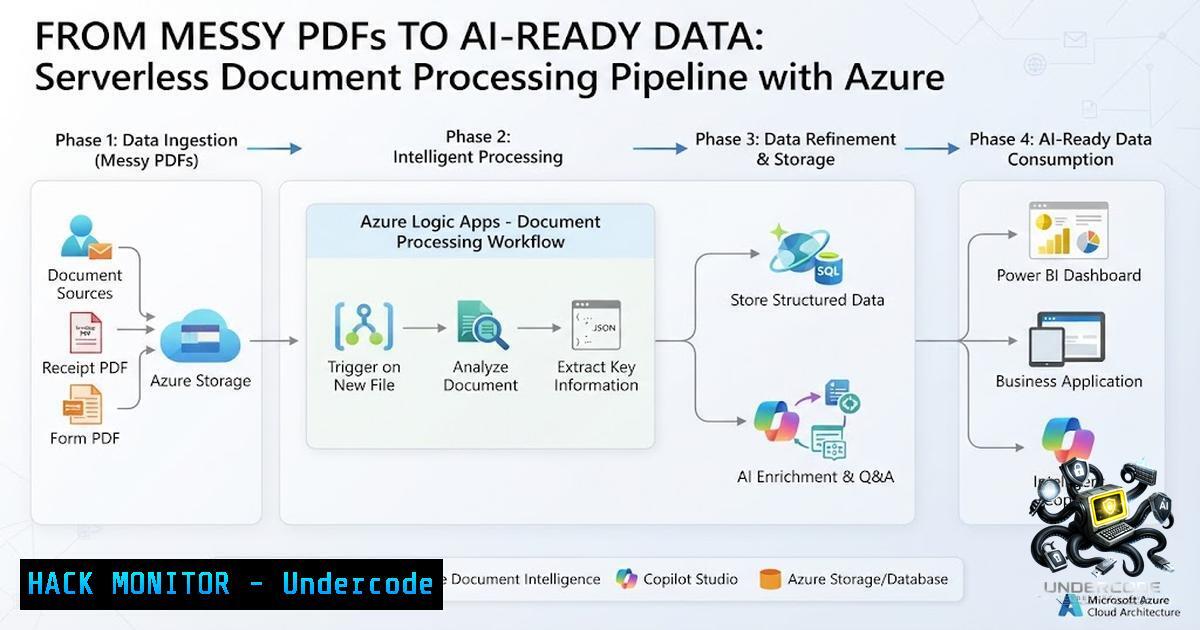
In the rush to deploy generative AI and autonomous agents, organizations often overlook a foundational problem: the data feeding these systems is frequently unstructured, inconsistent, and machine-unreadable. Real-world documents arrive as scanned images, multi-hundred-page PDFs, and混杂 formats that break simple parsing approaches and cause AI agents to hallucinate or fail entirely. This article dissects a production-ready architecture—presented by Microsoft MVP Rafsan Huseynov at the Portland Power Platform User Group—that transforms messy documents into structured, AI-consumable data using Azure Document Intelligence, Microsoft Foundry, Azure Logic Apps, and Copilot Studio.
Learning Objectives:
- Understand the technical challenges of processing scanned, image-heavy, and large-scale PDF documents for AI consumption.
- Learn how to architect a serverless pipeline using Azure Document Intelligence for OCR and markdown extraction, Microsoft Foundry for structuring, and Logic Apps for orchestration.
- Implement an autonomous agent in Copilot Studio that triggers on document uploads and delivers structured outputs without custom code.
- Apply security best practices, including managed identities, encryption, and IP restrictions, to protect sensitive document workflows.
You Should Know:
1. The Document Intelligence Markdown Extraction Pipeline
Azure AI Document Intelligence is the entry point for transforming physical or scanned documents into machine-readable text. Its Layout API can convert PDFs, JPEGs, PNGs, and even handwritten content into rich GitHub Flavored Markdown, preserving headings, tables, lists, and paragraph structures. This is critical because large language models (LLMs) and RAG systems perform significantly better when they receive semantically structured markdown rather than raw, unstructured text.
Step‑by‑step guide to configure Document Intelligence for markdown output:
- Create an Azure AI Document Intelligence resource in your Azure subscription. Choose the `2024-07-31-preview` or later API version to support markdown output.
- Prepare your storage: Set up an Azure Blob Storage container to hold incoming PDFs and scanned images. Use a folder structure like `/incoming/` for raw files and `/processed/` for outputs.
- Use the Document Intelligence SDK (Python example) :
from azure.ai.documentintelligence import DocumentIntelligenceClient
from azure.core.credentials import AzureKeyCredential

endpoint = "https://<your-resource>.cognitiveservices.azure.com/"
key = "<your-api-key>"
client = DocumentIntelligenceClient(endpoint, AzureKeyCredential(key))

with open("scanned_contract.pdf", "rb") as f:
poller = client.begin_analyze_document(
"prebuilt-layout",
analyze_request=f,
content_type="application/octet-stream",
output_content_format="markdown"  Critical parameter
)
result = poller.result()
markdown_content = result.content  Returns structured markdown
- Upload the resulting markdown back to Blob Storage or pass it directly to the next stage in the pipeline.
2. Structuring Unstructured Data with Microsoft Foundry
Raw markdown from Document Intelligence is a massive improvement, but it still lacks the schema that AI agents need for reliable decision-making. Microsoft Foundry—a unified enterprise PaaS for building, deploying, and managing AI applications—provides the orchestration and structured output capabilities to convert this markdown into JSON schemas that agents can consume natively.
Step‑by‑step guide to structure markdown using Foundry:
- Access Microsoft Foundry via the Azure AI Foundry portal. Navigate to the “Models” catalog and deploy a generative AI model (e.g., GPT-4, or a smaller model for cost efficiency).
- Define a JSON schema for your output. For example, if processing invoices, define fields like
invoice_number,total_amount,vendor_name, andline_items. - Use structured outputs in your inference API call. Microsoft Foundry supports strict JSON schema adherence, which is more reliable than legacy JSON mode:
{
"response_format": {
"type": "json_schema",
"json_schema": {
"name": "invoice_schema",
"strict": true,
"schema": {
"type": "object",
"properties": {
"invoice_number": {"type": "string"},
"total_amount": {"type": "number"},
"vendor_name": {"type": "string"},
"line_items": {"type": "array", "items": {"type": "string"}}
},
"required": ["invoice_number", "total_amount", "vendor_name"]
}
}
}
}
- Invoke the model with the markdown content as the system prompt. The model will return a structured JSON object that can be directly consumed by downstream agents.
3. Orchestrating the Pipeline with Azure Logic Apps
Azure Logic Apps serves as the low-code orchestration engine that ties Document Intelligence, Foundry, and Copilot Studio together. It handles large file transfers, manages workflow state, and enforces security policies. Logic Apps is particularly well-suited for this because it can trigger on blob storage events, run asynchronous workflows, and integrate with managed identities for secure authentication.
Step‑by‑step guide to build the Logic App workflow:
- Create a new Logic App (Consumption or Standard) in the Azure portal.
- Add a trigger: Use the “When a blob is added or modified” trigger for Azure Blob Storage. Point it to your `/incoming/` container.
- Add a Document Intelligence action: Use the “Analyze Document” connector. Set the `outputContentFormat` parameter to
markdown. - Add a Foundry action: Use the HTTP connector to call your deployed Foundry model endpoint. Pass the markdown content in the request body and receive structured JSON.
- Add a Copilot Studio action: Use the “Send a message to a Copilot” or “Trigger a Copilot Studio agent” action to pass the structured JSON to your autonomous agent.
- Add error handling and retry policies: Configure run history retention, set up dead-letter queues for failed documents, and enable diagnostic logging.
- Secure the workflow: Enable managed identity for the Logic App, restrict access to the run history using IP restrictions, and apply Azure Resource Locks to prevent accidental deletion.
-
Building an Autonomous Document Processor in Copilot Studio
Copilot Studio allows you to build autonomous agents that can monitor document libraries, process uploads, and execute workflows without human intervention. The Document Processor managed agent is a pre-built solution that handles extraction, validation, human monitoring, and export to downstream applications.
Step‑by‑step guide to configure the autonomous agent:
- Open Copilot Studio and create a new agent. Choose the “Document Processor” template if available, or build a custom agent from scratch.
- Configure the trigger: Set the agent to monitor a SharePoint document library or Azure Blob Storage container for new PDF uploads.
- Add knowledge sources: Connect the agent to your structured JSON outputs from Foundry, or point it directly to the markdown files in Blob Storage.
- Define system instructions: Tell the agent how to interpret the structured data, what actions to take (e.g., send an email, update a database, or file a ticket), and how to handle exceptions.
- Test the agent: Use the test pane to simulate a document upload and verify that the agent processes it correctly.
- Publish and monitor: Deploy the agent to your production environment and monitor its performance using Copilot Studio’s built-in analytics.
5. Security and Governance Across the Pipeline
Security is non-1egotiable when processing sensitive documents. The pipeline must enforce encryption in transit and at rest, use managed identities instead of hard-coded credentials, and apply fine-grained access controls.
Key security configurations:
- Encryption: All data is encrypted in transit using TLS and at rest by Azure Storage.
- Managed Identities: Configure Logic Apps, Document Intelligence, and Foundry to use system-assigned managed identities for authentication. This eliminates the need for storing credentials in code or configuration.
- IP Restrictions: Limit access to the Logic App run history and storage accounts to specific IP ranges.
- Knowledge Source Filtering: In Copilot Studio, apply security filters to ensure agents only retrieve information that users are authorized to view.
- Environment Groups: Use Power Platform environment groups to enforce granular connector rules and secure default environments.
- Linux and Windows Commands for Local Testing and Integration
While the core pipeline is cloud-1ative, local testing and debugging often require command-line tools.
Linux/macOS commands:
 Test Document Intelligence API with curl
curl -X POST "https://<your-resource>.cognitiveservices.azure.com/documentintelligence/documentModels/prebuilt-layout:analyze?api-version=2024-07-31-preview" \
-H "Ocp-Apim-Subscription-Key: <your-key>" \
-H "Content-Type: application/octet-stream" \
--data-binary @scanned_document.pdf

Convert markdown to JSON using jq
cat output.md | jq -R -s '{content: .}'

Sync local files to Azure Blob Storage using azcopy
azcopy copy "./local_folder" "https://<storage>.blob.core.windows.net/incoming?sas_token" --recursive
Windows PowerShell commands:
 Invoke Document Intelligence REST API
$headers = @{
"Ocp-Apim-Subscription-Key" = "<your-key>"
"Content-Type" = "application/octet-stream"
}
$body = [System.IO.File]::ReadAllBytes("C:\docs\scanned.pdf")
$response = Invoke-RestMethod -Uri "https://<resource>.cognitiveservices.azure.com/documentintelligence/documentModels/prebuilt-layout:analyze?api-version=2024-07-31-preview" -Method Post -Headers $headers -Body $body

Upload to Blob Storage using AzCopy
azcopy copy "C:\docs\processed\" "https://<storage>.blob.core.windows.net/processed?sas_token"

Trigger Logic App manually
Invoke-RestMethod -Uri "https://<logic-app>.azurewebsites.net/api/workflows/..." -Method Post
What Undercode Say:
- Key Takeaway 1: The combination of Azure Document Intelligence (for markdown extraction), Microsoft Foundry (for structured JSON generation), Logic Apps (for orchestration), and Copilot Studio (for autonomous execution) creates a complete, serverless document processing pipeline that handles scanned, image-heavy, and large-scale PDFs without custom code.
- Key Takeaway 2: Security must be baked into every layer—from managed identities and TLS encryption to IP restrictions and knowledge source filtering—to ensure that sensitive documents remain protected throughout the workflow.
Analysis: This architecture represents a shift from monolithic document processing to a modular, best-of-breed approach. Each tool solves one specific problem: Document Intelligence handles OCR and structure preservation; Foundry handles schema enforcement and AI reasoning; Logic Apps handles state, scale, and security; Copilot Studio handles user interaction and automation. The result is a pipeline that can scale from processing a few documents a day to thousands, without requiring a team of developers to maintain custom parsers. The use of markdown as an intermediate format is particularly clever—it preserves semantic structure in a way that both humans and LLMs can understand, making debugging and auditing significantly easier. The autonomous agent capability in Copilot Studio further reduces operational overhead by eliminating the need for manual triggering or monitoring.
Prediction:
- +1 This serverless, low-code document processing pattern will become the default approach for enterprise AI projects within 18 months, as organizations realize that custom parsing code is fragile and expensive to maintain.
- +1 Microsoft will continue to deepen the integration between Document Intelligence, Foundry, and Copilot Studio, eventually offering a single “Document to Agent” template that reduces setup time from days to minutes.
- -1 However, organizations that neglect security governance—particularly around managed identities and knowledge source filtering—will face data leakage incidents, prompting stricter regulatory scrutiny of AI document processing pipelines.
- +1 The use of markdown as a universal intermediate format will gain traction beyond Microsoft, with other cloud providers adopting similar strategies to improve LLM compatibility.
- +1 Autonomous agents in Copilot Studio will evolve to handle multi-step document workflows, including human-in-the-loop validation, approval routing, and downstream system updates, further reducing the need for custom application development.
▶️ Related Video (62% Match):
🎯Let’s Practice For Free:
🎓 Live Courses & Certifications:
Join Undercode Academy for Verified Certifications
🚀 Request a Custom Project:
Secure, high-velocity infrastructure and disruptive technological engineering. Contact our engineering team for high-tier development and proprietary systems:
[email protected]
💎 Smart Architecture | 🛡️ Secure by Design | ⭐ Trusted by Thousands
IT/Security Reporter URL:
Reported By: Rafsanhuseynov Copilotstudio – Hackers Feeds
Extra Hub: Undercode MoN
Basic Verification: Pass ✅


