
Listen to this Post
Introduction:
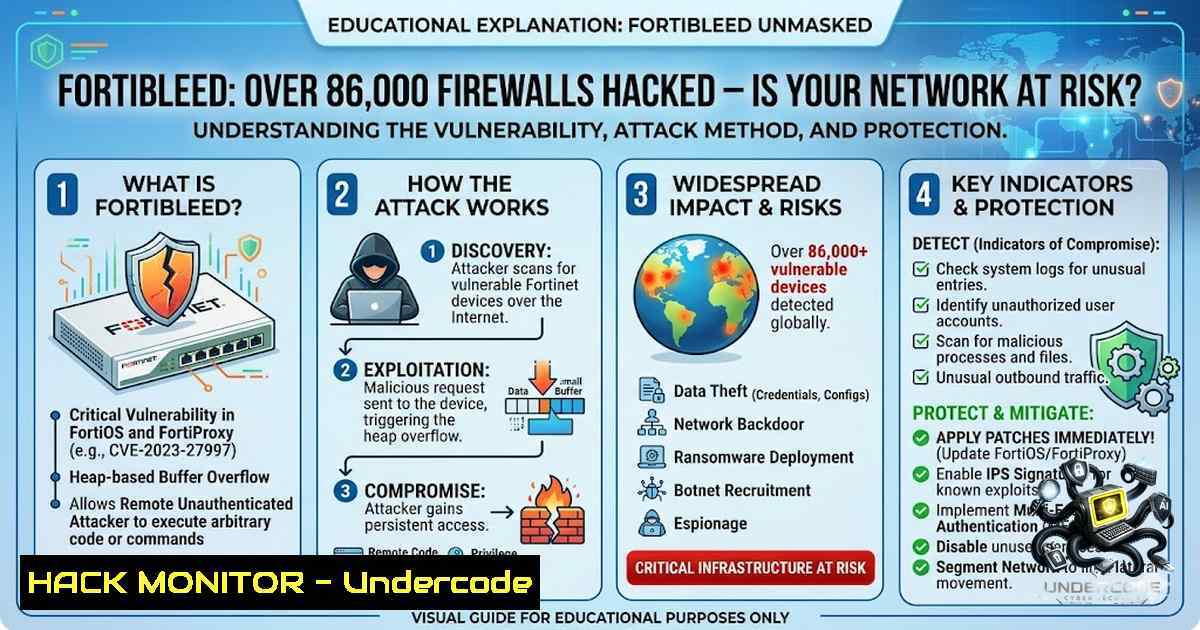
In mid-June 2026, security researchers uncovered one of the largest credential-based cyber operations in history—a campaign dubbed “FortiBleed” that has compromised over 86,000 internet-facing Fortinet FortiGate firewalls and SSL VPN gateways across 194 countries. Unlike traditional software vulnerabilities, FortiBleed is not a patchable CVE; it is an industrialized, self-feeding credential operation that treats your perimeter firewall as both the target and the collection sensor. The threat actors—believed to be Russian-speaking—have assembled a verified database of working administrative and VPN credentials, with confirmed lateral movement into internal Active Directory environments and the exfiltration of classified documents from a Turkish NATO defense contractor. This article provides a comprehensive technical breakdown of the FortiBleed campaign, step-by-step mitigation procedures, and actionable commands to harden your Fortinet infrastructure against this ongoing threat.
Learning Objectives:
- Understand the technical mechanics of the FortiBleed credential harvesting campaign and why traditional patching fails to address it
- Master the step-by-step incident response procedure, including session termination, credential rotation, and PBKDF2 hash migration
- Implement defense-in-depth hardening measures including MFA enforcement, trusted host restrictions, and local-in policies
- Learn to audit FortiGate logs, detect indicators of compromise, and verify whether your organization appears in the exposed dataset
- Understanding FortiBleed: Not a Vulnerability, But an Industrialized Credential Machine
FortiBleed has no CVE and there is no single patch to apply. The campaign came to light only because the attackers left their own back-end server exposed to the internet with an open, browsable directory containing tooling, automation scripts, cron jobs, bash histories, and a searchable database of verified credentials. Security researcher Volodymyr “Bob” Diachenko discovered the server and, along with Hudson Rock and Kevin Beaumont, confirmed that sampled administrative credentials were authentic and active.
The operation runs in multiple phases:
Reconnaissance Phase: The attackers conducted internet-wide sweeps for FortiGate SSL VPN endpoints and exposed administrative interfaces. They targeted approximately 320,777 FortiGate devices with over 1.16 billion credential attempts.
Credential Sourcing Phase: The operators drew from two separate pools:
– Historical Fortinet-specific leaks: Including the 2021 leak tied to CVE-2018-13379 that exposed roughly half a million accounts, and the 2022 Belsen Group drop of around 15,000 FortiGate configurations
– Infostealer logs: Plaintext credentials lifted off infected endpoints—including highly complex 25+ character passwords that no brute-force effort would ever reach
SSL VPN Hash Cracking: For devices where credential reuse failed, the attackers intercepted SSL VPN authentication hashes during the login handshake and cracked them offline using a dedicated 45-GPU cluster managed through Hashtopolis, an open-source distributed cracking framework.
Parallel MSSQL Targeting: Simultaneously, the group ran 2.1 billion brute-force attempts against over 163,000 Microsoft SQL Server systems—demonstrating that this is not a Fortinet-specific operation but a broad initial-access campaign.
Post-Exploitation: Once inside, attackers pivoted directly into internal Active Directory environments, moved laterally through internal networks, and established persistence. The exposed attacker server contained post-exploitation toolkits including ad_enum.py, spray_admin.sh, and spray_da.py.
You Should Know: The dataset contains 73,932 unique firewall URLs across 194 countries and 21,632 unique domains. Generic admin accounts (35%) and built-in Fortinet system accounts (28.3%) together make up the majority of compromised credentials—pointing directly to a widespread failure to rename default accounts or rotate factory credentials.
- Immediate Incident Response: Terminate Sessions and Rotate Credentials
The first and most critical step is to assume compromise and act immediately. CISA urges impacted Fortinet customers to terminate all active SSL VPN and administrative sessions and reset all credentials.
Step-by-Step Guide:
Step 1: Terminate All Active Administrative Sessions
Access your FortiGate CLI via SSH or console and run:
 Show all active administrative sessions
diagnose sys admin list

Terminate all active administrative sessions
execute admin session-terminate all
Alternatively, via the FortiGate GUI: Navigate to Dashboard > Users & Devices > Active Sessions and manually terminate suspicious sessions.
Step 2: Terminate All SSL VPN Sessions
 Show active SSL VPN sessions
diagnose vpn ssl list

Terminate all SSL VPN sessions
execute vpn ssl session terminate all
Step 3: Reset All Administrative Passwords
For each administrator account, reset the password via CLI:
config system admin
edit <admin_name>
set password <new_strong_password>
end
end
Step 4: Reset All VPN User Passwords
config user local
edit <username>
set password <new_strong_password>
end
end
Step 5: Force Re-Authentication for PBKDF2 Migration
Fortinet introduced PBKDF2-based password hashing for administrator credentials in FortiOS 7.2.11, 7.4.8, and 7.6.1, replacing the legacy SHA-256-based storage mechanism. However, when upgrading from earlier versions, existing administrator passwords remain stored as SHA-256 hashes until the corresponding administrator successfully logs in following the upgrade. To force re-hashing:
config system global
set admin-password-hash pbkdf2
end
Then have each administrator log in once to trigger the re-hash. Verify the hash type:
 Check admin password hash type
diagnose sys admin list
3. Enforce PBKDF2 and Remove Legacy SHA-256 Hashes
Legacy SHA-256 hashes remain vulnerable to offline brute-force attacks. The attackers specifically targeted these weaker hashes.
Step-by-Step Guide:
Step 1: Verify Current Hash Settings
 Show current admin password encryption settings
show system global | grep admin-password-hash
Step 2: Enable PBKDF2 Hashing
config system global
set admin-password-hash pbkdf2
end
Step 3: Remove Legacy Password Settings
Fortinet provides guidance to remove older legacy password settings via the `set login-lockout-upon-weaker-encryption` command:
config system global
set login-lockout-upon-weaker-encryption enable
end
Step 4: Force Password Change for All Administrators
To ensure all administrators are using PBKDF2 hashes, force a password change on next login:
config system admin
edit <admin_name>
set force-password-change enable
end
end
Step 5: Verify PBKDF2 is Active
After all administrators have logged in and changed passwords, verify:
diagnose sys admin list
Look for “pbkdf2” in the hash output for each admin account.
4. Enforce Phishing-Resistant Multi-Factor Authentication (MFA)
CISA recommends requiring phishing-resistant MFA on all remote access and administrative accounts. Fortinet supports multiple MFA methods including FortiToken, third-party TOTP, and certificate-based authentication.
Step-by-Step Guide:
Step 1: Enable MFA for All Administrator Accounts
config system admin
edit <admin_name>
set two-factor enable
set two-factor-authentication <fortitoken|email|sms>
end
end
Step 2: Enforce MFA for SSL VPN Users
config vpn ssl settings
set auth-timeout 28800
set force-two-factor-auth enable
end
Step 3: Configure FortiToken for Administrators
config system admin
edit <admin_name>
set fortitoken <serial_number>
end
end
Step 4: Configure TOTP (Google Authenticator Compatible)
config user totp
edit <totp_name>
set seed <base32_seed>
end
end

config system admin
edit <admin_name>
set two-factor enable
set totp <totp_name>
end
end
Step 5: Enforce MFA for All Remote Access
Create a firewall policy that enforces MFA for VPN access:
config firewall policy
edit <policy_id>
set name "VPN-MFA-Enforcement"
set srcintf "wan1"
set dstintf "internal"
set srcaddr "all"
set dstaddr "all"
set action accept
set schedule "always"
set service "ALL"
set logtraffic all
set ssl-ssh-profile "certificate-inspection"
end
end
5. Restrict Administrative Access and Reduce Attack Surface
The exposed dataset reveals that 30,829 confirmed hosts expose remote administration on port 22 and 12,990 expose web management on port 80. Many affected devices had management interfaces exposed to the public internet. Restricting administrative access is essential.
Step-by-Step Guide:
Method 1: Configure Trusted Hosts (Per-Administrator Restriction)
config system admin
edit <admin_name>
set trusthost1 <ip_address>/<subnet>
set trusthost2 <ip_address>/<subnet>
set trusthost3 <ip_address>/<subnet>
end
end
Trusted hosts restrict the source IP addresses from which an administrator can log in.
Method 2: Configure Local-In Policy (More Granular Control)
Local-in policies allow administrators to granularly define the source and destination addresses, interface, and services for management access:
config firewall local-in-policy
edit 1
set intf "wan1"
set srcaddr "trusted_admin_subnet"
set dstaddr "fortigate_wan_ip"
set action accept
set service "HTTPS" "SSH" "PING"
set schedule "always"
end
edit 2
set intf "wan1"
set srcaddr "all"
set dstaddr "fortigate_wan_ip"
set action deny
set service "HTTPS" "SSH" "PING"
set schedule "always"
end
end
Method 3: Remove Internet Administration Altogether (Best Practice)
Disable administrative access on external interfaces entirely:
config system interface
edit "wan1"
set allowaccess "ping"
end
end
Allow administrative access only from internal networks or via a dedicated management interface.
Method 4: Disable Unused Administrative Services
config system global
set admin-https-redirect enable
set admin-http-port 80
set admin-https-port 443
set admin-sport 22
set admin-telnet disable
set admin-ssh enable
set admin-console enable
end
- Audit Logs and Hunt for Indicators of Compromise
Organizations must review firewall, VPN, authentication, and domain controller logs for lateral movement, unusual access, suspicious accounts, or unauthorized configuration changes.
Step-by-Step Guide:
Step 1: Review Administrative Login Logs
 Show admin login events
diagnose log admin display

Show recent admin logins with source IP
diagnose log admin display | grep -i "login"

Show failed login attempts
diagnose log admin display | grep -i "failed"
Step 2: Check for Unrecognized Administrator Accounts
 List all administrator accounts
show system admin

Look for suspicious accounts such as:
 - forticloud
 - fortiuser
 - fortinet-support
 - fortinet-tech-support
Step 3: Review VPN Authentication Logs
 Show SSL VPN login events
diagnose vpn ssl log

Show failed SSL VPN attempts
diagnose vpn ssl log | grep -i "fail"
Step 4: Review Event Logs for Unauthorized Changes
 Show system event logs
diagnose log system display

Filter for configuration changes
diagnose log system display | grep -i "config"
Step 5: Enable Comprehensive Logging
Ensure event and system logging are enabled:
config log eventfilter
set event enable
set system enable
end
Step 6: Configure Syslog Forwarding for Centralized Monitoring
config log syslogd setting
set status enable
set server <syslog_server_ip>
set mode reliable
end
Step 7: Check for Compromised Credentials
Use Hudson Rock’s free FortiBleed lookup tool at https://www.hudsonrock.com/fortinet to check whether your domain appears in the exposed dataset. SOCRadar also provides a FortiBleed Exposure Checker at https://socradar.io/free-tools/fortibleed.
7. Validate Configuration and Remove Unauthorized Accounts
Attackers have been observed creating backdoor accounts and modifying firewall configurations to maintain persistence.
Step-by-Step Guide:
Step 1: Compare Against a Known Good Configuration
If you have a backup of your configuration from before the compromise window:
 Save current configuration
execute backup config tftp <filename> <tftp_server>

Compare with known good configuration (manual review)
Step 2: Audit All Firewall Policies
 Show all firewall policies
show firewall policy

Look for:
 - Policies with unusual names
 - Policies allowing any/any traffic
 - Policies with logging disabled
 - Newly created policies
Step 3: Remove Unauthorized Administrator Accounts
 Delete suspicious admin accounts
config system admin
delete <suspicious_admin_name>
end
Step 4: Audit VPN User Accounts
 List all VPN users
show user local

Remove unauthorized VPN users
config user local
delete <suspicious_username>
end
Step 5: Review and Reset API Users
 List API users
show system api-user

Reset API user keys
config system api-user
edit <api_user_name>
set api-key <new_strong_key>
end
end
Step 6: Check for Rogue Super-Admin Accounts
 Look for administrators with super_admin profile
show system admin | grep -A 5 "super_admin"
8. Upgrade to Supported Firmware Versions
Fortinet recommends upgrading FortiGate appliances to current supported FortiOS releases (7.4, 7.6, or 8.0).
Step-by-Step Guide:
Step 1: Check Current Firmware Version
 Show current firmware version
get system status | grep "Version"
Step 2: Download Firmware from Fortinet Support Portal
Download the appropriate firmware image from https://support.fortinet.com.
Step 3: Upload and Install Firmware via CLI
 Upload firmware via TFTP
execute restore image tftp <filename> <tftp_server>

Or via USB
execute restore image usb <filename>

Reboot to complete upgrade
execute reboot
Step 4: Verify Successful Upgrade
get system status | grep "Version"
Step 5: Post-Upgrade Checklist
- Re-apply PBKDF2 hashing (see Section 3)
- Re-enforce MFA (see Section 4)
- Re-apply trusted host and local-in policies (see Section 5)
- Verify all configurations are intact
What Undercode Say:
- FortiBleed is not a vulnerability—it is an operational security failure. The campaign exploits organizations that never rotated passwords after prior breaches, used default credentials, or left management interfaces exposed to the public internet. A software patch alone will not resolve this.
-
Credential complexity offered no protection. Passwords of 25 or more characters—including symbols, numbers, and mixed case—were found in the dataset in plaintext because they were pulled verbatim from infostealer logs. A strong password that has passed through an infostealer infection offers the same protection as a weak one.
-
The campaign is still active. Threat actors continue to scan and access new Fortinet devices in real time. Organizations must act immediately—not after a patch is released, but right now.
-
Assume compromise and perform integrity verification. Because persistence may exist below the operating system, patching alone will not mitigate all threats. Organizations should treat affected devices as compromised and perform integrity scans or re-image before bringing them back online.
-
Downstream threats are imminent. Compromised credentials are being packaged and sold on eCrime marketplaces in standard Initial Access Broker format—including victim company type, revenue, and geography. Multiple downstream threat actor groups, including ransomware operators, may already have purchased access to affected networks.
-
Attribution points to Russian-speaking threat actors with espionage objectives. The confirmed targeting of a NATO defense contractor and the exfiltration of classified documents raise the likelihood of espionage objectives alongside opportunistic financial gain.
Prediction:
-
-1 The credential dataset will continue to circulate on cybercrime forums for months or years. Organizations that fail to rotate credentials immediately will remain vulnerable to downstream attacks from ransomware operators and espionage groups who purchase access.
-
-1 The FortiBleed campaign has fundamentally changed the threat landscape for network perimeter devices. The attackers have demonstrated that credential reuse and weak password hygiene at scale can compromise approximately half of all internet-facing FortiGate firewalls globally.
-
-1 Regulatory and insurance implications will be severe. Organizations found to have default or unchanged credentials on internet-facing devices may face significant liability, compliance violations, and denial of cyber insurance claims.
-
+1 The incident has catalyzed widespread awareness of credential hygiene and operational security. Many organizations will accelerate MFA deployment, implement privileged access management, and adopt zero-trust architectures as a direct result of FortiBleed.
-
-1 The attackers’ exposed server has provided unprecedented visibility into their operations, but the infrastructure has been deactivated. Future operations will be more stealthy, making detection and attribution significantly more difficult.
-
+1 Security vendors and open-source communities are rapidly developing detection rules, scanning tools, and hardening guides. The collaborative response—including coordination between SOCRadar, Shadowserver Foundation, CISA, and independent researchers—demonstrates the effectiveness of public-private partnerships in cybersecurity.
-
-1 The campaign’s success will likely inspire copycat operations targeting other network device vendors (Palo Alto, Sophos, Cisco). Unit 42 has already observed reports of Sophos devices being targeted as part of the same campaign.
▶️ Related Video (82% Match):
https://www.youtube.com/watch?v=00TEbWB37fY
🎯Let’s Practice For Free:
🎓 Live Courses & Certifications:
Join Undercode Academy for Verified Certifications
🚀 Request a Custom Project:
Secure, high-velocity infrastructure and disruptive technological engineering. Contact our engineering team for high-tier development and proprietary systems:
[email protected]
💎 Smart Architecture | 🛡️ Secure by Design | ⭐ Trusted by Thousands
IT/Security Reporter URL:
Reported By: Huzeyfe After – Hackers Feeds
Extra Hub: Undercode MoN
Basic Verification: Pass ✅


