
Listen to this Post
Introduction:
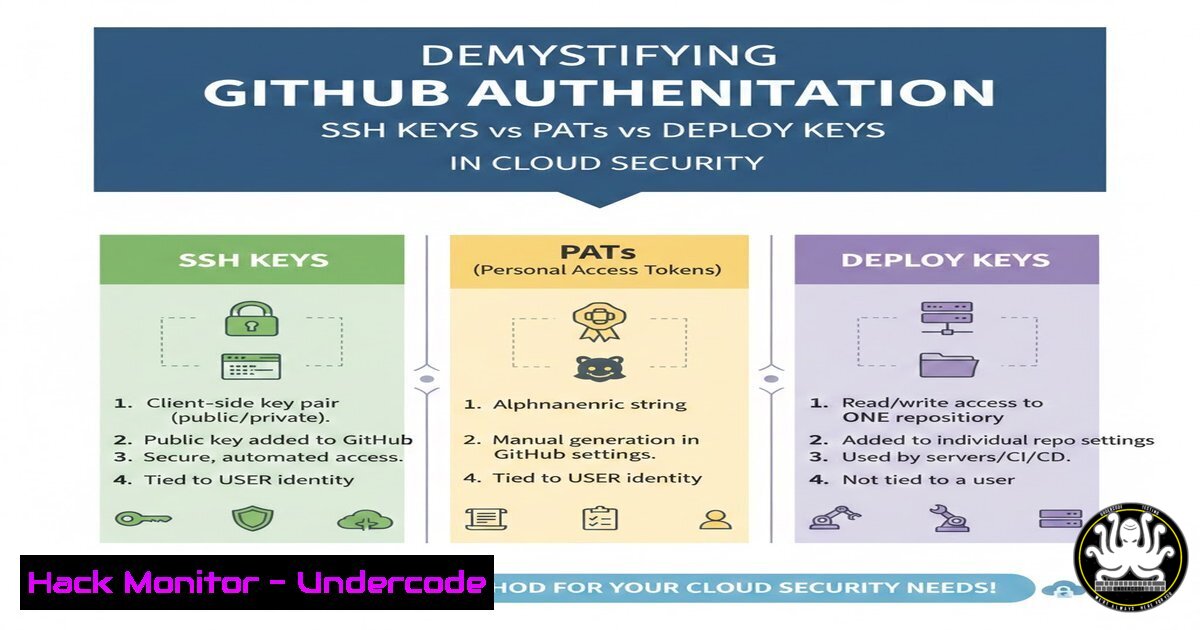
In the complex landscape of cloud engineering, authentication mechanisms are often treated as interchangeable tools rather than distinct security boundaries. The confusion between SSH keys, Personal Access Tokens (PATs), and Deploy Keys can lead to over-provisioned access and security vulnerabilities in CI/CD pipelines. Understanding the nuanced differences between these methods—specifically whether they represent a machine, a user, or a repository—is foundational to implementing least-privilege access in cloud-native environments. This article breaks down each method with practical implementation guides to help you secure your infrastructure effectively.
Learning Objectives:
- Distinguish between SSH keys, Personal Access Tokens, and Deploy Keys based on identity scope and security boundaries
- Implement and configure each authentication method with appropriate permission scoping
- Apply least-privilege principles to CI/CD pipeline authentication and machine-to-machine communication
You Should Know:
1. SSH Keys: Machine-to-Machine Identity
SSH keys function as a cryptographic handshake between machines, establishing identity without requiring passwords. When you generate an SSH key pair, the private key remains exclusively on your local machine while the public key is installed on target servers or services like GitHub. This method is fundamental for server administration and Git operations over SSH.
Step‑by‑step guide: Generating and using SSH keys for GitHub
To create a new ED25519 key (recommended over RSA for better security):
 Generate SSH key pair
ssh-keygen -t ed25519 -C "[email protected]" -f ~/.ssh/github_key

Start the ssh-agent in the background
eval "$(ssh-agent -s)"

Add private key to the agent
ssh-add ~/.ssh/github_key

Display the public key to copy
cat ~/.ssh/github_key.pub
Add the copied public key to your GitHub account: Settings → SSH and GPG keys → New SSH key.
Test the connection:
ssh -T [email protected]
 Expected output: "Hi username! You've successfully authenticated..."
For multiple GitHub accounts, configure `~/.ssh/config`:
 Personal account
Host github.com-personal
HostName github.com
User git
IdentityFile ~/.ssh/github_personal

Work account
Host github.com-work
HostName github.com
User git
IdentityFile ~/.ssh/github_work
This method establishes machine identity—the server trusts your machine, not your user account credentials.
2. Personal Access Tokens (PATs): Scoped User Identity
Since August 2021, GitHub requires token-based authentication for all Git operations over HTTPS. PATs act as programmable passwords with granular permission scoping. Unlike SSH keys tied to machines, PATs are bound to user accounts but can be limited to specific repositories and operations.
Step‑by‑step guide: Creating and using a scoped PAT
Generate a token with minimal permissions:
 Install GitHub CLI if not present
 Then authenticate and create a token with specific scopes
gh auth login
gh auth token

Or create via API with custom scopes
curl -X POST \
-H "Authorization: token YOUR_GITHUB_TOKEN" \
-H "Accept: application/vnd.github.v3+json" \
https://api.github.com/authorizations \
-d '{"scopes":["repo"], "note":"Limited access token"}'
When cloning repositories over HTTPS, use the token:
git clone https://USERNAME:[email protected]/username/repo.git
For credential caching:
git config --global credential.helper cache
git config --global credential.helper 'cache --timeout=3600'
On Windows, use the built-in credential manager:
git config --global credential.helper manager-core
The key security advantage: you can expire tokens, rotate them regularly, and scope them to read-only access for specific repositories. This transforms a static password into a manageable, auditable credential.
3. Deploy Keys: Repository-Specific Machine Access
Deploy keys represent a hybrid approach—they’re SSH keys installed directly on a repository rather than a user account. This makes them ideal for CI/CD pipelines where you want to grant access to a single repository without exposing broader user permissions.
Step‑by‑step guide: Configuring deploy keys for CI/CD pipelines
Generate a dedicated deploy key on your build server:
 On your CI/CD runner or build server
ssh-keygen -t rsa -b 4096 -C "ci-deploy-key" -f ~/.ssh/deploy_key_repo
Add the public key to the target repository:
 Using GitHub CLI
gh repo deploy-key add ~/.ssh/deploy_key_repo.pub --repo organization/repo-name --title "CI Server Deploy Key"

Or via API
curl -X POST \
-H "Authorization: token YOUR_ADMIN_TOKEN" \
-H "Accept: application/vnd.github.v3+json" \
https://api.github.com/repos/organization/repo-name/keys \
-d '{"title":"CI Server","key":"'"$(cat ~/.ssh/deploy_key_repo.pub)"'","read_only":true}'
Configure your CI/CD pipeline (example for GitHub Actions):
- name: Setup deploy key
run: |
mkdir -p ~/.ssh
echo "${{ secrets.DEPLOY_KEY_PRIVATE }}" > ~/.ssh/id_rsa
chmod 600 ~/.ssh/id_rsa
ssh-keyscan github.com >> ~/.ssh/known_hosts
env:
DEPLOY_KEY_PRIVATE: ${{ secrets.DEPLOY_KEY_PRIVATE }}
For Jenkins pipelines:
stage('Checkout') {
steps {
checkout([
$class: 'GitSCM',
branches: [[name: '/main']],
userRemoteConfigs: [[
url: '[email protected]:organization/repo.git',
credentialsId: 'deploy-key-credential'
]]
])
}
}
The critical security distinction: even if your CI/CD server is compromised, the attacker only gains access to that single repository, not your entire GitHub account or organization.
4. Advanced: Combining Authentication Methods in Cloud Infrastructure
In production cloud environments, you’ll often combine these methods. Here’s a secure pattern for AWS CodePipeline accessing GitHub:
 Create a dedicated IAM role with specific permissions
aws iam create-role --role-name CodePipelineGitHubRole --assume-role-policy-document file://trust-policy.json

Use AWS Secrets Manager to store credentials securely
aws secretsmanager create-secret --name github/deploy-key \
--secret-string file://deploy_key.json \
--tags Key=Environment,Value=Production
Configure CodePipeline to use the stored credentials:
{
"Version": "2012-10-17",
"Statement": [
{
"Effect": "Allow",
"Action": [
"secretsmanager:GetSecretValue",
"kms:Decrypt"
],
"Resource": [
"arn:aws:secretsmanager:region:account:secret:github/deploy-key-",
"arn:aws:kms:region:account:key/key-id"
]
}
]
}
5. Windows-Specific Configuration and Troubleshooting
For Windows administrators managing GitHub authentication:
PowerShell commands for SSH key management:
 Check if OpenSSH client is installed
Get-WindowsCapability -Online | Where-Object Name -like 'OpenSSH.Client'

Install if needed
Add-WindowsCapability -Online -Name OpenSSH.Client~~~~0.0.1.0

Start SSH agent service
Set-Service -Name ssh-agent -StartupType 'Automatic'
Start-Service ssh-agent

Add key
ssh-add $env:USERPROFILE.ssh\github_key
Git credential management on Windows:
 Force Git to use Windows credential manager
git config --global credential.helper manager-core

Clear cached credentials
git credential reject
Troubleshooting common issues:
 Debug SSH connections
ssh -vT [email protected]

Test HTTPS authentication
curl -u username:PERSONAL_ACCESS_TOKEN https://api.github.com/user

Verify deploy key permissions
ssh -T [email protected] -i ~/.ssh/deploy_key_repo
6. Security Hardening and Best Practices
Implement these security controls regardless of which method you choose:
Rotate credentials automatically:
 Script to rotate deploy keys weekly
!/bin/bash
REPO="organization/repo"
OLD_KEY_ID=$(gh repo deploy-key list --repo $REPO | grep "CI Server" | awk '{print $1}')

Generate new key
ssh-keygen -t rsa -b 4096 -f /tmp/new_deploy_key -N ""

Add new key
gh repo deploy-key add /tmp/new_deploy_key.pub --repo $REPO --title "CI Server $(date +%Y-%m-%d)"

Remove old key
gh repo deploy-key delete $OLD_KEY_ID --repo $REPO

Update secrets in CI/CD
aws secretsmanager update-secret --secret-id github/deploy-key \
--secret-string file://<(cat <<EOF
{
"private_key": "$(cat /tmp/new_deploy_key | base64 -w 0)",
"public_key": "$(cat /tmp/new_deploy_key.pub | base64 -w 0)"
}
EOF
)
Audit current access:
 List all SSH keys for a user
gh api user/keys

List all deploy keys across repositories
gh repo list --limit 100 --json name,deployKeys | jq '.[] | {repo: .name, keys: .deployKeys}'

Check PAT permissions
gh api user/tokens
7. Incident Response: Revoking Compromised Credentials
When a breach is suspected, rapid credential revocation is critical:
For SSH keys:
 Immediate revocation via GitHub CLI
gh api user/keys/KEY_ID -X DELETE

Or via UI automation with Selenium (for emergency bulk actions)
For PATs:
 List and revoke all tokens for a user
gh api user/tokens --paginate | jq -r '.[].id' | while read id; do
gh api user/tokens/$id -X DELETE
done
For Deploy Keys:
 Emergency script to remove all deploy keys from critical repos
REPOS=$(gh repo list organization --json name -q '.[].name' --limit 1000)
for repo in $REPOS; do
gh api repos/organization/$repo/keys --paginate | \
jq -r '.[].id' | while read key_id; do
gh api repos/organization/$repo/keys/$key_id -X DELETE
done
done
What Undercode Say:
The fundamental distinction lies in identity scope: SSH keys authenticate machines, PATs authenticate users with granular permissions, and deploy keys authenticate processes to specific repositories. In cloud-native architectures, treat authentication as a data classification problem—assign the narrowest possible identity scope for each workflow. The most common security gap is using high-privilege PATs in CI/CD pipelines where read-only deploy keys would suffice. This violates the principle of least privilege and creates unnecessary blast radius exposure. By mapping authentication methods to identity types systematically, you reduce the attack surface while maintaining operational efficiency. The shift toward temporary, scoped credentials represents the evolution from static passwords to dynamic identity management—adopt this mindset before a credential leak forces it upon you.
Prediction:
Within the next 18 months, GitHub and major cloud providers will deprecate long-lived SSH keys and PATs in favor of temporary credentials issued through OIDC federation. This will make deploy keys obsolete as CI/CD systems authenticate directly through workload identity federation with cloud providers. The future of DevOps authentication lies in zero-trust architecture where credentials are ephemeral, automatically rotated, and bound to specific workflow contexts rather than persistent machine or user identities. Organizations that map their authentication taxonomy now will be better positioned to migrate to this ephemeral credential model as it becomes the standard.
▶️ Related Video (82% Match):
🎯Let’s Practice For Free:
IT/Security Reporter URL:
Reported By: Akintayo Tolani – Hackers Feeds
Extra Hub: Undercode MoN
Basic Verification: Pass ✅


