
Listen to this Post
Introduction
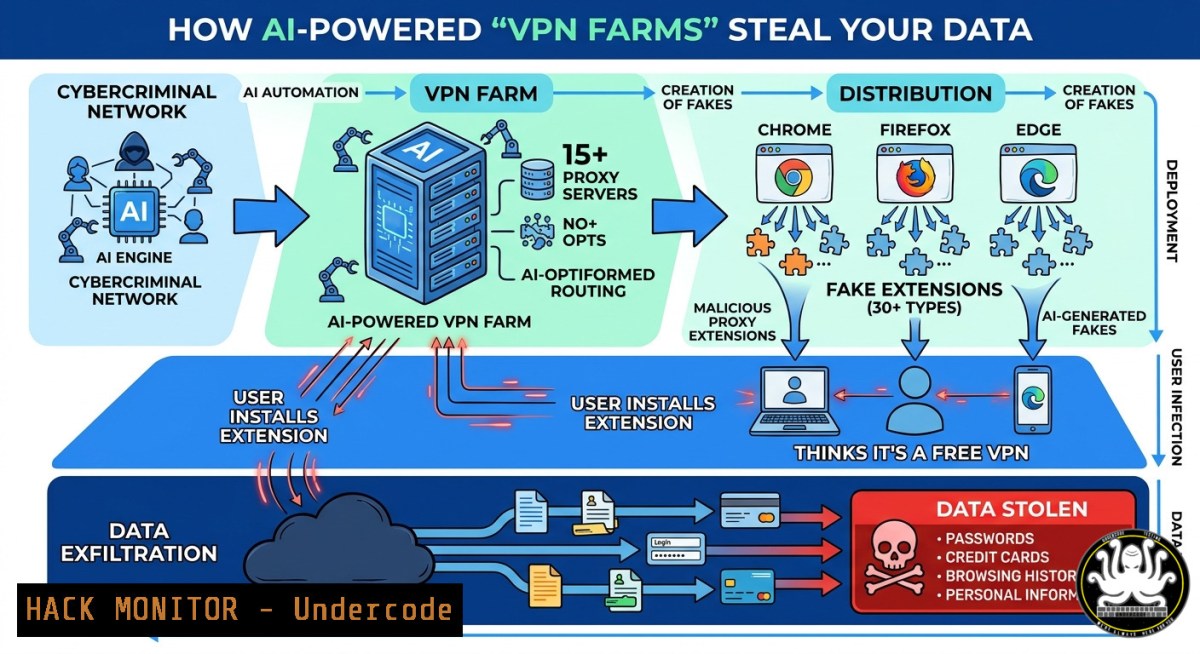
Chrome extensions have become a prime vector for cyberattacks, and a newly uncovered campaign by Palo Alto Networks Unit 42 demonstrates an alarming escalation in this threat. A single, sophisticated threat actor is operating a “factory” of dozens of malicious VPN extensions, all using AI-accelerated code development, impersonating trusted brands, and forcibly routing all of a victim’s browser traffic through 15 hard-coded SOCKS5 proxy servers, turning a user’s quest for privacy into a complete data breach.
Learning Objectives
- Understand the technical architecture and deceptive tactics behind the AI-accelerated fake VPN Chrome extension campaign.
- Learn step-by-step methods to detect malicious browser extensions using built-in browser features and command-line tools.
- Acquire practical commands for hardening Google Chrome and forcibly blocking malicious extensions across Windows and Linux workstations.
You Should Know
- Anatomy of the Attack: How a “VPN Farm” Farms Your Data
This campaign represents a strategic evolution in browser-based threats. Unit 42’s analysis reveals that the attacker operates using at least three distinct code templates, all sharing the same hardcoded proxy server IP list and the same command-and-control (C2) domain, sverchtun[.]store. The attack chain begins the moment a user installs the malicious extension, often lured in by professional-looking advertisements that impersonate legitimate services like Proton VPN or AdGuard VPN.
Step‑by‑step breakdown of the extension’s malicious logic:
- Step 1: The extension’s service worker executes `chrome.proxy.settings.set()` to configure the browser’s proxy settings to use a hardcoded SOCKS5 proxy.
- Step 2: It stores the current proxy server in memory to maintain persistence.
- Step 3: Upon first installation, the extension silently opens `hxxps://sverchtun[.]store/` without any user consent, likely for fingerprinting or to display a fake monetization page.
- Step 4: All subsequent browser traffic is routed through the attacker’s 15 SOCKS5 proxies, offering no actual VPN encryption, thus exposing every visited URL and any transmitted HTTP credentials.
Detection and Mitigation Commands
To detect and remove these threats, security teams and advanced users can employ the following commands. First, to list all installed Chrome extensions and their IDs on a system, use these platform-specific commands:
| Operating System | Command |
|||
| Windows (PowerShell) | `Get-ChildItem -Path “$env:LOCALAPPDATA\Google\Chrome\User Data\\Extensions” -Directory \| Select-Object -ExpandProperty Name` |
| Windows (Command Prompt) | `dir “%LOCALAPPDATA%\Google\Chrome\User Data\\Extensions” /ad /b` |
| Linux / macOS | `ls ~/.config/google-chrome//Extensions/` |
Once you have a list of extension IDs, you can manually remove a malicious extension by deleting its directory:
| Operating System | Command |
|||
| Windows | `rmdir /s /q “%LOCALAPPDATA%\Google\Chrome\User Data\Default\Extensions\MALICIOUS_EXTENSION_ID”` |
| Linux / macOS | `rm -rf ~/.config/google-chrome/Default/Extensions/MALICIOUS_EXTENSION_ID` |
For proactive defense, you can blocklist known malicious extensions enterprise-wide using Group Policy on Windows or managed preferences on Linux.
- Windows Group Policy: Set the `ExtensionInstallBlocklist` policy. Open `gpedit.msc` and navigate to
Computer Configuration > Administrative Templates > Google > Google Chrome > Extensions. Enable “Configure the list of force-installed extensions” and add the malicious extension IDs. - Linux (via
policies.json): Create or edit `/etc/opt/chrome/policies/managed/test_policy.json` with the following content:{ "ExtensionInstallBlocklist": [""], "ExtensionInstallAllowlist": ["only-allow-trusted-extension-id"] }
- AI’s Role in Malware: From Handcrafted Code to Mass Production
The Unit 42 report explicitly notes that the code’s “systematic variable naming,” “overengineered code,” and the rapid creation of extensions over a few months all suggest the use of AI to accelerate the malicious campaign. This represents a significant shift: threat actors are no longer just using AI for phishing emails but are employing Large Language Models (LLMs) to generate functional, evasive malware code at scale.
This tactic allows a single actor to run a “factory” of extensions, creating multiple Chrome Store publisher identities (e.g., ezagirace763@gmail[.]com), and crafting dozens of unique but functionally identical extensions that can bypass static analysis. Traditional signature-based antivirus solutions struggle to keep up with this AI-driven polymorphic output.
Manual Code Analysis & Hunting
To inspect a suspicious extension you’ve already downloaded, you can bypass the Chrome Web Store and load an unpacked extension for analysis.
Step‑by‑step guide to load an unpacked extension:
- Download the `.crx` file of the suspected extension. Change its file extension from `.crx` to
.zip. - Extract the ZIP file to a dedicated folder (e.g.,
C:\malware_analysis\extension).
3. Open Google Chrome and navigate to `chrome://extensions`.
- Enable “Developer mode” using the toggle in the top-right corner.
- Click the “Load unpacked” button and select the folder where you extracted the extension files.
Once loaded, you can inspect its source code. Look for the following red flags in the `background.js` or `service_worker.js` files:
- Hardcoded IP addresses or domains (like
sverchtun[.]store). - Functions that manipulate proxy settings:
chrome.proxy.settings.set. - Listeners for authentication:
chrome.webRequest.onAuthRequired. - Obfuscated strings or custom encoding schemes used to hide credentials.
A specific indicator of compromise (IOC) provided by Unit 42 is the presence of the C2 domain `sverchtun[.]store` within the extension’s code. You can search for this string in the unpacked files using the following `grep` command on Linux/macOS (or `findstr` on Windows):
grep -r "sverchtun[.]store" ./extracted_extension/
If the string is found, the extension is malicious and should be removed immediately.
3. Network Forensics and SOCKS5 Proxy Detection
Once installed, these malicious extensions forcibly route traffic through the attacker’s SOCKS5 proxies. Unlike a legitimate VPN that creates an encrypted tunnel, a SOCKS5 proxy configured by a browser extension allows the attacker to act as a passive Man-in-the-Middle (MitM), intercepting unencrypted HTTP traffic and capturing plaintext credentials. The attack completely fails to provide any of the privacy or security a user expects from a VPN tool. A legitimate browser VPN requires only proxy control with a static configuration, whereas this malicious infrastructure is designed for transparent interception and exfiltration.
Detecting SOCKS5 Proxy Routing
Security teams can detect this activity by monitoring for non-standard proxy traffic on the network perimeter. The following Linux command uses `tcpdump` to capture traffic to the specific proxy ports and log the destination IPs:
sudo tcpdump -i eth0 'tcp port 1080 or tcp port 9050' -nn -v
-i eth0: Specifies the network interface.'tcp port 1080 or tcp port 9050': This filter looks for traffic on port 1080 (the standard port for SOCKS proxies) and port 9050 (often used by Tor, another common SOCKS proxy port).-nn: Disables hostname and portname resolution, showing raw IPs.-v: Provides verbose output.
On Windows, you can use the built-in `netstat` command to see if your browser has an established connection to an unexpected IP on a SOCKS port:
netstat -ano | findstr :1080
This command lists all active connections (-a), displays numeric addresses and port numbers (-n), shows the process ID (-o), and filters for lines containing port 1080. You can then cross-reference the Process ID (PID) with Task Manager to identify the process (e.g., chrome.exe) and investigate the remote IP address it’s connected to.
4. Enterprise Browser Hardening and Policy Enforcement
For organizations, the risk is substantial. A single compromised extension on an employee’s managed device can lead to the exfiltration of corporate session cookies, granting attackers access to SaaS platforms like Office 365, AWS, or Salesforce without ever needing a password. The best defense is a “zero-trust extension” policy where only pre-vetted, necessary extensions are allowed.
Step‑by‑step guide to enforce a strict extension policy in a managed environment:
- Inventory: Regularly audit all installed extensions across your fleet using your EDR or MDM solution.
- Blocklist: Immediately add the known malicious extension IDs from the Unit 42 report (e.g.,
kfhghjkddbnaphdgnajhenaacpekbdmg,mocbcncbleebmmnmhafgppnaocmpafne) to your central blocklist. - Allowlist: Shift from a blocklist to an allowlist model. Using Group Policy or Chrome’s cloud management, configure the `ExtensionInstallAllowlist` policy to explicitly permit only approved extensions (e.g., standard password managers, corporate SSO extensions).
- Permission Control: Scrutinize extensions that request powerful permissions like
webRequest,proxy,declarativeNetRequest, andcookies. If an extension does not have a clear, documented business need for these, block it.
Using Windows Registry to Block Extensions
If Group Policy is not an option, you can use the Windows Registry to force Chrome policies. As an administrator, run the following commands in an elevated PowerShell session to block an extension by its ID:
$registryPath = "HKLM:\SOFTWARE\Policies\Google\Chrome\ExtensionInstallBlocklist"
New-Item -Path $registryPath -Force | Out-Null
New-ItemProperty -Path $registryPath -Name "1" -Value "malicious_extension_id_here" -PropertyType String -Force
This directly edits the registry to tell Chrome to block the specified extension from running.
What Undercode Say
- AI as a Force Multiplier for Offense: The use of AI to generate and accelerate malware production is no longer theoretical; it is an active, observable trend in this campaign. Defensive teams must adopt AI-driven security tools to analyze and respond to threats at machine speed, as traditional signature-based methods are rapidly becoming obsolete.
- The Browser is the New Battlefield: This attack highlights the browser endpoint as a critical, and often overlooked, security perimeter. Organizations must treat browser extensions with the same rigor as any other software, enforcing strict allowlisting and continuously monitoring for behavioral anomalies. The illusion of security provided by a “free VPN” is a trap being weaponized at scale.
Prediction
As LLM technology becomes more accessible and code generation becomes more sophisticated, we will see a proliferation of “malware-as-a-service” operations powered entirely by AI. These AI-driven campaigns will not only generate unique code for each victim to evade detection but will also be capable of self-modifying and adapting their behavior in real-time based on the security controls they encounter. The window for manual analysis and signature-based detection will shrink to near zero, forcing a complete paradigm shift towards behavioral and AI-driven defense-in-depth strategies.
🎯Let’s Practice For Free:
IT/Security Reporter URL:
Reported By: Ai UgcPost – Hackers Feeds
Extra Hub: Undercode MoN
Basic Verification: Pass ✅


