Listen to this Post
Introduction:
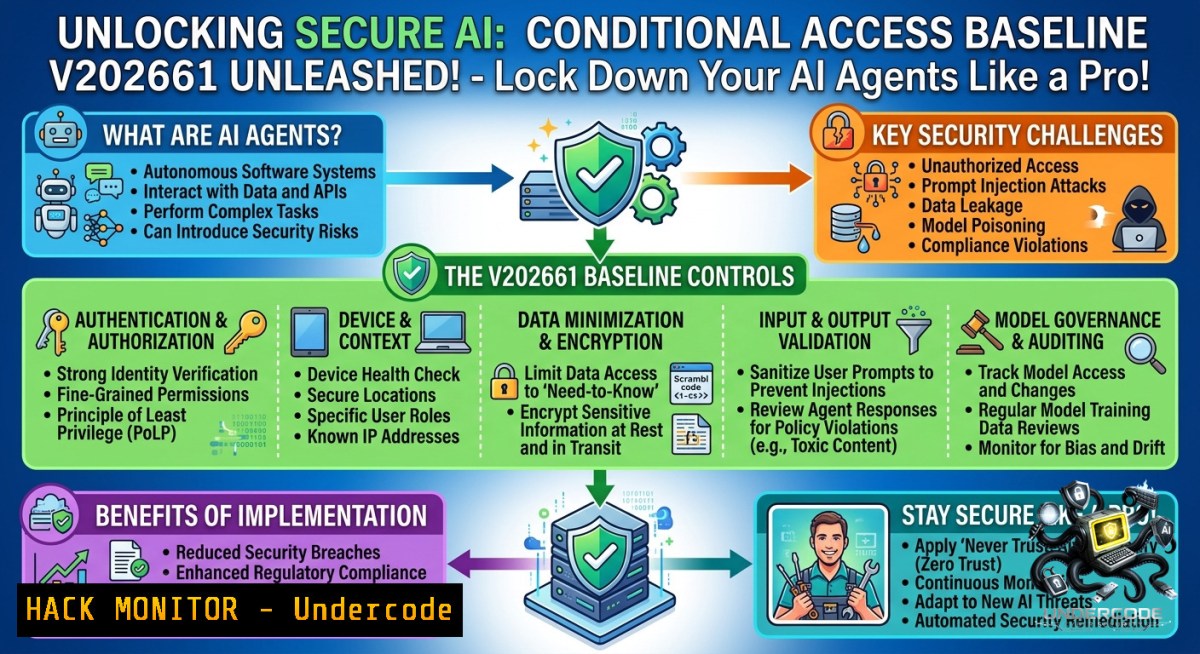
Microsoft Entra Conditional Access is no longer just for human users—AI agents now operate as first-class identities, and they demand enterprise-grade security controls. The newly released Conditional Access Baseline v2026.6.1 introduces critical updates to protect both administrator roles and autonomous agent personas, including four new policies designed specifically to mitigate risks from AI-driven identities. With organizations rapidly adopting autonomous agents, this baseline helps enforce Zero Trust principles by blocking risky agents, requiring compliant devices, and restricting access to trusted networks like Global Secure Access.
Learning Objectives
- Understand the new administrator roles and agent persona policies introduced in the Conditional Access Baseline v2026.6.1.
- Learn to deploy and manage Conditional Access policies using PowerShell, Microsoft Graph API, and Intune Management tools.
- Implement risk-based access controls, device compliance requirements, and network restrictions for autonomous agents.
You Should Know
1. Updated Administrator Persona Policies (CA10x)
The baseline updates policies CA100/CA105 to include newly recognized privileged roles such as AI Administrator, Agent ID Administrator, Windows 365 Administrator, and Dragon Administrator. These roles now require the same stringent Conditional Access protections as traditional admin accounts.
Step‑by‑step: Verify and update admin role policies
- Sign in to the Microsoft Entra admin center as a Conditional Access Administrator.
- Navigate to Protection > Conditional Access > Policies.
- Locate policies CA100 and CA105 (or create new ones targeting admin roles).
- Under Assignments > Users and groups, include the new roles: AI Administrator, Agent Registry Administrator, etc.
- Set Access controls > Grant to Require multifactor authentication.
- Enable the policy in Report‑only mode first, then switch to On after validation.
PowerShell verification script (Microsoft Graph) :
Connect-MgGraph -Scopes Policy.Read.All, RoleManagement.Read.All
$adminRoles = Get-MgDirectoryRole | Where-Object {$_.DisplayName -match "Administrator"}
$caPolicies = Get-MgIdentityConditionalAccessPolicy
foreach ($policy in $caPolicies) {
Write-Host "Policy: $($policy.DisplayName) – applies to: $($policy.Conditions.Users.IncludeRoles)"
}
2. New Agent Persona Policies: CA502–CA505
Four new policies specifically target autonomous agent identities:
- CA502 – Blocks all agent identities by default (allow-list approach).
- CA503 – Requires agent user identities to access resources only from compliant devices.
- CA504 – Blocks agent user identities with Medium or High user risk level.
- CA505 – Restricts agent sessions to the Global Secure Access Network only.
Step‑by‑step: Configure agent risk policy (CA504)
- In the Entra admin center, go to Conditional Access > New policy.
- Under Assignments > Users and groups > Include, select Agents (Preview) .
- Under Conditions > User risk, set the risk level to Medium and above.
- Under Access controls > Grant, select Block access.
- Exclude break‑glass accounts under Exclude > Users and groups.
6. Save the policy and enable after testing.
Microsoft Learn reference:
“Block agents at high risk – Use the enhanced object picker to select agent identities. For risky agent users, you can block access when user risk is high.”
Tip: Ing. Derk van der Woude notes that blocking Medium risk might cause false positives, as many anomalies are not true compromises. Adjust according to your tolerance.
- Deploying the Baseline Using IntuneManagement PowerShell Tool
The baseline can be imported programmatically using Mick‑K’s IntuneManagement PowerShell tool, which supports exporting/importing Conditional Access policies from JSON.
Step‑by‑step: Import the baseline
1. Clone the repository:
git clone https://github.com/j0eyv/ConditionalAccessBaseline.git
2. Install IntuneManagement from GitHub.
3. Export existing policies (optional):
.\IntuneManagement.exe /export:"C:\backup\CA_policies.json"
4. Import the baseline JSON (included in the repo under /exports):
.\IntuneManagement.exe /import:"C:\ConditionalAccessBaseline\exports\CA_baseline.json"
5. Assign exclusion groups – ensure `CA-BreakGlassAccounts – Exclude` group contains your emergency access accounts.
Verify deployment with Microsoft Graph:
Get-MgIdentityConditionalAccessPolicy | Where-Object {$_.DisplayName -like "CA5"} | Select DisplayName, State
4. Device Compliance for Agents (CA503)
Policy CA503 enforces that agent user identities can only access resources from compliant devices. This is critical for agents running on managed endpoints like Windows 365 Cloud PCs for Agents.
Step‑by‑step: Set up device compliance for agents
- Create an Intune compliance policy targeting the device platform used by agents (Windows, macOS, Linux).
- Assign the compliance policy to the device group containing agent endpoints.
3. In Conditional Access, create a policy:
- Assignments: Include “Agents (Preview)” .
- Conditions: Device platforms – select Windows/macOS.
- Grant controls: Require device to be marked as compliant.
- Test with an agent user account on a non‑compliant device – access should be blocked.
PowerShell snippet to retrieve compliance status for an agent device:
Get-MgDeviceManagementManagedDevice -Filter "deviceName eq 'AgentVM01'" | Select ComplianceState
5. Global Secure Access Restriction (CA505)
Policy CA505 ensures agent sessions use only the Global Secure Access (GSA) network, preventing direct internet access and enforcing Microsoft’s security service edge.
Step‑by‑step: Create a GSA‑only policy for agents
- Ensure Global Secure Access is licensed and enabled in your tenant.
2. Navigate to Conditional Access > New policy.
- Under Target resources > Resources (formerly cloud apps) , select All internet resources with Global Secure Access.
- Under Assignments > Users and groups, include Agents (Preview) .
- Under Conditions > Locations, select Any network and then exclude all except Global Secure Access Network (custom named location).
- Grant – Require compliant network (use Require compliant network control).
7. Save and enable.
Note: If you only want to enforce the Internet Access traffic profile and not Microsoft traffic, choose Select resources and pick Internet resources from the app picker.
- Risk Remediation for Agents Using ID Protection
Microsoft Entra ID Protection now evaluates agent risk levels (Low, Medium, High) based on anomalous behavior. Policy CA504 blocks agents with Medium/High risk, but you can also set up user risk‑based policies for agents that require password change or MFA remediation.
Step‑by‑step: Enable risk remediation for agents
- Go to ID Protection > User risk policy.
2. Under Assignments, include Agents (Preview) .
3. Set Risk level to Medium and above.
- Under Access controls, select Require risk remediation (preview) – this triggers Microsoft‑managed remediation flows (password change, etc.).
Check agent risk detections:
Get-MgRiskDetection -Filter "riskEventType eq 'anomalousAgentActivity'" | Format-List
7. Automating Baseline Deployment with GitHub Actions
To maintain an auditable, version‑controlled Conditional Access posture, integrate the baseline into a CI/CD pipeline using GitHub Actions and Microsoft Graph API.
Step‑by‑step: Set up pipeline
- Fork the ConditionalAccessBaseline repo.
- Create a GitHub secret
AZURE_TENANT_ID,AZURE_CLIENT_ID, and `AZURE_CLIENT_SECRET` for a service principal with Conditional Access Administrator role.
3. Add a workflow file (`.github/workflows/deploy-ca.yml`) that runs:
- name: Login to Azure
uses: azure/login@v1
with:
creds: ${{ secrets.AZURE_CREDENTIALS }}
- name: Deploy CA policies
run: |
Install-Module Microsoft.Graph -Scope CurrentUser
Connect-MgGraph -ClientSecretCredential $cred
foreach ($policy in Get-ChildItem ./policies/.json) {
New-MgIdentityConditionalAccessPolicy -BodyParameter (Get-Content $policy -Raw)
}
4. Schedule the workflow to run weekly or on push.
What Undercode Say
- Key Takeaway 1: Microsoft is moving decisively to treat AI agents as first‑class security principals, requiring dedicated Conditional Access policies. Organizations that fail to adopt these controls risk data leaks from compromised autonomous agents.
- Key Takeaway 2: The debate over blocking Medium vs High risk agents highlights a real‑world tension – security vs operational friction. IT teams should start with Report‑only mode and adjust thresholds based on actual anomaly data.
Analysis:
The release of Conditional Access Baseline v2026.6.1 is a direct response to the explosion of AI agents in enterprise environments. By introducing agent‑specific policies, Microsoft bridges a critical identity governance gap that many organizations overlook. However, the complexity of managing agent identities—especially distinguishing between agent users, agent identities, and blueprints—means security teams must invest in training and automation. The baseline is not a set‑and‑forget solution; it requires continuous tuning of risk thresholds, device compliance baselines, and network policies. Importantly, the shift to Global Secure Access for agents signals Microsoft’s long‑term strategy to funnel all enterprise traffic through its security service edge, reducing reliance on perimeter VPNs. Enterprises should pilot these policies in report‑only mode, integrate deployment with Infrastructure‑as‑Code pipelines, and monitor agent risk detections closely to avoid production disruptions.
Prediction
- +1: Widespread adoption of agent‑specific Conditional Access policies will dramatically reduce supply‑chain attacks targeting autonomous agents by mid‑2027, as Microsoft integrates real‑time risk signals from Entra ID Protection and Microsoft Defender for Cloud.
- +1: The Conditional Access Baseline will evolve to include dynamic policy recommendations powered by the Conditional Access Optimization Agent, enabling self‑healing security postures that automatically adjust to new threat intelligence.
- -1: However, organizations that enable CA504 (block Medium risk) without proper anomaly baselining will experience frequent agent downtime, leading to shadow IT workarounds that bypass Conditional Access entirely.
- -1: The requirement for Global Secure Access (CA505) may create performance bottlenecks and licensing cost overruns for SMEs, potentially slowing adoption in mid‑market segments.
▶️ Related Video (82% Match):
🎯Let’s Practice For Free:
🎓 Live Courses & Certifications:
Join Undercode Academy for Verified Certifications
🚀 Request a Custom Project:
Secure, high-velocity infrastructure and disruptive technological engineering. Contact our engineering team for high-tier development and proprietary systems:
[email protected]
💎 Smart Architecture | 🛡️ Secure by Design | ⭐ Trusted by Thousands
IT/Security Reporter URL:
Reported By: Joeyverlinden Microsoft – Hackers Feeds
Extra Hub: Undercode MoN
Basic Verification: Pass ✅


