
Listen to this Post
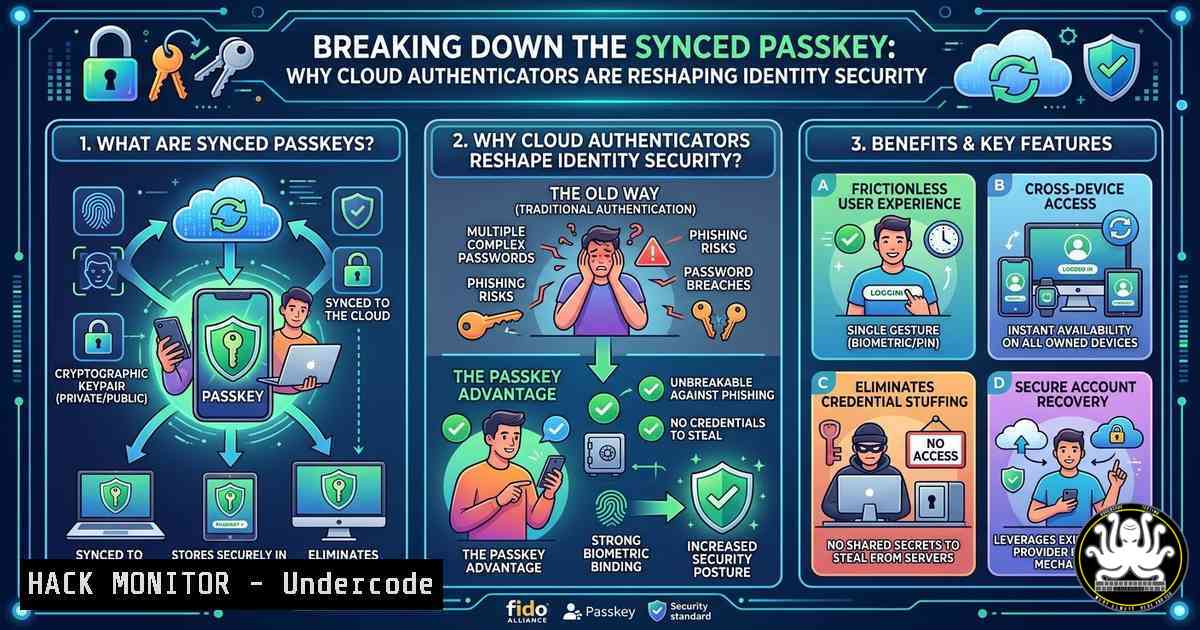
Introduction:
Passwordless authentication has emerged as a critical evolution in identity management, eliminating the inherent weaknesses of reusable passwords. However, as highlighted by Palo Alto Networks Unit 42, the security of this paradigm depends heavily on the implementation of cloud authenticators like Google’s, which leverage a hybrid architecture combining hardware-bound keys with cloud synchronization services. Understanding the cryptographic operations and synchronization mechanics of these synced passkeys is essential for security professionals to properly evaluate and deploy these systems without introducing new risks.
Learning Objectives:
- Understand the architecture of synced passkeys and the role of cloud authenticators in cryptographic key management.
- Identify security risks associated with cloud-synchronized credentials, including synchronization vulnerabilities and platform trust dependencies.
- Implement verification techniques and hardening strategies for passwordless systems across Windows, Linux, and cloud environments.
You Should Know:
- Anatomy of a Synced Passkey: Hardware Roots with Cloud Reach
The post by Palo Alto Networks Unit 42 references how cloud authenticators combine hardware-bound keys with cloud services. A synced passkey is not merely a password stored in a vault; it is a cryptographic key pair where the private key is generated on a trusted platform (like a TPM or Secure Enclave) but is encrypted and synchronized via a cloud provider (e.g., Google Password Manager, iCloud Keychain). The core security claim is that the private key never leaves the encrypted sync cluster in plaintext. However, the cloud component performs “sensitive cryptographic operations” related to key recovery and synchronization.
This architecture introduces a shift from device-bound to user-bound authentication. While this enables seamless cross-device usability, it creates a new attack surface: the cloud synchronization service itself. If an attacker compromises the cloud account (e.g., Google Account) and bypasses multi-factor authentication, they can potentially provision the synced passkey onto a device they control.
Step-by-step verification of platform attestation (Windows/Linux):
To verify how your system handles passkeys, you can inspect the WebAuthn attestation during registration.
1. On Windows (using PowerShell and WebAuthn API):
Open PowerShell as Administrator and use the `CertUtil` command to list TPM-backed keys if available. For a more direct test, use a browser’s developer tools during WebAuthn registration.
 List TPM manufacturers (check if TPM is present for hardware binding)
Get-Tpm
 Check for Windows Hello containers (where passkeys may reside)
certutil -csp "Microsoft Passport Key Storage Provider" -key
Expected output: A list of keys showing a container name. If empty, the device might rely purely on software-based or cloud-synchronized keys without hardware attestation.
2. On Linux (using libfido2 and lsusb):
Linux systems often use external authenticators (YubiKeys) or internal TPM2. To check for hardware support:
 List USB security keys
lsusb | grep -i "yubico|feitian|google"
 Check TPM2 availability
tpm2_getcap handles-persistent
 Use systemd-cryptenroll to see if a FIDO2 token is available
systemd-cryptenroll --fido2-device=list
Explanation: These commands help determine if the system uses hardware-anchored credentials or relies entirely on the software stack provided by the browser and cloud sync service.
2. Cryptographic Handshake and Synchronization Mechanics
The synchronization process involves a master key derived from the user’s cloud account credentials and a recovery key. When a user creates a passkey, the authenticator (e.g., Android phone) creates a new credential. The private key is encrypted with a sync key that is wrapped by the cloud service’s hardware security modules (HSMs). When syncing to a new device, the cloud service transmits the encrypted private key blob. The new device must authenticate to the cloud and decrypt the blob using a key derived from the user’s cloud password and potentially a second factor.
API Security Consideration:
If you are developing applications that rely on passkeys, the backend must validate the attestation statement to ensure the credential was generated on a legitimate authenticator (e.g., “android-safetynet” or “apple-appattest”). Failure to validate attestation can allow attackers to register passkeys from software-based emulators that lack hardware protection.
Testing the Handshake (Conceptual using OpenSSL):
While you cannot replicate Google’s proprietary sync protocol, understanding the underlying encryption is vital.
 Simulate the key wrapping process using AES-256-GCM
 Generate a random master key (simulates the sync key)
openssl rand -base64 32 > master_key.bin
 Generate a private key (simulates passkey private key)
openssl ecparam -name prime256v1 -genkey -noout -out private_key.pem
 Wrap the private key using the master key (conceptual)
 In real implementations, this uses a standard like JWE (JSON Web Encryption)
Tutorial: Use OpenSSL to understand how encrypted blobs are managed. In production, ensure your application uses the WebAuthn Level 2 specification and validates `aaguid` (Authenticator Attestation Globally Unique Identifier) to block untrusted authenticators.
3. Attack Vectors: Sync Vulnerabilities and Account Takeover
The primary security trade-off with synced passkeys is that the security of your cryptographic identity now tightly couples with the security of your cloud account. If a threat actor performs an account takeover (ATO) of your Google, Apple, or Microsoft account, they can synchronize your passkeys to a device they possess. This bypasses the “possession” factor if the cloud account lacks strong MFA.
Step-by-step guide to hardening cloud accounts against passkey sync attacks:
1. Enforce Phishing-Resistant MFA:
For cloud identity providers (IdPs) like Google Workspace or Microsoft Entra ID, enforce the use of hardware security keys (WebAuthn) as the primary MFA method. Do not rely solely on SMS or TOTP for accounts that manage passkeys.
2. Monitor Sync Events:
In Microsoft 365, use the Audit Log to monitor for `Add app password` or `Add registered owner` events. In Google Workspace, review the “User logins” and “Device registration” logs in the Admin console.
Command (Azure CLI – Monitor for device registration):
 Connect to Azure AD (Entra ID)
az login
 Query audit logs for device registration (requires appropriate permissions)
az monitor activity-log list --namespace "Microsoft.AzureActiveDirectory" --query "[?contains(operationName.value, 'Add device')]" --output table
3. Implement Conditional Access Policies:
Block sync attempts from untrusted locations or non-compliant devices. Ensure that session lifetime policies are strict so that sync tokens expire regularly.
4. Configuring and Hardening Passkey Deployments
For organizations adopting passwordless authentication, it is critical to decide whether to allow synced passkeys or enforce device-bound credentials (e.g., YubiKeys). Synced passkeys offer convenience, but for privileged accounts, device-bound credentials are mandatory to ensure the private key cannot be exfiltrated via the cloud.
Step-by-step guide to configure Windows Hello for Business as a device-bound authenticator:
- Enable Windows Hello for Business (WHfB) via Group Policy or Intune:
– Navigate to Computer Configuration -> Administrative Templates -> Windows Components -> Windows Hello for Business.
– Enable “Use Windows Hello for Business” and set the “Use a hardware security device” to “Yes” to enforce TPM binding.
– Configure “Use certificate for on-premises authentication” if integrating with Active Directory.
2. Verify TPM Attestation:
After configuration, verify that keys are bound to the TPM using PowerShell:
 Check if the NGC container is stored in TPM
Get-ChildItem -Path "C:\ProgramData\Microsoft\NGC" | ForEach-Object { $_.FullName }
 Run TPM diagnostics
Get-TpmEndorsementKeyInfo -HashAlgorithm 'sha256'
Explanation: If the `NGC` folder exists but TPM is not used, the keys are software-bound and potentially syncable depending on the Microsoft Account configuration.
3. Block Synced Passkeys for Admin Accounts:
In Microsoft Entra ID, create a Conditional Access policy targeting “All users” with “Authentication Strength” set to “Passwordless MFA (Device-bound)” to restrict privileged roles from using synced passkeys.
5. Cloud Hardening for Google Authenticator Sync
Since the Unit 42 post specifically references Google’s cloud authenticator, understanding how to harden Google accounts is essential. Google’s implementation relies on the device’s screen lock and the Google Account’s recovery infrastructure.
Step-by-step hardening for Google Workspace:
- Disable Less Secure App Access and OAuth Out-of-Band (OOB) Flow:
These legacy protocols bypass modern authentication protections.
Administrator Action: In the Google Admin console, go to Security -> Access and data control -> API controls. Ensure “Less secure apps” access is disabled.
2. Enforce Security Key Enforcement for Admins:
Go to Security -> Authentication -> 2-Step Verification. Enforce that all administrators use only “Security keys” (WebAuthn) and disable “Google Authenticator” app (TOTP) and “Prompt” methods for high-risk users.
3. Review the “Recovery” Infrastructure:
The sync mechanism often relies on account recovery methods. Ensure that recovery phone numbers and emails are stripped from privileged accounts, as a compromised recovery method can lead to passkey sync compromise.
6. Mitigating Vulnerabilities in Synced Credentials
Despite the cryptographic strength of WebAuthn (which resists phishing), the sync layer introduces a risk of “lateral movement” if the cloud account is compromised. Attackers are increasingly targeting sync tokens and session cookies to avoid MFA prompts.
Tutorial: Extracting and Analyzing Session Tokens (Educational Use Only)
Understanding how session tokens are stored helps in defending them.
– On Windows: Browser session cookies (including those containing sync tokens) are stored in encrypted SQLite databases.
– Defense Strategy: Utilize Microsoft Defender for Endpoint to monitor for processes accessing browser profile directories (e.g., `chrome.exe` accessing `Cookies` file) which indicates potential token theft.
Linux Command to Monitor for Unauthorized Access to Credential Stores:
 Use auditd to monitor access to keyring and credential storage
auditctl -w /usr/share/keyrings/ -p rwxa -k keyring_access
auditctl -w /home/ -p rwa -k home_access
 Check logs for suspicious access
ausearch -k keyring_access
What Undercode Say:
- Convenience vs. Security: Synced passkeys solve the usability gap in passwordless authentication but concentrate risk into the cloud identity provider. A breach of the cloud account effectively breaches all synced credentials.
- Attestation is Mandatory: Without validating attestation during the registration process, enterprises cannot distinguish between a hardware-bound authenticator and a software-based sync clone, weakening the “something you have” factor.
- Hybrid Models are Necessary: The future of enterprise security lies in a tiered model—device-bound keys for privileged access and synced keys for consumer-grade convenience, governed by strict conditional access policies.
Prediction:
As cloud authenticators mature, we will likely see a market shift towards “managed passkeys” where enterprises can enforce device binding via MDM policies while still leveraging sync for disaster recovery. The next major battle in identity security will focus on the synchronization protocol itself, with attackers moving from phishing passkeys to attacking the cloud recovery and sync infrastructure using social engineering against help desks to reset cloud accounts. Security teams must prepare by treating the cloud identity provider as the new root of trust, applying the same level of hardware security and monitoring to cloud accounts that they currently apply to on-premises domain controllers.
▶️ Related Video (84% Match):
🎯Let’s Practice For Free:
IT/Security Reporter URL:
Reported By: Passwordless Authentication – Hackers Feeds
Extra Hub: Undercode MoN
Basic Verification: Pass ✅


