Listen to this Post
Introduction:
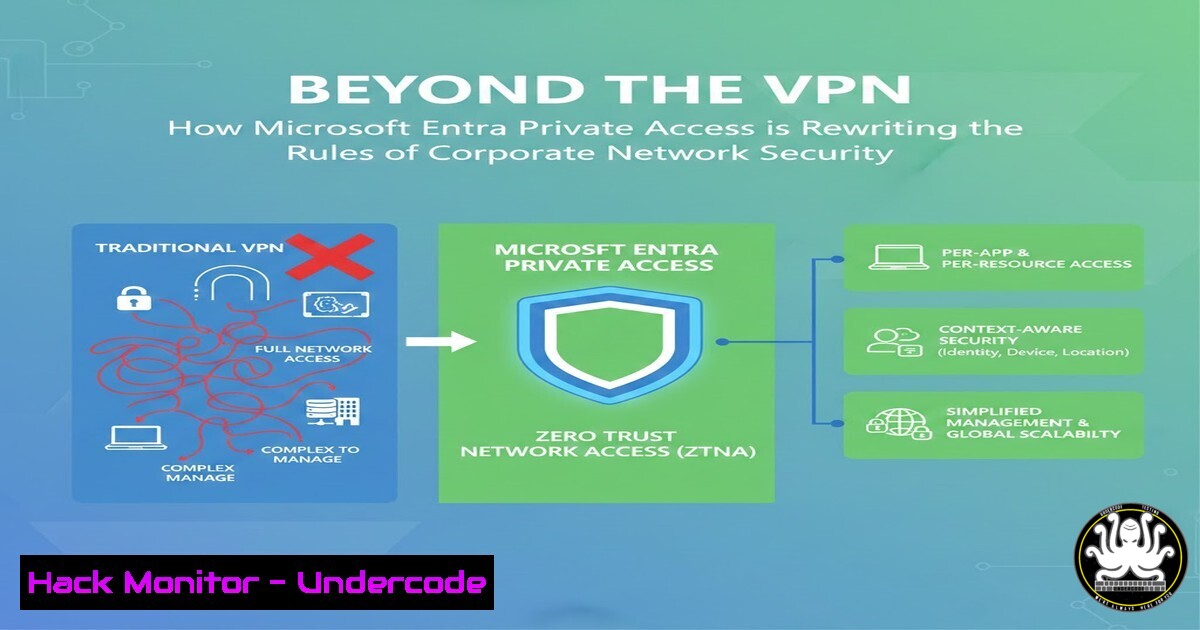
The traditional corporate network perimeter has dissolved, replaced by a hybrid workforce accessing applications from anywhere. While VPNs have been the standard remote access tool for decades, they often grant excessive network-level access, creating a large attack surface. Microsoft Entra Private Access addresses this by applying Zero Trust principles, enabling seamless, secure connectivity to specific internal resources without the need for a full network tunnel.
Learning Objectives:
- Understand the fundamental shift from VPN-based network access to Zero Trust application access.
- Learn the core components and architecture of Microsoft Entra Private Access.
- Gain practical knowledge for configuring connectors, defining policies, and integrating with Conditional Access.
You Should Know:
- The Architecture: Connectors, Gateways, and the Endpoint Agent
Microsoft Entra Private Access creates a secure overlay network. The key components are the Entra Internet-Access Gateway (cloud service), lightweight Connectors deployed inside your network, and the Entra Internet-Access agent on user devices. Traffic is proxied through the gateway to the connector, which then communicates with the target resource, all encrypted and authenticated.
Step‑by‑step guide explaining what this does and how to use it.
Step 1: Deploy the Connector. In the Microsoft Entra admin center, navigate to Protection > Private Access > Connectors. Create a new connector group and download the Connector installer (a Windows executable or Docker container).
Step 2: Install the Connector. Run the installer on a Windows Server (or deploy the container) within your on-premises or IaaS network. It will automatically register with the Entra service. Use PowerShell to verify the service is running:
Get-Service "Entra Internet Access Connector"
Step 3: Configure Target Resources. Define the internal applications by FQDN or IP address range. The connector will discover and advertise these resources to the Entra service.
2. Configuring Application Definitions and Access Policies
This is where you move from network-level to application-level access. Instead of granting access to a subnet, you grant access to `hr-app.corp.local:443` or 192.168.1.50/32.
Step‑by‑step guide explaining what this does and how to use it.
Step 1: Define a Private Application. In the Private Access section, go to Applications > + Add. Provide a name, description, and the internal FQDN (e.g., fileserver.corp.local). You can specify specific ports (TCP 445 for SMB, TCP 3389 for RDP).
Step 2: Create an Access Policy. Navigate to Policies > Access Policies. Create a new policy targeting the “Private Access” traffic type.
Step 3: Assign Users/Groups. Under “Assignments,” select the users or groups (e.g., “Finance Team”) who need access.
Step 4: Define Target Resources. Under “Target resources,” select the specific private application you defined (e.g., fileserver.corp.local). This granularity ensures users only reach what they are explicitly permitted to.
- Integrating with Conditional Access for Zero Trust Enforcement
Private Access becomes powerful when combined with Conditional Access (CA) policies. You can require Multi-Factor Authentication (MFA), mandate a compliant device, or block access from high-risk locations, even for internal resources.
Step‑by‑step guide explaining what this does and how to use it.
Step 1: Create a Conditional Access Policy. In Entra ID > Protection > Conditional Access.
Step 2: Assign the Policy. Under “Cloud apps or actions,” select Private Access.
Step 3: Set Conditions and Grants. Configure your desired conditions. For example:
Condition: Device platform = “Windows” AND “macOS”.
Grant: Require device to be marked as compliant. Require MFA.
Now, access to the internal file server requires both a compliant, company-managed device and MFA, enforcing true Zero Trust.
4. Client-Side Configuration and Connection Verification
Users need the Entra Internet-Access agent, which is part of the Microsoft Entra app on Windows or can be deployed via Intune. No manual VPN connection is required; access is brokered seamlessly after authentication.
Step‑by‑step guide explaining what this does and how to use it.
Step 1: Deploy the Agent. Package and deploy the agent via Intune or have users install it from the Microsoft Store.
Step 2: User Experience. The user simply navigates to the internal URL (e.g., `https://hr-app.corp.local`). Entra ID handles authentication and routes traffic securely.
Step 3: Verify Connectivity (Windows). On the user’s endpoint, you can check the agent status and test resolution:
nslookup fileserver.corp.local
The resolution should point to an Entra gateway IP, not the internal IP, confirming traffic is being routed correctly.
5. Security Hardening and Monitoring
Deploying Private Access reduces your attack surface, but you must monitor it. Use Entra ID logs and Microsoft Sentinel to track access attempts, connector health, and policy evaluations.
Step‑by‑step guide explaining what this does and how to use it.
Step 1: Review Sign-in Logs. Filter by “Application: Microsoft Entra Private Access” to see all authentication events.
Step 2: Monitor Connector Health. In the Connectors dashboard, check status and latency. Deploy multiple connectors for high availability.
Step 3: Sentinel Integration. Create a analytics rule to alert on anomalous access patterns, such as a user attempting to access numerous private resources in a short time frame, which could indicate credential compromise.
What Undercode Say:
- The End of the Network-Centric Perimeter: Entra Private Access fundamentally decouples access from network location. Security is applied per-application, per-user, and per-session, which is a more robust model than trusting anyone on the VPN subnet.
- Operational Simplicity is a Force Multiplier: Eliminating VPN client management, IP address conflicts, and split-tunnel dilemmas reduces IT overhead and improves the user experience, making strong security easier to adopt than weak security.
This evolution from VPNs to Zero Trust network access (ZTNA) is not incremental; it’s architectural. Entra Private Access, as part of Microsoft’s broader Secure Service Edge (SSE) offering, represents the convergence of network security and identity. It acknowledges that the user and their device are the new perimeter.
Prediction:
Within three years, VPNs will be relegated to legacy, niche use cases for most enterprises, similar to the fate of physical hardware security tokens for broad user authentication. The integration of ZTNA like Entra Private Access with AI-driven identity protection (via Entra ID) and cloud security posture management will create autonomous security systems. These systems will not only provide access but will continuously evaluate risk, dynamically adjusting permissions or isolating sessions in real-time based on user behavior, device telemetry, and threat intelligence, rendering static firewall rules and VPN pools obsolete.
▶️ Related Video (76% Match):
🎯Let’s Practice For Free:
IT/Security Reporter URL:
Reported By: Sathish Veerapandian – Hackers Feeds
Extra Hub: Undercode MoN
Basic Verification: Pass ✅


