Listen to this Post
Introduction:
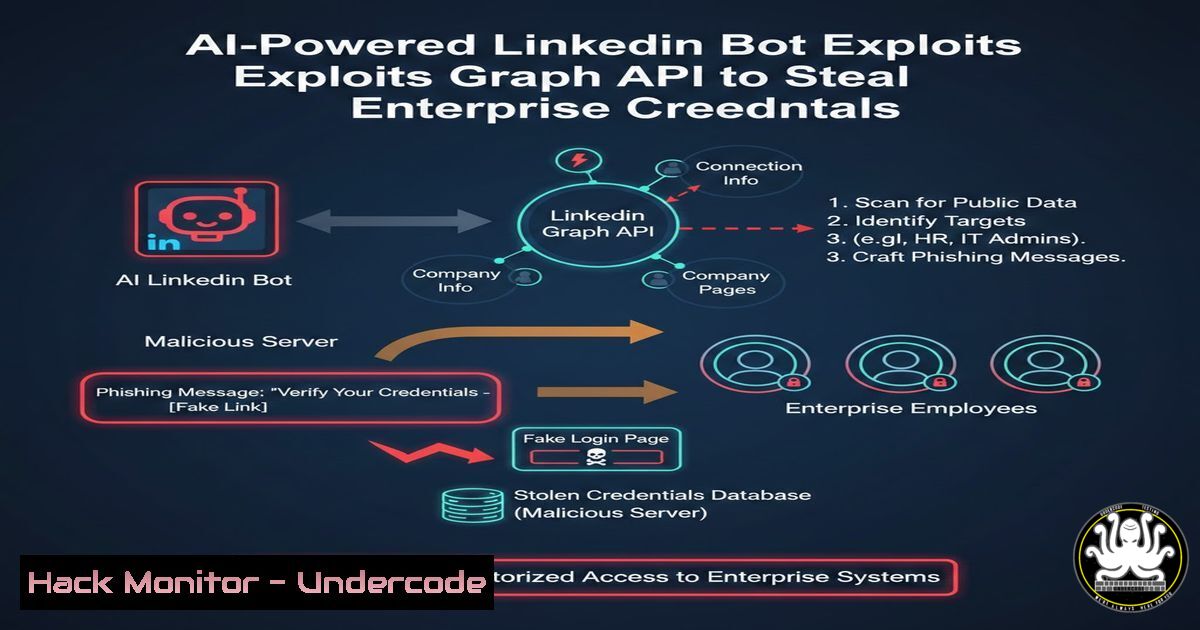
Cybercriminals are now weaponizing AI-driven bots on LinkedIn to automate spear-phishing at scale. These bots scrape profile data, engage in natural conversations, and ultimately trick victims into handing over corporate credentials or installing malware. By abusing LinkedIn’s legitimate API endpoints and combining them with large language models (LLMs), attackers bypass traditional email filters and target employees directly on a platform they trust.
Learning Objectives:
- Understand how AI bots automate reconnaissance and social engineering on LinkedIn.
- Learn to analyze malicious Graph API requests used by these bots.
- Master defensive commands to detect and block bot traffic on Linux and Windows.
- Identify indicators of compromise (IoCs) in browser developer tools and network logs.
- Implement mitigation strategies including conditional access policies and endpoint hardening.
You Should Know:
- Anatomy of the Attack: How the AI Bot Operates
The attack begins with a compromised or fake LinkedIn account. The bot uses Selenium or Puppeteer to automate profile visits, but modern variants call LinkedIn’s internal Graph API directly to extract data faster and avoid detection.
What happens under the hood:
- The bot authenticates using stolen session cookies or OAuth tokens.
- It sends POST requests to endpoints like `https://www.linkedin.com/voyager/api/graphql` with queries to fetch email addresses, employment history, and connections.
- It then feeds this data to an LLM (like GPT) to generate personalized messages that reference recent company news or mutual connections.
Step‑by‑step guide to inspecting malicious API calls:
- Open Chrome Developer Tools (F12) on a LinkedIn profile page.
- Go to the Network tab and filter by
XHR. - Look for requests to `graphql` or
voyager. A legitimate request will have variables likeprofileUrn. - A malicious bot will show repetitive, automated calls with rapid timing and identical user-agent strings.
- To simulate this from Linux, you can test with cURL:
curl -H "csrf-token: YOUR_TOKEN" \
-H "cookie: JSESSIONID=..." \
-X POST https://www.linkedin.com/voyager/api/graphql \
--data '{"query":"query MemberBadges...","variables":{"profileUrn":"urn:li:member:12345"}}'
Note: This is for educational analysis only. Unauthorized scraping violates LinkedIn’s ToS.
2. Extracting Credentials via Fake Login Pages
After establishing trust, the bot sends a link to a clone of LinkedIn’s login page, hosted on a compromised server. The page captures the victim’s email and password, then redirects to a legitimate site.
How to analyze the fake page and extract attacker infrastructure:
– On Windows, use `nslookup` to check the domain:
nslookup malicious-link.com
– On Linux, use `whois` and dig:
whois malicious-link.com | grep -i "registrar|name server"
dig malicious-link.com +short
– Check SSL certificate details:
openssl s_client -connect malicious-link.com:443 -showcerts </dev/null 2>/dev/null | openssl x509 -text | grep "Subject:|DNS:"
– Use `curl` to inspect server headers:
curl -I https://malicious-link.com
3. Network-Level Detection with Linux Tools
To identify bot traffic on your corporate network, capture and analyze packets for unusual LinkedIn API calls.
Monitor traffic using tcpdump:
sudo tcpdump -i eth0 -s 0 -A 'host www.linkedin.com and tcp[((tcp[12:1] & 0xf0) >> 2):4] = 0x504f5354'
This captures POST packets to LinkedIn. Save to a file for deeper inspection:
sudo tcpdump -i eth0 -w linkedin_traffic.pcap -s 0 'host www.linkedin.com'
Then analyze with `tshark`:
tshark -r linkedin_traffic.pcap -Y "http.request.method==POST" -T fields -e http.request.uri -e http.user_agent
Look for repeated user-agents like `python-requests` or `HeadlessChrome`.
4. Hardening Windows Endpoints Against the Bot
If a user clicks the malicious link, the bot may attempt to download a payload. Use Windows Defender and AppLocker to block unknown executables.
Block execution from AppData/Local/Temp (common dropper location):
New-NetFirewallRule -DisplayName "Block Temp Outbound" -Direction Outbound -Program "%USERPROFILE%\AppData\Local\Temp\" -Action Block
Use PowerShell to scan for recently created processes from Office apps (phishing often uses macros):
Get-WinEvent -FilterHashtable @{LogName='Security'; ID=4688} | Where-Object { $_.Properties[bash].Value -match "WINWORD.EXE|EXCEL.EXE" } | Select-Object TimeCreated, Message
5. API Security: Protecting Your GraphQL Endpoints
The bot abuses LinkedIn’s API, but the same technique applies to corporate GraphQL APIs. Implement rate limiting and query depth analysis.
Example rate limiting with Nginx:
limit_req_zone $binary_remote_addr zone=linkedin_api:10m rate=10r/m;
server {
location /graphql {
limit_req zone=linkedin_api;
proxy_pass http://backend_graphql;
}
}
On the application side, validate query complexity using a library like `graphql-cost-analysis` in Node.js:
import costAnalysis from 'graphql-cost-analysis';
const validationRules = [
costAnalysis({
maximumCost: 1000,
variables: req.body.variables,
onComplete: (cost) => { console.log(<code>Query cost: ${cost}</code>); }
})
];
6. Cloud Hardening: Detecting Compromised Credentials
If the bot steals Azure AD or AWS credentials, it will attempt to authenticate from unusual IPs. Set up alerts in your cloud environment.
In AWS CloudTrail, search for `consolelogin` events from new locations:
aws cloudtrail lookup-events --lookup-attributes AttributeKey=EventName,AttributeValue=ConsoleLogin --query 'Events[?UserIdentity.arn!=<code>arn:aws:iam::123456789012:root</code>]'
In Azure, use KQL in Sentinel to find logins from Tor exit nodes:
SigninLogs
| where IPAddress in ((getipinfo_tor_exit_nodes)())
| extend Geo = geo_info_from_ip_address(IPAddress)
| project UserPrincipalName, IPAddress, Geo, AppDisplayName, Status
7. Mitigation: Multi-Factor Authentication and Conditional Access
The most effective defense against credential theft is requiring FIDO2 security keys or number matching in MFA. Configure conditional access policies to block logins from anonymized networks.
Azure AD Conditional Access policy via PowerShell:
Connect-MgGraph
$params = @{
displayName = "Block non-compliant devices"
state = "enabled"
conditions = @{
locations = @{
includeLocations = @("All")
excludeLocations = @("TrustedIPs")
}
}
grantControls = @{
builtInControls = @("mfa")
operator = "OR"
}
}
New-MgIdentityConditionalAccessPolicy -BodyParameter $params
What Undercode Say:
- Key Takeaway 1: AI-powered social engineering on professional networks is no longer theoretical. Attackers automate reconnaissance and conversation, drastically increasing the success rate of phishing campaigns.
- Key Takeaway 2: Defenders must monitor for API abuse and anomalous traffic patterns at both network and application layers. Standard email filters are blind to these attacks.
- Analysis: This evolution shows that trust in platform-native messaging is eroding. Enterprises must treat LinkedIn messages with the same suspicion as external emails. The use of legitimate API endpoints makes detection difficult without deep packet inspection or behavior analytics. Organizations should enforce phishing-resistant MFA immediately, as credentials are the primary target. Additionally, training should now include scenarios where a seemingly legitimate connection suddenly sends a suspicious link after days of normal conversation—the new “long con” attack vector.
Prediction:
In the next 12–18 months, we will see a surge in AI-powered bots that not only scrape data but also generate deepfake voice messages or video calls to further authenticate the scam. LinkedIn and similar platforms will be forced to implement stronger bot detection using behavioral biometrics, while enterprises will adopt browser isolation for all third-party messaging platforms accessed on corporate devices.
▶️ Related Video (82% Match):
🎯Let’s Practice For Free:
IT/Security Reporter URL:
Reported By: Greg Coquillo – Hackers Feeds
Extra Hub: Undercode MoN
Basic Verification: Pass ✅


